
You type “hello” and get “helllo”. You press the space bar once and two spaces appear. Or one key seems to fire twice at random while every other key behaves perfectly. This annoying fault is called keyboard chatter (or double typing), and it is one of the most common problems with mechanical keyboards.
The good news: chatter is usually caused by dust, a dirty or worn switch, a loose hot-swap switch or debounce settings that are too short, and most cases can be fixed at home in a few minutes. This guide explains what chatter actually is, how to confirm you have it, and the fixes to try in order, from the free and easy to the last resort.
What is keyboard chatter?
Keyboard chatter is when a single key press is registered as two or more keystrokes. It can also show up as a key that repeats on release, or a key that occasionally sends a stray character when you barely touched it.
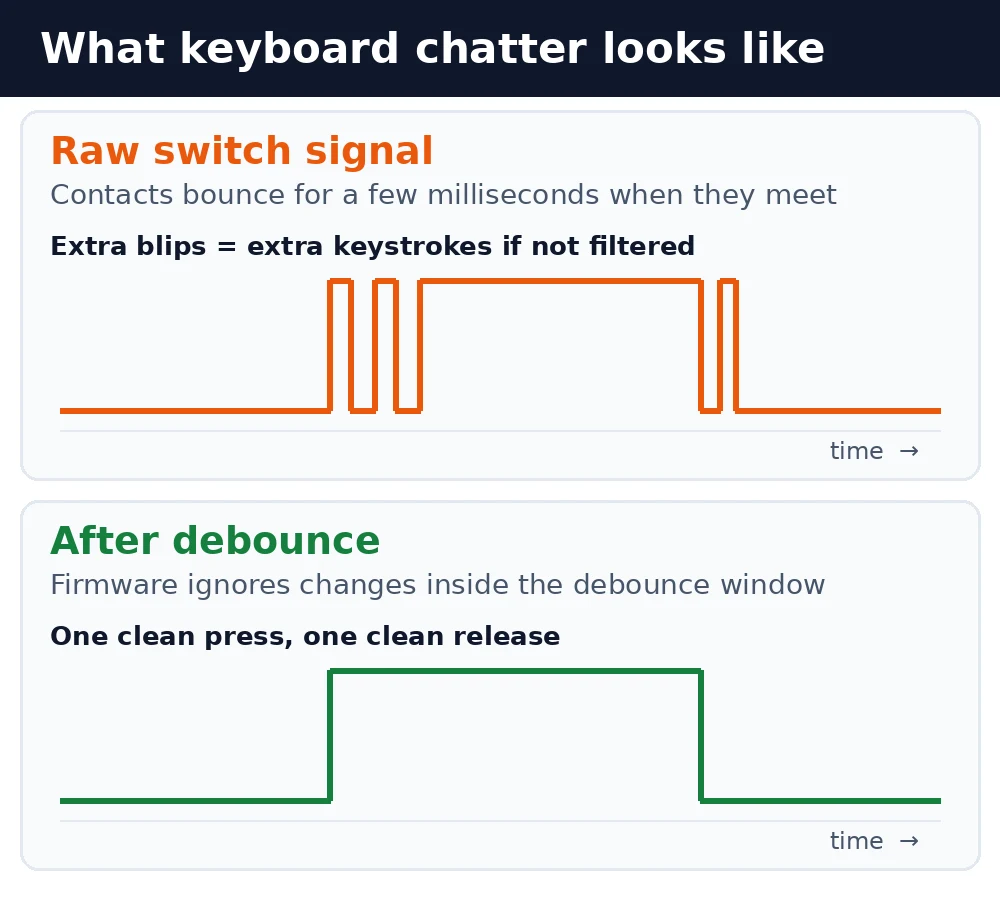
To understand why it happens, it helps to know how a mechanical keyboard reads a key press. Inside most mechanical switches, such as Cherry MX and its many clones, two small metal contacts touch when you press the key, completing a circuit. Metal contacts do not meet cleanly, though. For a brief moment they physically bounce against each other, so the electrical signal flickers on and off several times before it settles.
The QMK firmware documentation describes this as contact bounce: real switches show multiple on-off transitions before settling, and the settling time can vary with the switch type, its age and even how you press it. If the keyboard did nothing about it, every press would be read as several. So every keyboard runs a debounce routine that ignores further changes for a few milliseconds after the first one.
Chatter happens when the bouncing lasts longer than the debounce window, or when something else (dirt, a loose contact, a bad solder joint) makes the signal flicker during a normal press. The firmware then sees two separate presses and types the character twice.
Chatter vs ghosting vs key repeat
Several different faults get called “double typing”, so it is worth ruling out the look-alikes before you start taking things apart:
| Problem | What you see | Usual cause |
|---|---|---|
| Chatter | One press types 2+ times | Bouncing or dirty switch contacts |
| Ghosting | A key you didn’t press appears | Matrix limits on cheap boards |
| Key rollover limit | Keys missing when pressed together | Low key rollover |
| Key repeat | Held key repeats too soon | OS repeat delay set short |
| Wireless lag | Stuck or repeated keys at random | Weak signal or low battery |
Ghosting and rollover are explained in our guide to keyboard ghosting and N-key rollover. If the problem only happens on a wireless connection and disappears with a cable, see how to fix common wireless keyboard problems first.
How to confirm a key is chattering
Before fixing anything, find out exactly which keys are affected and how often. A minute of testing saves a lot of guesswork.
- Use a text editor. Open Notepad or any plain-text app and tap the suspect key slowly 50 times, one press at a time. Count the characters. More than 50 means it is chattering.
- Use an online key tester. Keyboard tester websites highlight every key event, which makes doubled presses easy to spot, including on modifier keys like Shift that don’t type anything.
- Try light and firm presses. Some switches only chatter on a soft, partial press or when you hit them at an angle.
- Try another computer or port. If the same key doubles everywhere, the fault is in the keyboard, not the PC.
Make a note of which keys chatter. One or two keys points to those individual switches. Lots of keys at once points to settings, firmware or a wider problem.
What causes keyboard chatter?
1. Dust, crumbs and debris
The most common cause. Dust, pet hair or a crumb inside a switch can stop the contacts from closing cleanly, so they flicker. Spills are worse: dried drinks leave a sticky film that interferes with the contacts and the moving stem.
2. Worn or oxidised contacts
Switch contacts are rated for tens of millions of presses, but the most-used keys (space bar, E, A, backspace) wear first. Humidity can also oxidise the contacts over time. Either way, the contacts take longer to settle and start to bounce beyond the debounce window.
3. A debounce time that is too short
Some gaming keyboards advertise very low debounce times for faster response. That is fine with new switches, but as switches age, a short window may no longer cover their bounce. On boards running QMK, the default debounce time is 5 milliseconds.
4. A loose or bent hot-swap switch
On a hot-swappable keyboard, the switch pins push into sockets instead of being soldered. If a switch is not fully seated, has a slightly bent pin or the socket has loosened, the connection can flicker during a press.
5. Firmware bugs or a damaged PCB
Less often, chatter comes from a firmware bug, a cracked solder joint or a damaged trace on the circuit board. These usually affect several keys or appear suddenly after a drop or spill.
How to fix keyboard chatter, step by step
Work through these in order. Start with the free, low-risk fixes and only move on if the key still doubles.
Step 1: Update the firmware and check the software
Check the manufacturer’s support page for a firmware update. Brands regularly release updates that adjust debounce handling or fix bugs. If your keyboard has companion software, look for a debounce time or input delay setting and try a slightly higher value. Also remove any macro or key-repeat setting you may have changed.
Step 2: Clean the switch
Unplug the keyboard (or switch it off), pull the keycap from the affected key with a keycap puller and blow compressed air into the switch from several angles. Then press the bare switch quickly 30 to 50 times to work loose anything stuck inside. This simple step fixes a surprising number of chattering keys.
For a full clean, follow our guide on how to clean your keyboard. No compressed air? See cleaning without compressed air. The right keyboard cleaner also helps with sticky spills.
If the keycaps are already off, it is also a good moment to tackle noise. Our guide on how to make a keyboard quieter covers O-rings, stabilizer tuning, foam and desk mats.
Step 3: Reseat or swap the switch (hot-swap boards)
On a hot-swap keyboard, pull the chattering switch with a switch puller, check the two metal pins are straight, and push it firmly back in until it clicks flat against the plate. If it still chatters, swap it with a switch from a rarely used key, such as Scroll Lock. If the fault moves with the switch, the switch is bad and should be replaced. If it stays on the same position, the socket or PCB is the problem.
Step 4: Increase the debounce time (QMK and VIA boards)
If your keyboard runs QMK, the debounce time is set in the firmware. QMK’s documentation shows it can be raised in config.h, for example #define DEBOUNCE 10, and you can also choose a different debounce algorithm. Rebuilding and flashing firmware takes some care, so only do this if you are comfortable with it. Raising the value by a few milliseconds is usually enough; very high values can make fast double letters drop.
Step 5: Use Windows Filter Keys as a temporary fix
Windows 11 has a built-in accessibility feature that can hide chatter. Go to Settings > Accessibility > Keyboard > Filter keys, turn it on and enable Ignore unintended keystrokes (also called bounce keys). This makes Windows wait for a set time before accepting a repeated press of the same key.
It works, but it applies to every key and can swallow genuine double letters if you type quickly. Treat it as a stop-gap while you fix or replace the switch. Note that the separate Ignore quick keystrokes option (slow keys) does something different: it makes you hold each key before it registers.
Step 6: Replace the switch or claim the warranty
If cleaning and reseating don’t help, the switch contacts are probably worn. On a hot-swap board, replacing the switch is quick and cheap. On a soldered board you will need to desolder it, which is a job for someone with a soldering iron and some experience. If the keyboard is still under warranty, contact the manufacturer before opening it, since chatter on a new keyboard is a common warranty claim.
Which fix should you try? Quick reference
| Symptom | Most likely cause | Try first |
|---|---|---|
| One key, new board | Debris or faulty switch | Clean, then warranty |
| One key, old board | Worn contacts | Clean, then replace switch |
| Many keys at once | Debounce or firmware | Update firmware |
| After a spill | Residue on contacts | Unplug, dry, deep clean |
| Hot-swap board | Loose switch | Reseat and swap test |
How to prevent chatter
- Keep food and drinks away from the keyboard, or at least use a lidded cup.
- Clean regularly. A quick blast of compressed air every few weeks stops debris building up inside the switches.
- Cover it when not in use if your desk is dusty.
- Keep spare switches if you use a hot-swap board, so a bad switch takes a minute to replace.
- Leave the debounce setting alone unless you have a good reason to lower it.
Are Hall effect and optical keyboards immune to chatter?
Largely, yes. Hall effect (magnetic) switches detect the position of a magnet in the stem, and optical switches detect a light beam being blocked. Neither relies on two metal contacts touching, so they don’t suffer from contact bounce in the first place. That is one reason magnetic boards can offer adjustable actuation and very fast response, as covered in our guide to rapid trigger and Hall effect keyboards.
They can still have other faults, such as sensor calibration problems or firmware bugs, but the classic chatter of a worn contact switch is not one of them. If chatter keeps coming back on your current board, a contactless keyboard is worth considering for your next one.
Frequently asked questions
Is keyboard chatter a hardware or software problem?
Usually hardware: dirt, worn contacts or a loose switch. Software and firmware matter because the debounce setting decides how much bouncing is filtered out, so a firmware update or longer debounce time can hide a borderline switch.
Can a new keyboard chatter?
Yes. A switch can be faulty from the factory or have debris inside from manufacturing. If a new keyboard chatters, contact the seller or manufacturer for a replacement rather than opening it up.
Will lubing switches fix chatter?
Not reliably. Lube makes switches smoother and quieter, but it should be kept off the metal contacts. Getting lube on the contact leaf can actually cause problems. See our guide on how to lube keyboard switches for where lube should and shouldn’t go.
Does a higher polling rate cause chatter?
No. Polling rate is how often the keyboard reports to the computer, not how it reads the switch. Chatter comes from the switch signal itself. Our keyboard polling rate guide explains the difference.
Why does only my space bar double type?
The space bar is the most-pressed key on the board, so its switch wears fastest and collects the most debris. It is also wide, so off-centre presses can make the switch bind slightly. Clean it first; if that fails, replace the switch.
The bottom line
Keyboard chatter happens when a switch’s contacts bounce or flicker for longer than the keyboard’s debounce window, turning one press into two. Start with the easy fixes: update the firmware, clean the switch with compressed air and reseat it if your board is hot-swappable. If the key still doubles, raise the debounce time, use Windows bounce keys as a temporary patch, and replace the switch or claim the warranty. Most chattering keys can be saved, and if not, a new switch is a small price compared with a new keyboard.
