
Keyboard Gear earns from qualifying purchases through Amazon links.
A trackball mouse flips the usual idea of a mouse around: the body stays still and you roll a ball with your thumb or fingers to move the cursor. Your arm and wrist barely move, which makes trackballs popular with people who have shoulder or wrist discomfort, small desks, or long days of precise work. This guide compares the seven best trackball mice on Amazon US, from a budget Nulea to Logitech’s MX Ergo S and Kensington’s big-ball classics.
We checked each Amazon product page for availability on November 18, 2026 (Asia/Karachi) and cross-checked specs against the listings and manufacturer information. Prices change often, so use the Check Price buttons for live figures. If you are still deciding between ergonomic styles, our best vertical mice guide covers the other main option.
Quick picks
- Best overall: Logitech MX Ergo S
- Best value: Logitech Ergo M575S
- Best large ball: Kensington Expert Mouse Wireless
- Best rechargeable ambidextrous: Kensington SlimBlade Pro
- Best finger trackball: ELECOM HUGE Wireless
- Best 3-way connection: ELECOM DEFT PRO
- Best budget: Nulea M501
At a glance: best trackball mice compared
| Product | Best for | Key specs | Price |
|---|---|---|---|
1 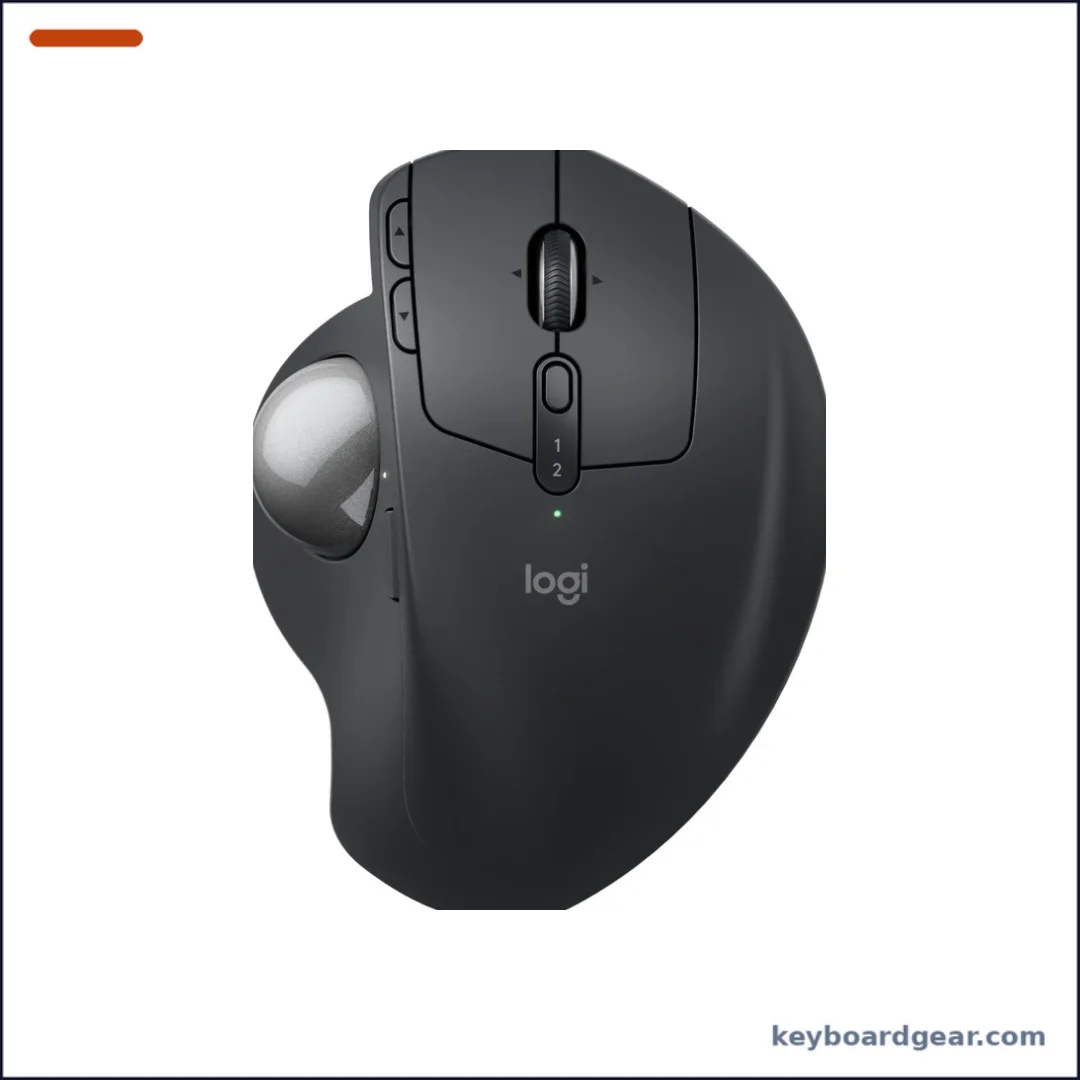 Logitech MX Ergo S |
Best overall |
|
Check Price |
2 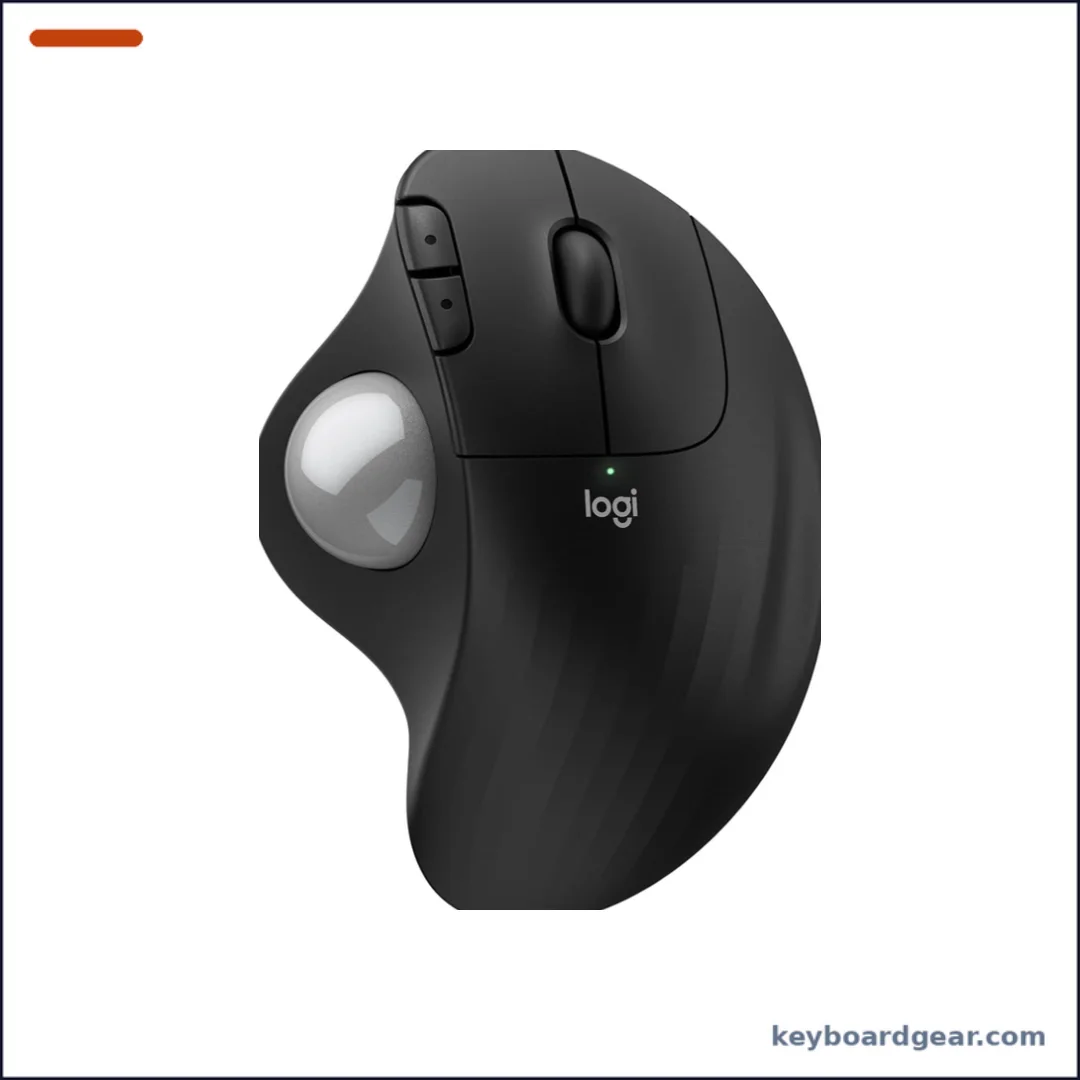 Logitech Ergo M575S |
Best value |
|
Check Price |
3 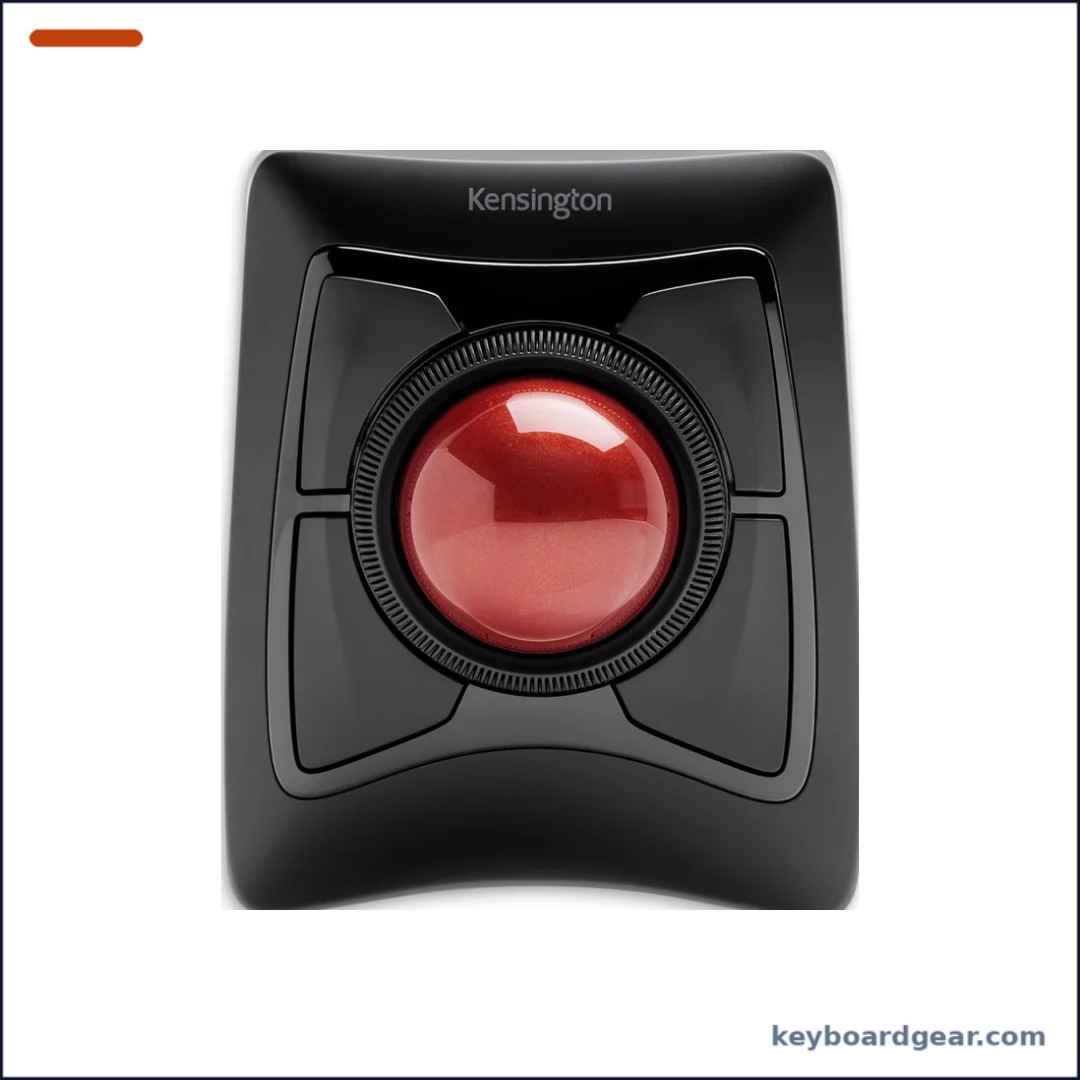 Kensington Expert Mouse Wireless |
Best large ball |
|
Check Price |
4 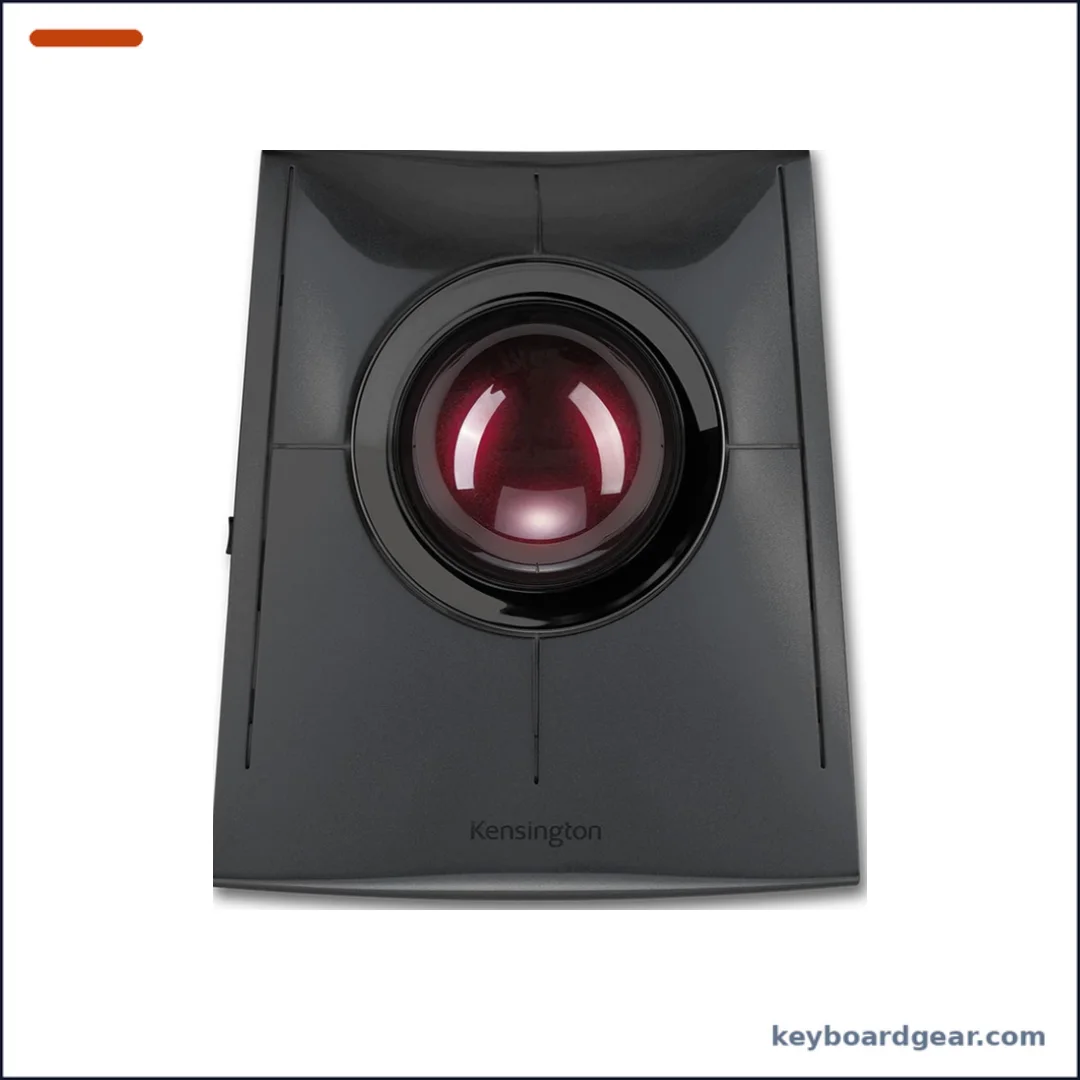 Kensington SlimBlade Pro |
Best rechargeable ambidextrous |
|
Check Price |
5 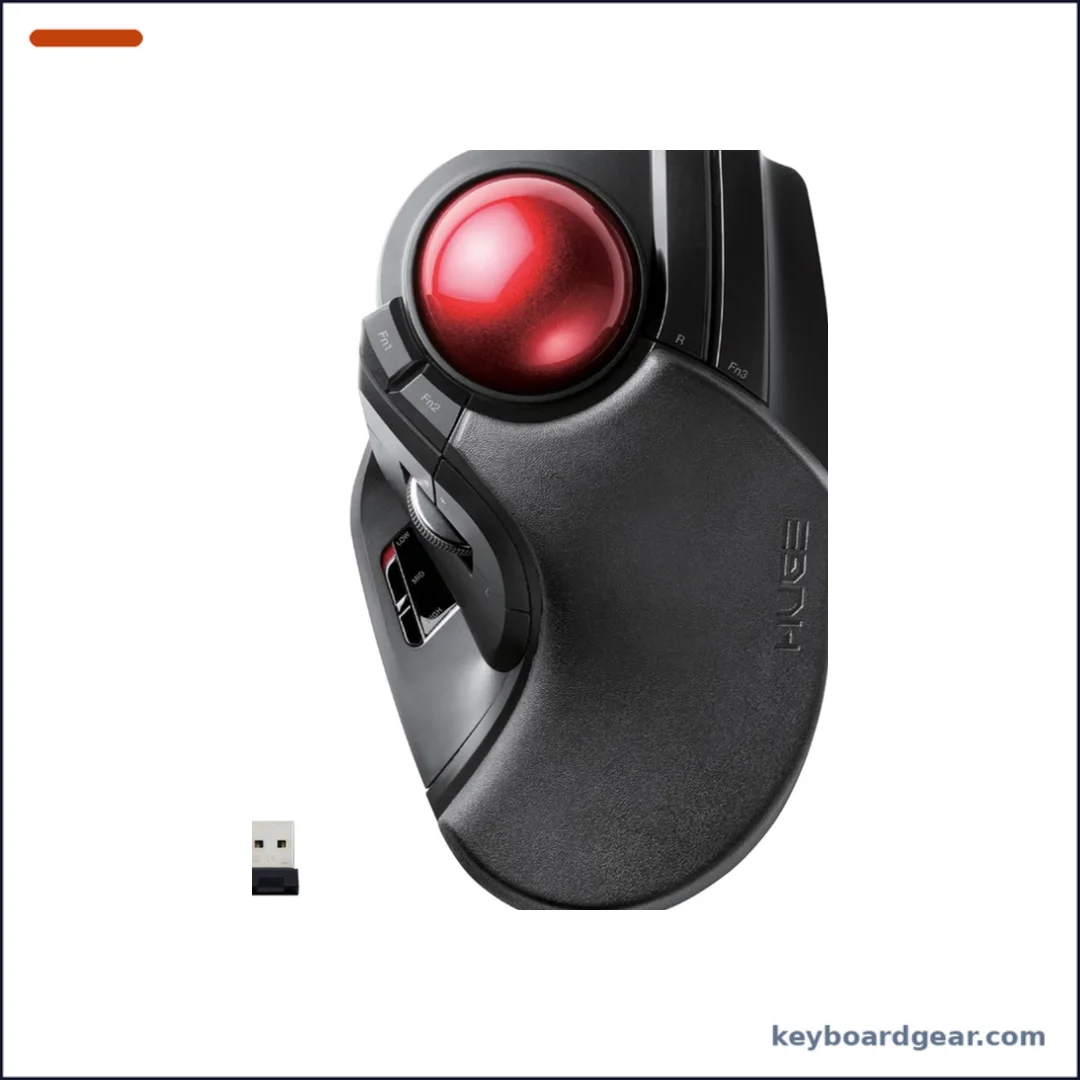 ELECOM HUGE Wireless |
Best finger trackball |
|
Check Price |
6 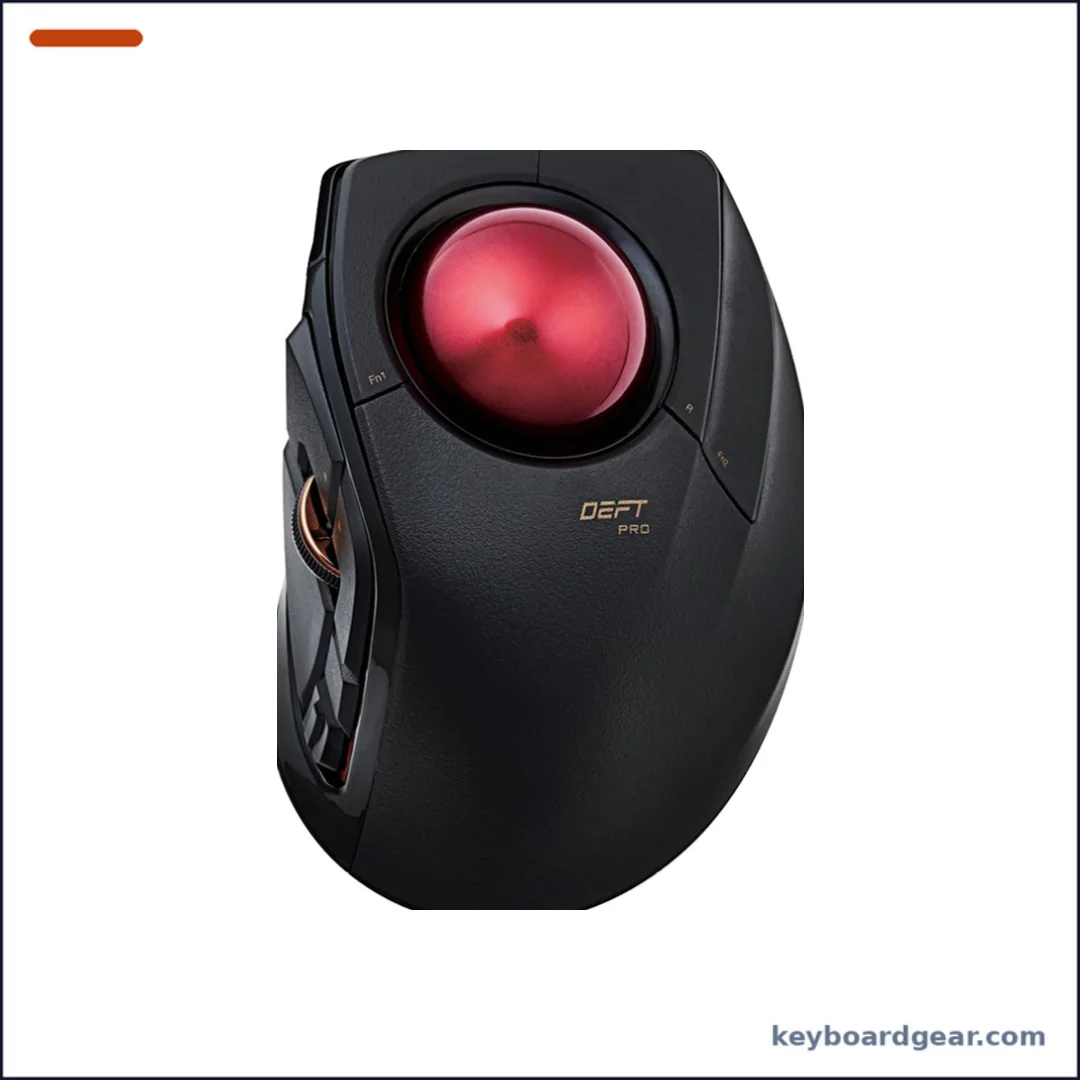 ELECOM DEFT PRO |
Best 3-way connection |
|
Check Price |
7 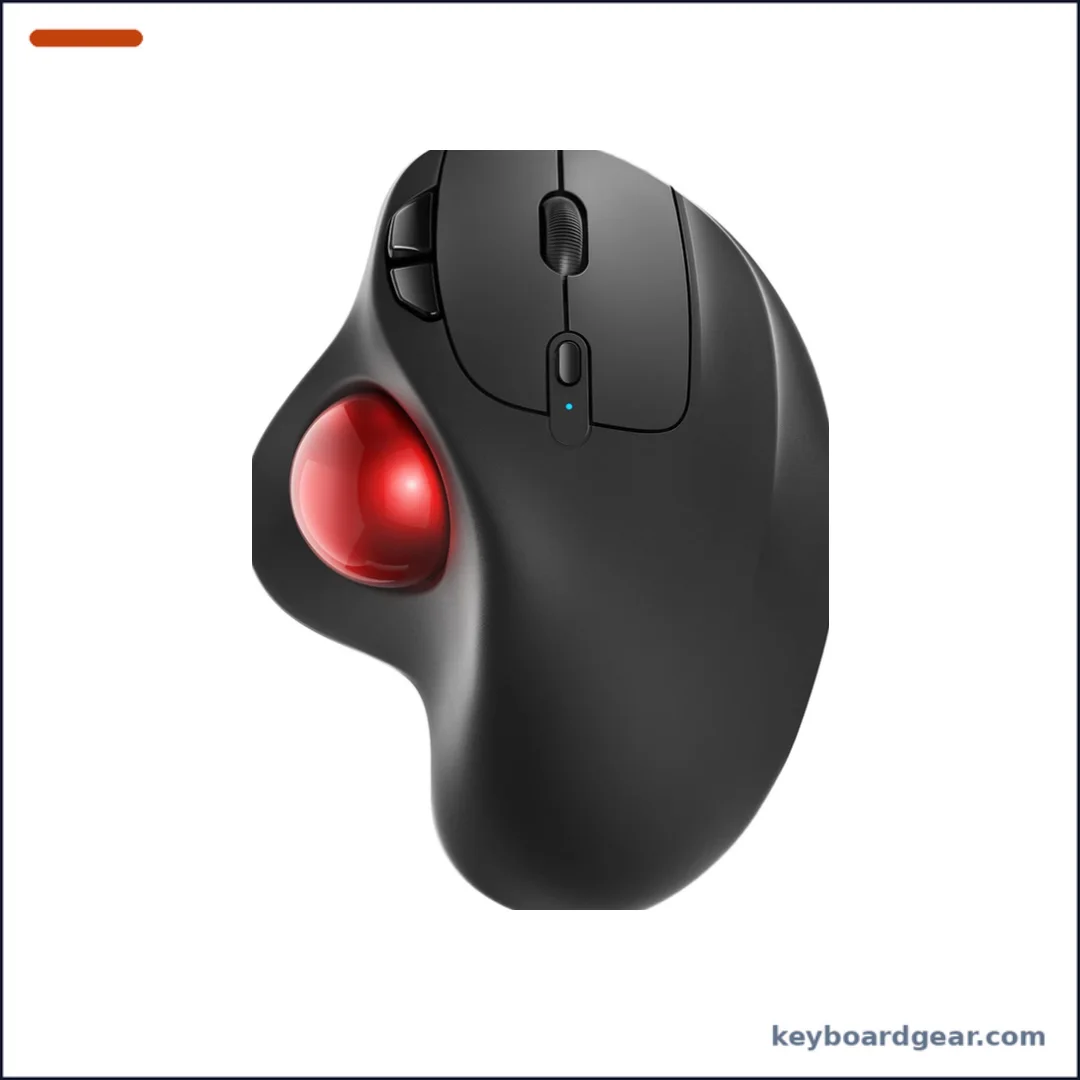 Nulea M501 |
Best budget |
|
Check Price |
Thumb vs finger trackballs: which type is right for you?
Before looking at individual models, decide which style of trackball you want. It matters more than any single spec.
Thumb trackballs (Logitech MX Ergo S, ERGO M575S, Nulea M501) look like a normal mouse with a ball on the side. Your fingers rest on the buttons and your thumb moves the cursor. They are the easiest to get used to, but they are right-handed only and put the work on one thumb.
Finger trackballs (Kensington Expert Mouse, SlimBlade Pro, ELECOM HUGE and DEFT PRO) place the ball under your index and middle fingers, or in the center for your whole fingertips. They spread movement across stronger fingers and usually give finer control, which is why designers and CAD users like them. The large-ball Kensington models are also ambidextrous.
1. Logitech MX Ergo S — best overall trackball mouse
Who it’s for: Office workers, designers and anyone with medium to large hands who wants the most refined thumb trackball and is happy to pay for it.
The MX Ergo S is the refreshed version of Logitech’s flagship thumb trackball. You roll the ball with your thumb while the rest of your hand rests on a sculpted, rubber-gripped shell, so your arm and wrist barely move. A built-in hinge lets you tilt the mouse up to 20 degrees, which Logitech says improves forearm posture and reduces muscle strain by 27% compared with a standard mouse.
The S update brings the things that were missing from the original: it now charges over USB-C, clicks are 80% quieter according to Logitech, and it connects through Bluetooth or the included Logi Bolt receiver with an Easy-Switch button to jump between computers. A one-minute charge gives up to 24 hours of use, and a full charge is rated for up to 120 days.
A dedicated precision-mode button next to the ball drops the cursor speed instantly for careful work such as photo retouching or selecting a single cell in a spreadsheet. Six buttons can be customized in Logi Options+. The main limitation is size: Logitech designs it for medium to large hands, so smaller hands may find the reach to the scroll wheel a little long. Note that a USB-C cable is not included in the box.
Key specs: Thumb-operated trackball; adjustable 0°/20° tilt; precision-mode button; 6 customizable buttons in Logi Options+; quiet clicks; Bluetooth or Logi Bolt receiver with Easy-Switch; rechargeable via USB-C (up to 120 days per charge, 1-minute charge = up to 24 hours).
- 20° tilt for a more natural forearm angle
- USB-C charging with long battery life
- Precision-mode button for fine work
- Quiet clicks and premium build
- Expensive for a thumb trackball
- Best for medium to large hands
- USB-C cable not included
2. Logitech Ergo M575S — best value trackball
Who it’s for: First-time trackball buyers who want a proven thumb trackball from a major brand without paying flagship prices.
The ERGO M575S is the easiest trackball to recommend for most people. It uses the same thumb-ball idea as the MX Ergo S in a simpler, lighter package, and Logitech says its shape gives 25% less muscle strain in the forearm than a standard mouse. It was developed with the Logi Ergo Lab and certified by ergonomists, and Logitech describes it as a good fit for most hand sizes.
This S version adds quiet clicks and switches to the Logi Bolt receiver, while still supporting Bluetooth. A single AA battery (included) is rated for up to 18 months, so you can forget about charging. Three buttons can be customized in the Logi Options+ app, where you can also adjust cursor speed to suit the ball.
You lose the tilt hinge, precision button and multi-device switching of the MX Ergo S, but for everyday browsing, email and office work the M575S feels just as natural and costs far less. Because the ball does the moving, it works on a cramped desk, a sofa arm or a lap tray—handy if you are also short on space for a mouse pad.
Key specs: Thumb-operated trackball; 3 customizable buttons in Logi Options+; quiet clicks; Bluetooth or Logi Bolt USB receiver; 1× AA battery included, up to 18 months; shell uses certified post-consumer recycled plastic.
- Comfortable shape that suits most hands
- Up to 18 months on one AA battery
- Quiet clicks
- Great price for a Logitech trackball
- No tilt adjustment
- Only three customizable buttons
- Not rechargeable
3. Kensington Expert Mouse Wireless — best large-ball trackball
Who it’s for: Left-handed users, people who share a desk, and anyone who prefers to steer a big ball with their fingertips instead of their thumb.
The Expert Mouse is a long-running classic. Instead of a thumb ball, it has a large 55 mm ball in the center that you move with your fingers, plus a patented scroll ring around the ball for scanning up and down long pages. Because the layout is symmetrical, it works equally well for right- and left-handed users.
Four buttons sit around the ball, and you can customize them along with scroll and cursor speed in the KensingtonKonnect software (Windows ARM computers are not supported yet, according to Kensington). It connects with built-in Bluetooth LE or the included 2.4 GHz USB dongle and runs on two AA batteries, also included, with an auto-sleep mode to save power.
A detachable wrist rest supports your hand during long sessions. The Expert Mouse is large on the desk, and moving a big ball with your fingers takes a few days to learn, but many CAD users and spreadsheet power users swear by the precision. Kensington lists compatibility with Windows, macOS 10.14 and later, and ChromeOS, and backs it with three years of coverage.
Key specs: 55 mm ball with Diamond Eye optical tracking; scroll ring; 4 customizable buttons via KensingtonKonnect; ambidextrous; detachable wrist rest; Bluetooth LE or 2.4 GHz dongle; 2× AA batteries included; Windows, macOS 10.14+ and ChromeOS.
- Fully ambidextrous
- Large ball for precise fingertip control
- Scroll ring is fast for long documents
- Detachable wrist rest included
- Takes up a lot of desk space
- Uses AA batteries, not rechargeable
- Kensington lists Linux as not supported
4. Kensington SlimBlade Pro — best rechargeable ambidextrous trackball
Who it’s for: Minimalists and ambidextrous users who want a sleek, rechargeable big-ball trackball that connects three ways.
The SlimBlade Pro takes the big-ball concept and puts it in a low, flat body. Like the Expert Mouse, it uses a 55 mm ball that you move with your fingers, but there is no scroll ring: you scroll by twisting the ball. Dual sensors track the ball, and Kensington says this gives more accurate cursor control and scrolling with less hand and wrist movement.
Connection options are the Pro’s big upgrade. You can use Bluetooth, the included 2.4 GHz dongle (USB-A, with a USB-C adapter) or a wired USB-C connection, and the built-in battery lasts about four months per charge according to Kensington. The low-profile shape suits both right- and left-handed users.
Buttons can be programmed in the free KensingtonKonnect software (again, Windows ARM is not currently supported). The twist-to-scroll motion is love-it-or-hate-it, so if you scroll a lot, try it alongside the Expert Mouse’s ring. For desks shared between a laptop and a desktop, the three connection modes make it very flexible.
Key specs: 55 mm ball with dual sensors; twist-ball scrolling; Bluetooth, 2.4 GHz wireless and wired USB-C; rechargeable battery about 4 months per charge; low-profile ambidextrous design; programmable buttons via KensingtonKonnect.
- Rechargeable with three connection options
- Low, flat profile
- Ambidextrous
- Large ball tracks smoothly
- Twist-to-scroll takes getting used to
- No dedicated scroll wheel or ring
- Pricey
5. ELECOM HUGE Wireless — best finger-operated trackball
Who it’s for: Right-handed users with large hands who want a finger trackball with lots of buttons and a built-in palm rest.
The HUGE lives up to its name. It is a finger-operated trackball with ELECOM’s largest ball, 52 mm across, placed under your index and middle fingers, while a large soft palm rest supports the rest of your hand. That palm rest is what makes the HUGE so comfortable over long work sessions.
There are eight physical buttons plus a scroll wheel that tilts left and right for horizontal scrolling, and a switch cycles between 500, 1000 and 1500 DPI. The ball rolls on three large 2.5 mm artificial ruby bearings, which ELECOM says resist dust and need cleaning less often; you can pop the ball out through a hole in the bottom when they do.
This version uses a 2.4 GHz USB receiver and one AA battery (included), with a remaining-battery indicator. ELECOM lists the size as 114.7 × 181.9 × 57.2 mm and the weight as 9.2 oz without the battery, so it is big. It supports Windows 7 or later and macOS 10.13 or later. A wired version (B07353DBP9) is also available.
Key specs: 52 mm finger-operated ball; 8 buttons plus tilt wheel; 500/1000/1500 DPI switch; three 2.5 mm artificial ruby bearings; large palm rest; 2.4 GHz wireless; 1× AA included; 114.7 × 181.9 × 57.2 mm, 9.2 oz without battery.
- Very large ball and palm rest
- Eight buttons plus tilt wheel
- Easy to remove the ball for cleaning
- Wired and wireless versions available
- Bulky, takes up desk space
- Right-handed only
- No Bluetooth on this model
6. ELECOM DEFT PRO — best compact finger trackball with three connection modes
Who it’s for: People who want a finger trackball that is smaller than the HUGE and can switch between wired, wireless and Bluetooth.
The DEFT PRO is ELECOM’s mid-size finger trackball. It is noticeably smaller than the HUGE (ELECOM lists 3.6 × 5.3 × 2.3 inches and 5.7 oz without the battery), so it suits medium hands and smaller desks, while keeping the same 500/1000/1500 DPI options and smooth ruby bearings.
Its standout feature is connectivity. One button switches between Bluetooth, the wireless USB receiver and a wired USB connection, so you can pair it with a tablet, a laptop and a desktop. In wired mode it draws power from the computer, so a flat battery never stops you working.
There are eight physical buttons and a tilting wheel for a total of ten functions, all customizable in ELECOM’s Mouse Assistant software. ELECOM lists support for Windows 7 or later and macOS 10.13 or later. Like most finger trackballs, it is right-handed only.
Key specs: Finger-operated red ball on ruby bearings; 8 buttons plus tilt wheel (10 functions); 500/1000/1500 DPI; wired, 2.4 GHz wireless and Bluetooth; Mouse Assistant software; 3.6 × 5.3 × 2.3 in, 5.7 oz without battery.
- Wired, wireless and Bluetooth in one
- More compact than the HUGE
- Ten customizable functions
- Ruby bearings are easy to clean
- Right-handed only
- Smaller ball than big-ball trackballs
- Mouse Assistant software is basic
7. Nulea M501 — best budget trackball
Who it’s for: Budget buyers who want to try a thumb trackball, or need a cheap rechargeable one for a second desk or travel bag.
The Nulea M501 is a popular low-cost thumb trackball with a shape similar to Logitech’s. You get a smooth thumb-operated ball, forward and back buttons, and four DPI levels to set the pointer speed.
It costs much less than the Logitech models yet adds features you might not expect at this price: a built-in rechargeable battery and the ability to connect up to three devices over Bluetooth or the included USB receiver, which is stored in the bottom of the mouse. Nulea advises charging it from a computer USB port or a 5 V charger rather than a fast charger.
The compromises are in refinement. Nulea notes that none of the six buttons are programmable, and the ball and clicks do not feel as polished as Logitech’s. As a way to find out whether trackballs suit you before spending more, though, it is excellent value.
Key specs: Thumb-operated trackball; 6 buttons (not programmable); 4 DPI levels; rechargeable battery; Bluetooth or 2.4 GHz USB receiver; switch between up to 3 devices.
- Very affordable
- Rechargeable battery
- Connects to up to 3 devices
- Easy way to try a trackball
- Buttons are not programmable
- Less refined ball and clicks
- Avoid fast chargers, per Nulea
Trackball mice compared
| Trackball | Ball / control | Connection | Power | Best for |
|---|---|---|---|---|
| Logitech MX Ergo S | Thumb | Bluetooth / Logi Bolt | Rechargeable | Overall |
| Logitech Ergo M575S | Thumb | Bluetooth / Logi Bolt | 1× AA | Value |
| Kensington Expert Mouse | 55 mm, fingers | Bluetooth LE / 2.4 GHz | 2× AA | Ambidextrous, big ball |
| Kensington SlimBlade Pro | 55 mm, fingers | BT / 2.4 GHz / wired | Rechargeable | Low profile |
| ELECOM HUGE | 52 mm, fingers | 2.4 GHz | 1× AA | Large hands |
| ELECOM DEFT PRO | Fingers | Wired / 2.4 GHz / BT | See listing | Three-way connection |
| Nulea M501 | Thumb | Bluetooth / USB | Rechargeable | Budget |
How to choose a trackball mouse
1. Decide between thumb and finger control
If you are switching from a regular mouse and want the shortest learning curve, start with a thumb trackball. If you want maximum precision, have thumb discomfort, or are left-handed, choose a finger trackball. Our mouse grip styles guide explains why the way you hold a mouse changes what feels comfortable.
2. Check the ball size
Bigger balls (52–55 mm) are easier to control precisely with several fingers and have more momentum for long cursor movements. Smaller thumb balls are lighter to move but need more fine motor control. If you work on a large or multi-monitor setup, a big ball or a higher DPI setting will save effort.
3. Look at scrolling
Scrolling is where trackballs differ most. Logitech uses a normal scroll wheel. Kensington’s Expert Mouse uses a ring around the ball, while the SlimBlade Pro scrolls when you twist the ball. ELECOM uses a tilting wheel that also scrolls sideways. If you read long documents or spreadsheets, choose a scrolling style that you like.
4. Pick your connection and power
Bluetooth frees a USB port on laptops, while a USB receiver usually connects more reliably on desktops. Multi-mode models like the SlimBlade Pro and DEFT PRO can switch between computers or fall back to a cable. Rechargeable models avoid batteries, while AA models like the M575S can last more than a year. For background, read how wireless peripherals work.
5. Think about software and buttons
Extra buttons are useful for back/forward, copy/paste or app shortcuts. Logitech uses Logi Options+, Kensington uses KensingtonKonnect and ELECOM uses Mouse Assistant. Check that the software supports your operating system—Kensington, for example, says its software does not yet support Windows ARM computers.
How to get used to a trackball
Most people need a few days to a week before a trackball feels natural. Start by lowering the pointer speed so small ball movements are easy to control, then raise it gradually. Many trackball users also turn off pointer acceleration once they are comfortable; our guide to mouse acceleration explains where that setting lives. Clean the ball and its support bearings every few weeks, because skin oil and dust make tracking feel rough.
A trackball can reduce arm and shoulder movement, but it is not a medical treatment. If you have ongoing pain, see a doctor or physiotherapist. Pairing a trackball with a good keyboard setup helps too—see our best ergonomic keyboards.
Are trackballs good for gaming?
Trackballs are excellent for strategy, simulation and other slower games, and some players use them for comfort. For fast competitive shooters, a light conventional mouse is still easier to aim with. Our best gaming mouse and gaming mouse buying guide cover those options.
FAQ
What is the best trackball mouse overall?
The Logitech MX Ergo S is the best trackball mouse for most people. It has a comfortable thumb-ball design, a 20° tilt hinge, a precision-mode button and USB-C charging. If you want to spend less, the Logitech Ergo M575S gives you a very similar feel.
Are trackball mice better for your wrist?
A trackball keeps your arm and wrist still while your thumb or fingers move the ball, so many people find it reduces strain from repetitive arm movement. Logitech says the MX Ergo S reduces muscle strain by 27% and the M575S by 25% compared with a standard mouse. It is not a cure for an injury, so see a professional if pain continues.
Is a thumb or finger trackball better?
Thumb trackballs are easier to learn because they feel like a normal mouse. Finger trackballs give finer control and spread the work across stronger fingers. Left-handed users should choose an ambidextrous finger trackball such as the Kensington Expert Mouse or SlimBlade Pro.
Is there a good left-handed trackball?
Yes. The Kensington Expert Mouse and Kensington SlimBlade Pro are both ambidextrous, so they work for left-handed users. Most thumb trackballs, including the Logitech models, are right-handed only.
How long does it take to get used to a trackball?
Most people adapt within a few days to a week. Start with a lower pointer speed and increase it as your control improves.
How do you clean a trackball?
Remove the ball (ELECOM models pop out through a hole in the base), wipe it with a lint-free cloth, and clean the small support bearings or ruby balls with a cotton swab. Do this every few weeks or whenever tracking feels rough.
Final verdict
Buy the Logitech MX Ergo S for the best all-round trackball, or the Logitech Ergo M575S to get most of that comfort for much less. Choose the Kensington Expert Mouse if you want a big ambidextrous ball and a scroll ring, the Kensington SlimBlade Pro for a rechargeable low-profile design, the ELECOM HUGE for a large finger trackball with a palm rest, the ELECOM DEFT PRO for wired, wireless and Bluetooth in one, and the Nulea M501 for the cheapest way to try a trackball. Complete your desk with one of our best keyboards for programming.
