

Quick answer
A mouse is better for most people: it is intuitive, fast and the best choice for gaming. A trackball is better if you have little desk space, work at a cramped or standing desk, or get shoulder, arm or wrist discomfort from moving a mouse, because the device stays still and you roll the ball with your thumb or fingers.
Expect a learning curve of a few days to a couple of weeks with a trackball. If you are unsure, try one as a second pointing device and alternate between the two.
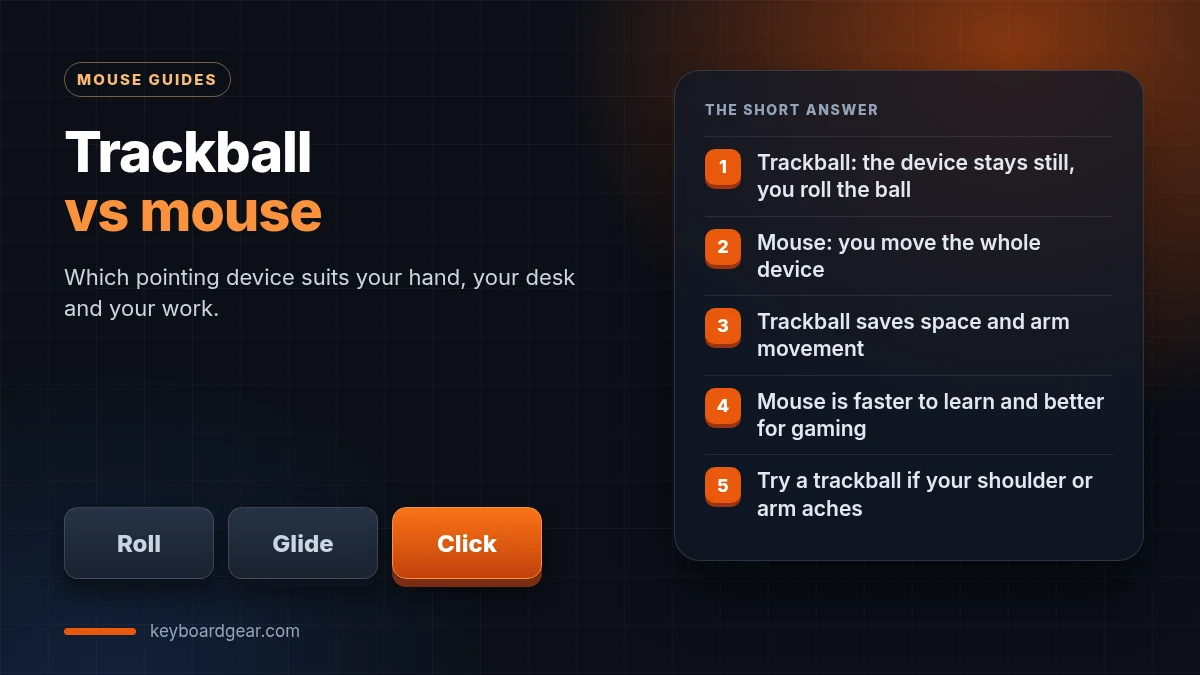
A trackball is, in effect, an upside-down mouse. Instead of moving the whole device across the desk, you leave it in one place and roll an exposed ball with your thumb, fingers or palm to move the pointer. That one difference changes how your arm, wrist and shoulder work, how much desk space you need and how fast you can point.
This guide explains how each works, compares them on comfort, precision, speed, gaming, desk space and maintenance, and helps you decide whether switching is worth it. Many people end up owning both.
How a mouse works
A modern mouse uses an optical or laser sensor on its underside to track movement across the surface beneath it. You move it with a combination of your fingers, wrist, forearm and sometimes your whole arm, and lift it to reposition when you run out of room. How much you move depends on the sensitivity: at low DPI, crossing the screen can take a long arm sweep; at high DPI it takes a flick of the wrist. Our guide to mouse DPI vs sensitivity explains how that works.
How a trackball works
A trackball holds a ball in a socket with sensors that detect its rotation. You roll the ball to move the pointer and press the buttons with your other fingers. When you reach the edge of the ball’s travel, you lift your thumb or finger and roll again, rather than lifting the whole device. Some trackballs use low-friction balls that you can spin so they coast across the screen.
There are two main types:
- Thumb-operated trackballs look like a mouse with a ball under the thumb. Your hand rests in a familiar mouse position and your thumb does the pointing. Logitech’s Ergo series and its M575 are well-known examples.
- Finger-operated trackballs put a larger ball in the centre or top, controlled by your index and middle fingers. They are often ambidextrous and favoured for precise, large-ball control. Kensington’s Expert and Slimblade models are popular examples.
Comfort and strain
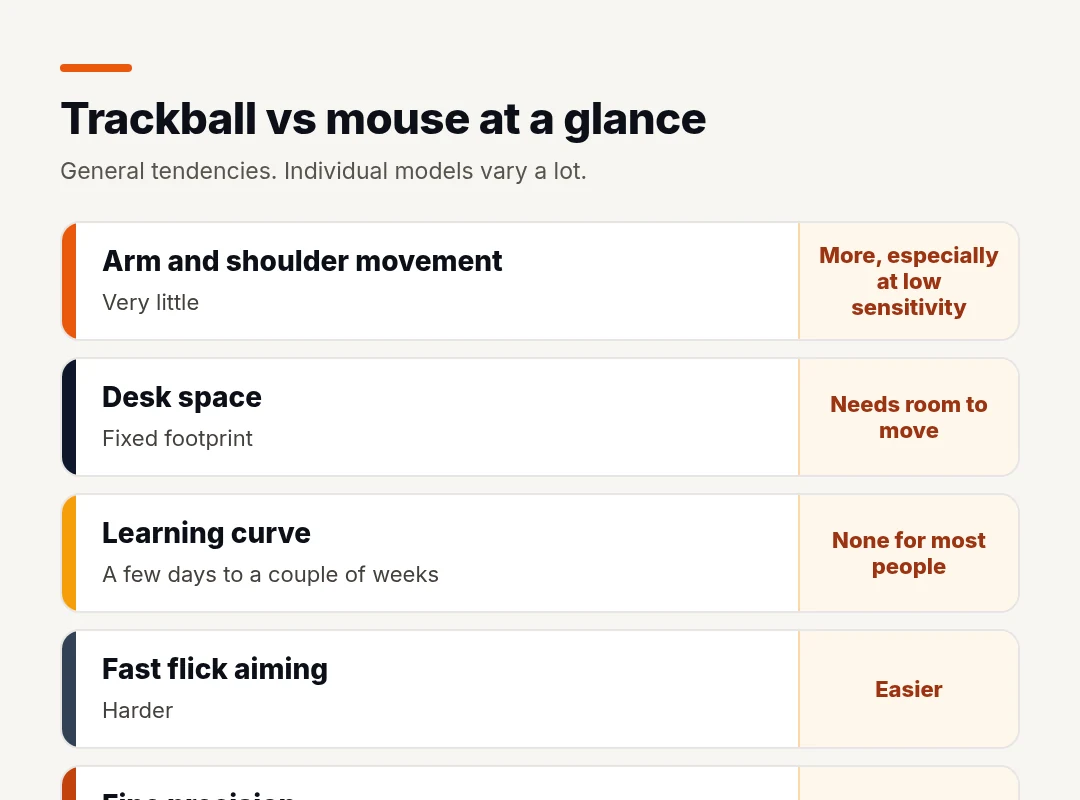
This is the main reason people switch. With a mouse, your arm and shoulder move with every pointer movement, and many people anchor their wrist on the desk and pivot it side to side. Over long days, that repeated movement can contribute to discomfort in the shoulder, forearm or wrist.
A trackball removes most of that movement. Your forearm and hand stay put, so the shoulder and upper arm do almost no work. Some trackballs add tilt as well: Logitech says its MX Ergo S has a 20-degree tilt angle that encourages better forearm posture and reduces forearm muscle strain by 27 percent, a manufacturer figure for its own design.
But a trackball moves the work rather than eliminating it. Thumb trackballs load the thumb, and if you grip hard or roll constantly, the thumb can become sore. Finger trackballs spread the work across stronger fingers, which some people find easier. If you already have thumb problems, a finger trackball or a vertical mouse may suit you better.
::warn
No pointing device cures pain on its own. Posture, desk height, breaks and how hard you grip matter just as much. If you have persistent pain, numbness or tingling, see a doctor or physiotherapist. Our guide to wrist pain from typing covers setup changes that help.
::
Precision
Both can be very precise. A mouse makes precise movements with your fingers and wrist; a trackball with your fingertips or thumb, and you can let go of the ball without the pointer moving, which some people find steadier for fine work such as photo editing, CAD or selecting text. Large finger-operated balls are especially good for slow, controlled movements, which is why big trackballs have long been used on CAD workstations.
Where a mouse has the edge is in large, fast movements combined with precision, such as moving across a big screen and then hitting a small target.
Speed and productivity
For everyday office work, most people reach a similar speed with either device after the learning period. Trackballs can be faster for crossing large or multiple monitors if you spin the ball, and the extra buttons and scroll rings on many trackballs help with shortcuts. A mouse is faster for anything that needs quick, accurate flicks.
Gaming
For most games, especially fast shooters, a mouse is clearly better. Gaming mice have high polling rates, low latency and shapes designed for fast flicks and quick stops, which a thumb on a ball struggles to match. Trackballs can work fine for strategy, simulation, point-and-click and casual games, and some players use them for comfort. If gaming is your priority, see our explainer on mouse grip styles.
Desk space and surfaces
A trackball needs only its own footprint, so it fits beside a laptop on a train table, on a small desk, on a keyboard tray or on the arm of a sofa. It works on any surface, even glass or your lap, because the sensor reads the ball rather than the desk. A mouse needs room to move and a surface its sensor can read; low-sensitivity users may need a large pad.
Learning curve
Almost everyone already knows how to use a mouse. A trackball takes practice: expect the first days to feel slow and clumsy, especially for drag-and-drop and precise clicks. Most people adapt within a couple of weeks. Start with a moderate pointer speed, use the device for ordinary tasks rather than demanding ones at first, and give it a fair trial before deciding.
Maintenance
Trackballs need regular cleaning. Skin oil and dust collect on the ball and the small support bearings or rollers in the socket, making the ball feel sticky or jerky. On most trackballs you can pop the ball out, wipe it with a soft cloth and clean the supports with a cotton swab. Mice need occasional cleaning of the shell, sensor window and feet; our guide on how to clean a mouse covers that.
Trackball vs mouse: pros and cons
| Device | Pros | Cons |
|---|---|---|
| Trackball | Little arm and shoulder movement; small fixed footprint; works on any surface; precise for slow fine work | Learning curve; can load the thumb; poor for fast gaming; ball needs regular cleaning |
| Mouse | Intuitive; fast and accurate for flicks; best for gaming; huge choice of shapes and prices | Needs desk space; more arm and shoulder movement; sensor depends on surface |
Who should choose a trackball?
- People with shoulder, upper arm or forearm discomfort from mousing.
- Anyone with limited desk space or who works from a laptop in tight spots.
- Standing desk or keyboard tray users where a mouse surface is awkward.
- People who do precise, slow work such as CAD, illustration or photo editing and like letting go of the pointer.
- Multi-monitor users who like to spin the pointer across screens.
Who should stick with a mouse?
- Gamers, especially in fast shooters and competitive titles.
- People who don’t want any learning curve.
- Anyone with thumb pain, unless they choose a finger-operated trackball.
- Users who are happy and comfortable with their current mouse.
Other options to consider
If your goal is comfort, a trackball isn’t the only choice. A vertical mouse turns your hand into a handshake position to reduce forearm twisting; our best vertical mouse guide has picks. Raising or lowering your chair and desk, keeping the mouse close to the keyboard and taking short breaks can help as much as a new device. Our desk setup guide walks through the basics. If you decide to try one, our best trackball mouse guide compares current models.
FAQ
Is a trackball better than a mouse for wrist pain?
It can help some people, because the arm and wrist move much less. But it shifts work to the thumb or fingers, so results vary. Fix posture and desk height too, and see a professional for persistent pain.
How long does it take to get used to a trackball?
Most people adapt in a few days to a couple of weeks. Start with ordinary tasks and a moderate pointer speed.
Can you game with a trackball?
Yes, for slower games like strategy, simulation and point-and-click. For fast shooters, a gaming mouse is far better.
Thumb or finger trackball?
A thumb trackball feels closest to a mouse and is easier to learn. A finger trackball spreads work across stronger fingers and suits precision and ambidextrous use.
Do trackballs need cleaning?
Yes. Pop the ball out and wipe it and the supports regularly, or it will start to feel sticky and jerky.
Are trackballs more accurate?
For slow, fine movements, many users find them very precise. For fast, large movements with accuracy, a mouse is usually better.
Bottom line
Choose a mouse if you game, want zero learning curve or are comfortable with what you have. Choose a trackball if desk space is tight or your shoulder and arm ache from mousing, and give it two weeks to feel natural. Pick a finger-operated trackball if your thumb is the problem. For many people, the best setup is both, swapping between them through the day.
Sources

Experience is what matters at the end!!
Hi! This is Jacob Jay – founder of Keyboardgear.com! From childhood to adulthood, I’ve always remained passionate about IT, and the revolution in this industry, especially gaming on the PC can’t go out of my way. Since I’m an enthusiastic gamer, and I love to experience various gaming accessories, particularly mechanical keyboards, that really boost my gaming adventure manifolds. So, my nerve cells hit me to transfer my experiences into word form and share with others to identify the ideal keyboards perfectly fit for their gaming modes.
I know very well how hard it is to find the high-quality items available on the internet that ought to be exactly the same as seen as on the screen. But the counterfeiters have ruined the user’s trust. As I have passed all such situations, I’m obliged to deliver the genuinity and express the same as what I am saying.
So, now, I’m working on the mission to provide very helpful and frankly but trustworthy reviews and guides about various mechanical keyboards, mouses, and other gaming accessories as per my personal experiences and sound knowledge.