
Open any gaming mouse’s software and you will see a DPI number. Open any shooter and you will see a sensitivity slider. Then Windows has its own pointer speed setting on top. It is no surprise that “what DPI should I use?” is one of the most common questions in PC gaming, or that people copy a pro player’s DPI and still find their aim feels completely different.
This guide untangles it. You will learn what DPI (or CPI) actually measures, how it differs from in-game sensitivity, why eDPI and cm/360 are the numbers that really describe your aim speed, what the Windows pointer speed slider and Enhance Pointer Precision do, and how to pick settings that make sense. The short version: DPI and sensitivity are two halves of one multiplier, and only their product determines how far you must move the mouse.
What is mouse DPI (and CPI)?
DPI stands for dots per inch. For mice, the technically correct term is CPI, counts per inch, and some brands use it in their software. Both mean the same thing: how many movement reports (counts) the sensor sends to your computer for every inch the mouse travels.
At 800 DPI, moving the mouse one inch sends 800 counts. At 1600 DPI, the same inch sends 1600 counts. On the Windows desktop with default settings, one count moves the cursor one pixel, so at 800 DPI the pointer crosses 800 pixels per inch of mouse movement. Doubling DPI doubles cursor speed for the same hand movement.
A higher DPI does not make a sensor more accurate by itself, and it is not a measure of sensor quality. It is a resolution setting. Modern gaming sensors track cleanly across a wide range, typically from a few hundred DPI into the tens of thousands, and let you change it in small steps. Real-world DPI can also differ a little from the number on the box, which is one reason identical settings on two different mice may feel slightly different.
What is in-game sensitivity?
In-game sensitivity is a software multiplier applied by the game. It decides how much the camera rotates for each count the mouse sends. Every game uses its own scale, which is why a sensitivity of 1.0 in Counter-Strike 2 is not the same as 1.0 in Valorant or Apex Legends.
Under the hood, each game converts counts into degrees of rotation with a fixed value often called yaw. Counter-Strike 2 uses a yaw of 0.022° per count (multiplied by your sensitivity), while Valorant uses 0.07°. That difference is why converting a CS2 sensitivity to Valorant means dividing by about 3.18 (0.07 ÷ 0.022).
DPI vs sensitivity: the key difference
DPI is a hardware setting stored on the mouse (or in its software) and it affects everything: the desktop cursor, every game and every app. Sensitivity is a software setting that only affects the game you set it in. Both scale the same thing, so in a game you can reach an identical aim speed by raising one and lowering the other.
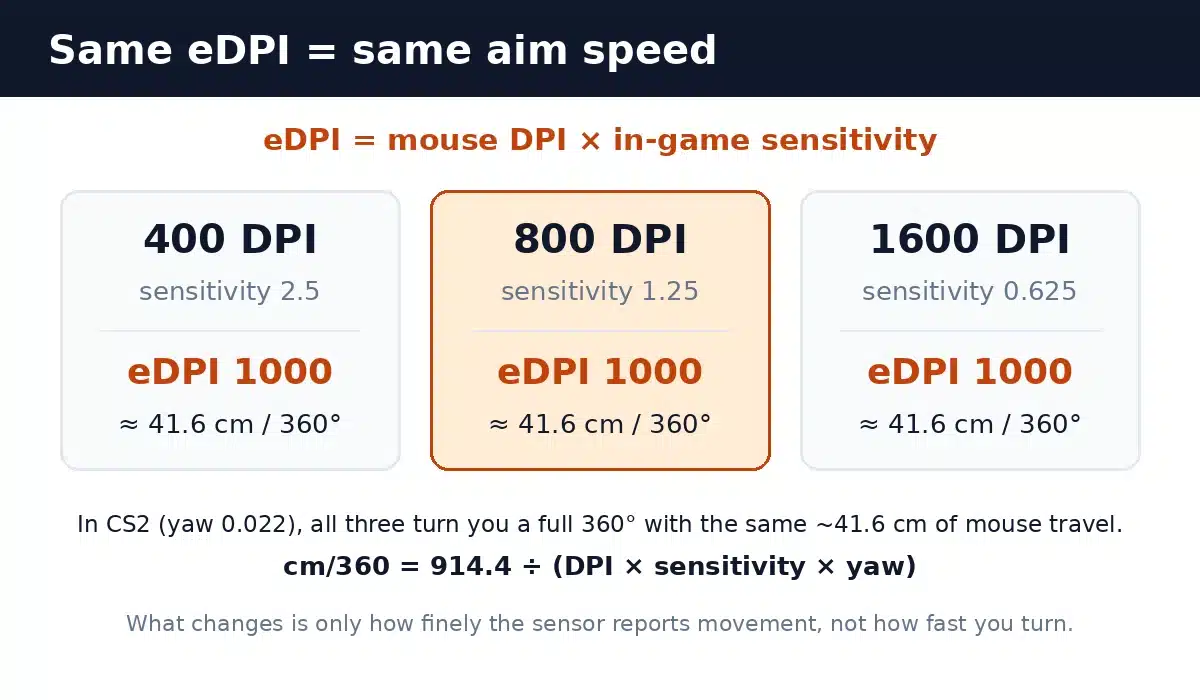
This is why comparing DPI alone is meaningless. A player on 400 DPI with a CS2 sensitivity of 2.5 turns exactly as fast as a player on 1600 DPI with a sensitivity of 0.625. To compare setups, you need a single combined number.
What is eDPI?
eDPI (effective DPI) is simply your mouse DPI multiplied by your in-game sensitivity:
eDPI = DPI × in-game sensitivity
For example, 800 DPI × 1.25 sensitivity = 1000 eDPI. Two players with the same eDPI in the same game have the same aim speed, no matter how they split it between DPI and sensitivity. That makes eDPI useful for comparing your setup with friends or pro players, as long as you stay within one game.
eDPI does not carry across games, because each game’s yaw is different. A 1000 eDPI in CS2 is much slower than a 1000 eDPI in Valorant. For cross-game comparisons, use cm/360.
What is cm/360?
cm/360 is the distance, in centimetres, you must move your mouse to turn your character a full 360 degrees. It is the most universal measure of aim speed because it describes a physical movement, so it works across every game, mouse and DPI. A higher cm/360 means a slower, lower sensitivity; a lower number means faster aim.
You can calculate it with: cm/360 = 914.4 ÷ (DPI × sensitivity × yaw). The 914.4 comes from 360 degrees × 2.54 cm per inch. For CS2 at 800 DPI and 1.25 sensitivity, that is 914.4 ÷ (800 × 1.25 × 0.022) ≈ 41.6 cm. Matching cm/360 is how sensitivity converter tools keep your aim the same when you switch games.
Quick reference: eDPI and cm/360 in CS2 and Valorant
The table below shows how common CS2 settings translate. Each row keeps 800 DPI and lists the Valorant sensitivity that gives the same cm/360.
| CS2 DPI × sens | CS2 eDPI | cm/360 | Valorant sens (800 DPI) |
|---|---|---|---|
| 800 × 0.5 | 400 | 103.9 cm | 0.157 |
| 800 × 1 | 800 | 52.0 cm | 0.314 |
| 800 × 1.25 | 1000 | 41.6 cm | 0.393 |
| 800 × 1.5 | 1200 | 34.6 cm | 0.471 |
| 800 × 2 | 1600 | 26.0 cm | 0.629 |
| 800 × 3 | 2400 | 17.3 cm | 0.943 |
Most competitive Counter-Strike players sit at the slower end of this range, roughly 35–70 cm/360, because big arm movements are easier to control for small, precise corrections. Players of fast-tracking games often prefer quicker settings. There is no single right answer; it depends on your game, mousepad size and whether you aim with your wrist or arm. Our guide on how to choose a gaming mouse covers how grip and mouse shape fit in.
Windows pointer speed and Enhance Pointer Precision
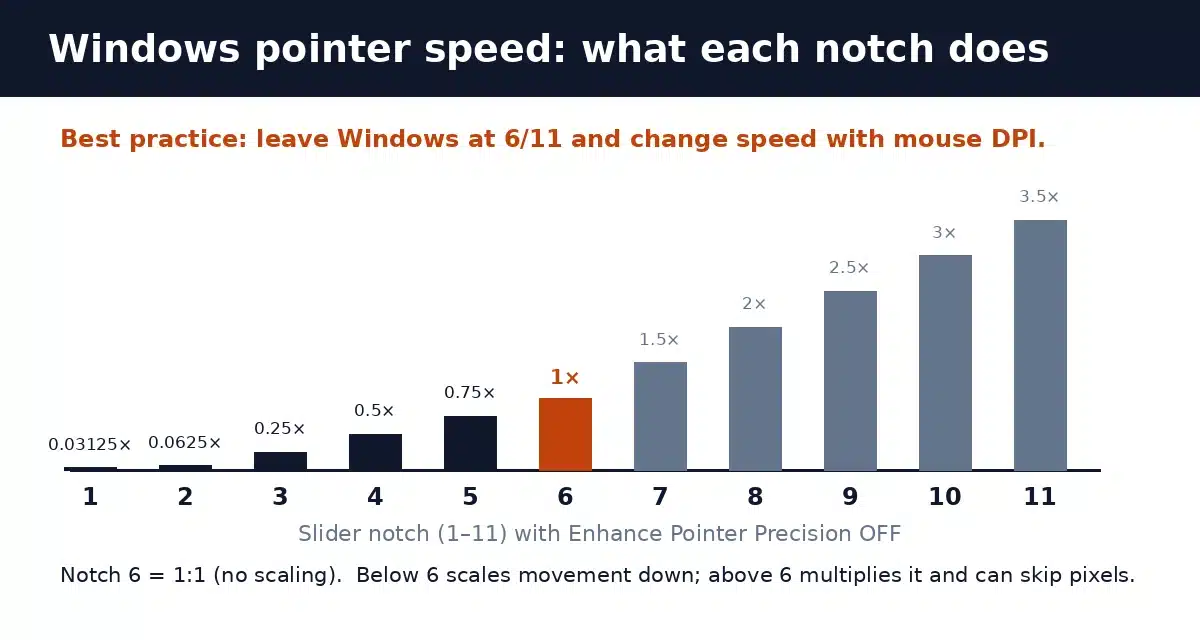
Windows adds its own layer through Settings → Bluetooth & devices → Mouse (or the classic Mouse control panel). The pointer speed slider has 11 notches, and with Enhance Pointer Precision turned off each notch applies a fixed multiplier to your mouse counts on the desktop.
| Slider notch | Multiplier (EPP off) | What it means |
|---|---|---|
| 1 | 0.03125× | Extremely slow |
| 2 | 0.0625× | Very slow |
| 3 | 0.25× | Slow |
| 4 | 0.5× | Half speed |
| 5 | 0.75× | Slightly slow |
| 6 (default) | 1.0× | 1:1, no scaling |
| 7 | 1.5× | Faster, can skip pixels |
| 8 | 2.0× | Skips every other pixel |
| 9 | 2.5× | Fast |
| 10 | 3.0× | Very fast |
| 11 | 3.5× | Fastest |
The 6th notch is the only truly neutral setting. Above it, Windows multiplies each count, so the cursor can jump over pixels and lose fine precision. Below it, movement is scaled down. The cleanest approach is to leave Windows at 6/11 and adjust speed with your mouse DPI instead.
Enhance Pointer Precision is Windows’ name for mouse acceleration. When it is on, cursor speed depends on how fast you move the mouse, not just how far: slow movements move the cursor less, quick flicks move it more. That can help on a large desktop with a low-DPI mouse, but it makes muscle memory inconsistent, so most gamers turn it off.
The good news is that most modern shooters, including CS2 and Valorant, read raw input directly from the mouse. In those games, the Windows slider and Enhance Pointer Precision do not affect in-game aim at all; only DPI and the game’s own sensitivity do. They still matter for the desktop, menus and games that do use the Windows cursor.
What about macOS?
macOS applies pointer acceleration by default, which is why a mouse can feel “floaty” on a Mac. Recent versions of macOS include a pointer acceleration toggle in the Mouse settings, so you can turn it off for a more consistent, linear feel, and then set speed with the tracking slider or your mouse’s DPI.
Does higher DPI reduce input lag?
Slightly, in some cases, because a higher DPI means the sensor reports very small movements sooner. In practice the difference is tiny, and some players move to 1600 DPI with a lower in-game sensitivity for this reason. The more important thing is to keep the same eDPI when you change DPI, otherwise your aim will feel different. Don’t confuse DPI with polling rate, which is how often the mouse reports to the PC (for example 1000 Hz or 8000 Hz). We explain polling in our polling rate guide; the same principles apply to mice.
How to choose your DPI and sensitivity
- Pick a sensible DPI and stick with it. 400, 800 and 1600 are popular because they are easy to convert, and 800 is a good default for most players.
- Set Windows to 6/11 and turn off Enhance Pointer Precision for consistent desktop movement.
- Tune in-game sensitivity until a comfortable arm or wrist movement turns you roughly 180–360 degrees. Write down your eDPI and cm/360.
- Use cm/360 to convert between games so your muscle memory carries over.
- Match your mousepad. Low sensitivities (high cm/360) need a large pad; if you keep running off the edge, your sensitivity may be too low for your space.
- Change one thing at a time and give each change a few sessions before judging it.
Hardware matters less than consistency, but a well-shaped mouse helps. See our picks for the best gaming mouse and, if you have smaller hands, the best ergonomic mice for small hands. If you want to improve the keyboard side of your setup too, read about Rapid Trigger and Hall effect keyboards and ghosting and N-key rollover.
FAQ
Is higher DPI better?
Not by itself. DPI is a resolution setting, not a quality rating. What matters is your overall aim speed (eDPI or cm/360). Many players use 800 or 1600 DPI with a lower in-game sensitivity.
Is DPI the same as sensitivity?
No. DPI is set on the mouse and affects everything on your computer. Sensitivity is set inside a game and only affects that game. Your effective aim speed is the two multiplied together.
What is a good eDPI for CS2?
Many competitive CS2 players fall roughly between 600 and 1200 eDPI, which is about 35–70 cm/360. Treat that as a starting point, not a rule.
Should I turn off Enhance Pointer Precision?
For gaming and consistent muscle memory, yes. Games that use raw input ignore it anyway, but turning it off keeps desktop and in-game movement predictable.
Does DPI affect Valorant or CS2 if Windows sensitivity changes?
Both games use raw input, so the Windows pointer speed slider does not change in-game aim. Only your mouse DPI and in-game sensitivity matter.
How do I convert CS2 sensitivity to Valorant?
Keep the same DPI and divide your CS2 sensitivity by about 3.18. For example, 1.25 in CS2 is about 0.393 in Valorant.
The bottom line
DPI tells you how many counts your mouse sends per inch; sensitivity tells the game what to do with them. Multiply them for eDPI to compare setups in the same game, and use cm/360 to compare across games. Keep Windows at 6/11 with Enhance Pointer Precision off, pick a DPI you like, and spend your time tuning one in-game sensitivity until it feels natural. Consistency beats chasing a pro’s numbers.
