

Quick answer
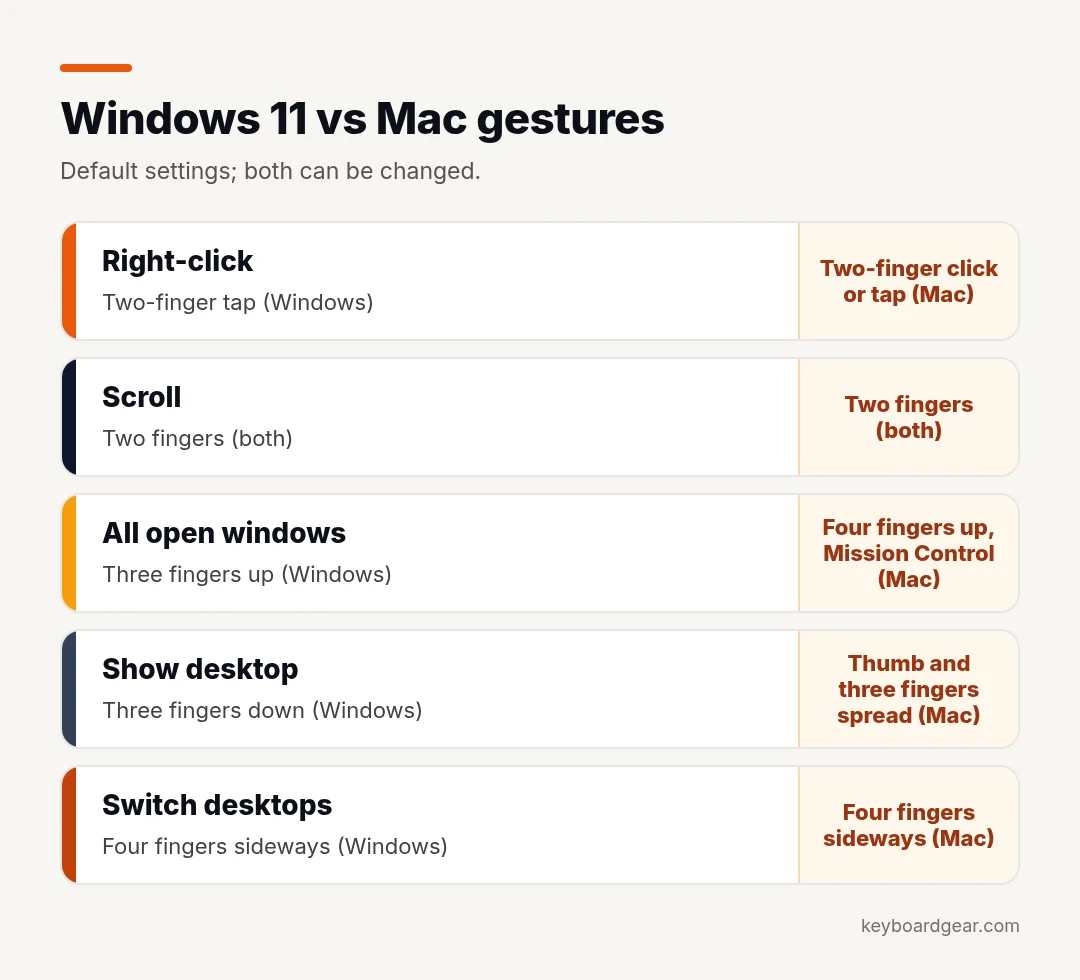
The core trackpad gestures are similar on both systems: two fingers to scroll and zoom, and a two-finger tap or click to right-click. On Windows 11, swipe three fingers up to see all windows, down for the desktop, and four fingers sideways to switch desktops. On a Mac, swipe four fingers up for Mission Control and sideways for desktops and full-screen apps. Change gestures in Settings > Bluetooth & devices > Touchpad (Windows) or System Settings > Trackpad (Mac).
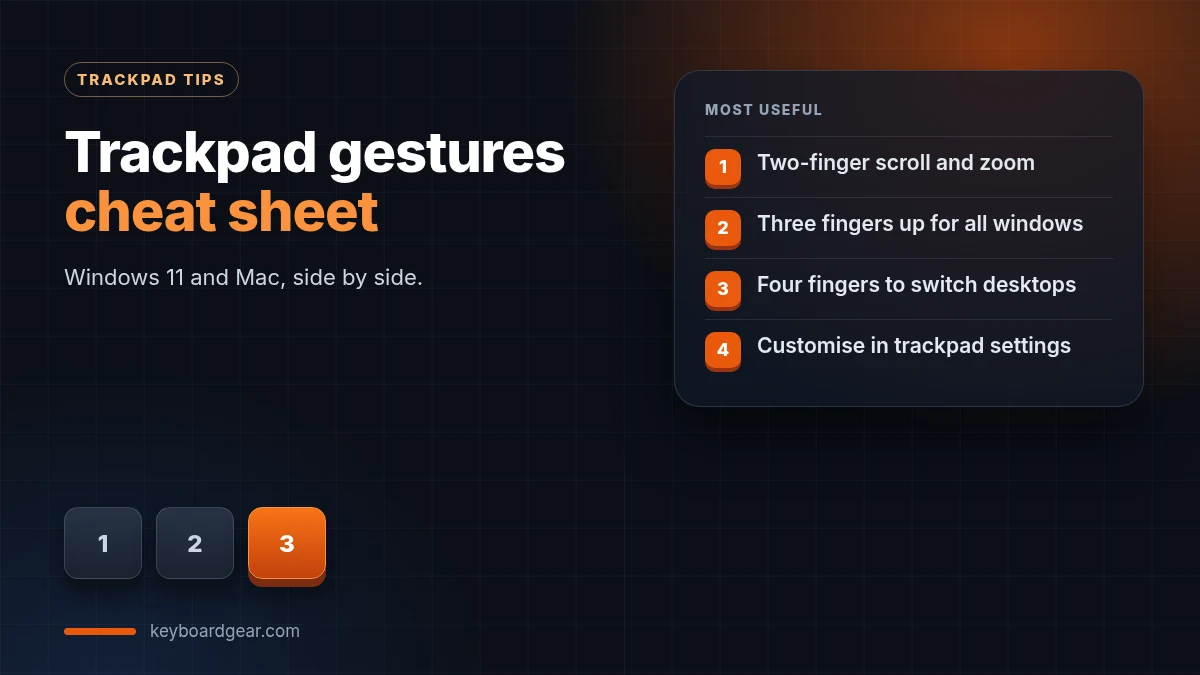
Gestures are the fastest way to move around a laptop without a mouse. This cheat sheet uses Microsoft’s and Apple’s own lists of default gestures, so you can learn the ones that work on your computer. Some gestures on Windows need a precision touchpad, and some Macs use three fingers where others use four.
Windows 11 touchpad gestures
Microsoft lists these defaults:
| Action | Gesture |
|---|---|
| Select an item | Tap the touchpad |
| Scroll | Two fingers, slide up, down or sideways |
| Zoom in or out | Two fingers, pinch or stretch |
| Right-click (more commands) | Two-finger tap, or press the lower-right corner |
| Show all open windows | Three fingers up |
| Show the desktop | Three fingers down |
| Switch between open apps | Three fingers left or right |
| Switch desktops | Four fingers left or right |
Microsoft notes that some of these gestures only work with precision touchpads. To change what three- and four-finger gestures do, open Settings > Bluetooth & devices > Touchpad and expand Three-finger gestures or Four-finger gestures.
Mac trackpad gestures
Apple’s list covers the Magic Trackpad and built-in Multi-Touch trackpads:
| Action | Gesture |
|---|---|
| Click | Tap with one finger (if Tap to click is on) |
| Secondary click (right-click) | Click or tap with two fingers |
| Smart zoom | Double-tap with two fingers |
| Scroll | Slide two fingers up or down |
| Zoom in or out | Pinch with two fingers |
| Swipe between pages | Two fingers left or right |
| Notification Center | Two fingers from the right edge |
| Look up a word | Tap with three fingers |
| Show desktop | Spread thumb and three fingers |
| Mission Control | Four fingers up |
| App Exposé | Four fingers down |
| Switch desktops and full-screen apps | Four fingers left or right |
Apple notes that in some versions of macOS, the four-finger gestures use three fingers instead. To see and change your gestures, open System Settings > Trackpad. Apple’s settings pages include short animations of each gesture.
Three finger drag on a Mac lets you drag windows without holding down a click. It’s off by default and lives in Accessibility settings rather than Trackpad settings.
The gestures worth learning first
- Two-finger scroll in both directions.
- Two-finger right-click instead of hunting for a corner.
- Show all windows (three fingers up on Windows, four on Mac) to find a lost window.
- Switch desktops with four fingers if you use more than one desktop.
Combine them with keyboard shortcuts for even faster work; see our Windows keyboard shortcuts and Mac keyboard shortcuts.
Gestures not working?
- Windows: check the touchpad is on in Settings > Bluetooth & devices > Touchpad, and that three- and four-finger gestures aren’t set to “Nothing.”
- Mac: check the gesture is ticked in System Settings > Trackpad > More Gestures.
- If the pointer won’t move at all, see trackpad not working.
- If gestures trigger by accident while typing, see trackpad palm rejection.
Trackpad or mouse?
Gestures are a big reason some people prefer a trackpad, even at a desk. Our trackpad vs mouse comparison weighs precision, comfort and gestures, and Mac users can pair a trackpad with one of our best keyboards for Mac.
FAQ
How do I right-click on a trackpad?
Tap with two fingers on Windows, or click or tap with two fingers on a Mac.
Why don’t three-finger gestures work on my Windows laptop?
Some gestures need a precision touchpad, and they can be turned off or reassigned in Touchpad settings.
How do I show the desktop with a gesture?
Swipe three fingers down on Windows 11, or spread your thumb and three fingers apart on a Mac.
How do I switch desktops on a trackpad?
Swipe four fingers left or right on both Windows 11 and Mac.
Can I change trackpad gestures?
Yes, in Windows Touchpad settings or macOS Trackpad settings.
Sources
- Microsoft Support: Touch gestures for Windows
- Apple Support: Use Multi-Touch gestures on Mac
- Apple Support: Change Trackpad settings on Mac
Final thoughts
Learn two-finger scroll and right-click first, then the “show all windows” and “switch desktop” swipes. After a week they become automatic, and you’ll reach for the mouse far less.

Experience is what matters at the end!!
Hi! This is Jacob Jay – founder of Keyboardgear.com! From childhood to adulthood, I’ve always remained passionate about IT, and the revolution in this industry, especially gaming on the PC can’t go out of my way. Since I’m an enthusiastic gamer, and I love to experience various gaming accessories, particularly mechanical keyboards, that really boost my gaming adventure manifolds. So, my nerve cells hit me to transfer my experiences into word form and share with others to identify the ideal keyboards perfectly fit for their gaming modes.
I know very well how hard it is to find the high-quality items available on the internet that ought to be exactly the same as seen as on the screen. But the counterfeiters have ruined the user’s trust. As I have passed all such situations, I’m obliged to deliver the genuinity and express the same as what I am saying.
So, now, I’m working on the mission to provide very helpful and frankly but trustworthy reviews and guides about various mechanical keyboards, mouses, and other gaming accessories as per my personal experiences and sound knowledge.