

Quick answer
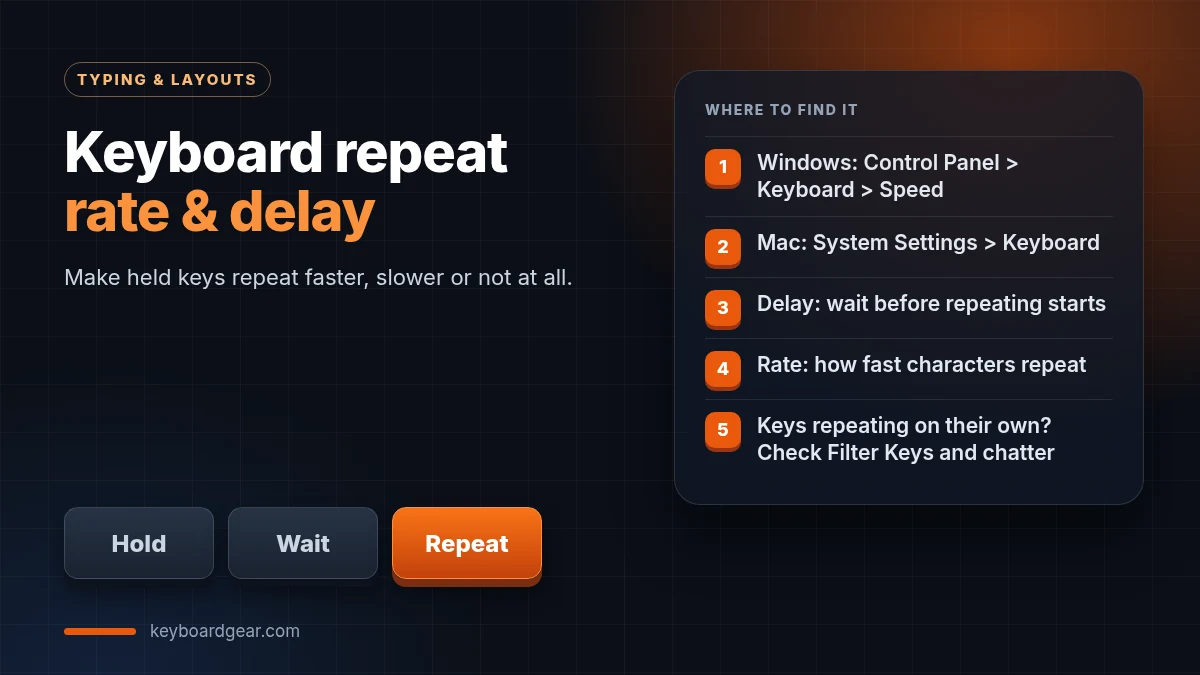
Repeat delay is how long you hold a key before it starts repeating; repeat rate is how fast it repeats once it starts. To change them:
– Windows: open Control Panel > Keyboard (or run `control keyboard`), then use the Repeat delay and Repeat rate sliders on the Speed tab.
– Mac: open System Settings > Keyboard and adjust Key repeat rate and Delay until repeat.
A shorter delay and faster rate make navigation and deleting quicker; a longer delay helps if keys repeat by accident.
Hold down a letter, arrow or Backspace and, after a short pause, it repeats. Those two timings, the pause and the speed, are adjustable on every computer, and tuning them can make your keyboard feel noticeably faster or prevent stray repeated characters.
This guide explains what the settings do, where to change them, what to set them to and how to fix keys that repeat when they shouldn’t.
What repeat delay and repeat rate mean
- Repeat delay (Mac: “Delay until repeat”): the time between pressing a key and it starting to repeat. Short delays make repeats start almost immediately; long delays require a deliberate hold.
- Repeat rate (Mac: “Key repeat rate”): how many times per second the character repeats once repeating begins.
These are operating system settings, applied to any keyboard you connect. Some programmable keyboards can also set their own repeat behaviour in firmware, but the OS settings are where most people should start.
How to change repeat rate on Windows 10 and 11
Windows keeps these settings in the classic Keyboard control panel:
- Press Windows key + R, type `control keyboard` and press Enter. Or open Control Panel and choose Keyboard (switch View by to Large icons if you don’t see it).
- On the Speed tab, drag Repeat delay toward Short or Long.
- Drag Repeat rate toward Slow or Fast.
- Click in the test box and hold a key to try it.
- Click OK to save.
The same tab has a cursor blink rate slider, which is handy if a fast-blinking cursor is distracting.
Filter Keys can override your settings
Windows’ Filter Keys accessibility feature can ignore brief or repeated keystrokes and slow down repeats. In Windows 11 it’s under Settings > Accessibility > Keyboard, where you can turn on options to ignore quick keystrokes (slow keys), ignore unintended keystrokes (bounce keys) and ignore repeated keystrokes (repeat keys), each with its own timing. Microsoft lists holding Right Shift for eight seconds as the shortcut that turns Filter Keys on and off, which is why it sometimes gets enabled by accident. If keys seem slow to respond or won’t repeat, check that it’s off. The neighbouring Sticky Keys feature causes similar surprises; see our guide on how to turn off Sticky Keys.
How to change repeat rate on a Mac
Apple’s steps:
- Choose Apple menu > System Settings, then click Keyboard in the sidebar.
- Drag the Key repeat rate slider to set how quickly characters repeat.
- Drag the Delay until repeat slider to set how long to wait before repeating starts.
Note that on a Mac, holding a letter key usually opens the accent menu instead of repeating, so you can type à, á or â. Apple notes that if you set Key repeat rate to Off, those special characters won’t appear when you hold a key. Our guide on how to type accents covers that menu.
Recommended settings
There’s no single right answer, but these are good starting points:
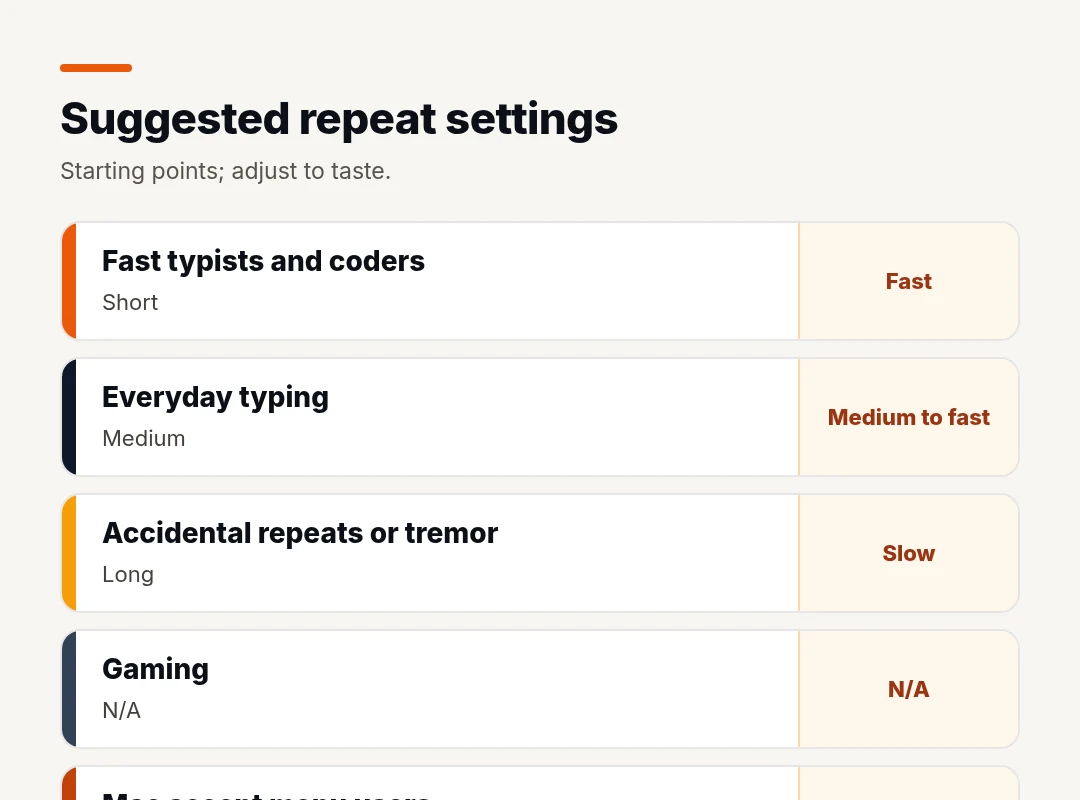
- Fast typists and programmers: a short delay and fast rate make it quicker to move the cursor with arrow keys, delete text and scroll in editors. Go one step back from maximum if you start getting accidental repeats.
- Everyday typing: the defaults are usually fine. Try a slightly shorter delay if holding arrow keys feels sluggish.
- Accidental repeats, tremors or a heavy touch: a longer delay and slower rate, or Filter Keys’ repeat options, reduce stray characters.
- Gaming: most games read whether a key is held down rather than OS-generated repeats, so these settings rarely affect movement. Responsiveness in games depends more on the keyboard itself; see our explainers on keyboard polling rate and keyboard actuation point.
Fixing keys that repeat on their own
If a key types two or more characters when you press it once, it’s usually not the repeat setting:
- Switch chatter: a worn or dirty switch can register a single press twice. Our guide to keyboard chatter explains the fixes, from cleaning to replacing the switch.
- A stuck key: debris or a sticky spill can hold a key down so it repeats. Clean under the keycap; see one key not working for the steps.
- Very short delay: if your delay is at the minimum, a normal press may last long enough to repeat. Lengthen it slightly.
- Wireless lag: a weak or interrupted wireless signal can cause stuck or repeated keys. Move the receiver closer or change batteries.
Fixing keys that won’t repeat
- Check Filter Keys (Windows) and that repeat isn’t set to Off (Mac).
- On a Mac, letter keys show the accent menu instead of repeating; that’s expected behaviour.
- Check any remapping or keyboard software for a rule affecting that key; our how to remap keys guide lists the common tools.
- Try another keyboard to rule out a hardware issue.
How to change repeat rate on Linux
The setting lives in different places depending on your desktop:
- GNOME: open Settings, then look under Accessibility > Typing (or Keyboard on some versions) for Repeat Keys, where you can set the delay and speed.
- KDE Plasma: open System Settings > Input Devices > Keyboard and adjust Delay and Rate under keyboard repeat.
- X11 command line: `xset r rate 250 30` sets a 250 ms delay and 30 repeats per second for the current session. Run `xset q` to see the current values.
On Wayland desktops, use the desktop’s own settings rather than `xset`, which only affects X11 sessions.
How to change repeat rate on a Chromebook
Open Settings, go to the keyboard settings under Device (the exact label varies by ChromeOS version), and look for the key repeat options. You can usually turn repeat on or off and adjust the delay and rate with sliders.
Repeat settings for different uses
| Use | Delay | Rate | Why |
|---|---|---|---|
| Everyday typing | Medium | Medium to fast | Avoids accidental doubles but scrolls quickly when you hold a key |
| Coding and text editing | Short | Fast | Holding arrows, Backspace or j/k moves through text quickly |
| Slow or deliberate typists | Long | Slow to medium | Prevents unwanted repeats when keys are held a little long |
| Tremors or motor difficulties | Long, or repeat off | Slow | Reduces accidental repeated characters |
| Gaming | Usually irrelevant | Usually irrelevant | Games read key-down and key-up directly |
Test your settings
After changing the values, open a plain text editor and try three things: hold a letter key to check the delay before it starts repeating, hold Backspace to see whether it deletes at a speed you can control, and type normally for a minute to make sure you aren’t getting doubled letters. Adjust one slider at a time until it feels right.
Keyboard software and firmware can override settings
Some gaming keyboards and programmable boards handle repeats in their own software or firmware, and a few remapping tools can change how held keys behave. If your system setting seems to have no effect, check the keyboard’s companion app or remapping software, and make sure Filter Keys isn’t turned on in Windows.
FAQ
What is a good keyboard repeat rate?
For most people, the default or one step faster. Fast typists and coders often prefer a short delay and fast rate; anyone with accidental repeats should go slower.
Where is the repeat rate setting in Windows 11?
It’s still in the classic Control Panel: press Windows key + R, type control keyboard, and use the Speed tab.
Why don’t keys repeat when I hold them on my Mac?
Holding a letter key opens the accent menu by default. Arrow keys, Delete and the space bar still repeat. Also check Key repeat rate isn’t set to Off.
Does repeat rate affect gaming?
Rarely. Games usually detect held keys directly, so OS repeat settings don’t change movement.
Why does my keyboard type letters twice?
Usually switch chatter, a stuck key or a very short repeat delay. Clean the key, lengthen the delay, and see our chatter guide if it continues.
Bottom line
Repeat delay controls how long you hold before repeating starts; repeat rate controls how fast it goes. Change them in Control Panel > Keyboard on Windows and System Settings > Keyboard on Mac. Go shorter and faster for speed, longer and slower to avoid accidents, and if keys repeat on their own, look at Filter Keys, chatter or a stuck key rather than the sliders.
Sources
- Apple Support: Set how quickly a key repeats on Mac
- Microsoft Support: Windows keyboard shortcuts for accessibility

Experience is what matters at the end!!
Hi! This is Jacob Jay – founder of Keyboardgear.com! From childhood to adulthood, I’ve always remained passionate about IT, and the revolution in this industry, especially gaming on the PC can’t go out of my way. Since I’m an enthusiastic gamer, and I love to experience various gaming accessories, particularly mechanical keyboards, that really boost my gaming adventure manifolds. So, my nerve cells hit me to transfer my experiences into word form and share with others to identify the ideal keyboards perfectly fit for their gaming modes.
I know very well how hard it is to find the high-quality items available on the internet that ought to be exactly the same as seen as on the screen. But the counterfeiters have ruined the user’s trust. As I have passed all such situations, I’m obliged to deliver the genuinity and express the same as what I am saying.
So, now, I’m working on the mission to provide very helpful and frankly but trustworthy reviews and guides about various mechanical keyboards, mouses, and other gaming accessories as per my personal experiences and sound knowledge.