

Quick answer
When one key stops working, first find out whether it’s software or hardware: test the key in an online key tester or the on-screen keyboard, and try the keyboard on another computer. If it works elsewhere, check your keyboard layout, Filter Keys and any remapping software.
If it fails everywhere, it’s hardware: blow out or clean under the keycap, check for spill residue, and on a mechanical keyboard reseat or replace the switch (easy on hot-swap boards). As a last resort, remap another key to do its job.
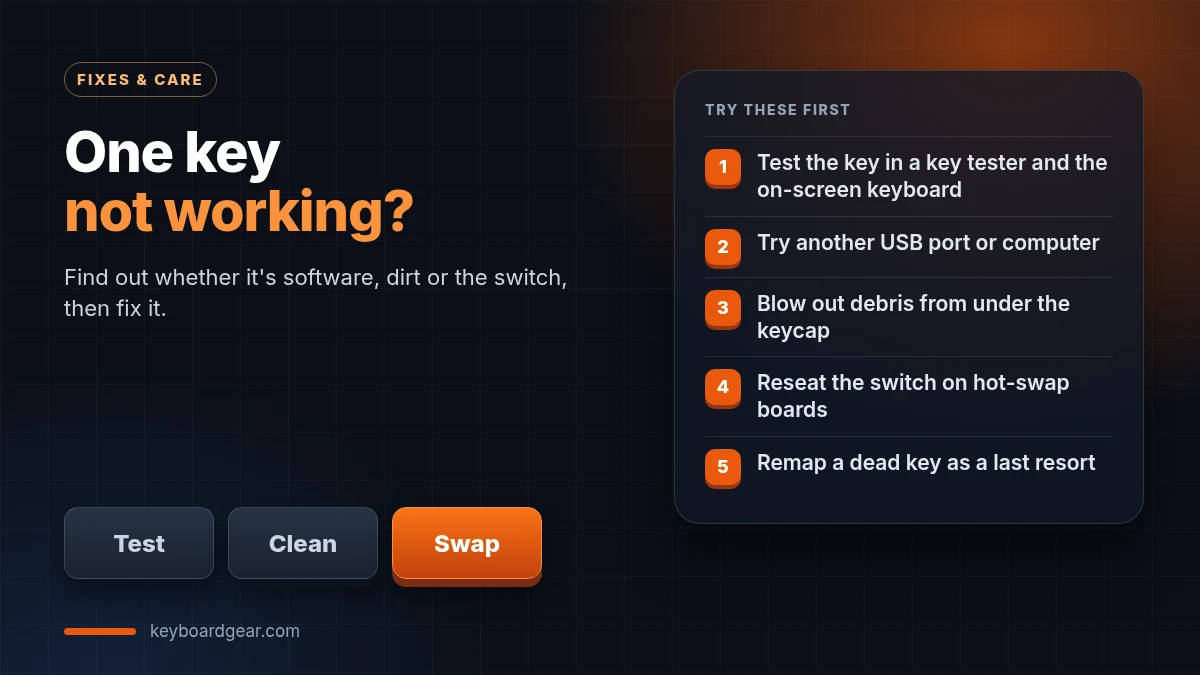
A single dead key is one of the most annoying keyboard faults, because everything else works fine. The good news is that one key failing is usually a local problem, such as a crumb, a bit of dried drink or a worn switch, and often fixable in minutes.
This guide goes through the fixes in order, from quick checks to repairs. If several keys or the whole keyboard stopped working, our guide to a laptop keyboard not working is the better place to start, and if it’s only the number keys, see keyboard numbers not working.
Step 1: Test the key properly
Open a text editor or an online keyboard tester and press the key. Then check:
- Does it register at all, or only sometimes?
- Does it register when pressed in the centre but not at the edges?
- Does it type the wrong character?
- Does it type twice?
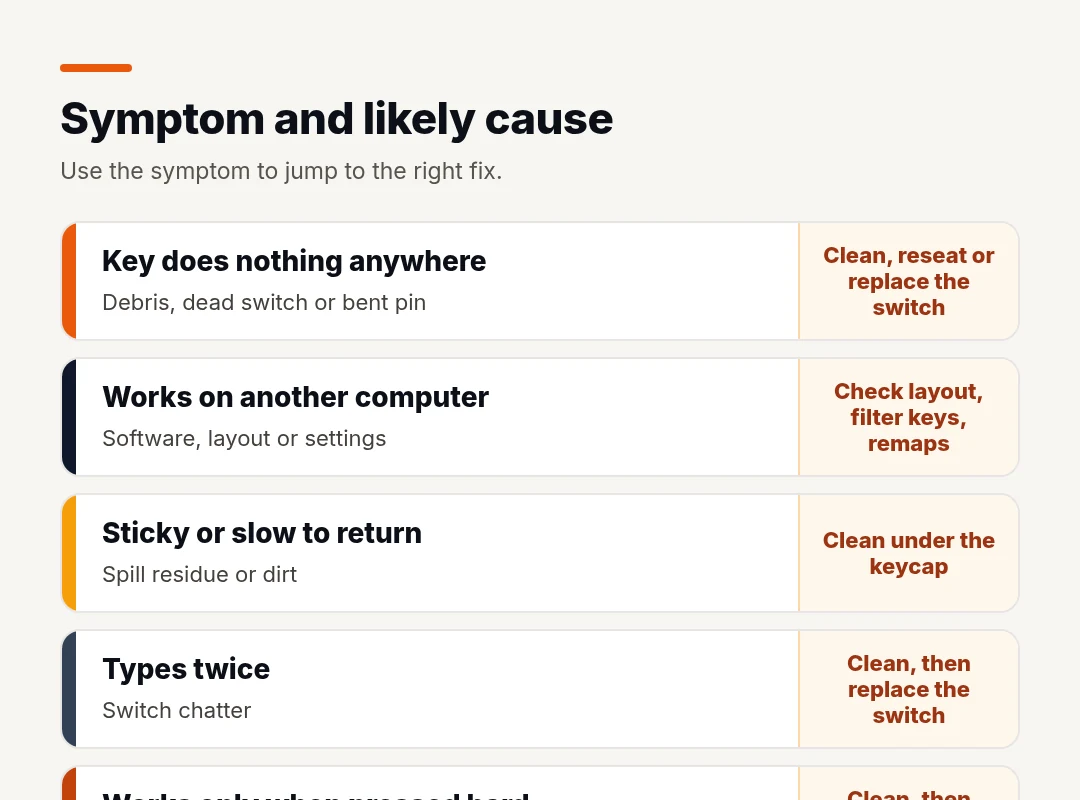
On Windows you can also open the On-Screen Keyboard (Windows logo key + Ctrl + O) and watch whether the key lights up when you press it on the physical keyboard. The symptom tells you a lot; see the chart below.
Step 2: Try another port, connection or computer
Plug the keyboard into a different USB port, or for wireless keyboards, re-pair it or try the receiver in another port. Then try it on a second computer if you can.
- If the key works on another computer, the keyboard is fine and the problem is software on the first machine. Go to Step 3.
- If it fails everywhere, it’s the keyboard. Skip to Step 4.
Step 3: Check software causes
- Keyboard layout: if the key types a different character, your input language or layout may have changed. Check your input languages in your system settings.
- Remapping software: tools such as PowerToys Keyboard Manager, AutoHotkey, Karabiner-Elements or your keyboard’s own app can disable or reassign keys. Check them for a rule affecting that key.
- Accessibility settings: Filter Keys on Windows ignores brief or repeated keystrokes, which can make a key seem dead unless you hold it. Sticky Keys and Slow Keys can also change behaviour. Turn them off in accessibility settings if you didn’t mean to enable them.
- Game mode or Win lock: many gaming keyboards have a key that disables the Windows key in games. Check your keyboard’s manual for a lock key.
- Fn lock: on laptops and compact keyboards, function and media keys can flip depending on Fn lock.
- Drivers and updates: restart the computer, and update or reinstall your keyboard’s software or firmware.
Step 4: Clean under the key
Dirt is the most common cause of a single dead or sticky key.
- Unplug the keyboard or switch it off.
- Turn it upside down and tap it gently.
- Blow compressed air around the key at an angle from several sides.
- Press the key repeatedly to dislodge anything stuck.
If that doesn’t work, remove the keycap. On a mechanical keyboard, use a keycap puller and pull straight up. On laptops and scissor-switch keyboards, keycaps clip on more delicately; follow a guide for your model, as the clips break easily. Our article on removing keyboard keys covers both. With the cap off, remove debris with air or a soft brush, then refit the cap.
For a fuller clean, see our guide on how to clean your keyboard.
Step 5: Deal with spills
If the key became sticky or stopped after a spill, unplug the keyboard immediately and turn it upside down to drain. For sugary drinks, residue can glue the switch. On a mechanical keyboard, remove the keycap and clean around the switch with a little isopropyl alcohol on a cotton swab, working the switch to free it, then let everything dry completely before reconnecting. Laptop spills are more serious: shut down, unplug and seek repair if liquid got inside.
Step 6: Check the stabiliser (long keys)
If a long key such as the spacebar, Enter, Shift or Backspace only works when pressed in the middle, the problem may be the stabiliser, the wire and housings that keep it level. A dislodged wire or a keycap not seated on both stabiliser stems can make it bind. Remove the keycap, check that the wire is clipped in and both stems move freely, and reseat it. Our guide to keyboard stabilizers explains how they work.
Step 7: Reseat or swap the switch (hot-swap mechanical keyboards)
On a hot-swappable mechanical keyboard, you can pull the switch out with a switch puller and check it:
- Pull the keycap, then squeeze the switch clips with the puller and lift it out.
- Check the two metal pins on the bottom. If one is bent, straighten it carefully with tweezers.
- Push the switch back in, lining the pins up with the holes, and test it.
- If it still fails, swap it with a switch from a key you rarely use. If the problem moves with the switch, the switch is dead; if it stays, the socket or PCB may be at fault.
Our guide on how to change keyboard switches walks through this step by step. Replacement switches are cheap; make sure you buy the same type and the right pin count.
Step 8: Fix a key that types twice
If a key registers twice for one press, it’s called chatter. Cleaning sometimes helps; otherwise the switch is wearing out. Some keyboards’ software lets you increase the debounce time. Our guide to keyboard chatter covers the fixes.
Step 9: Soldered switches and laptops
On a mechanical keyboard with soldered switches, replacing a dead switch means desoldering it, which is doable with a soldering iron and practice but may void the warranty. On a laptop, a single dead key may need a replacement keycap and hinge, or in some models a keyboard replacement. Check your warranty first; many manufacturers will fix a failed key under warranty.
Step 10: Remap the key as a workaround
If you can’t fix it right away, assign the dead key’s function to a key you rarely use, such as Right Alt, Caps Lock or Scroll Lock. On Windows, Microsoft’s PowerToys Keyboard Manager lets you remap keys; on Mac, you can change modifier keys in System Settings or use a third-party tool. Our guide on how to remap keys has full instructions. For a quick one-off, the on-screen keyboard can type the missing character.
Quick reference
| Keyboard type | Most likely cause | Best fix |
|---|---|---|
| Mechanical, hot-swap | Debris or failed switch | Clean, reseat or swap the switch |
| Mechanical, soldered | Debris or failed switch | Clean; replace switch by soldering or repair |
| Membrane desktop | Debris or worn dome | Clean; replace keyboard if cheap |
| Laptop | Debris, broken clip or hinge | Clean carefully; replacement key or repair |
| Wireless | Software, pairing or battery | Check settings, re-pair, replace batteries |
FAQ
Why did one key on my keyboard stop working?
Usually debris or spill residue under the key, a worn switch, or a software setting such as a layout change or remap. Test it on another computer to tell which.
How do I fix a key that doesn’t work on a laptop?
Check software settings first, then blow compressed air under the key. If the keycap or clip is damaged, you’ll need a replacement key for your model or a repair.
Can a single key be replaced?
Yes. On hot-swap mechanical keyboards, swap the switch in seconds. On laptops, replacement keycaps and hinges are sold for many models.
Why does my key only work when I press hard?
Dirt, a worn switch contact or a worn rubber dome. Clean it first; if that doesn’t help, the switch or dome needs replacing.
How do I type a letter if the key is broken?
Use the on-screen keyboard or remap another key to that letter until you can repair it.
Bottom line
For a single dead key, test it on another computer to separate software from hardware. Fix software causes in layout, accessibility and remapping settings, and fix hardware by cleaning under the keycap, checking the stabiliser or reseating and swapping the switch. If all else fails, remap the key and plan a repair or replacement.
Sources

Experience is what matters at the end!!
Hi! This is Jacob Jay – founder of Keyboardgear.com! From childhood to adulthood, I’ve always remained passionate about IT, and the revolution in this industry, especially gaming on the PC can’t go out of my way. Since I’m an enthusiastic gamer, and I love to experience various gaming accessories, particularly mechanical keyboards, that really boost my gaming adventure manifolds. So, my nerve cells hit me to transfer my experiences into word form and share with others to identify the ideal keyboards perfectly fit for their gaming modes.
I know very well how hard it is to find the high-quality items available on the internet that ought to be exactly the same as seen as on the screen. But the counterfeiters have ruined the user’s trust. As I have passed all such situations, I’m obliged to deliver the genuinity and express the same as what I am saying.
So, now, I’m working on the mission to provide very helpful and frankly but trustworthy reviews and guides about various mechanical keyboards, mouses, and other gaming accessories as per my personal experiences and sound knowledge.