

Quick answer
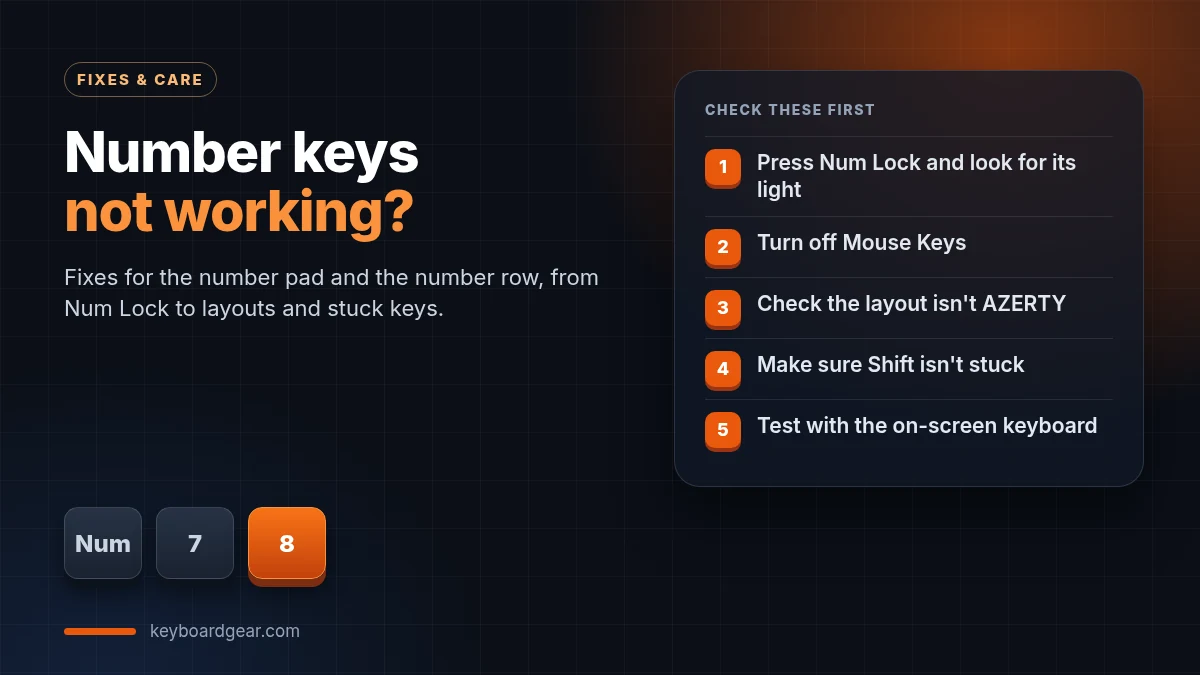
If the number pad won’t type numbers, press Num Lock and check its light. If the number pad moves the mouse pointer instead, turn off Mouse Keys (Left Alt + Left Shift + Num Lock, or Settings > Accessibility > Mouse). If the number row above the letters types symbols, your keyboard layout is probably wrong (AZERTY needs Shift for numbers). Also check that Shift isn’t stuck, Filter Keys is off and the keyboard works in the on-screen keyboard test.
There are two sets of number keys on most keyboards, and they fail for different reasons. The number pad on the right side of full-size keyboards depends on Num Lock and can be taken over by accessibility features. The number row above the letters depends on your keyboard layout, modifier keys and the keyboard itself. Laptops add a third twist: many hide a number pad inside the letter keys.
Start by working out which keys are failing, then follow the fixes for that case. Most problems are settings, not a broken keyboard.
If the number pad isn’t working
1. Turn on Num Lock
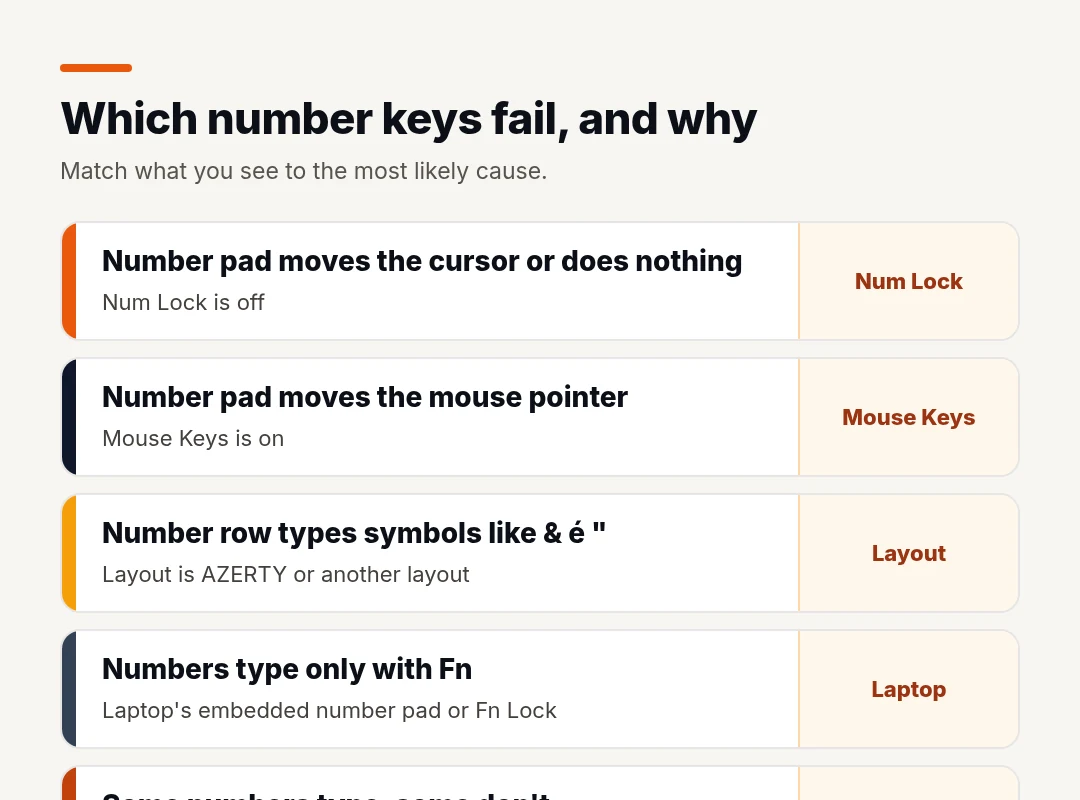
When Num Lock is off, the number pad acts as navigation keys: 8 is Up, 2 is Down, 4 and 6 are Left and Right, 7 is Home, 1 is End and so on. Press Num Lock once and try again. Most keyboards have a small light that shows when Num Lock is on, although many compact and wireless keyboards don’t, in which case Windows may show an on-screen notification.
2. Turn off Mouse Keys
Mouse Keys is an accessibility feature that lets the number pad move the mouse pointer. If pressing 8 or 4 moves the pointer, it is on. Microsoft lists Left Alt + Left Shift + Num Lock as the shortcut that turns Mouse Keys on and off, so it is easy to trigger by accident. To turn it off:
- Open Settings > Accessibility > Mouse (Windows 11) or Settings > Ease of Access > Mouse (Windows 10).
- Turn off Mouse keys.
- Also turn off the setting that makes Mouse Keys work only when Num Lock is on, or vice versa, if you see it, so it can’t come back unexpectedly.
3. Check the laptop’s number pad
Many laptops without a separate number pad have an embedded number pad, with small numbers printed on the letter keys (often U, I, O, J, K, L and M). It is turned on with Num Lock or Fn + a key such as Fn + Num Lk or Fn + F11, depending on the model. If letters suddenly type numbers, this embedded pad is on; turn it off the same way. If your top row behaves oddly too, see our Fn Lock guide.
4. Make Num Lock stay on at startup
If Num Lock turns off every time you restart, check your PC’s BIOS or UEFI settings for an option like NumLock State or Boot Up NumLock Status and set it to On. Windows Fast Startup can also affect it, because the PC isn’t fully restarting; turning it off in Control Panel > Power Options > Choose what the power buttons do sometimes helps.
If the number row isn’t working
5. Check your keyboard layout
If the number row types symbols like & é ” ‘ ( – instead of 1 to 6, your layout is set to French AZERTY or a similar layout, where you need Shift to type numbers. Other layouts swap symbols too. To check on Windows 11:
- Open Settings > Time & language > Language & region.
- Make sure the right keyboard (for example, US or UK) is listed under your language, and remove any you don’t use.
- Press Windows + Space to cycle between installed layouts; Left Alt + Shift also switches on many systems, which is a common way to change it by accident.
Our guide on how to change keyboard layout walks through this on Windows and Mac, and the keyboard typing wrong characters checklist covers similar layout issues.
6. Check for a stuck Shift, Ctrl or Alt
If a modifier is stuck down, physically or because of Sticky Keys, number keys type symbols or trigger shortcuts. Press each Shift, Ctrl and Alt key a few times to release them, and check that Sticky Keys is off; our Sticky Keys guide shows how.
7. Turn off Filter Keys
Filter Keys makes Windows ignore brief or repeated keypresses, which can make some keys seem dead unless you hold them. Holding the right Shift key for eight seconds turns it on. Switch it off in Settings > Accessibility > Keyboard.
For both: test the keyboard itself
8. Use the on-screen keyboard
Press Windows + Ctrl + O to open the on-screen keyboard and click the number keys. If they type correctly there, Windows is fine and the problem is your physical keyboard or its connection. It also shows when Num Lock or a modifier key is active.
9. Try another app, port and computer
Test in Notepad so app shortcuts can’t interfere. Plug the keyboard into a different USB port, or connect it to another computer. If it fails everywhere, the keyboard is at fault; if it works elsewhere, look at drivers and settings.
10. Reinstall the keyboard driver
In Device Manager, expand Keyboards, right-click your keyboard, choose Uninstall device and restart; Windows will reinstall it. For wireless keyboards, also check batteries and re-pair them. Our laptop keyboard not working guide covers more driver and power fixes.
11. Clean or check the keys
If only one or two number keys fail, debris or a spill is likely. Turn the keyboard off or unplug it, tip it upside down and tap gently, then use compressed air around the keys. On mechanical keyboards, you can remove the keycap to check the switch.
| Problem | Quick fix |
|---|---|
| Number pad does nothing or moves the cursor | Press Num Lock |
| Number pad moves the mouse pointer | Turn off Mouse Keys |
| Letters type numbers on a laptop | Turn off the embedded number pad (Num Lock or Fn key) |
| Num Lock off after every restart | Set NumLock State in BIOS, try disabling Fast Startup |
| Number row types symbols | Fix the keyboard layout |
| Numbers type the wrong symbol | Check for stuck Shift or Sticky Keys |
| Keys need to be held down | Turn off Filter Keys |
| One key fails | Clean it or check for damage |
On a Mac
Mac keyboards treat the number pad’s Clear key differently, and Num Lock doesn’t exist on Apple keyboards. If numbers don’t type on a Mac:
- Check the input source in System Settings > Keyboard > Text Input, and remove layouts you don’t use.
- If Mouse Keys is on (System Settings > Accessibility > Pointer Control), the number pad moves the pointer; turn it off.
- On a Windows keyboard connected to a Mac, the Num Lock key may act as Clear; try pressing it.
If you need a number pad
If your laptop has no number pad and you type numbers often, a separate number pad or a full-size keyboard is a cheap upgrade. Our guide to the wireless keyboards with a touchpad and number pad covers options with both.
FAQ
Why are my number keys not working but letters are?
On the number pad, Num Lock is usually off or Mouse Keys is on. On the number row, the layout may be AZERTY or a modifier key may be stuck.
How do I turn on Num Lock without a Num Lock key?
Use the on-screen keyboard (Windows + Ctrl + O), select Options and turn on the numeric keypad, then click NumLock. On laptops, try Fn plus the key marked Num Lk.
Why does my number pad move the mouse?
Mouse Keys is on. Press Left Alt + Left Shift + Num Lock or turn it off in Settings > Accessibility > Mouse.
Why do my numbers type symbols?
Your layout is probably set to French AZERTY or another layout. Switch back to your normal layout with Windows + Space and remove extra layouts in Settings.
Why does Num Lock turn off when I restart?
The BIOS NumLock setting may be off, or Windows Fast Startup may be restoring a saved state. Change the BIOS setting first.
Bottom line
Number key problems are almost always settings: Num Lock and Mouse Keys for the number pad, the layout and stuck modifiers for the number row. Check those first, then test with the on-screen keyboard to see whether the keyboard itself is at fault.
Related guide: One Key Not Working on Your Keyboard? 10 Fixes That Work
Sources
- Microsoft Support: Windows keyboard shortcuts for accessibility
- Microsoft Support: Make your mouse and keyboard easier to use

Experience is what matters at the end!!
Hi! This is Jacob Jay – founder of Keyboardgear.com! From childhood to adulthood, I’ve always remained passionate about IT, and the revolution in this industry, especially gaming on the PC can’t go out of my way. Since I’m an enthusiastic gamer, and I love to experience various gaming accessories, particularly mechanical keyboards, that really boost my gaming adventure manifolds. So, my nerve cells hit me to transfer my experiences into word form and share with others to identify the ideal keyboards perfectly fit for their gaming modes.
I know very well how hard it is to find the high-quality items available on the internet that ought to be exactly the same as seen as on the screen. But the counterfeiters have ruined the user’s trust. As I have passed all such situations, I’m obliged to deliver the genuinity and express the same as what I am saying.
So, now, I’m working on the mission to provide very helpful and frankly but trustworthy reviews and guides about various mechanical keyboards, mouses, and other gaming accessories as per my personal experiences and sound knowledge.