

Quick answer
If your laptop has no numpad, you have five options. Some laptops have a hidden embedded keypad on the letter keys (often U I O, J K L and M), turned on with Fn + Num Lock or a similar key. On any Windows PC you can open the On-Screen Keyboard, choose Options > Turn on numeric key pad, and press Num Lock. You can also remap keys, use the number row, or plug in an external number pad, which is the best choice for regular number entry.
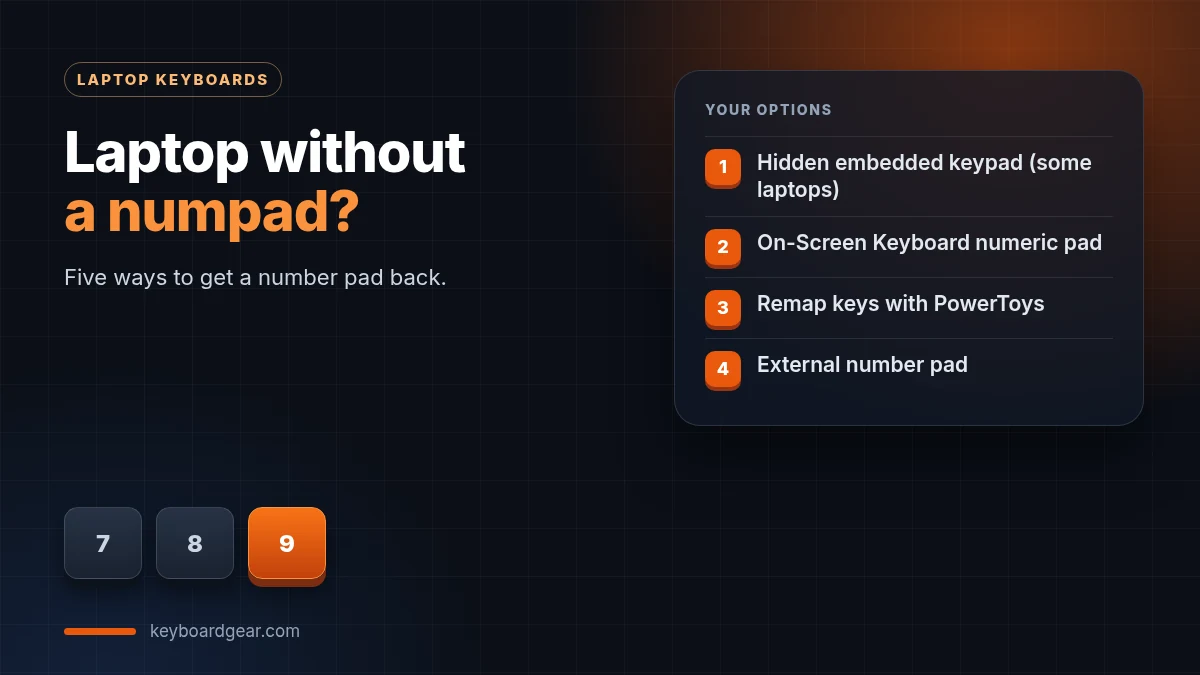
Number pads take a lot of space, so most 13 to 15 inch laptops leave them out. That’s fine until you need to enter a spreadsheet of figures or use a shortcut that expects a number pad. Here’s how to get one back.
Option 1: Check for a hidden embedded keypad
Some laptops, especially older Windows models, print small numbers on the U, I, O, J, K, L and M keys, often in a different color. That’s an embedded numeric keypad. You usually turn it on with Fn + Num Lock, Fn + Scroll Lock, Fn + F11 or a dedicated key, depending on the maker. Check your laptop’s manual for the exact keys.
When it’s on, those letter keys type numbers, so turn it off again before typing words. If numbers suddenly appear when you type letters, this is often why; see our keyboard numbers not working guide for related fixes, and our guide to Fn Lock if the Fn key behaves oddly.
Option 2: Use the Windows On-Screen Keyboard
Windows’ built-in On-Screen Keyboard (OSK) can show a full number pad:
- Open the On-Screen Keyboard. Our how to open the on-screen keyboard guide lists every method; one quick way is Windows logo key + Ctrl + O.
- Select Options.
- Tick Turn on numeric key pad and select OK.
- Select NumLock on the OSK so the pad types numbers.
It’s clicked with the mouse, so it’s slow for long lists, but it works on any Windows PC and is handy for the occasional key that only exists on a number pad.
Option 3: Remap keys
If you want number pad keys without extra hardware, you can remap other keys. On Windows, Microsoft PowerToys includes Keyboard Manager, which lets you remap keys and shortcuts. Our guide to remapping keys walks through it, plus options for Mac and keyboard software.
Option 4: Use the number row
For occasional numbers, the top number row works fine. Touch typists can learn to reach it without looking; it’s slower than a keypad for long columns of figures, but it’s always there.
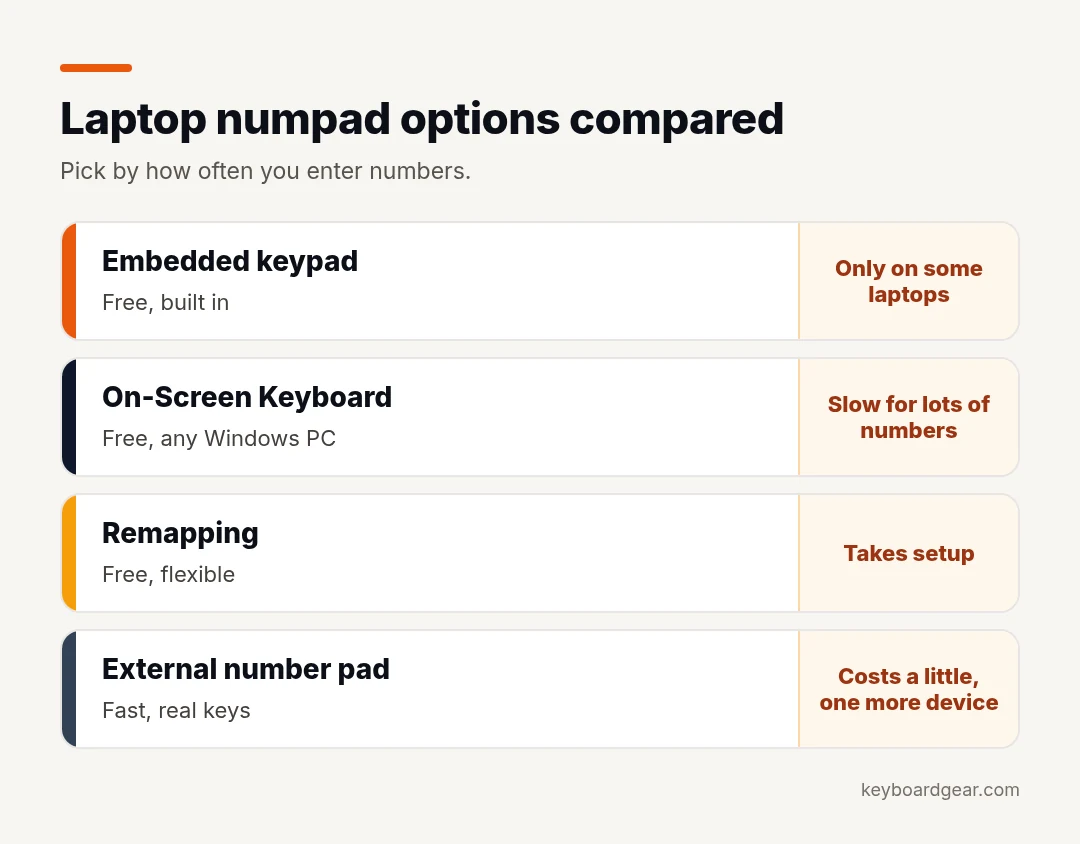
| Task | Best option |
|---|---|
| A few numbers now and then | Number row |
| A key only found on a number pad | On-Screen Keyboard |
| Regular spreadsheets or accounting | External number pad |
| No spare USB port or desk space | Embedded keypad, if your laptop has one |
Option 5: Add an external number pad
A USB or Bluetooth number pad is small, cheap and gives you real keys in the familiar layout, so you can use the same 10-key technique as on a full-size keyboard. Our best number pads guide compares wired, wireless and Bluetooth options. If you enter numbers all day, a full-size keyboard with a number pad may be worth it when you’re at a desk.
Put the number pad where your hand naturally rests. Right-handers usually put it to the right of the laptop; if you enter numbers with your left hand, it can sit on the left.
Learn 10-key typing
Whatever keypad you use, learning to type numbers by touch makes a big difference. Our 10-key typing guide explains the home row (4 5 6) and how to practice.
What about Macs?
MacBooks don’t have number pads or embedded keypads. Use the number row, or add an external number pad; many work over USB or Bluetooth with macOS.
FAQ
How do I get a number pad on my laptop?
Check for an embedded keypad, use the Windows On-Screen Keyboard’s numeric pad, remap keys, or add an external number pad.
How do I turn on the hidden numpad on my laptop?
Usually Fn plus Num Lock or a similar key. Check your laptop’s manual for the exact combination.
Why are my letter keys typing numbers?
An embedded numeric keypad is probably on. Turn off Num Lock or press the same Fn combination again.
Does the On-Screen Keyboard have a number pad?
Yes. In Options, select Turn on numeric key pad, then press NumLock on the OSK.
Do MacBooks have a number pad?
No. Use the number row or an external number pad.
Sources
Final thoughts
For occasional numbers, use the number row or the On-Screen Keyboard’s number pad. If your laptop has an embedded keypad, learn its Fn shortcut. For regular number entry, a small external number pad is the most comfortable and fastest fix.

Experience is what matters at the end!!
Hi! This is Jacob Jay – founder of Keyboardgear.com! From childhood to adulthood, I’ve always remained passionate about IT, and the revolution in this industry, especially gaming on the PC can’t go out of my way. Since I’m an enthusiastic gamer, and I love to experience various gaming accessories, particularly mechanical keyboards, that really boost my gaming adventure manifolds. So, my nerve cells hit me to transfer my experiences into word form and share with others to identify the ideal keyboards perfectly fit for their gaming modes.
I know very well how hard it is to find the high-quality items available on the internet that ought to be exactly the same as seen as on the screen. But the counterfeiters have ruined the user’s trust. As I have passed all such situations, I’m obliged to deliver the genuinity and express the same as what I am saying.
So, now, I’m working on the mission to provide very helpful and frankly but trustworthy reviews and guides about various mechanical keyboards, mouses, and other gaming accessories as per my personal experiences and sound knowledge.