

Quick answer
Windows 11: Settings > Time & language > Language & region > your language > ⋯ > Language options > Add a keyboard. Switch with Windows + Space.
Mac: System Settings > Keyboard > Text Input > Edit > +. Switch with Control + Space or the Globe key.
iPhone/iPad: Settings > General > Keyboard > Keyboards > Add New Keyboard. Android (Gboard): Settings > System > Keyboard > Gboard > Languages.
If your layout keeps changing on its own, remove the layouts you don’t use, so there is nothing to switch to by accident.
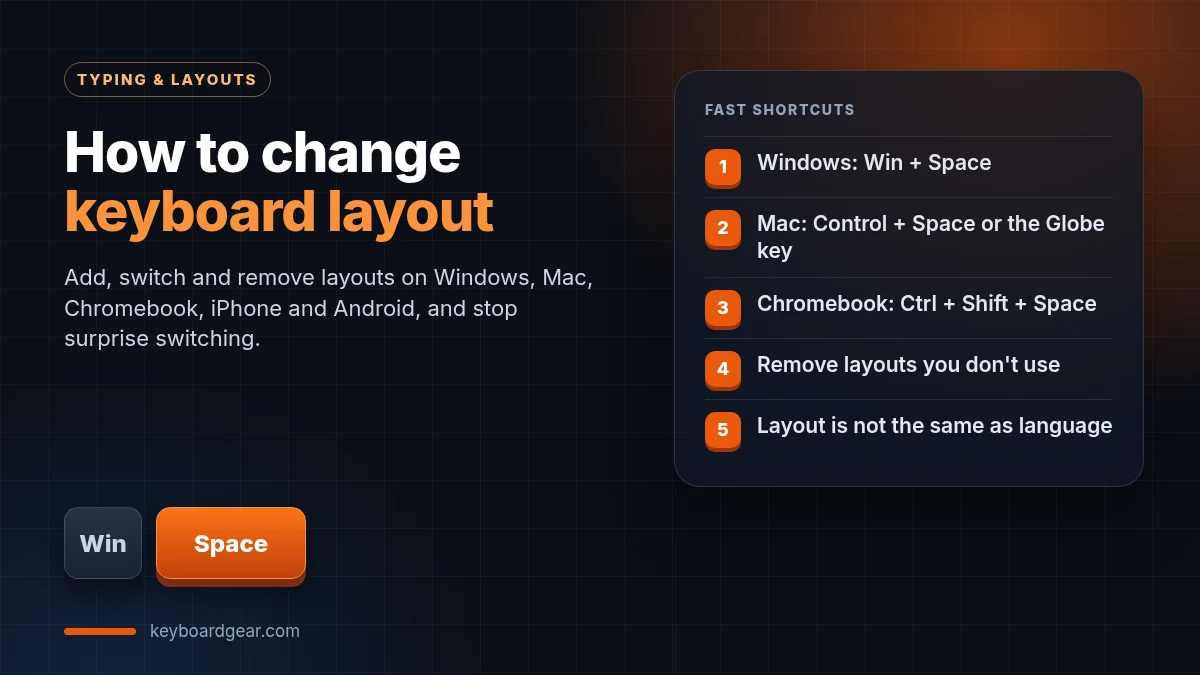
A keyboard layout decides which character appears when you press each key. Your physical keyboard may say QWERTY, but the computer can treat it as AZERTY, QWERTZ, UK English, Dvorak or any of dozens of others. That is useful if you type in more than one language or want to learn an alternative layout, and it is also why a keyboard can suddenly start typing @ instead of ” or Z instead of Y.
This guide shows how to add, switch and remove layouts on every major system, and how to stop the layout from changing when you don’t want it to.
Layout vs language: what’s the difference?
Your display language is the language of menus and apps. Your input language is the language you type in, and each input language can have one or more keyboard layouts. For example, English (United States) can use the US layout, US-International or Dvorak. You can type in English with a UK layout while Windows menus stay in English, or keep everything in English and add a French AZERTY layout for occasional use.
When people say “change the keyboard language”, they almost always mean change the layout.
Windows 11
Add a layout
- Open Settings > Time & language > Language & region.
- Next to the language you type in (for example English (United States)), select ⋯ > Language options.
- Under Keyboards, select Add a keyboard and choose the layout.
To add a layout for a different language, first use Add a language on the Language & region page, then add the keyboard under that language.
Switch layouts
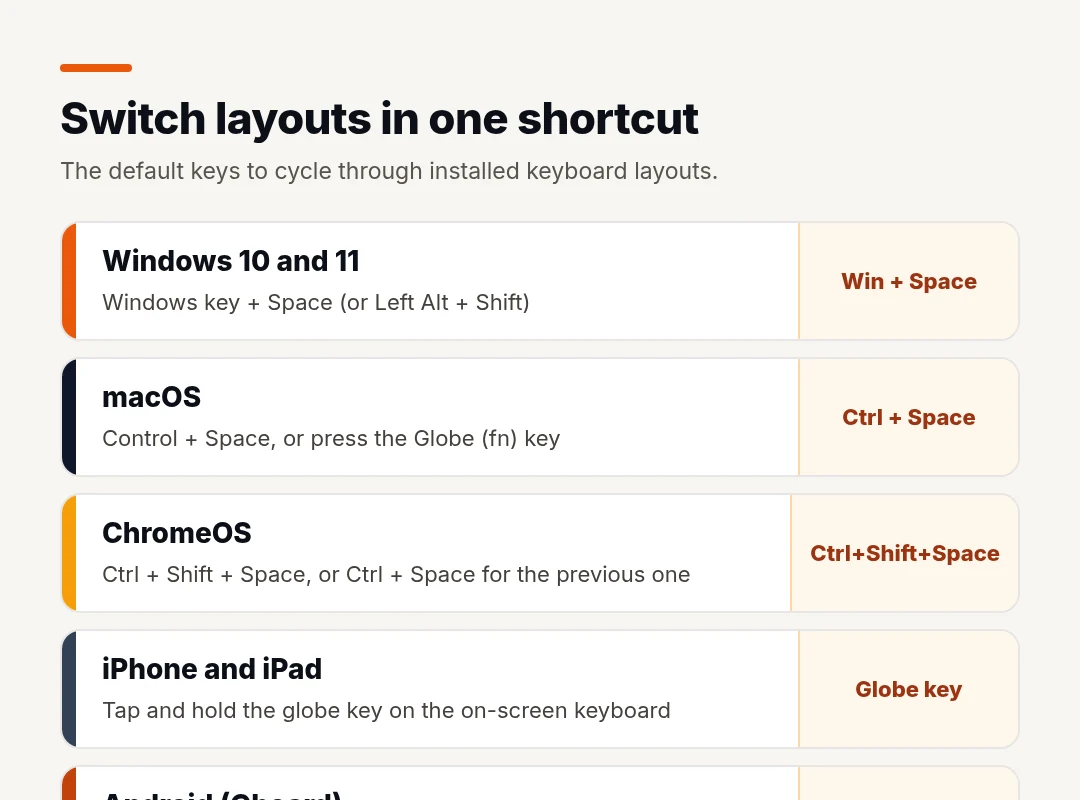
- Press Windows key + Space to cycle through installed layouts. A small pop-up shows which one is active.
- Or select the language abbreviation (such as ENG or FRA) in the taskbar near the clock.
- Left Alt + Shift also switches input languages by default.
Remove a layout
Go back to Language options, select ⋯ next to the keyboard under Keyboards, and choose Remove.
Windows 10
Open Settings > Time & Language > Language. Select your language, choose Options, then Add a keyboard. To remove one, select it in the same list and choose Remove. The Windows + Space shortcut works the same way.
Mac (macOS)
Add a layout
- Open Apple menu > System Settings > Keyboard.
- Under Text Input, next to Input Sources, select Edit.
- Select + at the bottom left, choose a language, then the layout you want (for example “French” or “Dvorak”), and select Add.
Switch layouts
- Turn on Show Input menu in menu bar in the same Input Sources window, then choose a layout from the menu bar.
- Press Control + Space to switch to the previous input source, or Control + Option + Space for the next one.
- On newer Mac keyboards, you can set the Globe (fn) key to change input sources: System Settings > Keyboard > “Press 🌐 key to” > Change Input Source.
Remove a layout
In Edit under Input Sources, select the layout and press −.
Chromebook (ChromeOS)
- Select the time at the bottom right, then Settings.
- Go to Device > Keyboard and inputs > Input settings (or search for “input”).
- Under Input methods, select Add input methods and choose a layout.
Press Ctrl + Shift + Space to cycle through layouts, or Ctrl + Space to go back to the previous one.
iPhone and iPad
- Open Settings > General > Keyboard > Keyboards.
- Tap Add New Keyboard and choose a language.
- For some languages you can then choose the hardware layout too, for example AZERTY or QWERTY for French.
To switch, tap and hold the globe key on the on-screen keyboard and pick a keyboard. If you use a hardware keyboard with your iPad, the layout for that is under Settings > General > Keyboard > Hardware Keyboard.
Android (Gboard)
- Open Settings > System > Keyboard (or Languages & input) > On-screen keyboard > Gboard.
- Tap Languages > Add keyboard, pick the language, then choose the layout (for example QWERTY, AZERTY or Dvorak) and tap Done.
Switch by tapping the globe key or, depending on your settings, by touching and holding or swiping on the space bar. Menus vary a little between phone makers.
Why does my keyboard layout keep changing?
This is one of the most common keyboard complaints, and it nearly always has the same cause: there is more than one layout installed, and a switching shortcut gets pressed by accident.
- Remove layouts you don’t use. With only one layout, there is nothing to switch to. On Windows, check every installed language, because each one can bring its own keyboard.
- Change or turn off the shortcut. On Windows 11, go to Settings > Time & language > Typing > Advanced keyboard settings > Input language hot keys and change or remove the Left Alt + Shift and Ctrl + Shift shortcuts.
- Stop per-app layouts. In the same Advanced keyboard settings page, the option “Let me use a different input method for each app window” makes Windows remember a layout per app. Turn it off if layouts seem to change when you switch windows.
- Check the sign-in screen. Windows can use a different layout on the lock screen. Copy your settings there via Settings > Time & language > Language & region > Administrative language settings > Copy settings.
If a keyboard types the wrong symbols even with the right layout, see our guide to a keyboard typing wrong characters, and if it stopped working entirely, see laptop keyboard not working.
Common layouts you might need
| Layout | Where it’s used | What changes |
|---|---|---|
| US (QWERTY) | United States and many others | Standard reference layout |
| UK (QWERTY) | United Kingdom, Ireland | @ and ” swap, £ on Shift + 3, extra key next to left Shift |
| US-International | Writing accents on a US keyboard | ‘ ” ` ~ ^ become dead keys for é, ü, ñ and so on |
| AZERTY | France, Belgium | A and Q swap, Z and W swap, numbers need Shift |
| QWERTZ | Germany, Austria, Switzerland | Y and Z swap, umlauts on their own keys |
| Dvorak / Colemak | Alternative English layouts | Letters rearranged for less finger movement |
Want to know more? We have guides to the AZERTY keyboard, how keyboards work in Japan, and QWERTY vs Dvorak.
Typing accents without changing layout: on Windows, US-International or the emoji panel (Windows + .) can insert many symbols. On a Mac, press and hold a letter key to see accented versions.
FAQ
How do I change my keyboard back to normal?
Press Windows + Space (Windows), Control + Space (Mac) or Ctrl + Shift + Space (Chromebook) until your usual layout is selected. Then remove layouts you don’t need so it doesn’t happen again.
Why is my keyboard typing @ instead of “?
Your computer is using the UK layout while your keyboard is a US layout (or the other way round). Switch to the layout that matches the printing on your keys.
Can I use a different layout from what’s printed on my keys?
Yes. The layout is a software setting, so you can type Dvorak or AZERTY on a QWERTY keyboard. The labels just won’t match, so it is best for touch typists or with replacement keycaps.
Does changing the keyboard layout change the language of Windows?
No. Adding a keyboard layout only changes how keys are mapped. The display language of menus is a separate setting.
How do I change the keyboard layout on the Windows login screen?
Use the language indicator on the lock screen, or copy your settings to the sign-in screen under Settings > Time & language > Language & region > Administrative language settings.
Related guide: How to Remap Keys on Windows, Mac and Chromebook (Free Tools)
Related guide: How to Type Accents on a Keyboard (Windows, Mac and Phone)
Sources
- Microsoft Support: Manage the input and display language settings in Windows
- Apple Support: Type in another language on Mac with input sources
- Chromebook Help: Change your keyboard language

Experience is what matters at the end!!
Hi! This is Jacob Jay – founder of Keyboardgear.com! From childhood to adulthood, I’ve always remained passionate about IT, and the revolution in this industry, especially gaming on the PC can’t go out of my way. Since I’m an enthusiastic gamer, and I love to experience various gaming accessories, particularly mechanical keyboards, that really boost my gaming adventure manifolds. So, my nerve cells hit me to transfer my experiences into word form and share with others to identify the ideal keyboards perfectly fit for their gaming modes.
I know very well how hard it is to find the high-quality items available on the internet that ought to be exactly the same as seen as on the screen. But the counterfeiters have ruined the user’s trust. As I have passed all such situations, I’m obliged to deliver the genuinity and express the same as what I am saying.
So, now, I’m working on the mission to provide very helpful and frankly but trustworthy reviews and guides about various mechanical keyboards, mouses, and other gaming accessories as per my personal experiences and sound knowledge.