

Quick answer
10-key typing means entering numbers on the numeric keypad by touch, using one hand. Rest your index, middle and ring fingers on 4, 5 and 6 (the 5 key has a raised bump), press 0 with your thumb and Enter, + and − with your pinky. Each finger covers its own column: index for 7-4-1, middle for 8-5-2, ring for 9-6-3 and the decimal point.
Learn it by never looking down, focusing on accuracy first, and practising for 10 to 15 minutes a day.
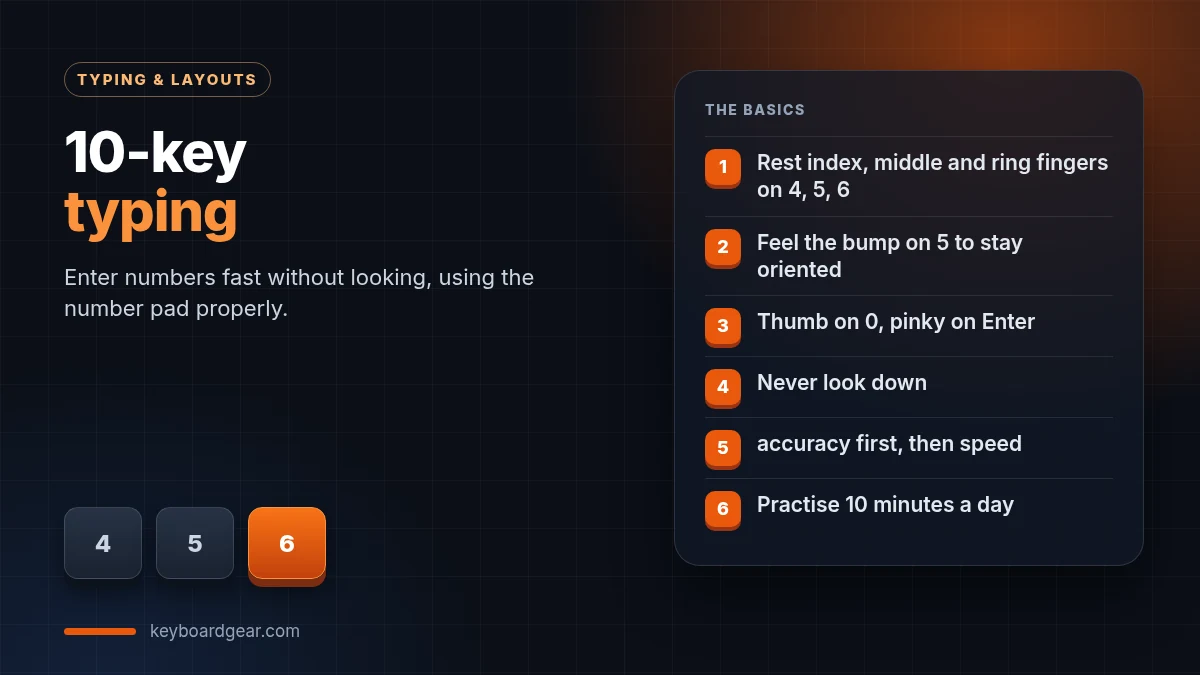
If you work with spreadsheets, accounting software, data entry or invoices, the number pad is the fastest way to enter numbers. The keypad’s calculator-style layout lets you type long strings of digits with one hand and without moving your eyes from the screen or the document you’re copying from. Many data entry and accounting job listings test 10-key speed.
This guide covers the technique, a practice plan and tips for laptops and compact keyboards without a number pad.
The 10-key layout
A standard numeric keypad has 17 keys: digits 0 to 9, +, −, *, /, a decimal point, Num Lock and Enter. The digits follow calculator order, with 7-8-9 on top and 1-2-3 near the bottom, which is the opposite of a phone keypad. The arrangement comes from calculators and cash registers.
Num Lock matters: with it off, Windows treats 8, 4, 6 and 2 as arrow keys and 7, 9, 1 and 3 as Home, Page Up, End and Page Down. If your keypad moves the cursor instead of typing numbers, press Num Lock. Our guide to keyboard numbers not working covers other fixes. Mac keyboards don’t have Num Lock; the keypad always types numbers.
Home position
Place your right hand on the keypad:
- Index finger on 4.
- Middle finger on 5, the key with the raised bump.
- Ring finger on 6.
- Thumb resting over 0.
- Pinky near + and Enter.
Always return to this position after each number. The bump on 5 lets you find it by feel.
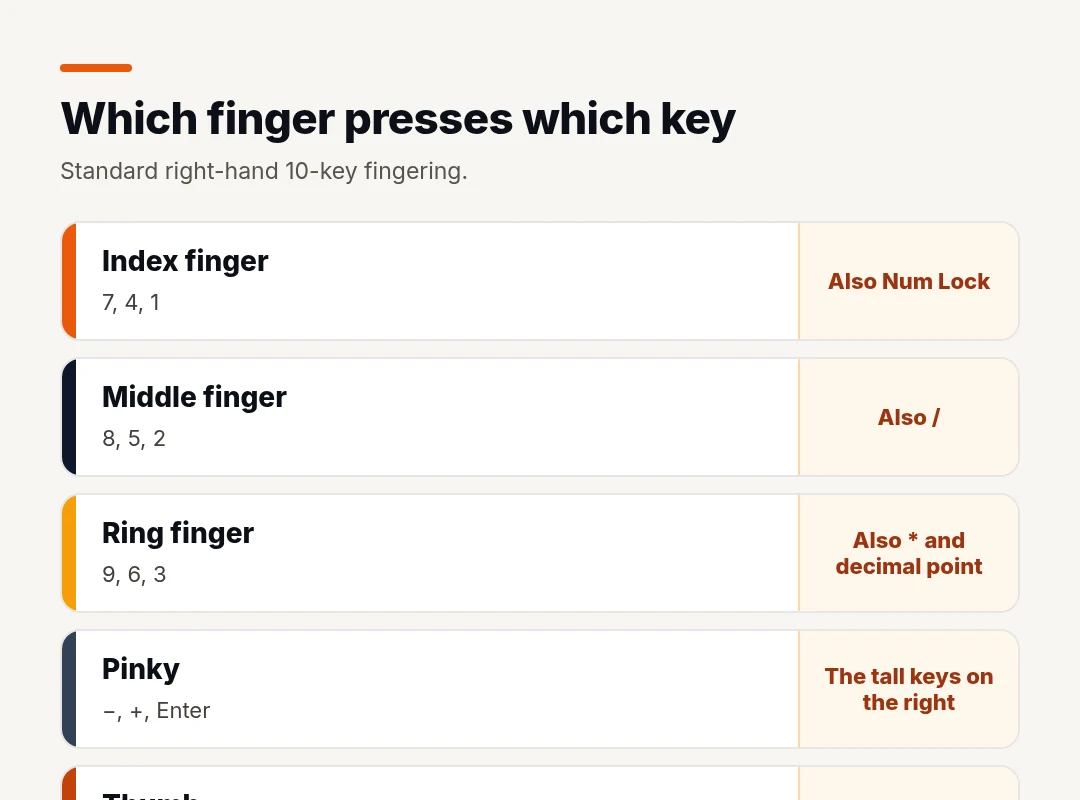
Which finger presses which key
Each finger moves up and down its own column:
| Finger | Keys |
|---|---|
| Index | 7, 4, 1 (and Num Lock) |
| Middle | 8, 5, 2 (and /) |
| Ring | 9, 6, 3, decimal point (and *) |
| Pinky | −, +, Enter |
| Thumb | 0 |
Some typists use the ring finger for the decimal point and others the middle; pick one and stick with it.
How to learn 10-key by touch
- Cover or ignore the keys. Looking down is the habit that slows most people. Keep your eyes on the screen.
- Start with the home row. Type random combinations of 4, 5 and 6, returning to home position each time.
- Add the top row (7, 8, 9), then the bottom row (1, 2, 3), then 0, the decimal point and Enter.
- Practise realistic numbers: prices with decimals, dates, phone numbers and long account codes.
- Accuracy first. In data entry, one wrong digit is worse than a slow one. Aim for near-perfect accuracy before pushing speed.
- Little and often. Ten to fifteen minutes a day builds muscle memory faster than an occasional long session.
Practice drills
- Column drills: 741 852 963, then reverse 147 258 369.
- Home row with Enter: 456, Enter, 654, Enter, 465, Enter.
- Zero drills: 100, 200, 3,000, 40,500.
- Decimal drills: 4.56, 12.99, 0.75, 1,234.50.
- Real-world copy: copy a column of figures from a receipt or a spreadsheet without looking down.
Free online 10-key tests measure speed and accuracy and make useful benchmarks.
How 10-key speed is measured
10-key speed is usually measured in keystrokes per hour (KPH), counting every key including Enter. Employers set their own targets, often combined with an accuracy requirement, so check the specific job’s requirement rather than relying on a generic number. Accuracy is typically weighted heavily.
Laptops and keyboards without a number pad
Many laptops and compact keyboards drop the number pad to save space. Options:
- A separate number pad: USB or wireless keypads add a full 10-key anywhere on your desk, including on the left if you prefer to keep the mouse on the right.
- Embedded keypad: some laptops have a hidden keypad on the letter keys (U-I-O, J-K-L, M) activated with Fn or Num Lock.
- Layers: programmable compact keyboards can put a numpad layer on the right-hand letters; our guide on how to remap keys explains how.
- A full-size or 96% keyboard: see our guide to keyboard sizes.
If you’re choosing between a full-size board and a tenkeyless one, our explainer on what tenkeyless keyboards are covers the trade-offs.
Ergonomic tips
- Keep the keypad close and at the same height as your keyboard, so you don’t reach.
- A full-size keyboard pushes the mouse further right; a separate keypad on the left can reduce mouse reach for some people.
- Keep your wrist straight and float your hand rather than planting your palm. Our wrist pain from typing guide has more.
Numpad shortcuts worth knowing
- On Windows, Alt codes for symbols and accented letters need the number pad; see how to type accents.
- In spreadsheets, the keypad’s Enter key moves down a cell, making column entry fast.
- In many games and apps, numpad keys can be bound separately from the number row.
A simple four-week practice plan
You don’t need special software to get faster; short, regular sessions work best.
| Week | Focus | Daily practice |
|---|---|---|
| 1 | Home row: 4, 5, 6 with index, middle and ring fingers | 5–10 minutes typing number strings without looking |
| 2 | Top and bottom rows: 7, 8, 9 and 1, 2, 3 | Mixed strings, then real figures such as receipts or prices |
| 3 | 0, decimal point and Enter | Columns of amounts with decimals, pressing Enter after each |
| 4 | Speed with accuracy | Timed runs; slow down if errors creep in |
Keep your eyes on the source document or screen, not the keypad. If you need to check, feel for the raised bump on the 5 key instead of looking down.
Accuracy first, then speed
In data entry, a wrong number is far more costly than a slow one. Most experienced operators aim to keep errors very low before pushing their speed. A practical approach is to type a set of figures, check them against the source, and only increase your pace once you’re consistently getting them right. When you make mistakes, look for patterns: if you keep swapping 4 and 7, slow down on those reaches specifically.
Common mistakes
- Looking at the keys. It’s the habit that holds most people back. Trust the home row.
- Using the wrong finger for 0. Use your thumb; it keeps your other fingers on the home row.
- Lifting the whole hand. Reach with your fingers and keep your palm hovering in place.
- Tensing up. Speed comes from relaxed, small movements, not from pressing harder.
- Ignoring Num Lock. If keys move the cursor instead of typing numbers, Num Lock is off.
10-key on a laptop without a numpad
Many smaller laptops don’t have a numpad. Some have an embedded numeric layer on the letter keys, enabled with Num Lock or an Fn combination, but it’s awkward for real data entry because the keys aren’t in a standard block. For anything more than occasional figures, a separate USB or Bluetooth numpad gives you the proper layout, and you can put it wherever is most comfortable.
Where to put the numpad
Most full-size keyboards place the numpad on the right, which pushes the mouse further from your body. If you enter numbers with your right hand and use the mouse a lot, a separate numpad on the left of the keyboard, or a tenkeyless keyboard with a standalone pad, can keep your mouse arm closer and more relaxed. Left-handed users often prefer a left-side numpad too.
FAQ
What is 10-key typing?
Entering numbers on the numeric keypad by touch, with one hand, using fixed fingers for each column.
Which finger goes on 5?
The middle finger. The bump on 5 helps you find home position without looking.
How long does it take to learn 10-key?
Most people get comfortable within a couple of weeks of daily practice; speed keeps improving with use.
What is a good 10-key speed?
It depends on the job. 10-key speed is measured in keystrokes per hour, and employers set their own targets with accuracy requirements.
How do I 10-key on a laptop?
Use a separate USB or wireless number pad, the laptop’s embedded keypad if it has one, or a numpad layer on a programmable keyboard.
Bottom line
Rest your index, middle and ring fingers on 4, 5 and 6, use your thumb for 0 and your pinky for Enter, and keep each finger in its column. Never look down, prioritise accuracy, and practise for ten minutes a day. If your laptop lacks a keypad, a separate number pad is a cheap and effective fix.
Sources

Experience is what matters at the end!!
Hi! This is Jacob Jay – founder of Keyboardgear.com! From childhood to adulthood, I’ve always remained passionate about IT, and the revolution in this industry, especially gaming on the PC can’t go out of my way. Since I’m an enthusiastic gamer, and I love to experience various gaming accessories, particularly mechanical keyboards, that really boost my gaming adventure manifolds. So, my nerve cells hit me to transfer my experiences into word form and share with others to identify the ideal keyboards perfectly fit for their gaming modes.
I know very well how hard it is to find the high-quality items available on the internet that ought to be exactly the same as seen as on the screen. But the counterfeiters have ruined the user’s trust. As I have passed all such situations, I’m obliged to deliver the genuinity and express the same as what I am saying.
So, now, I’m working on the mission to provide very helpful and frankly but trustworthy reviews and guides about various mechanical keyboards, mouses, and other gaming accessories as per my personal experiences and sound knowledge.