

Quick answer
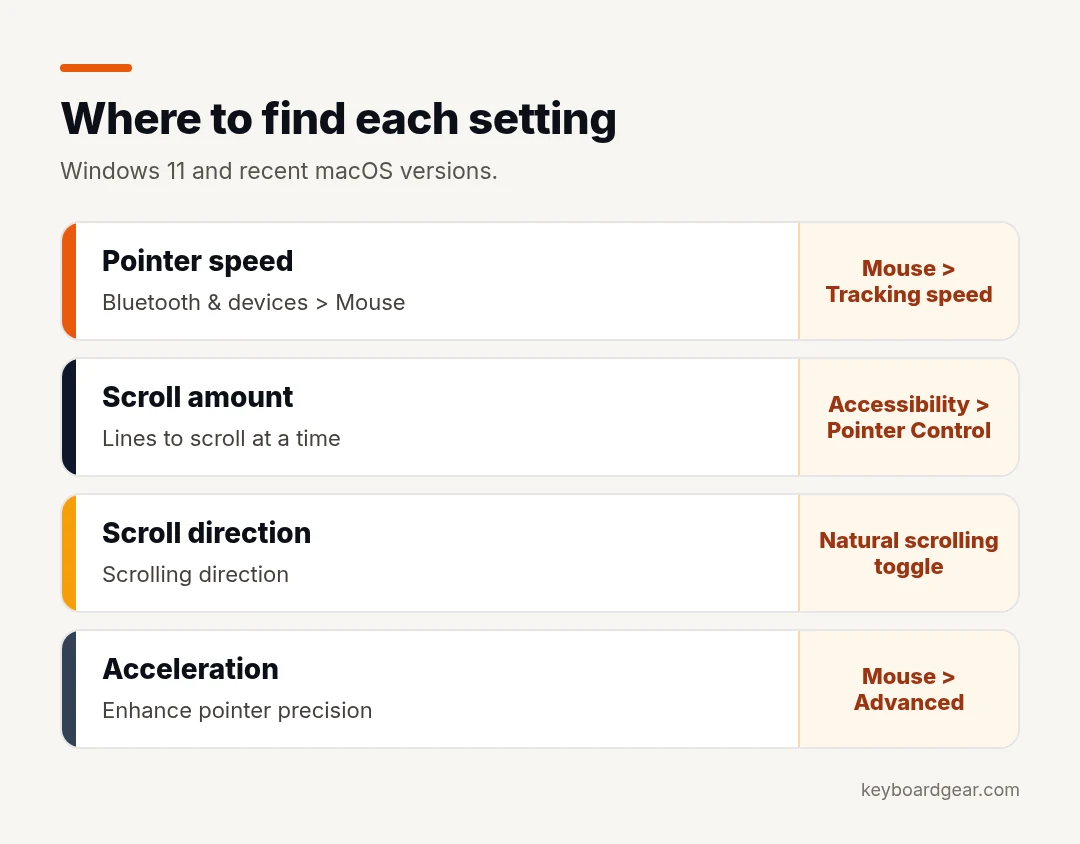
To change mouse speed on Windows 11, go to Settings > Bluetooth & devices > Mouse and drag the Mouse pointer speed slider. Scroll amount and scroll direction are in the same page under Scrolling. On a Mac, go to System Settings > Mouse and drag Tracking speed; turn Natural scrolling off or on to flip the scroll direction. Scroll speed is under Accessibility > Pointer Control > Mouse Options.
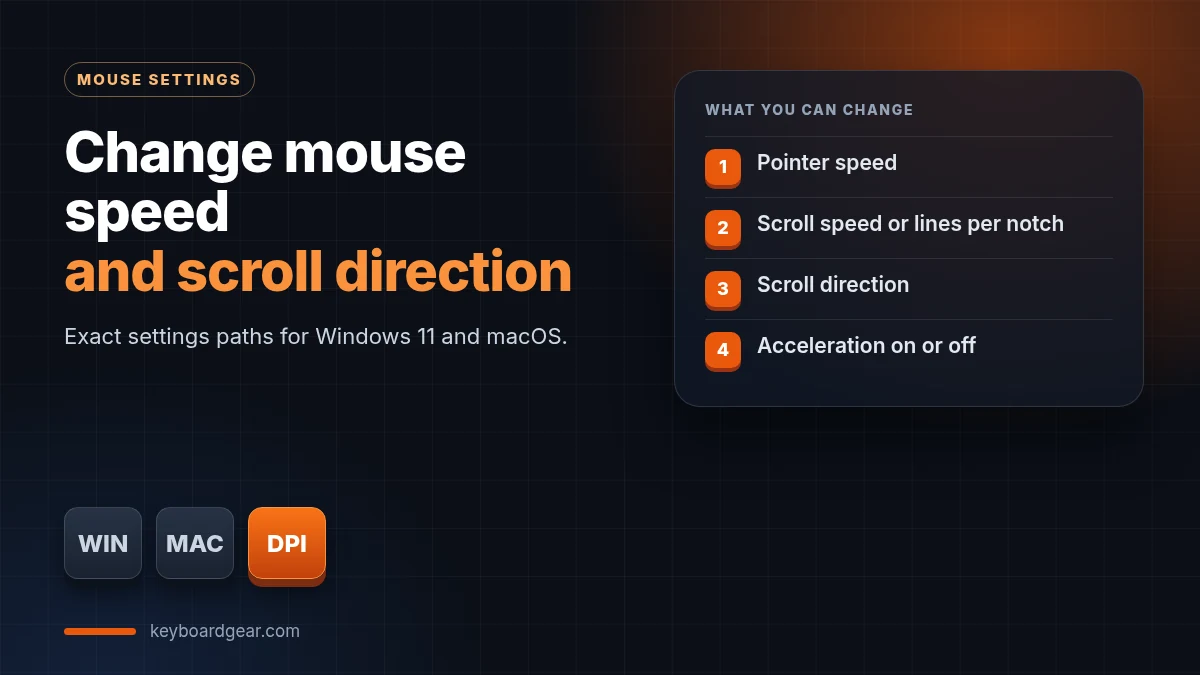
Pointer speed is personal: too fast and you overshoot small targets; too slow and you keep lifting the mouse. Here’s where every setting lives.
Change mouse speed on Windows 11
- Open Start > Settings > Bluetooth & devices > Mouse.
- Drag the Mouse pointer speed slider.
- Optional: turn Enhance pointer precision on or off. This is Windows’ pointer acceleration, which makes the pointer travel further when you move the mouse quickly.
Gamers usually turn acceleration off for consistent aim; see mouse acceleration explained.
Change scroll speed and direction on Windows 11
In the same Mouse page, under Scrolling:
- Roll the mouse wheel to scroll: choose multiple lines at a time or one screen at a time.
- Lines to scroll at a time: set how far each notch of the wheel moves.
- Scrolling direction: choose whether a downward motion scrolls down or up.
- Scroll inactive windows when hovering over them: handy with two monitors.
Touchpad scrolling is set separately under Bluetooth & devices > Touchpad.
Change mouse speed on Mac
- Choose Apple menu > System Settings, then click Mouse in the sidebar.
- Drag the Tracking speed slider.
- To turn off acceleration, click Advanced and turn off Pointer acceleration.
Move the pointer while you drag the slider. Changes apply instantly, so you can find a comfortable speed in seconds.
Change scroll speed and direction on Mac
- Scroll direction: in System Settings > Mouse, turn Natural scrolling off if you want the content to move the same way as a Windows mouse wheel. Trackpads have their own setting.
- Scroll speed: go to System Settings > Accessibility > Pointer Control > Mouse Options, and drag the scroll speed slider.
Many people use natural scrolling on the trackpad but not the mouse. macOS links the two on some versions, so a free utility or your mouse maker’s software may be needed to set them separately.
Speed settings vs DPI
Many mice, especially gaming mice, have a DPI button or DPI settings in their software. DPI changes how far the cursor moves per inch of mouse movement at the hardware level, while system pointer speed scales it in software.
| Setting | Where | Best for |
|---|---|---|
| Pointer speed | Windows or macOS settings | Everyday comfort |
| DPI | Mouse button or maker’s software | Gaming and high-resolution screens |
| In-game sensitivity | Game settings | Matching aim between games |
A common approach is to choose a moderate DPI (for example 800 to 1,600) and fine-tune with the system slider. Read mouse DPI vs sensitivity for the full explanation.
Use your mouse maker’s software
Logitech Options+, Logitech G HUB, Razer Synapse and similar apps can set pointer speed, DPI steps, scroll behavior and button actions per app. You can also remap buttons there; see how to remap keys for the same idea on keyboards, and mouse side buttons for button ideas.
How to find your best speed
- Place the pointer in the middle of the screen.
- Move your mouse a comfortable distance, such as the width of your hand.
- If the pointer reaches the edge too soon, lower the speed. If you have to lift the mouse repeatedly, raise it.
- Adjust one step at a time and use the new setting for a day before changing it again.
Make the pointer easier to see
Speed isn’t the only problem. In Windows, the Accessibility settings let you change pointer size and colour. On a Mac, go to Accessibility, then Display, to change the pointer size. A larger pointer is easier to follow at higher speeds.
Why games may ignore your system speed
Many games use their own sensitivity settings and may ignore the system pointer speed. If your pointer feels fine on the desktop but wrong in a game, adjust the in-game setting. See mouse DPI vs sensitivity.
Related settings
Mouse acceleration affects how speed changes with movement, and mouse polling rate affects how often your mouse reports. Most people can leave both at their defaults.
FAQ
How do I make my mouse faster on Windows 11?
Go to Settings > Bluetooth & devices > Mouse and drag the Mouse pointer speed slider to the right.
How do I reverse the scroll direction on Windows?
In Settings > Bluetooth & devices > Mouse, change Scrolling direction.
How do I turn off natural scrolling on a Mac mouse?
In System Settings > Mouse, turn off Natural scrolling.
Should I change DPI or pointer speed?
For everyday use, pointer speed is enough. For gaming, set DPI in the mouse software and keep acceleration off.
Why does my mouse speed keep changing?
A DPI button may have been pressed, or mouse software may apply different settings per app.
Sources
- Microsoft Support: Change mouse settings
- Apple Support: Change mouse or trackpad tracking, double-click, and scrolling speed on Mac
Final thoughts
Pointer speed, scroll amount and scroll direction all live in your system’s mouse settings and take seconds to change. If you want precise, repeatable control, set DPI in your mouse software and keep acceleration off.

Experience is what matters at the end!!
Hi! This is Jacob Jay – founder of Keyboardgear.com! From childhood to adulthood, I’ve always remained passionate about IT, and the revolution in this industry, especially gaming on the PC can’t go out of my way. Since I’m an enthusiastic gamer, and I love to experience various gaming accessories, particularly mechanical keyboards, that really boost my gaming adventure manifolds. So, my nerve cells hit me to transfer my experiences into word form and share with others to identify the ideal keyboards perfectly fit for their gaming modes.
I know very well how hard it is to find the high-quality items available on the internet that ought to be exactly the same as seen as on the screen. But the counterfeiters have ruined the user’s trust. As I have passed all such situations, I’m obliged to deliver the genuinity and express the same as what I am saying.
So, now, I’m working on the mission to provide very helpful and frankly but trustworthy reviews and guides about various mechanical keyboards, mouses, and other gaming accessories as per my personal experiences and sound knowledge.