

Quick answer
The side buttons on a mouse, often called mouse button 4 and mouse button 5, act as Back and Forward by default in web browsers and file windows on Windows. You can remap them with the mouse maker’s software, such as Logitech Options+, Logitech G HUB or Razer Synapse, to run shortcuts like copy and paste, mute in video calls, switch desktops or push-to-talk in games.
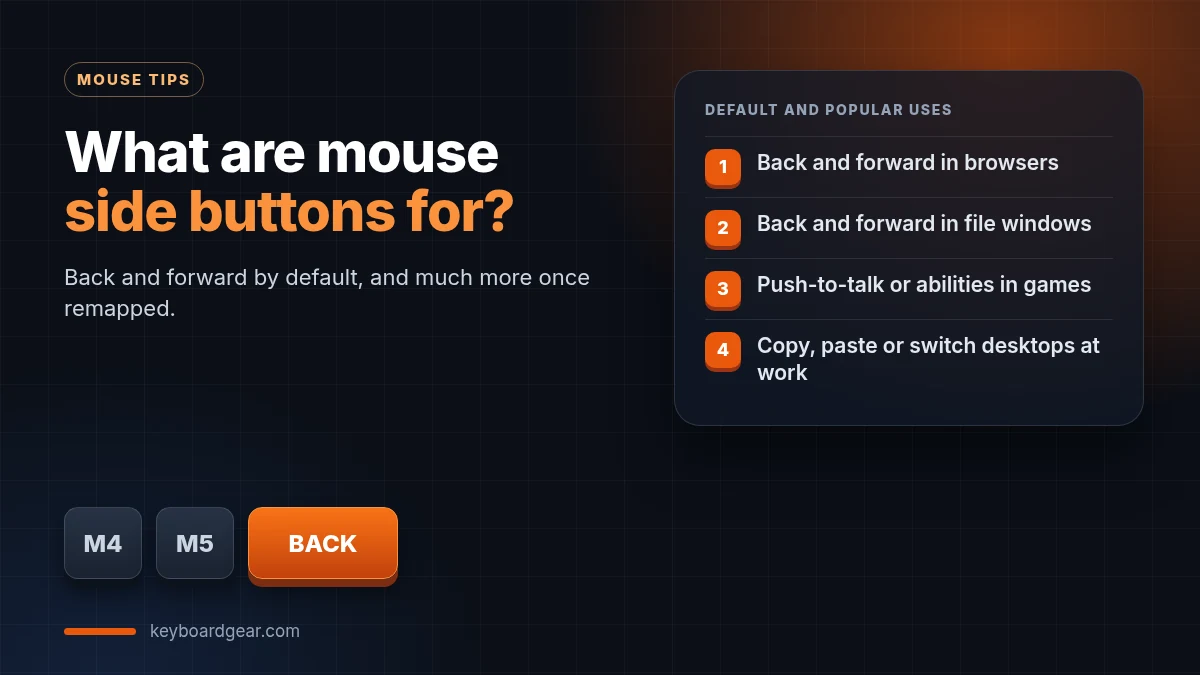
Most mice made in the last two decades have one or two buttons on the left side, under your thumb. Many people never use them, but they’re among the most convenient buttons on the mouse once you know what they can do.
What side buttons do by default
- Back (the rear button): goes back a page in web browsers and back a folder in File Explorer.
- Forward (the front button): goes forward again.
These defaults work in most browsers and many apps on Windows and Linux. On a Mac, support varies by app, and many mice rely on the maker’s software to make the buttons useful in macOS.
Useful ways to remap side buttons
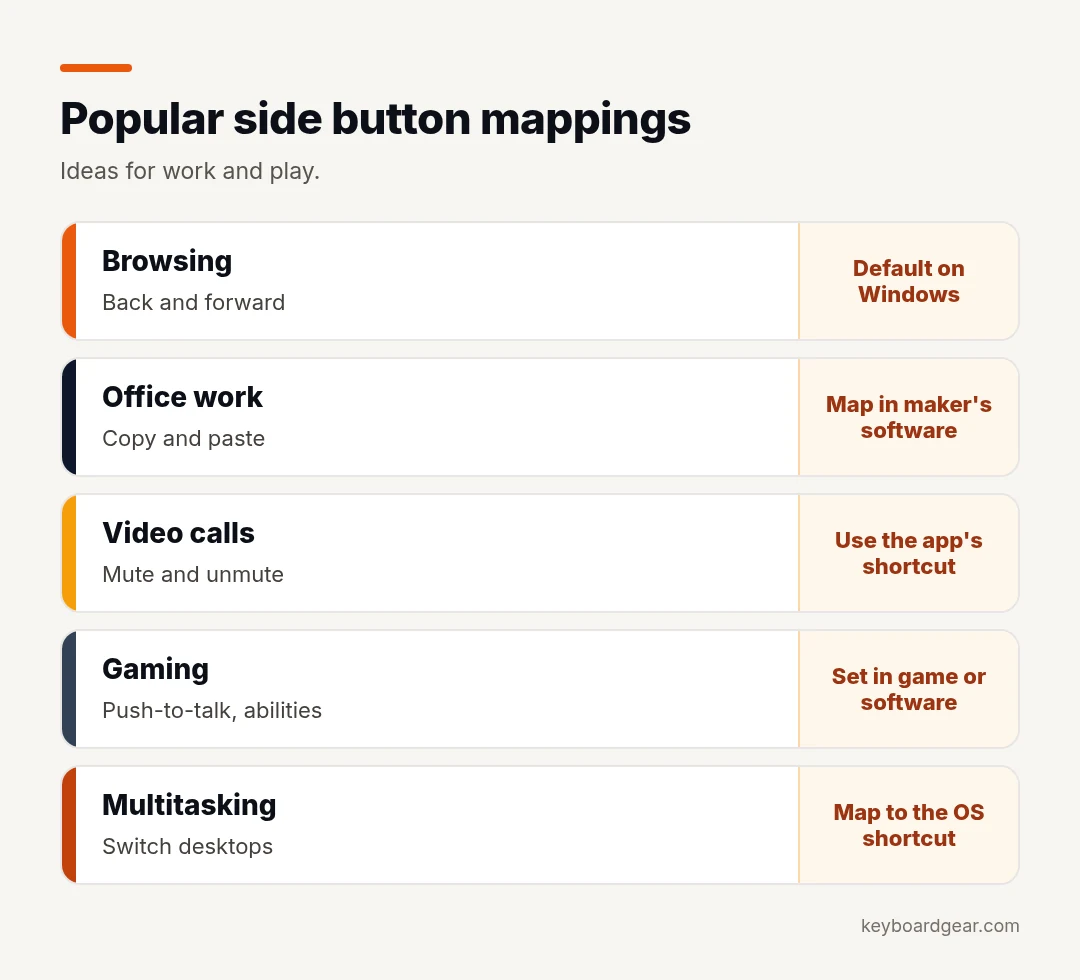
Once you install your mouse maker’s software, you can assign almost any keyboard shortcut to a side button:
- Copy and paste. Popular for data entry and editing.
- Mute and unmute. Map the button to your video-call app’s mute shortcut.
- Switch desktops or windows. For example, the shortcut for Task View or Mission Control.
- Undo. Handy for design and photo editing.
- Push-to-talk. Very popular for gaming voice chat.
- Game abilities and items. Keeps your fingers on movement keys.
For longer actions, you can assign a macro; see what are keyboard macros. If you want even more buttons, a macro pad is worth a look.
Many apps let you set your own keyboard shortcuts. Create a shortcut in the app first, then map the side button to it in your mouse software.
How to remap mouse side buttons
- Find your mouse’s model and maker (it’s usually on the underside).
- Download the maker’s software: for example Logitech Options+ for MX and everyday mice, Logitech G HUB for Logitech G mice, Razer Synapse for Razer, or Corsair iCUE for Corsair.
- Select the side button in the app and choose an action or keyboard shortcut.
- Save the profile. Many gaming mice can store it in onboard memory, so it works on other computers without the software.
For keyboard remapping, see how to remap keys.
Side buttons in games
Many games let you bind mouse button 4 and 5 directly in their controls menu. Binding inside the game is usually simpler than using software, and avoids conflicts. In competitive games, check that any macros you create comply with the game’s rules.
Side buttons not working?
- Check the app. Some apps ignore Back and Forward buttons.
- Check your mouse software. The button may be disabled or assigned to something else.
- Update or reinstall the software and drivers.
- Test on another computer. If they still don’t respond, the switch may be faulty.
- Clicking twice? See mouse double clicking for fixes.
Do you need side buttons?
Most people benefit from at least two. Gamers and heavy multitaskers may want more, and MMO mice offer a grid of a dozen thumb buttons. See our best gaming mouse picks, and gaming mouse vs office mouse for how button layouts differ.
Why side buttons sometimes don’t work
- The app doesn’t support Back and Forward. Browsers usually do, but many other programs need a remap.
- The mouse needs its software. Some mice only expose extra buttons after you install the maker’s app.
- Another program has taken over the button. Close recently installed mouse or gaming software and test again.
On a Mac
Many mice work with Back and Forward in browsers by default, but other actions usually require the maker’s software. Check the mouse’s support page before buying a mouse for a Mac.
Choosing a mouse with the right buttons
Count how many side buttons you’ll actually use. Two is plenty for browsing. If you want many, look at an MMO-style mouse; see best MMO mouse. For work shortcuts, our programmable mouse uses guide has ideas, and mouse profiles per app explains how to change buttons automatically for each program.
FAQ
What are mouse buttons 4 and 5?
The two side buttons. By default, button 4 is Back and button 5 is Forward.
Can I change what the side buttons do?
Yes, with the mouse maker’s software, or by binding them in a game’s settings.
Why don’t my side buttons work on Mac?
Some macOS apps don’t support them by default. Install the maker’s software to assign actions.
Are side buttons good for gaming?
Yes. They’re commonly used for push-to-talk, abilities and items.
Can I use side buttons for copy and paste?
Yes. Map them to Ctrl + C and Ctrl + V (or Cmd on a Mac) in your mouse software.
Related guide: How to Set Up Per-App Mouse Button Profiles
Related guide: Programmable Mouse Uses Beyond Gaming: Excel, Editing and Browsing
Final thoughts
Side buttons are Back and Forward by default, but they’re most useful when mapped to the shortcuts you use most. Spend five minutes in your mouse software and they’ll quickly become indispensable.

Experience is what matters at the end!!
Hi! This is Jacob Jay – founder of Keyboardgear.com! From childhood to adulthood, I’ve always remained passionate about IT, and the revolution in this industry, especially gaming on the PC can’t go out of my way. Since I’m an enthusiastic gamer, and I love to experience various gaming accessories, particularly mechanical keyboards, that really boost my gaming adventure manifolds. So, my nerve cells hit me to transfer my experiences into word form and share with others to identify the ideal keyboards perfectly fit for their gaming modes.
I know very well how hard it is to find the high-quality items available on the internet that ought to be exactly the same as seen as on the screen. But the counterfeiters have ruined the user’s trust. As I have passed all such situations, I’m obliged to deliver the genuinity and express the same as what I am saying.
So, now, I’m working on the mission to provide very helpful and frankly but trustworthy reviews and guides about various mechanical keyboards, mouses, and other gaming accessories as per my personal experiences and sound knowledge.