

Quick answer
The most useful Mac keyboard shortcuts are Command-C / Command-V (copy and paste), Command-Z (undo), Command-Space (Spotlight), Command-Tab (switch apps), Command-W / Command-Q (close window / quit app), Shift-Command-5 (screenshots and recordings) and Option-Command-Esc (force quit).
To use a shortcut, hold the modifier keys, press the last key, then release. On a keyboard made for Windows, Apple says to press Alt instead of Option and Ctrl or the Windows key instead of Command.
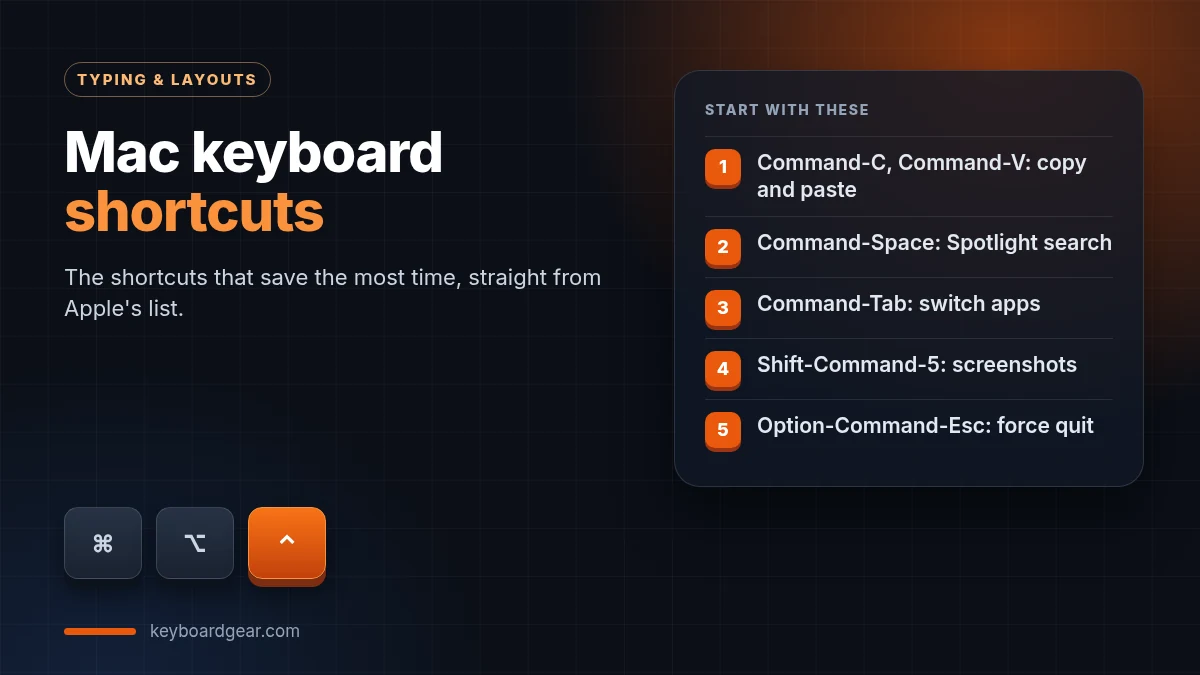
Keyboard shortcuts let you do in a keystroke what takes several clicks with a mouse or trackpad. On a Mac, nearly everything revolves around the Command key, and once a handful become habit you’ll wonder how you worked without them.
This guide lists the Mac shortcuts worth learning, based on Apple’s official list, grouped by what they do. If you also use a PC, see our matching guide to Windows keyboard shortcuts. Note that every app can have its own shortcuts, and a shortcut in one app might not work in another.
The Mac modifier keys
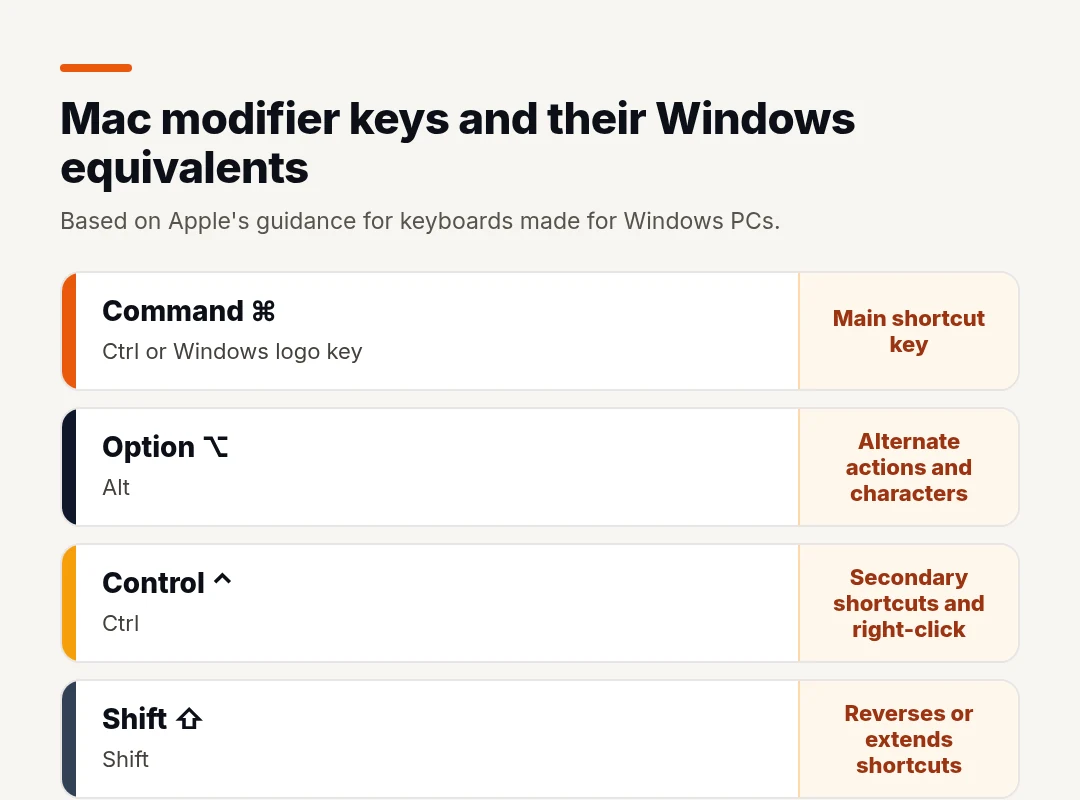
Mac shortcuts combine one or more modifier keys with a letter or other key. In menus, they appear as symbols:
| Key | Symbol | Notes |
|---|---|---|
| Command (Cmd) | ⌘ | The main shortcut key, like Ctrl on Windows |
| Option (Alt) | ⌥ | Alternate versions of commands and special characters |
| Control (Ctrl) | ⌃ | Secondary shortcuts; Control-click acts as a right-click |
| Shift | ⇧ | Often reverses or extends a shortcut |
| Fn or Globe | 🌐 | Function keys, emoji and system features |
| Caps Lock | ⇪ | |
| Escape (Esc) | ⎋ | Cancel, exit full screen |
On many Apple keyboards the top row controls brightness, Mission Control, volume and more. To use them as standard F1, F2 and so on, hold Fn or Globe. Our guide to Fn lock explains how to make the function keys the default instead.
Everyday shortcuts
| Shortcut | What it does |
|---|---|
| Command-X | Cut |
| Command-C | Copy (also works with files in Finder) |
| Command-V | Paste (also works with files in Finder) |
| Command-Z | Undo |
| Shift-Command-Z | Redo |
| Command-A | Select all |
| Command-F | Find |
| Command-G | Find again (Shift-Command-G finds previous) |
| Command-S | Save |
| Command-P | |
| Command-O | Open |
| Command-T | New tab |
| Command-W | Close the front window (Option-Command-W closes all of the app’s windows) |
| Command-Q | Quit the app |
| Command-H | Hide the front app (Option-Command-H hides all others) |
| Command-M | Minimise the front window to the Dock |
| Command-Comma (,) | Open the app’s settings |
| Option-Command-Esc | Force quit an app |
Search, switching and windows
| Shortcut | What it does |
|---|---|
| Command-Space bar | Show or hide Spotlight search |
| Command-Tab | Switch to the next most recently used app |
| Command-Grave accent (`) | Switch between windows of the current app |
| Control-Command-F | Use the app in full screen, if supported |
| Control-Up Arrow | Open Mission Control |
| Control-Down Arrow | Show all windows of the front app |
| Command-Mission Control, Fn-H or Fn-F11 | Show the desktop |
| Space bar | Quick Look preview of the selected item |
| Control-Command-Space bar or Fn-E | Character Viewer for emoji and symbols |
Screenshots
| Shortcut | What it does |
|---|---|
| Shift-Command-3 | Screenshot of the whole screen |
| Shift-Command-4 | Screenshot of a selected area |
| Shift-Command-5 | Screenshot and screen recording options (macOS Mojave or later) |
Finder shortcuts
| Shortcut | What it does |
|---|---|
| Command-N | New Finder window |
| Shift-Command-N | New folder |
| Command-D | Duplicate selected files |
| Command-I | Get Info |
| Command-Delete | Move to Trash |
| Shift-Command-Delete | Empty the Trash |
| Command-1 / 2 / 3 / 4 | View as icons, list, columns or gallery |
| Command-Up Arrow | Open the enclosing folder |
| Command-Down Arrow | Open the selected item |
| Shift-Command-G | Go to Folder |
| Option-Command-L | Open the Downloads folder |
| Shift-Command-H | Open your Home folder |
| Shift-Command-R | Open AirDrop |
| Option-Command-D | Show or hide the Dock |
| Option-Command-V | Move files in the Clipboard to the current location (after Command-C) |
That last one is how you “cut and paste” files on a Mac: copy with Command-C, then move with Option-Command-V.
Text-editing shortcuts
These work in most text fields and documents, though behaviour can vary by app.
| Shortcut | What it does |
|---|---|
| Command-B / I / U | Bold, italic, underline |
| Command-K | Add a web link |
| Option-Delete | Delete the word to the left |
| Fn-Delete | Forward delete |
| Command-Left / Right Arrow | Start or end of the line |
| Option-Left / Right Arrow | Previous or next word |
| Command-Up / Down Arrow | Start or end of the document |
| Shift with any of the above | Select as you move |
| Fn-Up / Down Arrow | Page Up / Page Down |
| Fn-Left / Right Arrow | Home / End |
| Option-Shift-Command-V | Paste and match style |
| Control-Command-D | Show the definition of the selected word |
| Command-Semicolon (;) | Find misspelled words |
| Control-A / Control-E | Start or end of the line or paragraph |
Sleep, lock and log out
| Shortcut | What it does |
|---|---|
| Control-Command-Q | Lock your screen |
| Shift-Command-Q | Log out (with confirmation) |
| Option-Shift-Command-Q | Log out immediately |
| Option-Command-Power button | Put your Mac to sleep |
| Power button (hold) | Force your Mac to turn off when it isn’t responding |
On keyboards with Touch ID, pressing the Touch ID button locks your screen, according to Apple.
Fn and Globe key shortcuts
Newer Macs add shortcuts using the Fn or Globe key:
- Fn-A: show or hide the Dock.
- Fn-C: show or hide Control Center.
- Fn-N: show or hide Notification Center.
- Fn-D: start or stop dictation.
- Fn-Q: create a Quick Note.
- Fn-E: open the emoji and symbols viewer.
Using Mac shortcuts on a Windows keyboard
You can use any USB or Bluetooth keyboard with a Mac; our guide to which keyboards are compatible with Mac explains the details. Apple’s advice for keyboards made for Windows PCs is to press Alt for Option and Ctrl or the Windows logo key for Command.
By default, the Windows key usually acts as Command and Alt as Option, which puts them in swapped positions compared with a Mac keyboard. To fix that:
- Open System Settings > Keyboard > Keyboard Shortcuts.
- Choose Modifier Keys, and select your external keyboard from the menu.
- Set Option to act as Command and Command as Option, or as you prefer.
Many multi-device keyboards also have a Mac mode, often set by a key combination or switch. For deeper customisation, see our guide on how to remap keys, and for a Mac-layout board, see our best keyboards for Mac.
How to create your own shortcuts
macOS lets you add or change app shortcuts:
- Open System Settings > Keyboard > Keyboard Shortcuts.
- Select App Shortcuts and click the add button.
- Choose the app (or All Applications), type the exact menu command name, and press the shortcut you want.
If a shortcut you rely on stops working, check whether another app or input source uses the same combination. In some macOS versions, Command-Space switches input sources when you have several languages enabled; our guide on how to change keyboard layout covers input sources.
Accessibility shortcuts
- Option-Command-F5 or triple-pressing Touch ID opens the Accessibility Shortcuts panel on many Macs.
- Control-Option-Command-8 inverts colours (enable it first in Keyboard Shortcuts > Accessibility).
- Pressing Shift five times can toggle Sticky Keys if it is enabled; if it keeps turning on, see our guide to turning off Sticky Keys.
Browser shortcuts (Safari and Chrome)
Most of these work the same in Safari, Chrome, Firefox and Edge on a Mac.
| Shortcut | What it does |
|---|---|
| Command-L | Jump to the address bar |
| Command-T | Open a new tab |
| Shift-Command-T | Reopen the last closed tab |
| Control-Tab | Go to the next tab (add Shift for the previous one) |
| Command-1 to Command-9 | Jump to a tab by position (Command-9 goes to the last tab) |
| Command-R | Reload the page |
| Command-Plus / Command-Minus | Zoom in or out |
| Command-0 | Reset zoom to actual size |
| Command-D | Bookmark the page |
| Command-Y | Show history (Chrome; Safari uses its History menu) |
Change what the modifier keys do
If you’re coming from Windows, or using a keyboard with a different layout, you can swap modifier keys without extra software. Open System Settings > Keyboard, click Keyboard Shortcuts, then choose Modifier Keys. Pick the keyboard from the menu at the top and set what Caps Lock, Control, Option, Command and Globe each do. A common change is turning Caps Lock into another Control or Escape key.
A cheat sheet by task
| I want to… | Shortcut |
|---|---|
| Find any app or file | Command-Space |
| Switch apps | Command-Tab |
| See all windows | Control-Up Arrow (Mission Control) |
| Take a screenshot of part of the screen | Shift-Command-4 |
| Force quit a frozen app | Option-Command-Esc |
| Lock the screen | Control-Command-Q |
| Insert an emoji | Control-Command-Space |
| Close a window without quitting the app | Command-W |
How to learn shortcuts faster
- Look at the menus. Every menu item with a shortcut shows it on the right. When you click a menu item twice in a day, learn its shortcut.
- Learn five at a time. Pick a handful you’d use daily, use them for a week, then add more.
- Use them where the mouse is slow. Window switching, tab management and text editing are where shortcuts save the most time.
- Stick a note to your monitor. A small reminder for a week builds the habit faster than you’d think.
FAQ
What is the Command key on a Windows keyboard?
Apple says to use the Ctrl key or the Windows logo key in place of Command, and Alt in place of Option.
How do I right-click on a Mac with the keyboard?
Hold Control while clicking. Control-click acts as a right-click.
How do I force quit on a Mac?
Press Option-Command-Esc, choose the app and click Force Quit.
How do I take a screenshot on a Mac?
Shift-Command-3 captures the whole screen, Shift-Command-4 a selected area, and Shift-Command-5 opens screenshot and recording options.
How do I cut and paste files on a Mac?
Copy the file with Command-C, go to the destination and press Option-Command-V to move it.
How do I switch between windows of the same app?
Press Command-Grave accent (`), the key above Tab on most keyboards.
Bottom line
Start with copy and paste, undo, Spotlight, app switching, screenshots and force quit, then add Finder and text-editing shortcuts as you go. On a Windows keyboard, remember Ctrl or the Windows key means Command and Alt means Option, and swap the modifier keys in System Settings if their positions feel wrong. Apple’s full list covers hundreds more, but these are the ones you’ll use every day.
Related guide: How to Type Accents on a Keyboard (Windows, Mac and Phone)
Sources

Experience is what matters at the end!!
Hi! This is Jacob Jay – founder of Keyboardgear.com! From childhood to adulthood, I’ve always remained passionate about IT, and the revolution in this industry, especially gaming on the PC can’t go out of my way. Since I’m an enthusiastic gamer, and I love to experience various gaming accessories, particularly mechanical keyboards, that really boost my gaming adventure manifolds. So, my nerve cells hit me to transfer my experiences into word form and share with others to identify the ideal keyboards perfectly fit for their gaming modes.
I know very well how hard it is to find the high-quality items available on the internet that ought to be exactly the same as seen as on the screen. But the counterfeiters have ruined the user’s trust. As I have passed all such situations, I’m obliged to deliver the genuinity and express the same as what I am saying.
So, now, I’m working on the mission to provide very helpful and frankly but trustworthy reviews and guides about various mechanical keyboards, mouses, and other gaming accessories as per my personal experiences and sound knowledge.