

Most people never decide how to type. They pick up a style from years of emails, homework and chat, and it settles somewhere between hunt-and-peck and real touch typing. If you want to type faster, the good news is that large typing studies show exactly what separates fast typists from slow ones, and most of it can be practised.
This guide turns that research into a practical plan: how to measure your speed properly, what actually makes typists fast, whether you should relearn with touch typing, a step-by-step practice routine, and the free tools worth using.
Quick answer
To type faster, fix accuracy first, then build speed. Use the same finger for each key every time, keep your hands still and your eyes on the screen, start from the home row (A S D F and J K L ;), and practise common words rather than random letters. Measure your net WPM and accuracy on a typing test so you know whether you are improving.
In a study of 168,000 typists the average was about 52 words per minute, and the fastest 10% averaged about 90 WPM. Fast typists made fewer errors and often pressed the next key before releasing the last one. Learning full touch typing is the surest route to very high speeds (100+ WPM) but takes many hours of deliberate practice.
Step 1: Measure your typing speed properly
Typing speed is measured in words per minute (WPM), but a “word” here is not a real word. For text entry it is standardised as any five characters, including spaces and punctuation, so that long and short words count fairly. Under that rule, “I run” is one word and “rhinoceros” is two (Wikipedia: Words per minute).
Typing tests usually show two speeds and an accuracy figure. They are worth understanding, because they tell you different things:
| Metric | What it means | Why it matters |
|---|---|---|
| Gross (raw) WPM | All characters typed ÷ 5, per minute, with no penalty for mistakes | Shows how fast your fingers move, even if the text is wrong |
| Net WPM | Gross WPM minus uncorrected errors per minute (some tests count only correct words) | Your real, usable speed. This is the number to track |
| Accuracy | Correct keystrokes as a percentage of all keystrokes, including ones you fixed | Every Backspace costs time, so accuracy limits net speed |
SpeedTypingOnline’s worked example shows the trade-off: if you type at 80 gross WPM for two minutes and leave 8 mistakes, that is 4 errors a minute, so your net speed is 76 WPM (SpeedTypingOnline: typing equations). Monkeytype calculates its main WPM from correctly typed words only, and reports “raw” WPM separately (Monkeytype: about).
Take two or three one-minute tests on normal text, note your net WPM and accuracy, and treat the average as your starting point. Retest the same way once a week; daily scores bounce around too much to be useful.
What is a good typing speed?
There is no official standard, but published data gives useful reference points. In an online study of 168,000 volunteers, typists averaged 51.6 WPM (standard deviation 20.2), and the fastest reached 120 WPM or more (Dhakal et al., CHI 2018). An earlier study of average computer users, reported by Karat et al. in 1999, found 32.5 WPM when copying text and 19 WPM when composing (via Wikipedia).
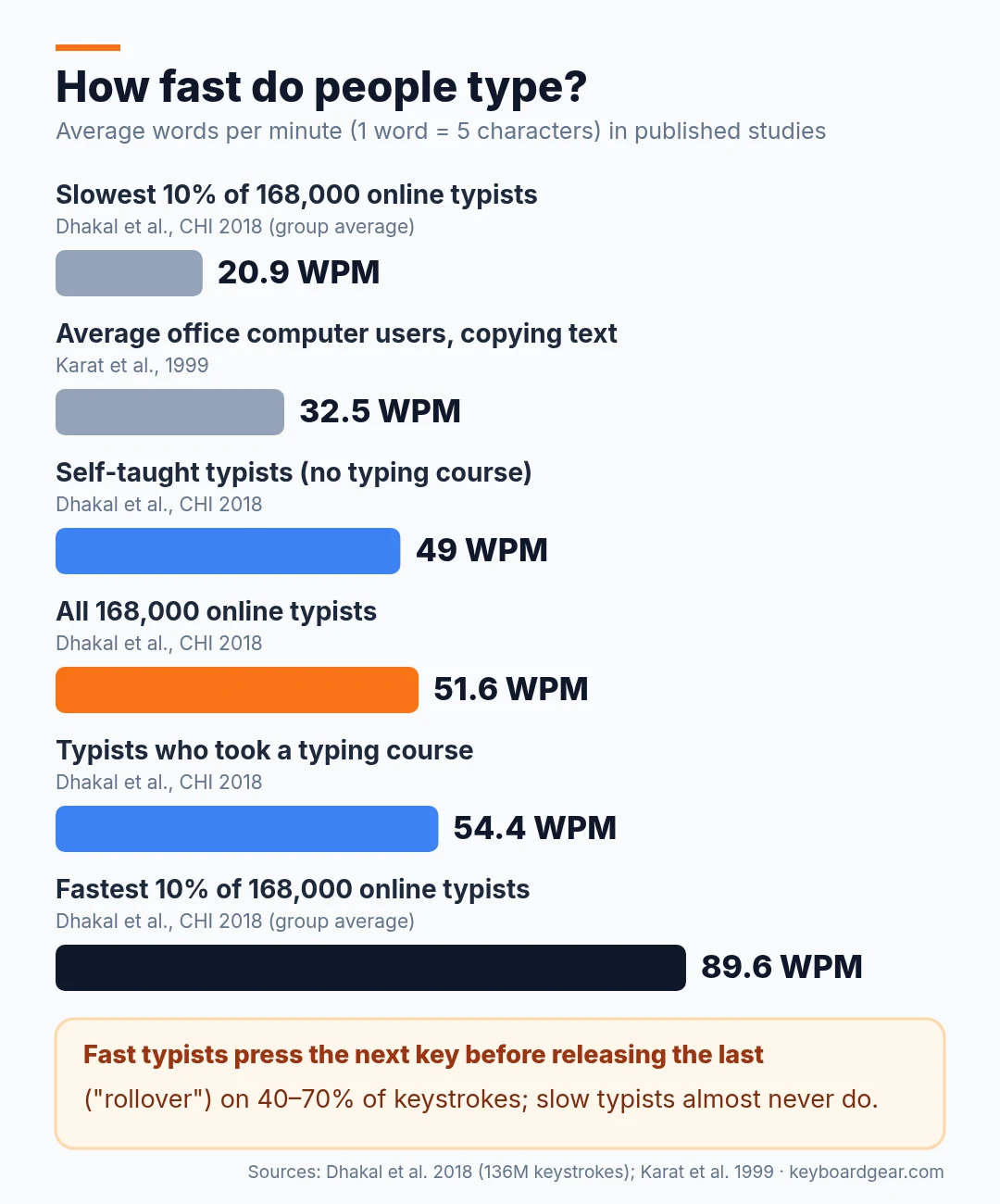
As a rough guide: around 50 WPM is typical, under about 26 WPM would put you in the slowest 10% of that large online sample, and above about 78 WPM puts you in the fastest 10%. Remember that people who take an online typing test are self-selected, so the “average” here may be higher than across the whole population.
What actually makes people type faster
Two studies by researchers at Aalto University in Finland (the larger one with the University of Cambridge) are the best evidence on how ordinary people type today. One used motion capture and eye tracking on 30 typists (Feit et al., CHI 2016); the other analysed 136 million keystrokes from 168,000 volunteers (Dhakal et al., CHI 2018). Their main findings line up well:
- Fewer errors, more speed. Faster typists make and correct fewer mistakes. From about 30 WPM upward, speed rose steadily as keystrokes per character fell, and the authors note that reducing errors by a small margin can give a large gain in speed.
- Rollover. Fast typists often press the next key before releasing the previous one. Across all participants, 25% of keystrokes were typed this way on average; most fast typists did it on 40–70% of keystrokes, while slow typists used almost none. Rollover ratio correlated strongly with speed (r = 0.73).
- The same finger for the same key. In the motion-capture study, one of three predictors of high performance was an unambiguous mapping: each letter consistently pressed by the same finger.
- Preparing the next keystroke. Fast typists moved fingers towards upcoming keys early, the second predictor.
- Quiet hands. The third predictor was minimal global hand motion: the fingers move, the hands stay put.
- Eyes on the screen. Touch typists spent about 20% of the time looking at the keyboard, compared with 41% for self-taught typists, and their speed held up better when they did look down.
Notice what is not on the list: the exact number of fingers. More fingers did correlate with speed in the large study (r = 0.38), and fast typists used about 8.4 fingers versus 5.3 for slow ones. But in the motion-capture study, self-taught typists using about 6 fingers typed as fast as trained touch typists (58.9 vs 57.8 WPM, not a significant difference). In the large study, people who had taken a typing course were only about 5 WPM faster on average than those who had not (54.4 vs 49.0 WPM).
Should you learn touch typing or improve your own style?
The Aalto researchers answer this directly. Touch typing is still the best-known way to reach very high speeds, and all world records have been set with it. But reaching the level of the fast typists in their study with touch typing takes several hundred hours of deliberate practice, and the system is less useful for tasks like gaming, programming or media editing. If you want to type sentences consistently above 100 WPM, they recommend learning touch typing; otherwise, improving your existing style may be the better compromise (How We Type FAQ).
| Your situation | Best route | Why |
|---|---|---|
| Under ~30 WPM, looking at the keys most of the time | Learn touch typing from the home row | You have little habit to unlearn, and slow typists lose most time to errors |
| 30–60 WPM with a settled self-taught style | Refine your style first: fixed finger per key, eyes up, accuracy | Self-taught typists can match trained ones; relearning costs a temporary slowdown |
| 60–80 WPM and want more | Rollover and common-word drills; consider full touch typing | Fast typists rely on rollover and consistency |
| Goal of 100+ WPM on prose | Full touch typing with deliberate practice | The researchers’ recommendation for consistent 100+ WPM |
Be ready for a dip if you switch. When experienced hunt-and-peck typists start touch typing, their speed drops well below what they had before, so at first it does not seem worth the effort (Wikipedia: Touch typing). Expect a slower period while you switch, or practise touch typing in sessions while keeping your old style for urgent work.
Step 2: Set up your desk so speed does not cost comfort
Fast typing means a lot of keystrokes. OSHA notes that a proficient typist can easily make more than 18,000 keystrokes an hour, and that repetition combined with awkward postures increases the risk of strain (OSHA: Computer workstations, keyboards). Before you push your speed, check the basics OSHA recommends:
- Keyboard directly in front of you, close enough that your elbows stay near your body and your forearms are roughly parallel to the floor.
- Elbows at about keyboard height, shoulders relaxed.
- Wrists straight, not bent up, down or to the side. Do not use the keyboard feet if they make your wrists bend more; our guide to keyboard tilt covers this in detail.
- Short breaks: OSHA suggests building micro-pauses into computer work, such as a five-minute break from computer tasks every hour.
A well-planned desk setup and, if you rest your palms between bursts, a soft wrist rest make long practice sessions more comfortable. If typing causes pain, numbness or tingling, stop and see a health professional rather than training through it.
Step 3: Learn the home row and the finger map
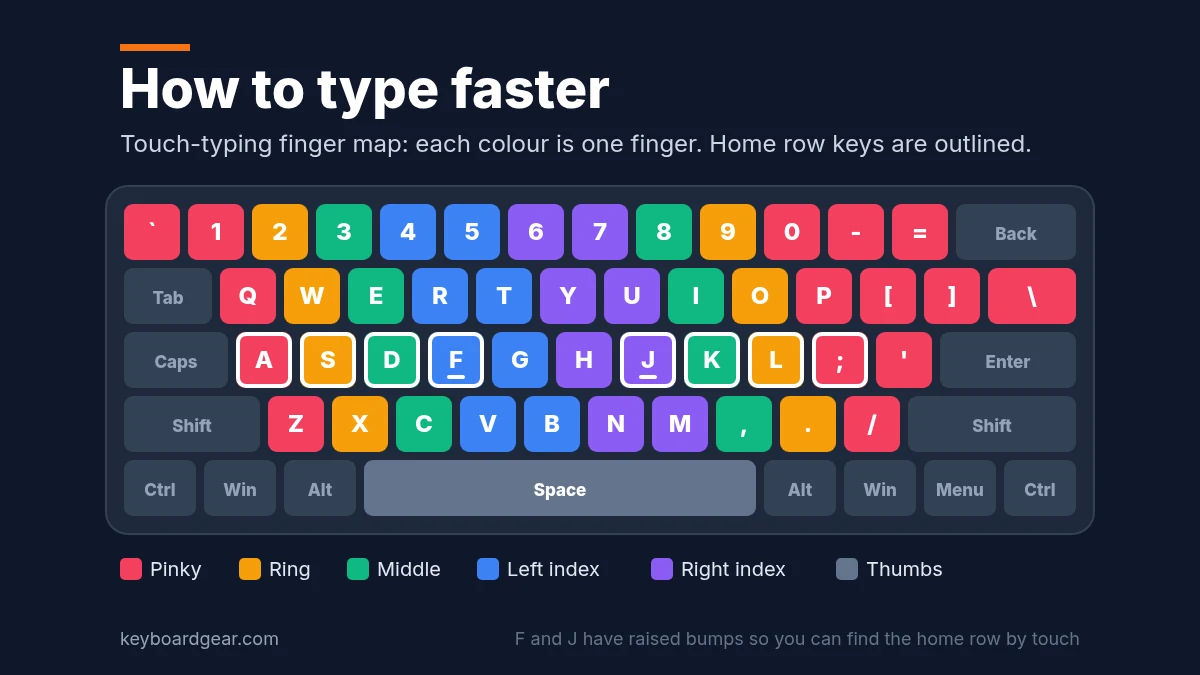
Touch typing starts with eight fingers resting on the home row: A S D F for the left hand and J K L ; for the right, with thumbs on the spacebar. The F and J keys have small raised bumps so you can find this position without looking (Wikipedia: Touch typing). Each finger then reaches up or down to its own column and returns home.
| Finger | Left hand | Right hand |
|---|---|---|
| Index | R, T, F, G, V, B (plus 4, 5) | Y, U, H, J, N, M (plus 6, 7) |
| Middle | E, D, C (plus 3) | I, K, comma (plus 8) |
| Ring | W, S, X (plus 2) | O, L, full stop (plus 9) |
| Little (pinky) | Q, A, Z, Tab, Caps Lock, Shift (plus 1) | P, ;, /, brackets, quote, Enter, Shift, Backspace (plus 0) |
| Thumb | Spacebar | Spacebar |
If you do not want to relearn everything, take one idea from this table: always use the same finger for the same key. That consistency is one of the research predictors of speed, whichever finger you choose. If you are unsure what a key does, our guide to keyboard key names explains every key on Windows and Mac keyboards.
Step 4: A practice plan that works
Here is the routine we suggest. It follows the research above: accuracy and consistency first, then real words, then speed.
- Practise little and often. Short, focused sessions on most days are easier to keep up than an occasional marathon. TypingClub, for example, says a few minutes a day for one to two weeks is enough to learn its course (TypingClub); getting fast takes longer.
- Slow down until you are accurate. Type at a pace where you rarely need Backspace. Errors are the biggest drag on net speed, especially below about 30 WPM.
- Keep your eyes on the screen. When you are unsure of a key, feel for the F and J bumps instead of looking down. It feels slow at first, but looking at the keyboard is where self-taught typists lose time.
- Drill your weak keys. Adaptive tools find the keys you are slowest on and add them to every exercise. Keybr, for example, starts you on a small set of common letters, tracks your time for each key, and only adds a new letter once your current ones are fast enough (Keybr: help).
- Move to real words. Common words and letter pairs such as “th”, “the” and “and” make up most of what you type. Monkeytype’s default tests use the 200 most common English words (Monkeytype).
- Then push speed in short bursts. Try a few runs slightly faster than comfortable, then go back to accurate typing. As common words become automatic, let your fingers overlap keypresses (rollover) instead of forcing a pause between each key.
- Prepare the next key. Practise moving the next finger, especially to Shift, Enter or Backspace, while the current key is still being pressed.
- Track weekly, not daily. Compare net WPM and accuracy once a week on the same test. Monkeytype also shows a consistency score based on how much your speed varies during a test; higher is steadier.
Free tools to practise typing
| Tool | Best for | What it does |
|---|---|---|
| Keybr | Learning keys and fixing weak letters | Generates pronounceable practice words from a growing set of letters, based on your per-key speed |
| Monkeytype | Speed tests and real-word practice | Minimal, customisable test with live WPM and accuracy, raw WPM and a consistency score |
| TypingClub | Structured beginner course | Free web-based lessons with a hand-posture guide, levels and stars; no account needed |
| Typing.com | Lessons, tests and games | Free typing lessons, tests and games, with editions for schools |
Any of these is enough. Pick one for lessons and use one test consistently to measure progress, because different sites calculate WPM slightly differently.
Does your keyboard make you type faster?
Technique matters far more than hardware, and no keyboard will turn a 40 WPM typist into a 90 WPM one. But the keyboard can help or get in the way:
- Key rollover. Because fast typists overlap keypresses, the keyboard has to register several keys held at once. Most modern keyboards handle normal typing fine, but cheap boards can drop letters when keys overlap; our guide to keyboard ghosting and n-key rollover explains how to check.
- Feel and comfort. A keyboard you find comfortable and predictable helps accuracy. Whether that is a mechanical or membrane board is personal; see mechanical vs membrane keyboards for the real differences. If you share a room, a quiet mechanical keyboard lets you practise without annoying anyone.
- Faults that look like typing errors. If letters double or the wrong characters appear, the problem may be the keyboard, not you. Check keyboard chatter and keyboard typing wrong characters before blaming your technique.
- Layout. Alternatives such as Dvorak and Colemak move common letters to the home row. Switching means relearning from scratch, so it suits people already planning to retrain; see QWERTY vs Dvorak and our guide to QWERTY alternatives.
If you write code, remember the researchers’ point that touch typing helps less with symbol-heavy work; a good layout for symbols and shortcuts matters too, which we cover in the best keyboards for programming.
Common mistakes that keep you slow
| Mistake | Why it slows you down | What to do instead |
|---|---|---|
| Chasing speed before accuracy | Every correction costs keystrokes and time | Slow down until Backspace is rare, then speed up |
| Looking at the keyboard | Your eyes leave the text, and you lose your place | Find F and J by touch; look down only when stuck |
| Using different fingers for the same key | No reliable muscle memory forms | Pick one finger per key and stick to it |
| Moving the whole hand | Large hand movements are slower than finger reaches | Keep palms in place and reach with fingers |
| Practising random letters only | Real text is built from common words and pairs | Mix key drills with common-word tests |
| Judging progress daily | Scores vary from test to test | Compare net WPM and accuracy weekly |
FAQ
What is the average typing speed?
In an online study of 168,000 typists, the average was 51.6 words per minute, with a standard deviation of about 20 WPM. An older study of average computer users found 32.5 WPM when copying text. A “word” in these figures is any five characters.
Is 40 WPM a good typing speed?
40 WPM is below the roughly 52 WPM average in the large 2018 study, but faster than the average computer users in the 1999 study (32.5 WPM). It is a workable everyday speed, and most people can improve it with practice focused on accuracy and not looking at the keys.
How long does it take to learn touch typing?
It depends on the person and how much you practise. TypingClub says a few minutes a day for one to two weeks is enough to learn the keys with its course. Becoming fast is slower: the Aalto researchers say matching their fast typists with touch typing takes several hundred hours of deliberate practice.
Do I need to use all ten fingers to type fast?
Not necessarily. Self-taught typists using about six fingers matched trained touch typists in one study. What mattered more was using the same finger for each key, keeping the hands still and looking at the screen. For consistent speeds above 100 WPM, full touch typing is still the recommended route.
Should I look at the keyboard while typing?
Try not to. Self-taught typists in the motion-capture study looked at the keyboard about twice as much as touch typists (41% vs 20% of the time). Use the bumps on F and J to find the home row by touch.
Will a mechanical keyboard make me type faster?
Not on its own. Research points to technique: accuracy, consistent finger use and rollover. A keyboard can help indirectly if it is comfortable, registers overlapping keypresses reliably and does not chatter or drop keys.
The bottom line
Typing faster is mostly about making fewer mistakes and moving more consistently. Measure your net WPM, set up your desk so your wrists stay straight, learn the home row and use one finger per key, keep your eyes on the screen, and practise real words in short regular sessions. If you want 100+ WPM, commit to full touch typing; if you just want to be quicker at work, refining your own style can get you surprisingly far.
Sources: Dhakal, Feit, Kristensson and Oulasvirta, “Observations on Typing from 136 Million Keystrokes”, CHI 2018 (DOI); Feit, Weir and Oulasvirta, “How We Type: Movement Strategies and Performance in Everyday Typing”, CHI 2016, and project FAQ (DOI); Wikipedia: Words per minute; Wikipedia: Touch typing; SpeedTypingOnline: typing equations; Monkeytype: about; Keybr: help; TypingClub; Typing.com; OSHA Computer Workstations eTool: keyboards. All accessed 27 November 2026.

Experience is what matters at the end!!
Hi! This is Jacob Jay – founder of Keyboardgear.com! From childhood to adulthood, I’ve always remained passionate about IT, and the revolution in this industry, especially gaming on the PC can’t go out of my way. Since I’m an enthusiastic gamer, and I love to experience various gaming accessories, particularly mechanical keyboards, that really boost my gaming adventure manifolds. So, my nerve cells hit me to transfer my experiences into word form and share with others to identify the ideal keyboards perfectly fit for their gaming modes.
I know very well how hard it is to find the high-quality items available on the internet that ought to be exactly the same as seen as on the screen. But the counterfeiters have ruined the user’s trust. As I have passed all such situations, I’m obliged to deliver the genuinity and express the same as what I am saying.
So, now, I’m working on the mission to provide very helpful and frankly but trustworthy reviews and guides about various mechanical keyboards, mouses, and other gaming accessories as per my personal experiences and sound knowledge.