

Quick answer
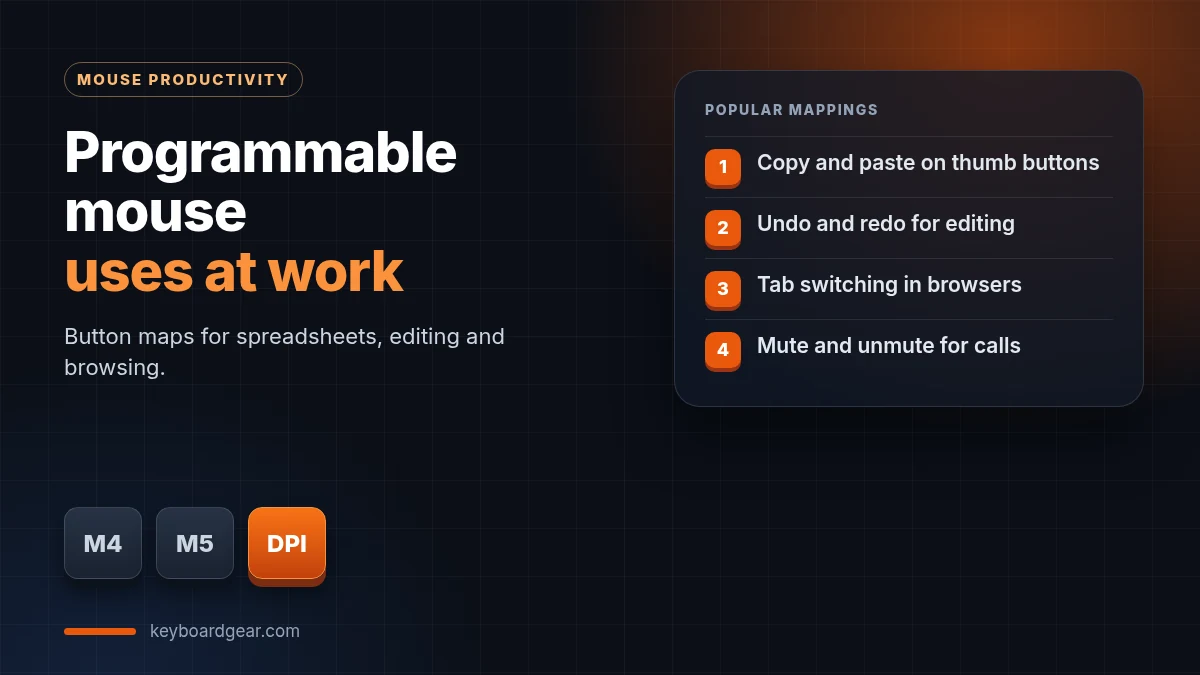
A programmable mouse can save time well beyond gaming. The most useful work mappings are copy and paste on the thumb buttons, undo and redo for editing, back, forward and tab switching for browsing, and a mute button for calls. Set them up in your mouse maker’s software, ideally as app-specific profiles so each program gets its own layout.
If your mouse has side buttons or a spare top button, they’re probably doing “back” and “forward” and nothing else. Mapped to shortcuts you use every few minutes, they can save a lot of hand travel. Our guide to mouse side buttons covers the basics; this page is about practical layouts for real work.
How to choose what to map
- Count your shortcuts. For a day, notice which keyboard shortcuts you press most while your other hand is on the mouse.
- Start with two. Put the two most common on the thumb buttons. Add more only after those feel natural.
- Keep safe defaults. Avoid mapping destructive commands, like delete or close window, to buttons you might bump.
- Use per-app profiles. A button can paste in a spreadsheet and undo in a photo editor. See mouse profiles per app.
Spreadsheets: Excel and Google Sheets
Number work mixes clicking cells with keyboard commands. Useful mappings:
- Copy and paste on the two thumb buttons.
- Enter or Tab on a spare button to move to the next cell while your other hand stays on the numpad.
- Fill down (Ctrl+D in Excel and Sheets) for repeated values.
- Horizontal scroll on a tilt wheel or thumb wheel for wide sheets.
Our list of Excel and Google Sheets shortcuts shows the keys behind these commands.
Photo, design and video editing
Editors switch tools and undo constantly.
- Undo and redo on thumb buttons save more time than anything else.
- Zoom in and out, or brush size up and down, on a second pair of buttons.
- Hand or pan tool while held, if your software supports a “hold” action.
- Play and pause or “mark in and out” in video timelines.
Multi-button mice, like the MMO mice in our best MMO mouse guide, have a grid of 12 thumb buttons that can hold a whole editing tool palette.
Browsing and research
- Back and forward (the default for most side buttons).
- New tab and close tab, or reopen closed tab.
- Switch tabs left and right on a tilt wheel.
- Middle-click to open links in a new tab, if your scroll wheel click is stiff.
Coding and writing
- Go to definition and go back in a code editor.
- Comment line or run on a spare button.
- Copy and paste for moving text blocks.
For keyboard-based options, keyboard macros and a macro pad do the same job for longer command chains.
Video calls
A mute toggle on a mouse button is one of the most useful mappings for remote work: you can mute without finding the right window. Check that the shortcut you map works in your calling app, and test it before an important meeting.
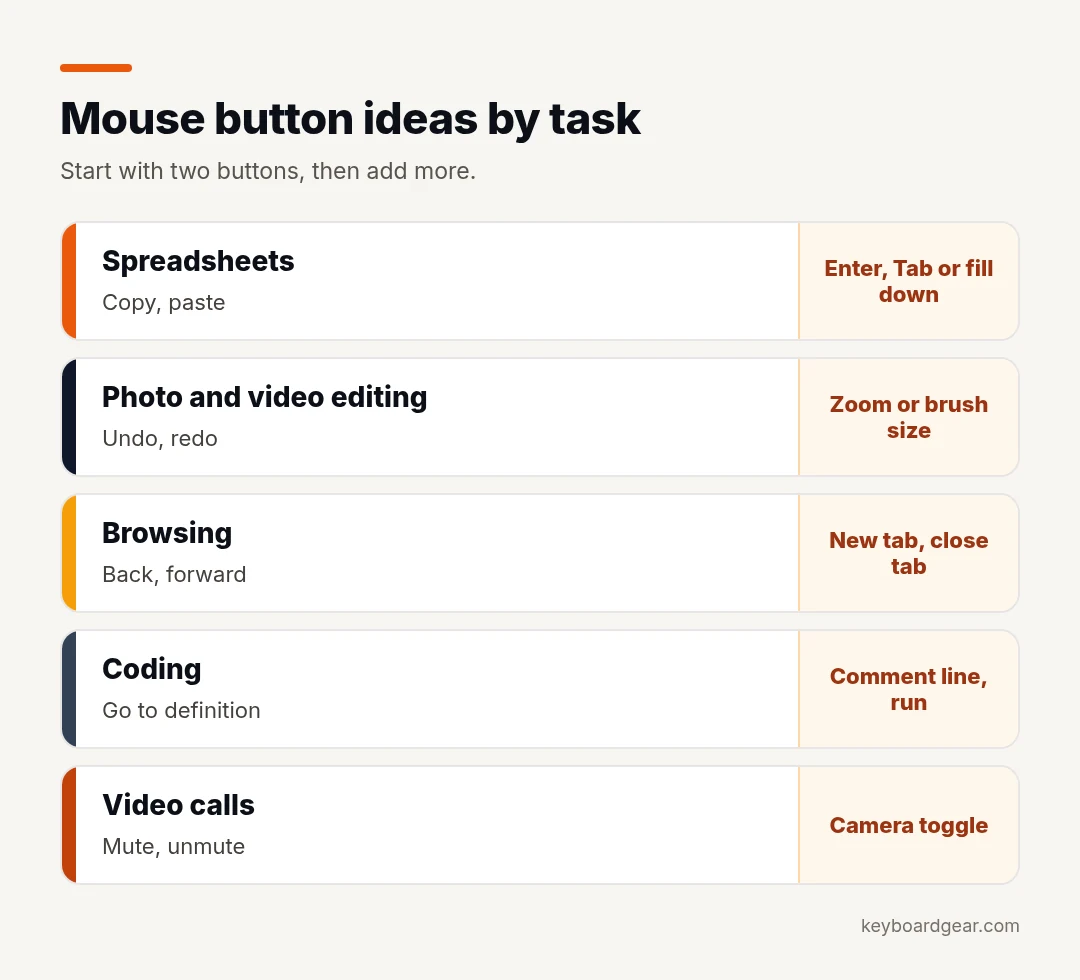
| Task | First two buttons | Next to add |
|---|---|---|
| Spreadsheets | Copy, paste | Enter or Tab |
| Editing | Undo, redo | Zoom in, zoom out |
| Browsing | Back, forward | Close tab |
| Coding | Go to definition, go back | Comment line |
| Calls | Mute toggle | Camera toggle |
How to set it up
- Install your mouse maker’s software, such as Logitech’s, Razer’s, Corsair’s or Microsoft’s.
- Choose a button and assign a keystroke or a built-in command.
- Save it to an app-specific profile if available, so the mapping only applies in one program.
- If your mouse has no software, Windows users can remap with tools like Microsoft PowerToys. Our remap keys guide covers the options.
Mapping a long sequence of actions to one button is a macro. That’s fine for work apps, but many online games ban it. See mouse macros in games before using macros while playing.
FAQ
What can I use extra mouse buttons for?
Copy and paste, undo and redo, browser back and forward, tab switching and muting calls are the most popular work uses.
Do I need special software?
Usually yes. Most mouse makers have free apps for remapping. Without one, some operating system tools can remap buttons.
Can buttons do different things in different programs?
Yes, if your mouse software supports app-specific profiles.
Is a programmable mouse worth it for office work?
If you repeat the same shortcuts all day, yes. Start with two mappings and see if they stick.
Can I use mouse macros in games?
Check the game’s rules first; many online games prohibit macros that automate actions.
Sources
- Microsoft Support: Configure application-specific settings for a Microsoft accessory
- Microsoft Learn: PowerToys Keyboard Manager
Final thoughts
The best programmable mouse layout is the one built around the shortcuts you already use most. Start with copy and paste or undo and redo on the thumb buttons, set them per app, and add more only when the first ones become automatic.

Experience is what matters at the end!!
Hi! This is Jacob Jay – founder of Keyboardgear.com! From childhood to adulthood, I’ve always remained passionate about IT, and the revolution in this industry, especially gaming on the PC can’t go out of my way. Since I’m an enthusiastic gamer, and I love to experience various gaming accessories, particularly mechanical keyboards, that really boost my gaming adventure manifolds. So, my nerve cells hit me to transfer my experiences into word form and share with others to identify the ideal keyboards perfectly fit for their gaming modes.
I know very well how hard it is to find the high-quality items available on the internet that ought to be exactly the same as seen as on the screen. But the counterfeiters have ruined the user’s trust. As I have passed all such situations, I’m obliged to deliver the genuinity and express the same as what I am saying.
So, now, I’m working on the mission to provide very helpful and frankly but trustworthy reviews and guides about various mechanical keyboards, mouses, and other gaming accessories as per my personal experiences and sound knowledge.