

Quick answer
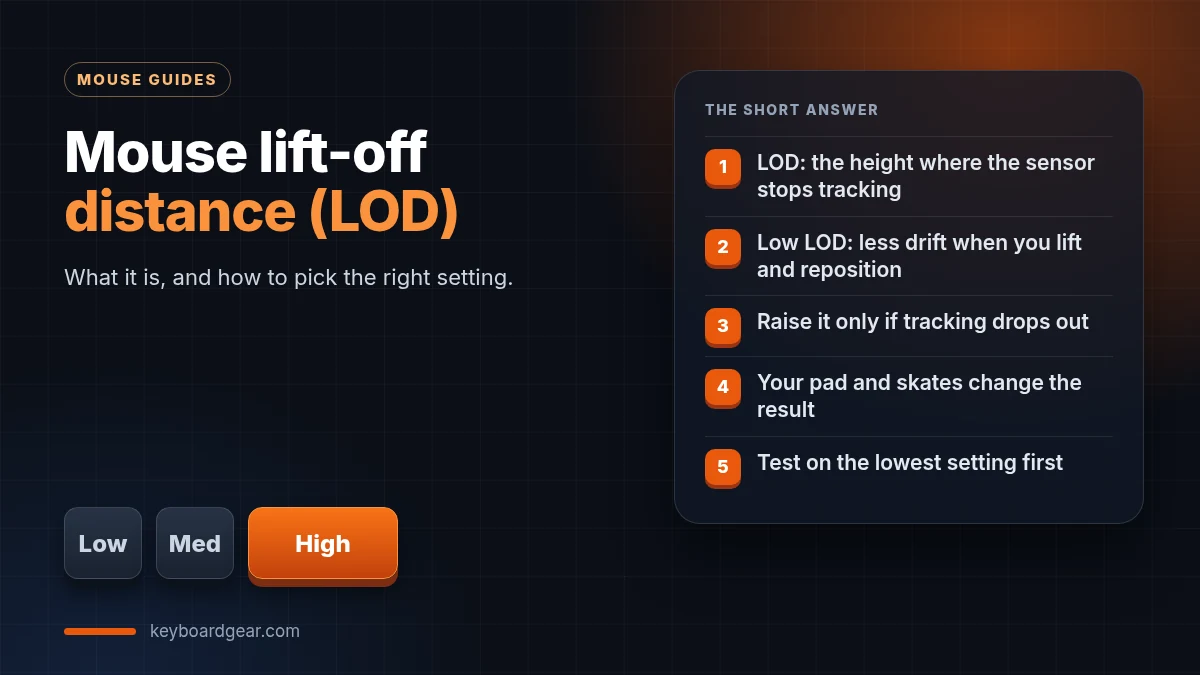
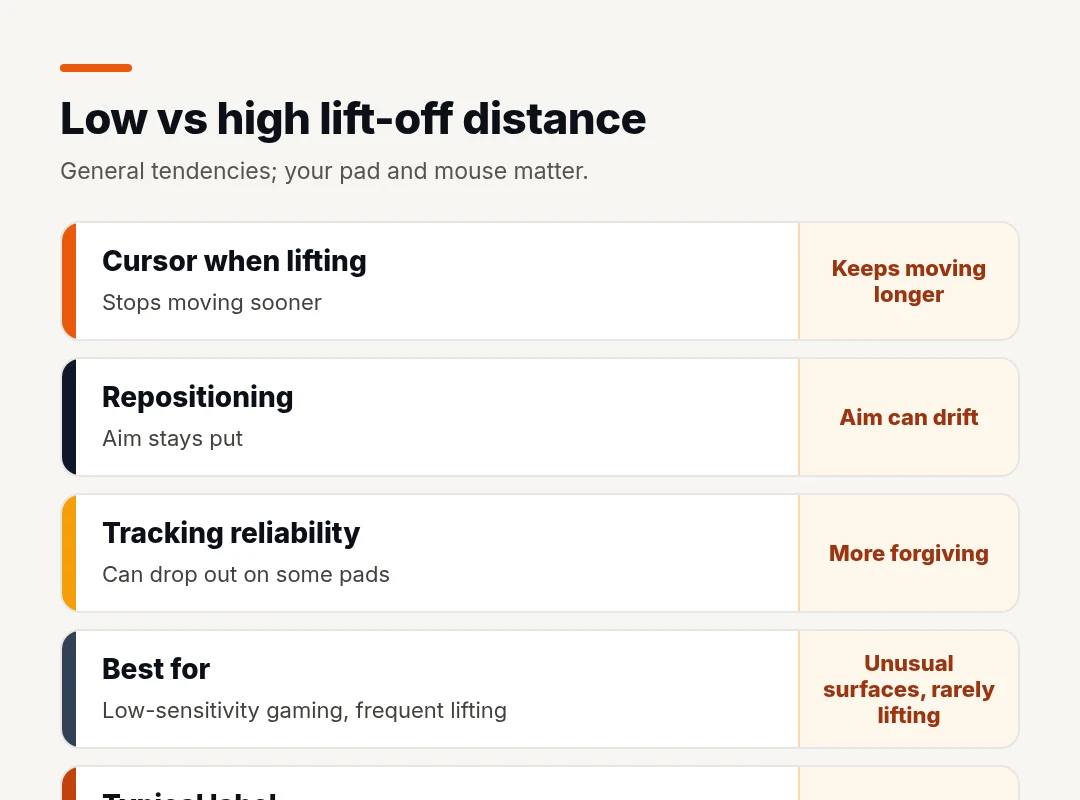
Lift-off distance (LOD) is the height at which your mouse’s sensor stops tracking when you lift it off the pad. With a low LOD, the cursor stops moving almost as soon as you lift, so your aim stays put while you reposition. With a high LOD, the sensor keeps tracking a little longer, which can make your cursor drift.
For most people, especially in fast games, use the lowest setting that still tracks smoothly on your mouse pad. Raise it only if the cursor stutters or drops out.
Most gaming mouse software includes a lift-off distance setting, often just labelled Low, Medium and High. It sounds minor, but if you play at low sensitivity and lift your mouse to recentre it dozens of times a minute, it affects how steady your aim feels.
This guide explains what LOD is, why it matters, and how to find the right setting.
What lift-off distance means
An optical mouse sensor is a tiny camera that photographs the surface beneath it thousands of times per second and compares the images to work out movement. When you lift the mouse, the image eventually becomes too blurry to read and tracking stops. The height at which that happens is the lift-off distance.
Manufacturers express it in two ways: as millimetres, such as 1 mm or 2 mm, or as Low, Medium and High settings. Those labels are nominal: the real cut-off depends on your mouse pad and your skates as well as the setting.
Why low LOD is usually better for gaming
When you play at low sensitivity, you move the mouse a long way to turn, so you constantly lift it and put it back in the middle of the pad. If the sensor keeps tracking while the mouse is in the air, it can pick up small, unintended movements, nudging your crosshair off target as you lift or set it down.
A low LOD cuts tracking off sooner, so lifting and repositioning doesn’t move your aim. That’s why many competitive players prefer it, and why gaming mice advertise low lift-off distances. It matters less at high sensitivity, where you rarely lift; see our guide to mouse DPI vs sensitivity for how sensitivity changes your movement.
When a higher LOD makes sense
Lower isn’t always better. If LOD is set too low for your surface, the sensor can lose tracking while the mouse is still on the pad, causing stutters, skipped movement or a cursor that freezes during fast swipes. Raise the setting a step if you see that.
A higher setting can also suit:
- Unusual surfaces, such as some glass, hybrid or very textured pads.
- Thick or worn skates, which change the height of the sensor above the pad.
- Players who rarely lift and prefer forgiving tracking.
Some players also like a slightly higher setting because it keeps tracking during a quick lift, but that’s personal preference.
Your mouse pad matters
LOD depends on the surface as much as the setting. A cloth pad, a hard pad and a glass pad look different to the sensor, so the same setting can give a different cut-off on each. If you change pads, test again. Our guide to cloth vs hard mouse pads covers the main surface types, and some mice include surface calibration in their software to tune tracking to your pad.
Skates and wear
Mouse feet (skates) set how high the sensor sits above the surface. Thicker aftermarket skates raise it slightly; worn skates lower it. Either can change your effective LOD, so test again after replacing skates. The same goes for mouse weight and glide: if you’re tuning your setup, our guide on whether mouse weight matters is worth a read.
How to find your best LOD
- Open your mouse’s software and find the LOD or “lift-off” setting. It’s often in an advanced sensor or DPI section.
- Start at the lowest setting.
- Make slow, small movements and fast swipes across your whole pad. Watch for stutters, jumps or the cursor stopping.
- Lift and replace the mouse several times. Your cursor should barely move.
- If tracking drops out, raise LOD one step and test again. Stop at the first setting that tracks cleanly.
- Retest when you change pads or skates.
On some Logitech G mice with the HERO 2 sensor, for example, Logitech says you open the mouse’s settings in G HUB, tick Advanced, and choose Low, Medium or High LOD for each DPI slot, so check every slot you use.
LOD vs other mouse settings
| Setting | What it changes |
|---|---|
| Lift-off distance | Height at which tracking stops when you lift |
| DPI | How far the cursor moves per inch of mouse movement |
| Polling rate | How often the mouse reports its position to the computer |
| Acceleration | Whether faster movements move the cursor further |
| Angle snapping | Whether the sensor straightens your lines |
If your cursor feels inconsistent, check acceleration too; our guide to mouse acceleration explains why most gamers turn it off.
Does LOD matter for office work?
Much less. In everyday use you rarely lift the mouse quickly or need pinpoint aim afterwards, so the default setting is fine. Office mice often don’t offer the setting at all.
Signs your lift-off distance is wrong
| What you notice | Likely cause | Try this |
|---|---|---|
| Crosshair drifts up or sideways when you lift | LOD too high for your pad | Lower LOD one step |
| Cursor jumps when you set the mouse down | LOD too high, or a dusty sensor | Lower LOD and clean the sensor window |
| Cursor freezes or stutters during fast swipes | LOD too low for the surface | Raise LOD one step or run surface calibration |
| Tracking changes after a new pad | Different surface texture or colour | Retest from the lowest setting |
| Tracking changes after new skates | Sensor sits higher or lower than before | Retest LOD |
Does game type change the ideal LOD?
It can. Fast tactical shooters where you aim at low sensitivity and lift constantly are where a low LOD helps most, because every lift is a chance for unwanted cursor movement. In games where you rarely lift, such as many strategy games or MMOs at higher sensitivity, LOD makes little practical difference, and a forgiving setting that never drops out may feel better. If you play several kinds of games, you can keep the same low setting for everything as long as it tracks reliably.
Lifting technique matters too
LOD only matters while the mouse is in the air, so how you lift changes how much you notice it:
- Lift straight up, rather than tilting the mouse. Tilting brings one edge of the sensor closer to the pad and can keep it tracking longer.
- Lift a few millimetres higher if you find a low setting still picks up movement.
- Reset in one smooth motion. Small hesitations while the mouse is barely off the pad are where drift happens.
- Use a larger pad or a lower sensitivity setting you’re comfortable with so you lift less often. Our guide to mouse DPI vs sensitivity helps you find a balance.
What surface calibration does
Some gaming mice can calibrate the sensor to your specific pad. You usually start the calibration in the mouse’s software and move the mouse around the pad for a few seconds. The sensor then tunes itself to that surface’s texture, which can make tracking more consistent and sometimes allow a lower cut-off. If your mouse offers it, run calibration first, then set LOD, and repeat both when you change pads.
Keep the sensor clean
Dust, hair or lint on the sensor window can make tracking erratic in ways that look like an LOD problem. Turn the mouse over and gently clear the sensor window with a dry cotton swab or a puff of air before you start changing settings.
FAQ
What is a good lift-off distance?
The lowest setting that tracks reliably on your pad. For many gaming mice that’s the Low setting, or around 1 mm.
Is 1 mm or 2 mm LOD better?
1 mm is generally preferred for competitive gaming because the cursor moves less when you lift. Choose 2 mm if 1 mm drops out on your surface.
Why does my cursor move when I lift my mouse?
Your lift-off distance may be too high for your pad, so the sensor keeps tracking in the air. Lower it in your mouse software if possible.
Can I change lift-off distance on any mouse?
No. Many gaming mice let you adjust it in their software, but most office mice use a fixed setting.
Does the mouse pad affect LOD?
Yes. Different surfaces give different cut-off heights, so retest when you change pads.
Bottom line
Lift-off distance is how high you can lift your mouse before it stops tracking. For gaming, use the lowest setting that tracks cleanly so your aim stays put when you reposition, raise it a step if tracking drops out, and retest whenever you change your pad or skates. For office work, the default is fine. If you’re shopping for a new mouse, our best gaming mouse guide is a good place to start.
Sources
- Logitech Support: Adjust lift-off distance on PRO X Superlight 2
- PCWorld: Does lift-off distance matter in a gaming mouse?

Experience is what matters at the end!!
Hi! This is Jacob Jay – founder of Keyboardgear.com! From childhood to adulthood, I’ve always remained passionate about IT, and the revolution in this industry, especially gaming on the PC can’t go out of my way. Since I’m an enthusiastic gamer, and I love to experience various gaming accessories, particularly mechanical keyboards, that really boost my gaming adventure manifolds. So, my nerve cells hit me to transfer my experiences into word form and share with others to identify the ideal keyboards perfectly fit for their gaming modes.
I know very well how hard it is to find the high-quality items available on the internet that ought to be exactly the same as seen as on the screen. But the counterfeiters have ruined the user’s trust. As I have passed all such situations, I’m obliged to deliver the genuinity and express the same as what I am saying.
So, now, I’m working on the mission to provide very helpful and frankly but trustworthy reviews and guides about various mechanical keyboards, mouses, and other gaming accessories as per my personal experiences and sound knowledge.