

Quick answer
If your trackpad stopped working, first press your laptop’s touchpad hotkey (often an Fn key or F6 or F9), then check that the touchpad is On in Settings > Bluetooth & devices > Touchpad on Windows. If it only fails with a mouse connected, turn on Leave touchpad on when a mouse is connected. On Windows, update or reinstall the touchpad driver in Device Manager. On a Mac, use one finger to move the pointer, charge the battery, restart, and run Apple Diagnostics if it still fails.
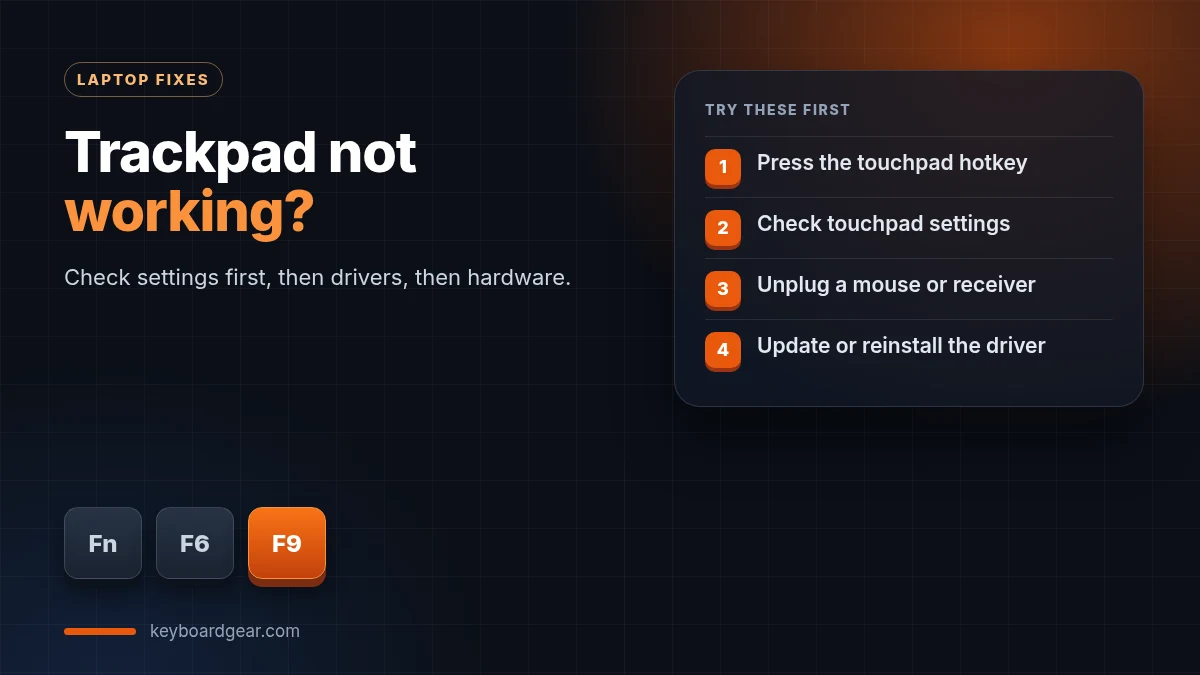
A trackpad that suddenly stops responding is usually turned off rather than broken. Work through these steps in order; most people are done after the first two. If your keyboard is also acting up, see laptop keyboard not working.
Windows: quick checks
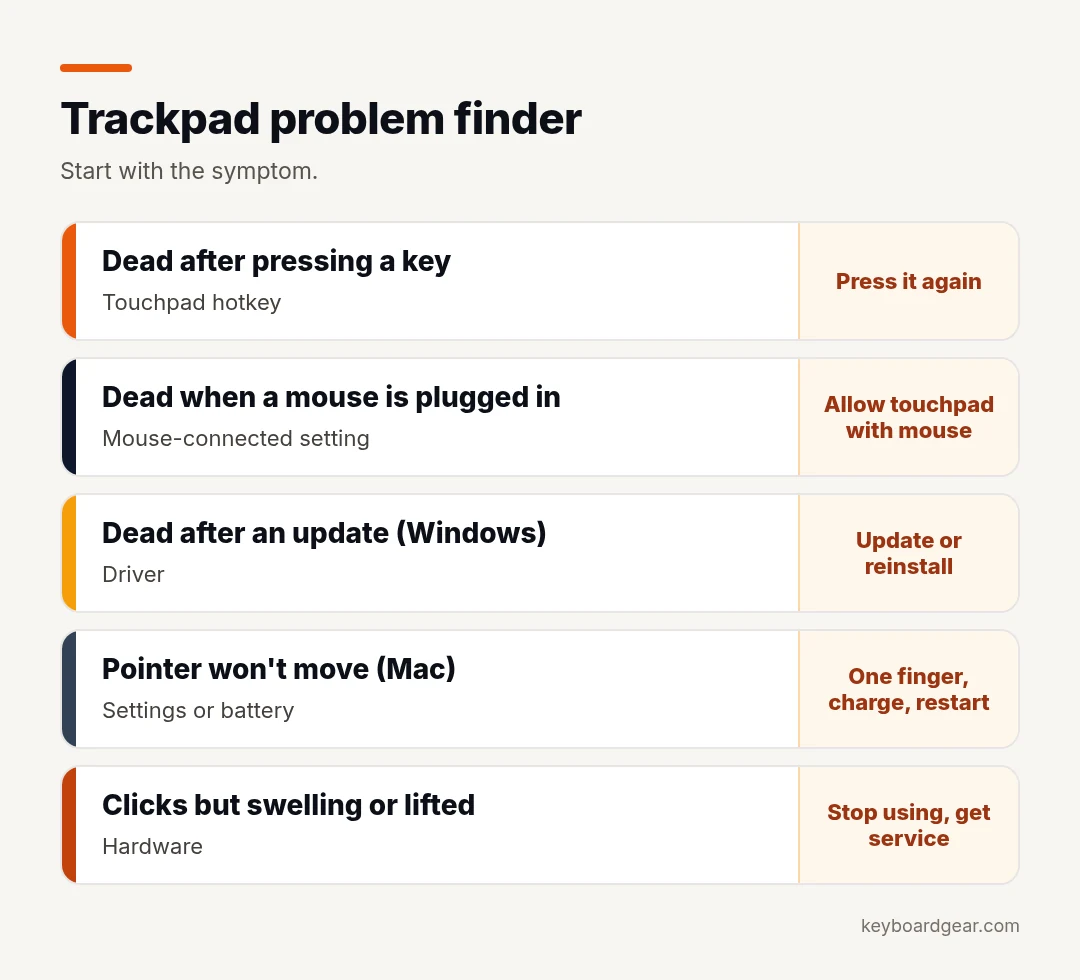
- Press the touchpad hotkey. Many laptops have a key with a touchpad icon, often F6, F9 or Fn plus a function key. It’s easy to press by accident. Check your laptop’s manual for the exact key.
- Check Touchpad settings. Open Settings > Bluetooth & devices > Touchpad and make sure Touchpad is On.
- Check the mouse-connected option. In the same place, there’s an option to leave the touchpad on when a mouse is connected. If it’s unticked, plugging in a mouse or even a wireless receiver turns the touchpad off.
- Restart. A restart clears many temporary driver glitches.
Windows: drivers
Microsoft says a touchpad that isn’t working may have a missing or out-of-date driver.
- Run Windows Update, including optional driver updates.
- Open Device Manager and look under Human Interface Devices or Mice and other pointing devices for the touchpad.
- Right-click it and choose Update driver. If that doesn’t help, choose Uninstall device, then restart so Windows reinstalls it.
- If it’s still missing, download the touchpad driver from your laptop maker’s support site.
If none of that works, Microsoft recommends contacting the device’s manufacturer.
A USB mouse lets you work through these steps while the trackpad is out. If the mouse also fails, see mouse not working.
Mac: quick checks
- Use one finger. Apple notes you can’t move the pointer with two or more fingers; two fingers scroll.
- Charge the Mac. Apple says a low battery alert you can’t see may stop the trackpad. Connect power or an external keyboard to check.
- Check Trackpad settings. In System Settings > Trackpad, check Tap to click and the Click pressure if clicks don’t register.
- Check accessibility settings. If the built-in trackpad only fails with a mouse connected, look in System Settings > Accessibility > Pointer Control for the option to ignore the built-in trackpad when a mouse or wireless trackpad is present.
- Restart and disconnect other accessories.
For a Magic Trackpad, Apple suggests turning it off and on, checking Bluetooth, and connecting the cable for a minute to pair and charge it.
Mac: hardware check
If the trackpad still fails, run Apple Diagnostics. On Apple silicon, hold the power button until startup options appear, then press Command-D. On Intel Macs, hold D while starting up. If it reports a problem, contact Apple or an authorised service provider.
If your laptop’s trackpad is raised, bulging or no longer clicks because something is pushing it up from below, stop using the laptop and get it serviced. Swollen batteries can push the trackpad up, and a damaged battery is a safety risk.
Ghost clicks and jumping pointer
If the trackpad works but behaves strangely:
- Pointer jumps while typing: adjust touchpad sensitivity; see trackpad palm rejection.
- Pointer drifts on its own: clean the surface and check for moisture. Our mouse moving by itself guide covers more causes.
- Gestures don’t work: check that three- and four-finger gestures are turned on in Touchpad or Trackpad settings.
On Surface devices, our Surface keyboard not working guide covers Type Cover issues too.
FAQ
Why did my touchpad suddenly stop working?
The touchpad hotkey or a setting that disables it when a mouse is connected is the most common cause.
How do I turn my touchpad back on in Windows 11?
Press the touchpad hotkey, or turn Touchpad on in Settings > Bluetooth & devices > Touchpad.
Why won’t my Mac trackpad move the pointer?
Make sure you’re using one finger, charge the battery, check Trackpad settings and restart.
How do I reinstall a touchpad driver?
In Device Manager, uninstall the touchpad under Human Interface Devices or Mice and other pointing devices, then restart.
Is a raised trackpad dangerous?
It can be a sign of a swollen battery. Stop using the laptop and get it serviced.
Sources
- Microsoft Support: Fix touchpad problems in Windows
- Apple Support: If the pointer doesn’t move when using the trackpad with Mac
- Apple Support: If you can’t connect your Magic Keyboard, Magic Mouse, or Magic Trackpad to your Mac
- Apple Support: Use Apple Diagnostics to test your Mac
Final thoughts
Check the hotkey and touchpad settings first, then the mouse-connected option, then drivers on Windows or diagnostics on a Mac. If the trackpad is physically raised, stop and get the laptop serviced.

Experience is what matters at the end!!
Hi! This is Jacob Jay – founder of Keyboardgear.com! From childhood to adulthood, I’ve always remained passionate about IT, and the revolution in this industry, especially gaming on the PC can’t go out of my way. Since I’m an enthusiastic gamer, and I love to experience various gaming accessories, particularly mechanical keyboards, that really boost my gaming adventure manifolds. So, my nerve cells hit me to transfer my experiences into word form and share with others to identify the ideal keyboards perfectly fit for their gaming modes.
I know very well how hard it is to find the high-quality items available on the internet that ought to be exactly the same as seen as on the screen. But the counterfeiters have ruined the user’s trust. As I have passed all such situations, I’m obliged to deliver the genuinity and express the same as what I am saying.
So, now, I’m working on the mission to provide very helpful and frankly but trustworthy reviews and guides about various mechanical keyboards, mouses, and other gaming accessories as per my personal experiences and sound knowledge.