

Quick answer
If your split keyboard keeps a standard key layout, most touch typists get back to their normal speed within a few hours to a few days. In one lab study, experienced typists matched their usual performance after about two hours of practice.
Columnar split keyboards, which move keys into vertical columns, usually take two to six weeks of regular use, and compact boards that rely on layers can take longer. If you don’t touch type, expect it to take longer whichever board you choose.
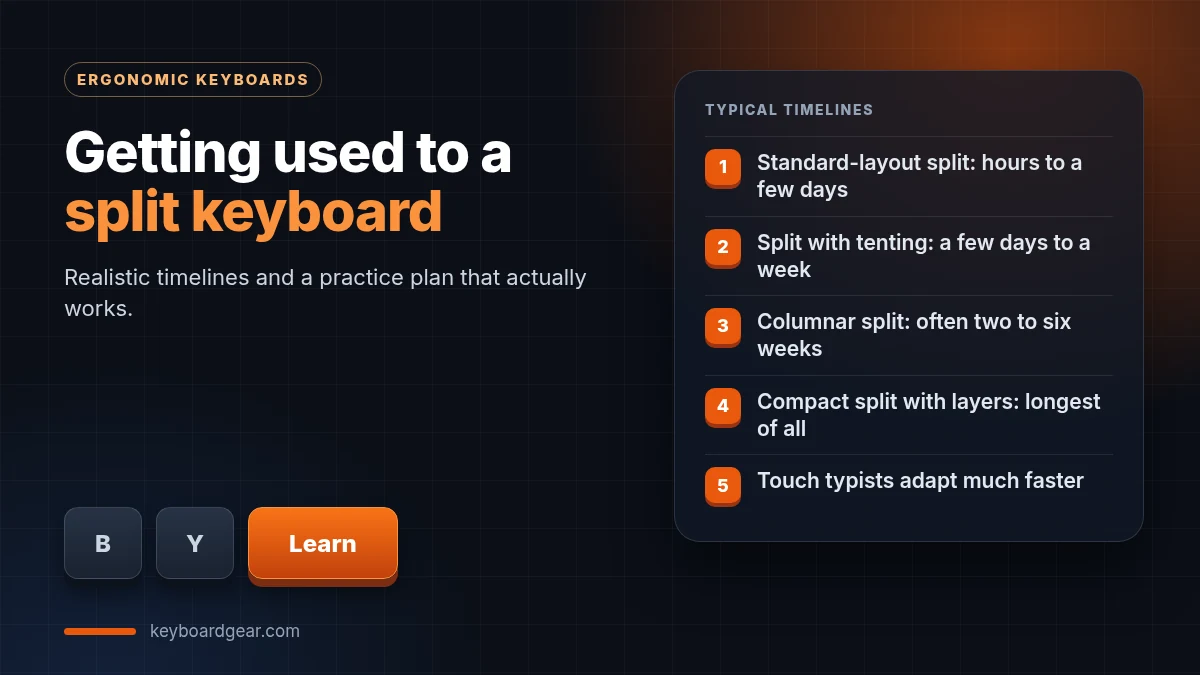
Switching to a split keyboard feels strange at first. Your hands reach for keys that are suddenly in a different place, your speed drops and you start hitting the wrong half for letters like B and Y. The good news is that for most people the slowdown is short, and the time it takes is fairly predictable once you know what kind of split keyboard you have.
This guide covers what research found about adjusting to split keyboards, realistic timelines for each type, a practice plan and fixes for the most common mistakes. If you are still deciding whether to buy one, read our explainer on what a split keyboard is first.
What the research says
Most formal studies tested split keyboards with a standard key layout, and the results are encouraging.
- In a lab study of 18 experienced typists, participants performed as well on a split, adjustable keyboard as on a flat one after just two hours of orientation and practice.
- A study of alternative keyboards using learning curves timed people typing a standard passage. The average on a conventional keyboard was 40 seconds. By the fifth attempt, the split fixed-angle keyboard took 42 seconds, almost the same, while a contoured split keyboard took 69 seconds. A chord keyboard and the Dvorak layout were far slower, at 346 and 181 seconds.
- A review of experimental keyboard studies concluded that experienced touch typists adapted to individual features such as splay, slope and tenting within about 10 minutes, typing with roughly the same speed and accuracy.
The pattern is clear: changing the angle of the keys is quick to learn, while changing where the keys are takes much longer. That is why columnar and compact boards need weeks rather than hours.
Not everyone ends up preferring a split. In a five-month workplace trial, participants’ usability ratings favoured the standard flat keyboard. Give yourself a fair trial, but it is fine to go back if a split never feels right.
Realistic timelines by keyboard type
There is little formal research on modern enthusiast split keyboards, so the ranges below combine the studies above with what keyboard users commonly report. Treat them as typical, not guaranteed.
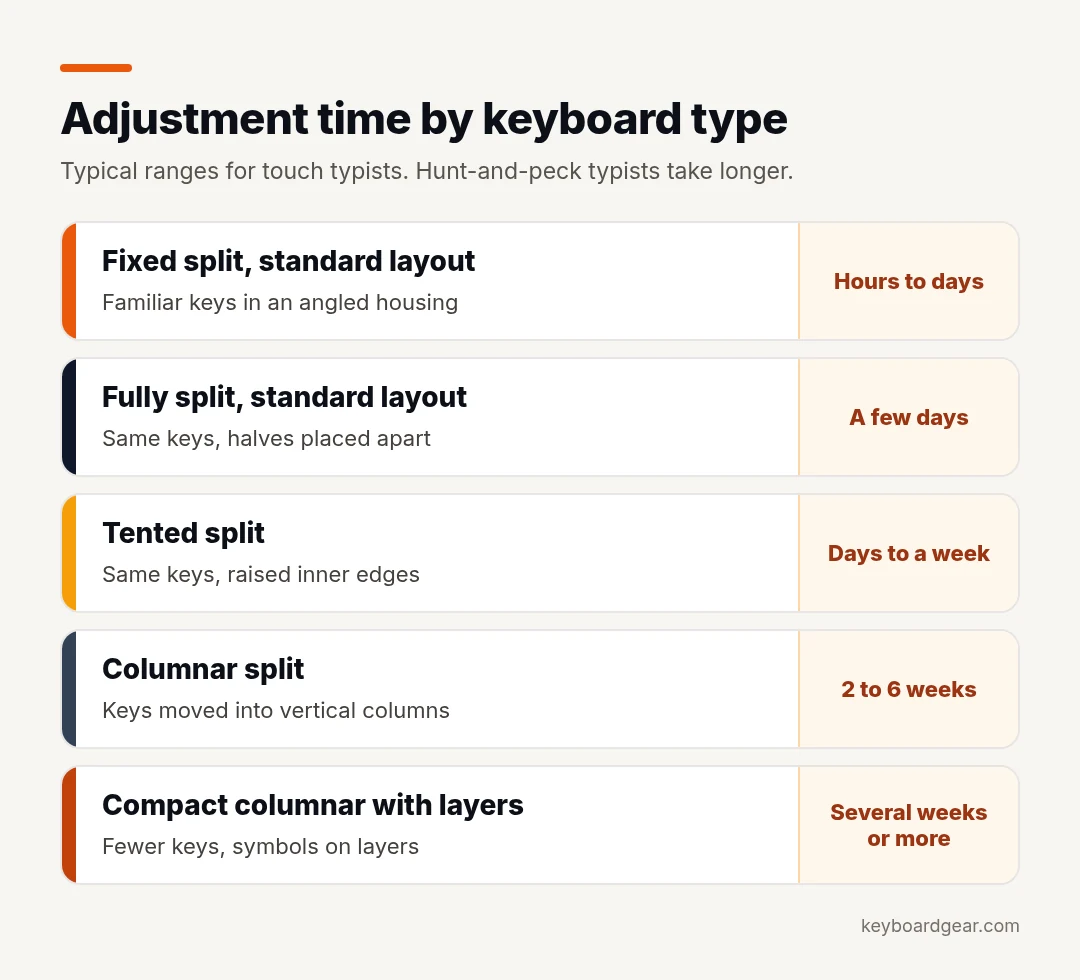
Fixed or fully split with a standard layout
Hours to a few days. The keys are where you expect; only the angle and the gap change. Most of the early errors come from keys near the middle.
Tented split
A few days to a week. The layout is the same, but your hands sit at a new angle and you may need to adjust your desk height. Our guide to tenting, splay and columnar stagger explains what each setting changes.
Columnar split
Often two to six weeks. Keys move into vertical columns, so years of diagonal finger reaches no longer land in the right place. The bottom row, especially Z, X, C and V, is usually the last to feel natural.
Compact columnar with layers
Several weeks or more. On top of the new layout, numbers, symbols and navigation keys move onto layers you reach by holding a key. Expect to rebuild muscle memory for coding symbols and shortcuts.
What makes it take longer
- Not touch typing. If you look at the keys or use two fingers, the gap between the halves will slow you down. Many people use a split as the push to learn touch typing properly.
- Typing the “wrong” side. Letters like B, 6, T and Y are often typed with either hand on a normal keyboard. A split makes you pick one, and the habit takes a while to break.
- Changing everything at once. A columnar, tented, compact keyboard with a custom layout is several changes at once.
- Switching back and forth constantly. Alternating between keyboards slows learning, although many people can eventually use both.
- Heavy shortcut use. If you live in Ctrl and Alt shortcuts, expect a second adjustment once ordinary typing feels fine.
A practice plan that works
| When | What to do | Goal |
|---|---|---|
| Day 1 | Set the height, splay and gap; type 15 to 20 minutes on a typing practice site | Find comfortable positions; don’t chase speed |
| Days 2 to 3 | Use the split for low-pressure work such as email and notes; keep the old keyboard nearby for deadlines | Build accuracy before speed |
| Days 4 to 7 | Use it for most of your day; practise trouble letters such as B, Y and T in short drills | Settle which hand types middle keys |
| Week 2 | Fine-tune tenting and splay; start practising shortcuts and symbols | Comfortable at near-normal speed on a standard layout |
| Weeks 3 to 6 (columnar or layers) | Daily 10-minute drills on the bottom row and symbols; keep layouts unchanged | Rebuild muscle memory without new variables |
A few rules make the plan work:
- Accuracy first. Speed follows accuracy. Slow down until you make few mistakes, then build up.
- Short, frequent sessions. Ten to twenty minutes of focused practice a day beats one long session.
- Don’t change the layout while learning. If you plan to remap keys, do it before you start, or wait until the base layout feels natural. Our guide to remapping keys covers the tools.
- Measure progress. Take a one-minute typing test every few days so you can see the curve flatten out. Our tips on how to type faster help once you are back to your usual speed.
- Check your setup. Discomfort while learning often comes from desk height rather than the keyboard; see our keyboard height guide.
Common mistakes and how to fix them
| Mistake | Why it happens | Fix |
|---|---|---|
| Reaching for B with the right hand | On a normal keyboard, either hand can reach it | Decide B belongs to the left hand and drill words like “big”, “but” and “number” |
| Pressing Y or 6 with the left hand | Same habit on the other side | Drill “you”, “yes” and “66” with the right hand only |
| Missing the space bar | Space may be split or moved to a thumb key | Pick one thumb for space and stick to it |
| Typing the wrong bottom-row key on a columnar board | Old diagonal reach for Z, X, C, V | Short daily drills on bottom-row words |
| Forgetting where symbols live on layers | New layer layout | Keep a printed layer map on the desk for the first weeks |
Is the adjustment worth it?
For many touch typists, yes: the slowdown is short, and posture studies show split keyboards reduce sideways wrist bending. But a split keyboard is a comfort tool, not a guaranteed cure, and some people simply prefer a flat board after trying one. Our article on whether ergonomic keyboards are worth it weighs the pros and cons. If you have pain, numbness or tingling, get it checked by a doctor or physiotherapist rather than relying on a keyboard change alone.
FAQ
How long does it take to get used to a split keyboard?
With a standard key layout, usually a few hours to a few days for touch typists. Columnar split keyboards commonly take two to six weeks, and compact boards with layers can take longer.
Will a split keyboard make me type slower?
At first, yes. In studies of standard-layout split keyboards, experienced typists recovered their normal performance within hours. Most people return to their usual speed.
Is it harder to learn a columnar keyboard than a split one?
Yes. Splitting changes the angle of the keys; columnar stagger changes where the keys are, which means relearning finger movements.
Can I switch between a split keyboard and a normal one?
Many people can once both feel familiar, but switching constantly while learning slows you down. Use the split as much as possible for the first week or two.
Should I learn touch typing before getting a split keyboard?
It helps a lot. A split keyboard assumes each hand stays on its own side, which is how touch typing works.
What if a split keyboard still feels wrong after a month?
Recheck the height, splay and tenting first. If it still feels wrong, a different design, or a standard keyboard with a better desk setup, may suit you better.
Sources
- Smith MJ et al. Effects of a split keyboard design and wrist rest on performance, posture, and comfort. Human Factors, 1998
- Anderson AM et al. Analysis of alternative keyboards using learning curves. Human Factors, 2009
- Marklin RW, Simoneau GG. Design features of alternative computer keyboards: a review of experimental data. JOSPT, 2004
- Baker NA et al. The effect of an alternative keyboard on musculoskeletal discomfort: a randomized cross-over trial. Work, 2015

Experience is what matters at the end!!
Hi! This is Jacob Jay – founder of Keyboardgear.com! From childhood to adulthood, I’ve always remained passionate about IT, and the revolution in this industry, especially gaming on the PC can’t go out of my way. Since I’m an enthusiastic gamer, and I love to experience various gaming accessories, particularly mechanical keyboards, that really boost my gaming adventure manifolds. So, my nerve cells hit me to transfer my experiences into word form and share with others to identify the ideal keyboards perfectly fit for their gaming modes.
I know very well how hard it is to find the high-quality items available on the internet that ought to be exactly the same as seen as on the screen. But the counterfeiters have ruined the user’s trust. As I have passed all such situations, I’m obliged to deliver the genuinity and express the same as what I am saying.
So, now, I’m working on the mission to provide very helpful and frankly but trustworthy reviews and guides about various mechanical keyboards, mouses, and other gaming accessories as per my personal experiences and sound knowledge.