

Quick answer
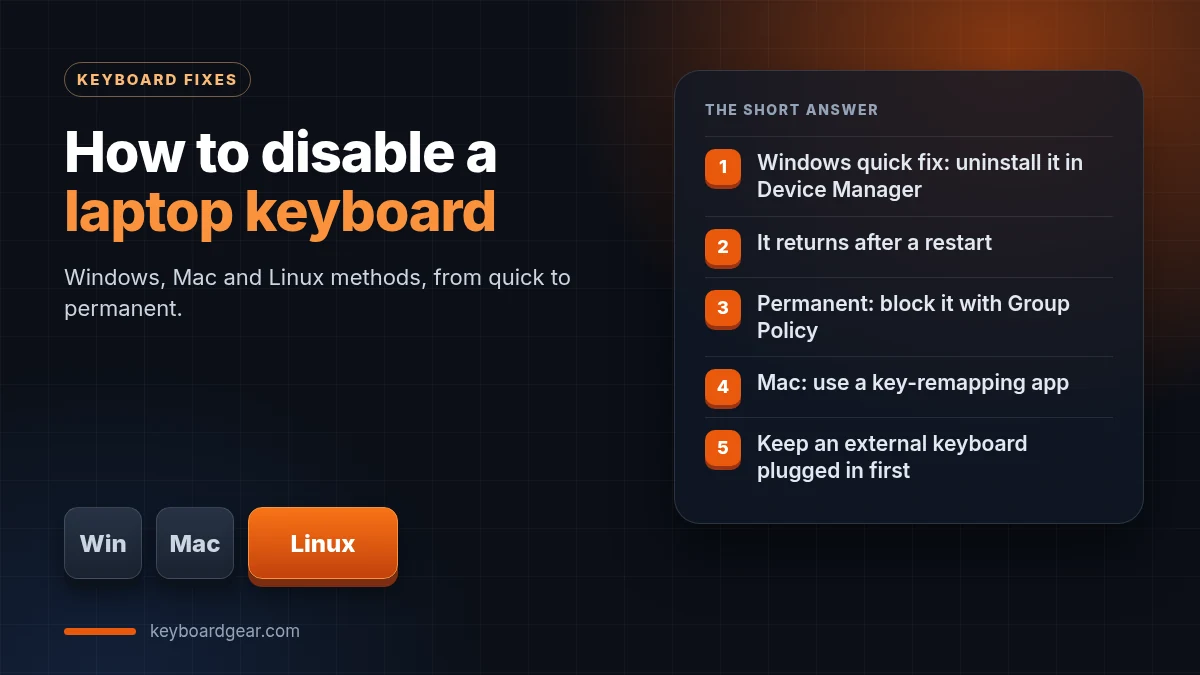
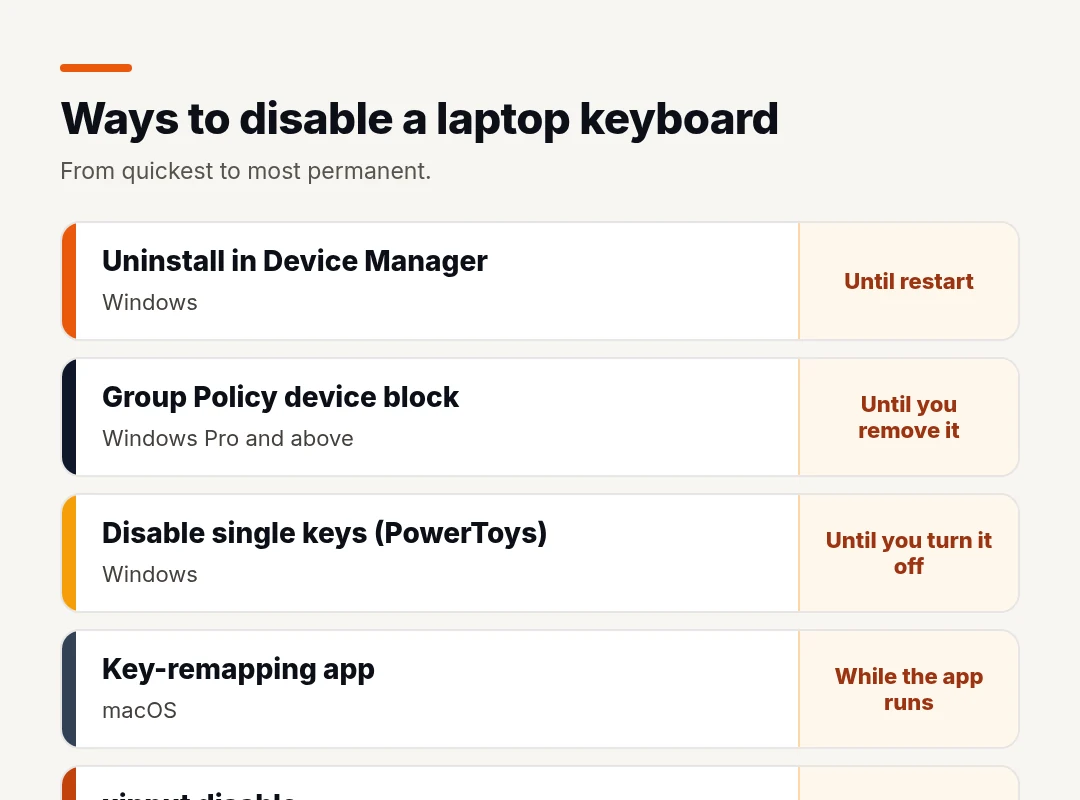
On Windows, the quickest way to disable a laptop keyboard is Device Manager: open it, expand Keyboards, right-click the built-in keyboard and choose Uninstall device. It usually comes back after a restart, because Windows reinstalls it. To block it permanently on Windows Pro, Enterprise or Education, use Group Policy to prevent installation of that device’s hardware ID.
macOS has no built-in switch for this; a key-remapping app is the usual route. On Linux with X11, `xinput disable` turns it off for the session. Always connect a working external keyboard first.
There are good reasons to turn off a laptop’s built-in keyboard. A damaged key might be typing on its own, you might want to rest an external keyboard on top of the laptop, or you might be cleaning the keys or keeping a pet or toddler from sending emails. Laptops don’t make this easy, because the keyboard is built in and the operating system expects it to be there.
This guide covers the main methods on each system, how long each lasts, and the risks.
Before you start: connect another keyboard
Disabling the only keyboard you have can lock you out of typing your password. Before you change anything:
- Connect a USB or Bluetooth keyboard and make sure it works. Our guide on how to connect a Bluetooth keyboard helps.
- Know your password and how to sign in with the on-screen keyboard as a fallback.
- If you’re disabling the keyboard because keys are misbehaving, try the fixes in our guide to a laptop keyboard not working first; the problem may be fixable.
Windows: quick method (Device Manager)
This is the fastest way and is easy to undo.
- Right-click Start and choose Device Manager.
- Expand Keyboards.
- Find the built-in keyboard. It’s often listed as Standard PS/2 Keyboard or HID Keyboard Device. If you see several, unplug external keyboards to see which entry disappears; that one is external.
- Right-click the built-in keyboard and choose Uninstall device, then confirm.
The keyboard stops working straight away. The catch is that Windows usually reinstalls the driver when you restart or scan for hardware changes, and the keyboard comes back. Some laptops also offer Disable device in the same menu, which persists, but on many keyboards that option isn’t available.
To undo it, restart, or open Device Manager and choose Action > Scan for hardware changes.
Windows: permanent method (Group Policy)
On Windows Pro, Enterprise and Education, you can stop Windows from reinstalling the keyboard.
- In Device Manager, right-click the built-in keyboard, choose Properties, open the Details tab and select Hardware Ids. Copy the top value.
- Press Windows + R, type `gpedit.msc` and press Enter.
- Go to Computer Configuration > Administrative Templates > System > Device Installation > Device Installation Restrictions.
- Open Prevent installation of devices that match any of these device IDs, set it to Enabled, click Show and paste the hardware ID.
- Back in Device Manager, uninstall the keyboard as above.
Windows can no longer reinstall it, so it stays off after restarts. To undo it, set the policy back to Not configured and scan for hardware changes. Windows Home doesn’t include the Group Policy editor.
Be careful to copy the hardware ID of the built-in keyboard. Blocking a generic ID that your external keyboard also uses could disable both.
Windows: disable single keys instead
If only one or two keys are faulty, you don’t need to turn off the whole keyboard. Microsoft’s free PowerToys includes a Keyboard Manager that can remap a key to “Disable”. This applies to every keyboard connected, not just the laptop’s, so it’s best for a key you don’t use. Our guide on how to remap keys walks through Keyboard Manager and other tools. A key that types repeatedly by itself may be keyboard chatter, which can sometimes be cleaned out.
Mac
macOS doesn’t have a setting to disable the built-in keyboard. (There is a built-in option to ignore the trackpad when a mouse is connected, but not one for the keyboard.) Your options are:
- A key-remapping app: some third-party remapping tools, such as Karabiner-Elements, can disable the built-in keyboard while a chosen external keyboard is connected. Install software like this only from its official site.
- Close the lid and use the Mac in clamshell mode with an external display, keyboard and mouse, so the keys can’t be pressed.
Linux
On desktops using the X11 display server:
- Open a terminal and run `xinput list`.
- Find the built-in keyboard, often called something like AT Translated Set 2 keyboard, and note its id number.
- Run `xinput disable
`. Use `xinput enable ` to turn it back on.
This lasts until you log out or restart. Many newer desktops use Wayland, where `xinput` doesn’t control devices; check your desktop’s settings or documentation instead.
Simpler alternatives
Sometimes you don’t need to disable anything:
- Put the external keyboard somewhere else. A laptop stand raises the laptop and frees the desk in front for a full keyboard, so nothing rests on the built-in keys.
- Use a silicone keyboard cover to stop accidental presses and crumbs.
- Lock the screen with Windows + L or Control + Command + Q on a Mac when you step away.
- Clean it first. Sticky or repeating keys are often caused by dirt; see our guide to cleaning a laptop keyboard.
Which method should you use?
| If you want to… | Use |
|---|---|
| Turn it off quickly for today | Device Manager uninstall (Windows) |
| Keep it off after restarts | Group Policy device block (Windows Pro) |
| Stop one faulty key | PowerToys Keyboard Manager |
| Disable it on a Mac | A remapping app or clamshell mode |
| Disable it on Linux | xinput disable (X11) |
| Rest an external keyboard on the laptop | A laptop stand or keyboard cover instead |
How to undo each method
| Method | How to turn the keyboard back on |
|---|---|
| Device Manager uninstall | Restart, or choose Action > Scan for hardware changes |
| Device Manager disable | Right-click the keyboard and choose Enable device |
| Group Policy block | Set the policy to Not configured, then scan for hardware changes |
| PowerToys key disable | Remove the remapping in Keyboard Manager, or turn Keyboard Manager off |
| Mac remapping app | Turn off the rule in the app, or quit the app |
| Linux xinput | Run xinput enable with the same id, or log out |
Write down which method you used. It’s easy to forget a Group Policy change months later and wonder why the keyboard won’t come back after a repair.
If the external keyboard stops working too
Occasionally a laptop’s internal keyboard and an external keyboard share a driver entry, or a hardware ID you blocked is more generic than expected. If both stop working:
- Use the on-screen keyboard to sign in (on Windows, it’s in the accessibility options on the sign-in screen).
- Undo the change using the table above.
- Try again, this time checking the hardware ID carefully so it matches only the built-in keyboard.
A USB keyboard on a different port or a Bluetooth keyboard can also help, because it may appear as a separate device.
Keys typing on their own? Diagnose before you disable
If you want to disable the keyboard because it’s typing characters by itself, it’s worth a few quick checks first:
- Spills and crumbs can short or jam keys. Shut down, unplug, and clean around the affected keys.
- A stuck modifier, such as Shift or Ctrl, can make other keys behave strangely. Press each modifier a few times.
- Swollen batteries in older laptops can push up on the keyboard from underneath. If the keyboard or touchpad is bulging, stop using the laptop and get it checked.
- Driver problems can sometimes be fixed by uninstalling the keyboard in Device Manager and restarting so Windows reinstalls it.
If one key keeps repeating, our guide to a keyboard key not working covers individual key fixes, and if the whole keyboard is unreliable, a repair or replacement keyboard may cost less than you expect.
Disabling the keyboard temporarily for cleaning
For a quick wipe-down, you don’t need to disable anything: shut the laptop down, unplug it, and clean it while it’s off. That’s safer than cleaning a running laptop with the keyboard disabled, because liquid and power don’t mix.
FAQ
Can I disable my laptop keyboard without software?
On Windows, yes: uninstall it in Device Manager, though it usually returns after a restart. Group Policy on Windows Pro keeps it off.
Why does my laptop keyboard come back after I disable it?
Windows reinstalls the driver when it detects the hardware again at startup. Use the Group Policy method to stop that.
Will disabling the keyboard affect the touchpad?
No. The touchpad is a separate device in Device Manager.
Can I disable the laptop keyboard on a Mac?
Not with a built-in setting. Use a third-party remapping app or close the lid and use an external keyboard.
Is it safe to disable the laptop keyboard?
Yes, as long as you have a working external keyboard connected and know how to undo it. Don’t disable it if it’s your only keyboard.
Bottom line
On Windows, uninstall the built-in keyboard in Device Manager for a quick, temporary fix, or block its hardware ID with Group Policy to keep it off. Mac users need a remapping app or clamshell mode, and Linux users can use xinput on X11. Whatever you choose, connect a working external keyboard first.
Sources
- Microsoft Support: Open Device Manager
- Microsoft Support: Update drivers through Device Manager
- Microsoft Learn: PowerToys Keyboard Manager

Experience is what matters at the end!!
Hi! This is Jacob Jay – founder of Keyboardgear.com! From childhood to adulthood, I’ve always remained passionate about IT, and the revolution in this industry, especially gaming on the PC can’t go out of my way. Since I’m an enthusiastic gamer, and I love to experience various gaming accessories, particularly mechanical keyboards, that really boost my gaming adventure manifolds. So, my nerve cells hit me to transfer my experiences into word form and share with others to identify the ideal keyboards perfectly fit for their gaming modes.
I know very well how hard it is to find the high-quality items available on the internet that ought to be exactly the same as seen as on the screen. But the counterfeiters have ruined the user’s trust. As I have passed all such situations, I’m obliged to deliver the genuinity and express the same as what I am saying.
So, now, I’m working on the mission to provide very helpful and frankly but trustworthy reviews and guides about various mechanical keyboards, mouses, and other gaming accessories as per my personal experiences and sound knowledge.