

Quick answer
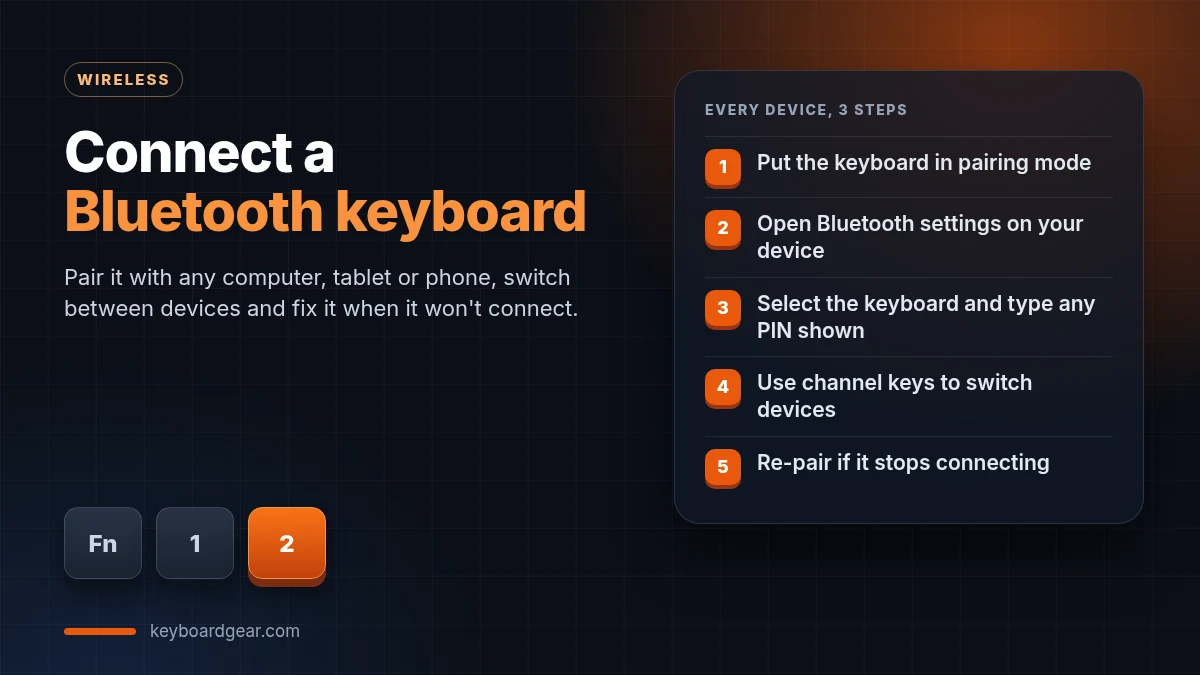
To connect a Bluetooth keyboard, first put the keyboard in pairing mode, usually by holding its connect or Bluetooth button (or an Fn + channel key) until a light blinks quickly. Then open your device’s Bluetooth settings and select the keyboard:
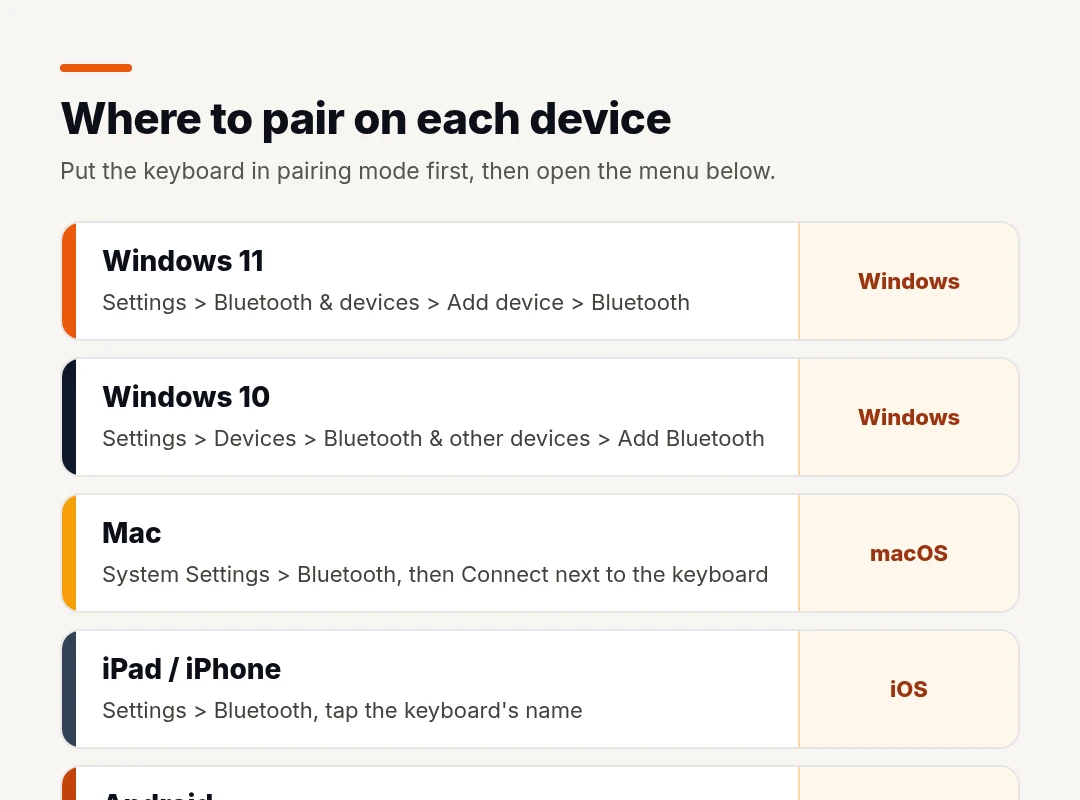
Windows 11: Settings > Bluetooth & devices > Add device > Bluetooth. Mac: System Settings > Bluetooth > Connect. iPad/iPhone: Settings > Bluetooth, tap the keyboard. Android: Settings > Connected devices > Pair new device. Chromebook: Quick Settings > Bluetooth.
If a PIN appears, type it on the keyboard and press Enter.
Bluetooth keyboards are wonderfully convenient once they are paired: no cable, no receiver to lose, and many can switch between a laptop, a tablet and a phone at the press of a key. Getting them paired the first time is where people get stuck, usually because the keyboard isn’t actually in pairing mode, or because it is still connected to another device.
This guide walks through pairing on every common system, explains how multi-device keyboards work, and lists the fixes to try when a keyboard won’t connect or keeps dropping out.
Step 1: Put the keyboard in pairing mode
Every Bluetooth keyboard needs to be discoverable before another device can find it. How you do that depends on the keyboard, so check its manual or the maker’s website, but these are the common methods:
- A dedicated connect or Bluetooth button. Press and hold it for about three seconds until a light blinks quickly.
- Fn + a channel key. Many multi-device keyboards, such as Keychron and Logitech Easy-Switch models, use a key or Fn combination for each channel. Hold it for a few seconds until the channel light blinks fast.
- A power switch with a Bluetooth position. Some keyboards have a switch for Bluetooth, 2.4 GHz and wired modes; set it to Bluetooth first.
A slow blink or a solid light usually means the keyboard is trying to reconnect to a device it already knows. A fast blink usually means it is ready to pair with something new. Make sure it is charged or has fresh batteries before you start.
Connect a Bluetooth keyboard to Windows 11
- Put the keyboard in pairing mode.
- Select Start > Settings > Bluetooth & devices and make sure Bluetooth is on.
- Select Add device, then Bluetooth.
- Choose your keyboard from the list.
- If a PIN appears on screen, type it on the keyboard and press Enter.
- Select Done when Windows says the keyboard is connected.
You can also open Quick Settings (the network, sound or battery icon next to the clock), select the arrow on the Bluetooth tile and pick the keyboard under New devices. Some keyboards support Swift Pair, which shows a pop-up asking you to connect as soon as the keyboard is in pairing mode nearby. If your keyboard doesn’t appear, Microsoft notes that you may need to set Bluetooth devices discovery to Advanced in Bluetooth & devices > Devices.
Connect a Bluetooth keyboard to Windows 10
- Put the keyboard in pairing mode.
- Select Start > Settings > Devices > Bluetooth & other devices.
- Turn on Bluetooth, then select Add Bluetooth or other device > Bluetooth.
- Choose the keyboard, type any PIN shown and press Enter, then select Done.
Connect a Bluetooth keyboard to a Mac
- Put the keyboard in pairing mode.
- Open the Apple menu > System Settings > Bluetooth (System Preferences on older macOS).
- Make sure Bluetooth is on, then find the keyboard under Nearby Devices and select Connect.
- If a code appears, type it on the keyboard and press Return.
macOS may open the Keyboard Setup Assistant to identify a non-Apple keyboard’s layout by asking you to press the keys next to Shift. Follow it, and if the Command and Option keys feel swapped on a Windows keyboard, change them under System Settings > Keyboard > Keyboard Shortcuts > Modifier Keys. Our guide to which keyboards work with a Mac explains the differences.
Connect a Bluetooth keyboard to an iPad or iPhone
- Put the keyboard in pairing mode.
- Open Settings > Bluetooth and make sure Bluetooth is on.
- Tap the keyboard’s name when it appears under Other Devices.
- If asked, type the code shown on the keyboard and press Return.
Apple notes that the iPad needs to be within about 10 metres (33 feet) of the accessory to pair. Once connected, the on-screen keyboard hides while you type on the hardware keyboard. You can change the hardware keyboard’s layout in Settings > General > Keyboard > Hardware Keyboard.
Connect a Bluetooth keyboard to Android
- Put the keyboard in pairing mode.
- Swipe down from the top of the screen, then touch and hold Bluetooth, or open Settings > Connected devices.
- Tap Pair new device.
- Tap the keyboard’s name, then follow any prompts, such as typing a code on the keyboard.
Menu names vary by phone maker. On Samsung phones, for example, Bluetooth is under Settings > Connections. If you are asked for a passcode you don’t have, Google suggests trying common ones like 0000 or 1234.
Connect a Bluetooth keyboard to a Chromebook
- Put the keyboard in pairing mode.
- Select the time at the bottom right to open Quick Settings, then select Bluetooth and make sure it is on.
- Choose the keyboard from the list of available devices and follow any prompts.
You can also go to Settings > Bluetooth (or Bluetooth and devices on newer ChromeOS).
Using one keyboard with several devices
Many Bluetooth keyboards remember two or three devices on separate channels. Pair each device once, on its own channel, and then switch with the channel keys:
- Select channel 1 (for example, Fn + 1), put it in pairing mode and pair it with your laptop.
- Select channel 2, put it in pairing mode and pair it with your tablet.
- From then on, press the channel key to jump between them.
If a channel is already paired, pairing it again replaces the old device. On keyboards with both Bluetooth and a USB receiver, the receiver usually has its own channel or switch position. For a full desk with a mouse as well, see our picks for the best wireless keyboard and mouse combos.
::tip
If your keyboard shows the wrong characters after you switch devices, it may be in the wrong OS mode. Many multi-device keyboards have a Windows/Mac switch or an Fn shortcut to change the key mapping; check the manual. Our guide to changing your keyboard layout also covers layout settings on each system.
::
When a Bluetooth keyboard won’t pair
Work through these in order:
- Check it is really in pairing mode. Look for a fast blink. A slow blink often means it is trying to reach the last device instead.
- Charge it or change the batteries. Low power commonly causes failed pairing and dropouts.
- Turn the keyboard and Bluetooth off and on again. Restart the computer or tablet too.
- Remove the old pairing. If the keyboard was paired before, select it in Bluetooth settings and choose Remove device or Forget This Device, then pair it again from scratch.
- Disconnect it from other devices. Apple advises unpairing the accessory from your other devices if it pairs with some but not yours. A keyboard connected to your phone may not show up for your laptop.
- Move closer. Bring the keyboard within a metre or two while pairing.
- Check that your computer has Bluetooth. Some desktops don’t. A small USB Bluetooth adapter adds it.
- Update drivers or the operating system. On Windows, check Windows Update and the Bluetooth driver in Device Manager.
- Reset the keyboard. Many keyboards have a reset key combination; the manual or maker’s support site will list it.
When it keeps disconnecting or lagging
- Battery saving: many keyboards sleep after a few minutes. Pressing a key wakes them, and the first keystroke may be lost. That is normal.
- Interference: Wi-Fi routers, USB 3.0 ports and hubs, and lots of other wireless devices can interfere with Bluetooth. Move the keyboard closer or reduce clutter between it and the computer.
- Windows power management: in Device Manager, open the Bluetooth adapter’s properties and, under Power Management, untick the option that lets the computer turn it off to save power.
- Use the receiver: if your keyboard came with a 2.4 GHz USB receiver, it is usually more stable and lower latency than Bluetooth, especially for gaming.
Many of the same fixes apply to mice; our wireless mouse lag guide covers interference and receiver placement in more detail. If the keyboard doesn’t type at all even when connected, our laptop keyboard not working checklist covers driver and settings fixes.
Bluetooth vs USB receiver vs wired
| Connection | Pros | Cons |
|---|---|---|
| Bluetooth | No receiver, works with phones and tablets, multi-device switching | Pairing hassle, slightly higher latency, can sleep and miss a keystroke |
| 2.4 GHz USB receiver | Stable, low latency, plug and play | Uses a USB port, receiver can be lost, usually one computer at a time |
| Wired USB | No pairing, no batteries, lowest latency | Cable on the desk |
Our guide to wired vs wireless keyboards goes deeper on the trade-offs. If you are shopping for a new one, see our picks for the best Bluetooth keyboards.
FAQ
How do I put my Bluetooth keyboard in pairing mode?
Usually by holding a connect or Bluetooth button, or an Fn + channel key, for about three seconds until a light blinks quickly. Check the manual, because every brand is slightly different.
Why won’t my Bluetooth keyboard show up?
It is usually not in pairing mode, still connected to another device, or low on battery. Put it in pairing mode, unpair it from other devices and charge it.
Do I need a PIN to pair a keyboard?
Sometimes. If one appears on screen, type it on the keyboard and press Enter or Return.
Can one Bluetooth keyboard connect to two devices?
Many can, using separate channels that you switch between with a key. It connects to one device at a time.
Can I use a Bluetooth keyboard with a computer that has no Bluetooth?
Yes, with a USB Bluetooth adapter. If the keyboard came with a USB receiver, use that instead.
Bottom line
Pairing any Bluetooth keyboard comes down to three steps: put it in pairing mode, open Bluetooth settings on your device and select it. Most problems come from the keyboard not really being discoverable, a low battery or an old pairing on another device, so check those first.
Related guide: How to Use One Keyboard and Mouse for Two Computers (5 Ways)
Sources
- Microsoft Support: Pair a Bluetooth device in Windows
- Apple Support: Connect iPad to Bluetooth accessories
- Apple Support: If a Bluetooth accessory won’t connect to your iPhone or iPad
- Android Help: Find and set up Bluetooth devices
- Logitech Support: Bluetooth pairing and troubleshooting

Experience is what matters at the end!!
Hi! This is Jacob Jay – founder of Keyboardgear.com! From childhood to adulthood, I’ve always remained passionate about IT, and the revolution in this industry, especially gaming on the PC can’t go out of my way. Since I’m an enthusiastic gamer, and I love to experience various gaming accessories, particularly mechanical keyboards, that really boost my gaming adventure manifolds. So, my nerve cells hit me to transfer my experiences into word form and share with others to identify the ideal keyboards perfectly fit for their gaming modes.
I know very well how hard it is to find the high-quality items available on the internet that ought to be exactly the same as seen as on the screen. But the counterfeiters have ruined the user’s trust. As I have passed all such situations, I’m obliged to deliver the genuinity and express the same as what I am saying.
So, now, I’m working on the mission to provide very helpful and frankly but trustworthy reviews and guides about various mechanical keyboards, mouses, and other gaming accessories as per my personal experiences and sound knowledge.