

Keyboard Gear earns from qualifying purchases through Amazon links.
For a desk setup, the Logitech K780 is the best pick: it’s full size with a number pad, has a phone and tablet cradle and lists ChromeOS support. The MX Keys Mini is the best compact, backlit option, and the Keys-to-Go 2 is the most portable. Almost any USB or Bluetooth keyboard works with a Chromebook, but these three list ChromeOS compatibility and switch between three devices.
Chromebooks work with almost any USB or Bluetooth keyboard, but a keyboard that lists ChromeOS support saves guesswork: the media and brightness keys are more likely to do what they say, and the maker supports it on your system. An external keyboard also lets you raise your Chromebook’s screen to eye level on a stand and type at a comfortable height.
This guide compares three Logitech keyboards sold on Amazon US that list ChromeOS compatibility. We checked availability and prices on November 28, 2026, and specs come from the listings. We haven’t tested these keyboards ourselves. If you’re pairing a keyboard for the first time, our guide on how to connect a Bluetooth keyboard walks through it.
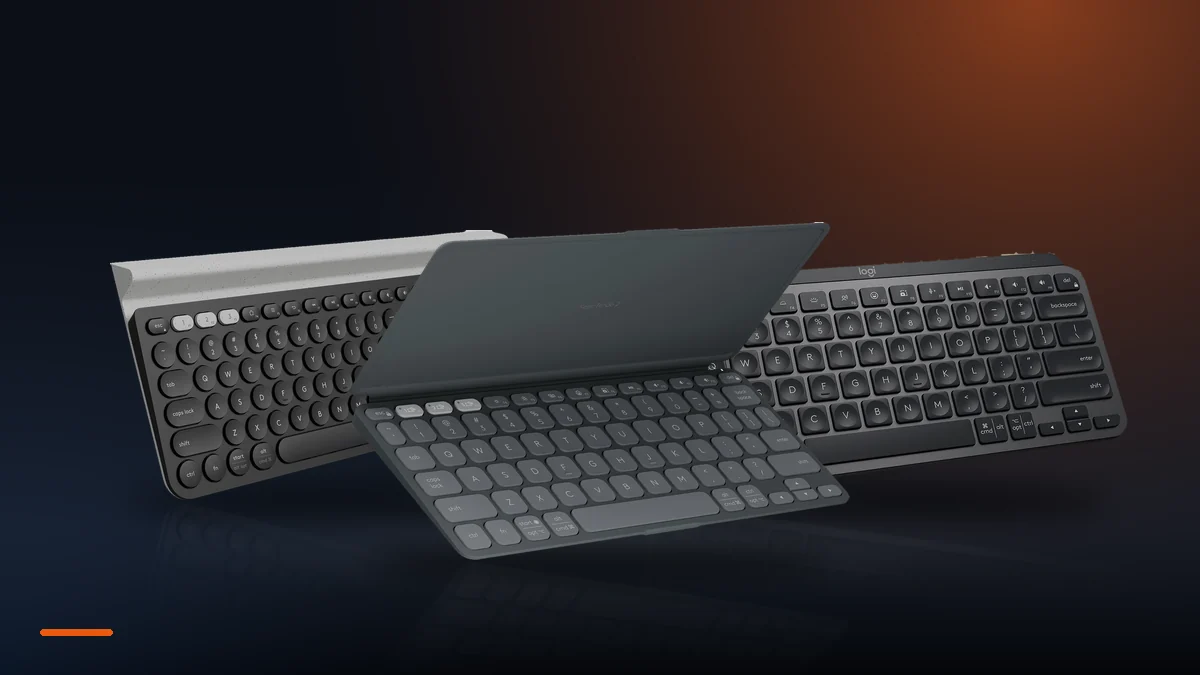
Best keyboards for Chromebook overview
| Product | Best for | Key specs | Price |
|---|---|---|---|
1 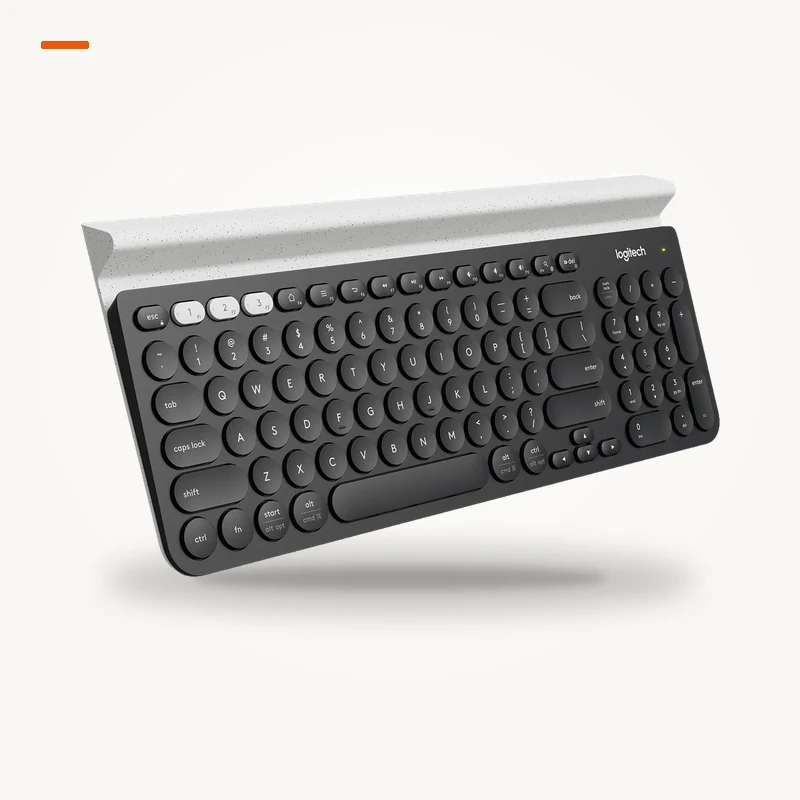 Logitech K780 Multi-Device Wireless Keyboard |
Best full-size |
|
Check Price |
2 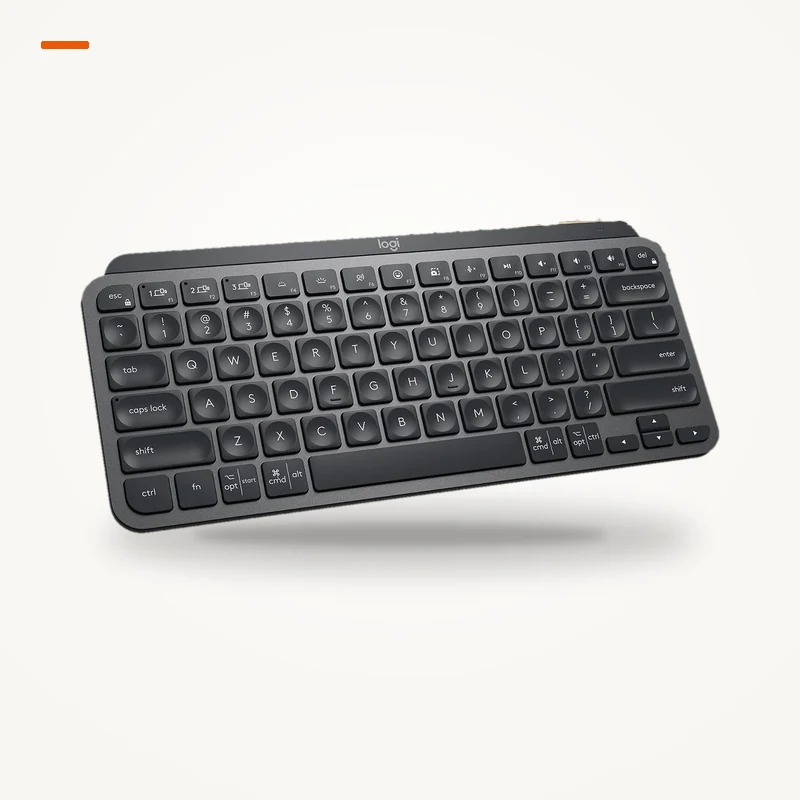 Logitech MX Keys Mini |
Best compact |
|
Check Price |
3 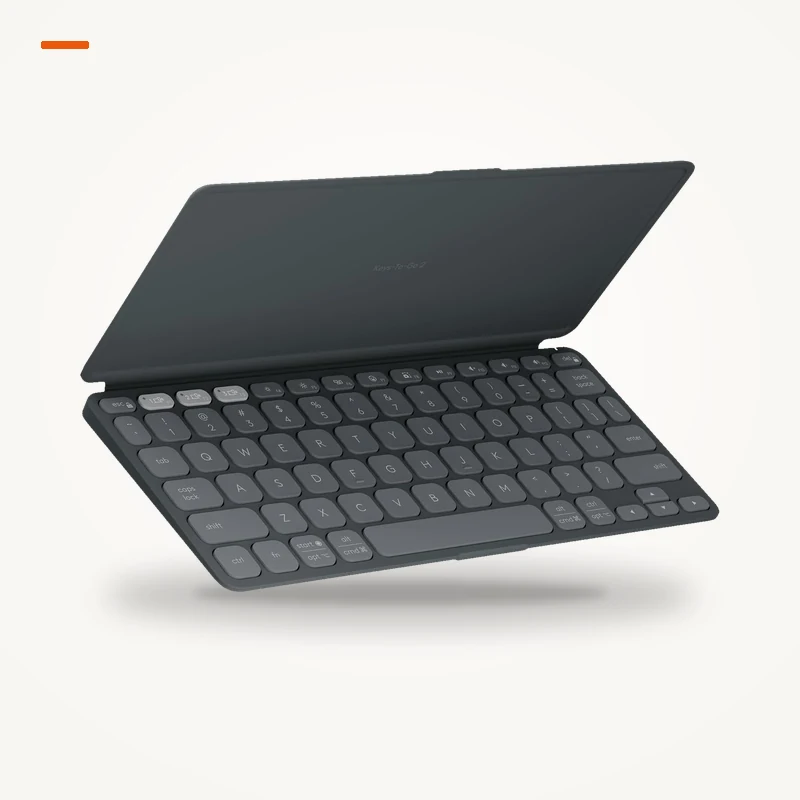 Logitech Keys-to-Go 2 (Windows, Android and ChromeOS) |
Most portable |
|
Check Price |
How a Windows-style keyboard maps on a Chromebook
Most external keyboards are laid out for Windows. They still work on a Chromebook, but a few keys behave differently:
::table|Key on a Windows-style keyboard|What it does on a Chromebook
Windows key|Opens the Launcher (the Search or Everything key)
Caps Lock|Works as Caps Lock; on Chromebook keyboards this position is the Launcher key
F1–F12|Act as the top-row keys or as function keys, depending on your settings
Alt|Works as Alt
Ctrl|Works as Ctrl, the main shortcut key on ChromeOS
Delete|Deletes forwards, which a Chromebook keyboard does with Alt + Backspace
::
You can change how these keys behave in ChromeOS settings, under the device or keyboard section, including swapping the Launcher, Ctrl and Alt keys and choosing whether top-row keys act as function keys. Our guide to remapping keys covers other systems too.
How to choose a keyboard for your Chromebook
Listed ChromeOS support
Any standard keyboard should type, but a listed ChromeOS keyboard is more likely to have working media and shortcut keys. All three picks here list ChromeOS.
Bluetooth or receiver
Bluetooth leaves the USB port free, which matters on Chromebooks with only one or two ports. A USB receiver can be quicker to set up and works before you’ve signed in. The K780 and MX Keys Mini support both; Keys-to-Go 2 is Bluetooth only.
Size and layout
A full-size keyboard with a number pad suits spreadsheets and data entry; see our number pad guide if you’d rather add one separately. A compact keyboard saves desk space and travels better.
Multi-device switching
If you also use a phone, tablet or work laptop, switching between up to three devices with one keyboard is a real convenience. All three picks do it; there’s more on sharing a keyboard in one keyboard and mouse for two computers.
Power
Rechargeable keyboards like the MX Keys Mini need an occasional charge, especially with backlighting on. Battery-powered keyboards like the Keys-to-Go 2 last a long time between changes.
The best keyboards for Chromebook reviewed
1. Logitech K780 Multi-Device Wireless Keyboard — best full-size keyboard for Chromebook
Who it’s for: Chromebook owners who work at a desk and want a full-size keyboard with a number pad and a stand for a phone or tablet.
The K780 is a full-size keyboard with a number pad and large, quiet keys. Its standout feature is the built-in cradle along the top, which holds a phone or tablet at a typing angle, so you can switch from your Chromebook to answering a message on your phone without moving keyboards.
It connects by Bluetooth or Logitech’s Unifying USB receiver and pairs with up to three devices, with Easy-Switch buttons to jump between them. Logitech lists it for Windows, Mac, ChromeOS, iOS and Android. The listing describes the keys as membrane. It was $61.99, sold by Amazon.com, on November 28, 2026.
Key specs: Full-size multi-device wireless keyboard with number pad; Bluetooth or USB Unifying receiver; up to 3 devices with Easy-Switch buttons; built-in phone and tablet cradle; large quiet keys; listed for Windows, Mac, ChromeOS, iOS and Android.
- Number pad
- Phone and tablet cradle
- Three-device switching
- Sold by Amazon
- Large footprint
- Not backlit
- Not ideal for carrying around
2. Logitech MX Keys Mini — best compact keyboard for Chromebook
Who it’s for: People who want a premium, compact, backlit keyboard that moves easily between a Chromebook and other computers.
MX Keys Mini is Logitech’s compact premium keyboard. It drops the number pad to save space, and its smart backlighting turns on as your hands approach and adjusts to the room’s light. This listing is the business version with Logi Bolt, Logitech’s encrypted wireless receiver, and it also connects over Bluetooth Low Energy.
It pairs with up to three devices and switches at the push of a button, and the listing title names Windows, Mac, Chrome and Linux. It’s rechargeable. It was $99.99, sold by Priority Sales Inc, a third-party seller, on November 28, 2026.
Key specs: Compact wireless keyboard; Logi Bolt USB receiver or Bluetooth Low Energy; up to 3 devices; smart backlighting that adjusts to ambient light; rechargeable; listed for Windows, Mac, Chrome and Linux; business version.
- Backlit keys
- Compact and slim
- Three-device switching
- Rechargeable
- Most expensive here
- No number pad
- Third-party seller on this listing
3. Logitech Keys-to-Go 2 (Windows, Android and ChromeOS) — most portable keyboard for Chromebook
Who it’s for: Students and travellers who use a Chromebook tablet or detachable, or want a tiny keyboard in a bag.
Keys-to-Go 2 is a super-slim Bluetooth keyboard with a built-in cover that folds over the keys to protect them in a bag. It uses scissor keys and has a full row of shortcut keys for volume, media and brightness. Logitech lists this version for Windows, Android and ChromeOS tablets and devices.
It pairs with up to three devices and runs on pre-installed coin cell batteries that Logitech rates for up to three years, so there’s nothing to charge. It was $59.99, sold by Amazon.com, on November 28, 2026.
Key specs: Ultra-slim Bluetooth keyboard with built-in cover; scissor keys; full shortcut row; up to 3 devices; coin cell batteries pre-installed, up to 3 years listed; listed for Windows, Android, ChromeOS and Googlebook OS.
- Very thin and light
- Built-in cover
- No charging needed
- Sold by Amazon
- Compact layout
- No backlight
- Bluetooth only, no receiver
Chromebook keyboards compared
| Keyboard | Size | Connection | Backlight | Price (Nov 28) |
|---|---|---|---|---|
| Logitech K780 | Full size with number pad | Bluetooth or Unifying receiver | No | $61.99 |
| Logitech MX Keys Mini | Compact | Bluetooth LE or Logi Bolt | Yes, smart | $99.99 |
| Logitech Keys-to-Go 2 | Ultra-slim, with cover | Bluetooth | No | $59.99 |
Which keyboard fits you?
| If you… | Choose | Why |
|---|---|---|
| Work at a desk with numbers | Logitech K780 | Number pad and device cradle |
| Want a premium compact board | Logitech MX Keys Mini | Backlit, slim, rechargeable |
| Carry your Chromebook everywhere | Logitech Keys-to-Go 2 | Thin, light, built-in cover |
| Use a Chromebook tablet | Logitech Keys-to-Go 2 | Made for tablets and portable devices |
How to set up a keyboard on a Chromebook
- For a USB receiver, plug it into a free USB port. The keyboard should work straight away.
- For Bluetooth, turn Bluetooth on from the quick settings panel in the corner of the screen, put the keyboard into pairing mode, and choose it from the list of devices.
- Check the top row. Press the volume and brightness keys. If they don’t do what you expect, open ChromeOS keyboard settings and change how top-row keys behave.
- Set the Launcher key. Decide whether you want the Windows key to open the Launcher, and adjust key mapping in settings if you prefer a different layout.
- Learn the shortcuts. Press Ctrl + Alt + / to open the ChromeOS shortcut list, which shows what each shortcut does on your keyboard.
Make your Chromebook setup more comfortable
An external keyboard is only half the job. Raise the Chromebook’s screen so the top is around eye level, using a laptop stand, and keep the keyboard low enough that your shoulders stay relaxed. Our guide to monitor height explains where the screen should sit.
Built-in keyboard vs an external keyboard
::table|Chromebook’s built-in keyboard|External keyboard
Posture|Screen and keys are joined, so you look down|Screen can go at eye level on a stand
Layout|ChromeOS keys, often no number pad|Choice of full size, compact or portable
Feel|Shallow laptop keys|Choice of key type, travel and size
Multi-device|One device|Many switch between up to three devices
Portability|Always with you|Extra item to carry, unless it’s slim
::
If you mainly use your Chromebook on the sofa or in class, the built-in keyboard is fine. If you sit at a desk for hours, an external keyboard plus a stand is one of the cheapest comfort upgrades you can make, and it can help with wrist pain from typing.
What about mechanical keyboards?
Mechanical keyboards work with Chromebooks too. A wired USB mechanical keyboard generally types as soon as you plug it in, and Bluetooth mechanical boards pair like any other keyboard. The catch is that special keys, lighting software and macro tools are often made for Windows or Mac, so features beyond typing may not work on ChromeOS. Check the maker’s listed compatibility if those features matter, and remember that a USB keyboard uses one of the Chromebook’s limited ports.
FAQ
Does any keyboard work with a Chromebook?
Almost any USB or Bluetooth keyboard will type on a Chromebook. Keyboards that list ChromeOS support are more likely to have working media and shortcut keys.
What does the Windows key do on a Chromebook?
It usually opens the Launcher, like the Search or Everything key on a Chromebook keyboard. You can change this in keyboard settings.
Can I use a mechanical keyboard with a Chromebook?
Yes. Wired USB mechanical keyboards generally work, and so do Bluetooth ones. Check the maker’s listed compatibility for special keys.
How do I see Chromebook keyboard shortcuts?
Press Ctrl + Alt + / to open the shortcut list.
Will a Mac keyboard work with a Chromebook?
Usually for typing, but some special keys may not match. A keyboard that lists ChromeOS is the safer choice.
Do these keyboards need software?
No. They work without extra software on a Chromebook. Logitech’s Options+ app adds customisation on some systems.
Final verdict
The Logitech K780 is the best keyboard for a Chromebook at a desk, with a number pad, three-device switching and a cradle for a phone or tablet. The MX Keys Mini is the best compact, backlit choice, and the Keys-to-Go 2 is the one to carry with a Chromebook tablet or small laptop. If you’re also weighing cables against batteries, see our wired vs wireless keyboards comparison.

Experience is what matters at the end!!
Hi! This is Jacob Jay – founder of Keyboardgear.com! From childhood to adulthood, I’ve always remained passionate about IT, and the revolution in this industry, especially gaming on the PC can’t go out of my way. Since I’m an enthusiastic gamer, and I love to experience various gaming accessories, particularly mechanical keyboards, that really boost my gaming adventure manifolds. So, my nerve cells hit me to transfer my experiences into word form and share with others to identify the ideal keyboards perfectly fit for their gaming modes.
I know very well how hard it is to find the high-quality items available on the internet that ought to be exactly the same as seen as on the screen. But the counterfeiters have ruined the user’s trust. As I have passed all such situations, I’m obliged to deliver the genuinity and express the same as what I am saying.
So, now, I’m working on the mission to provide very helpful and frankly but trustworthy reviews and guides about various mechanical keyboards, mouses, and other gaming accessories as per my personal experiences and sound knowledge.