

Quick answer
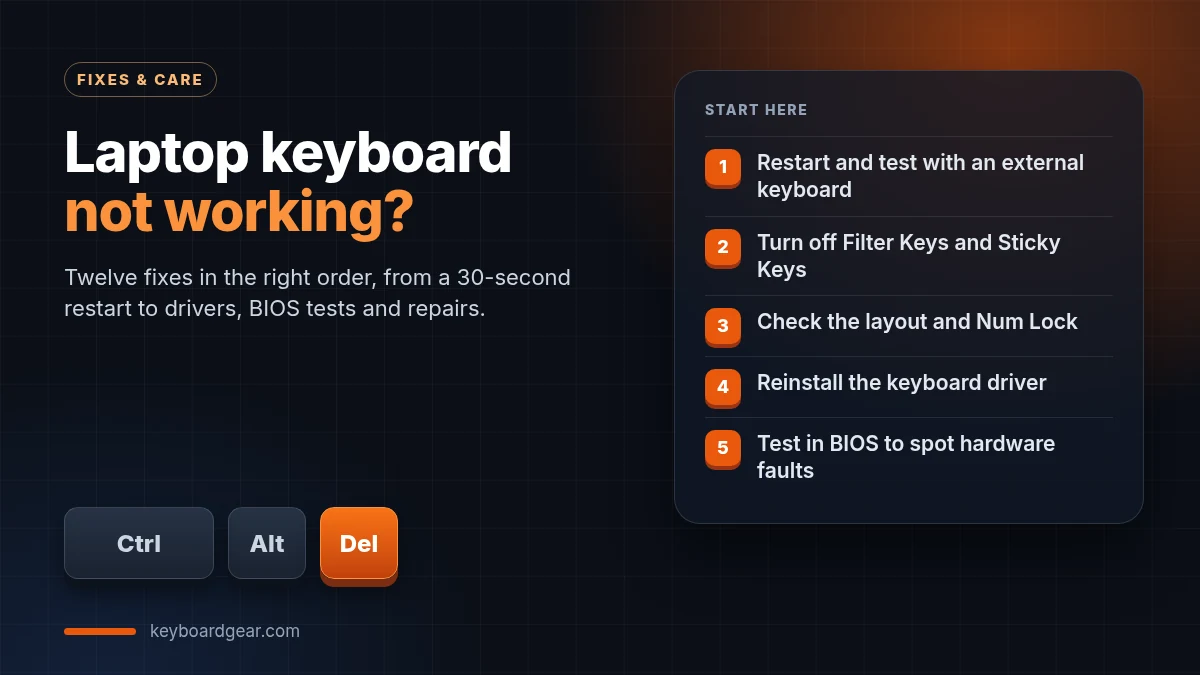
Restart the laptop first. If the keyboard still doesn’t work, plug in a USB keyboard to check whether the problem is the laptop keyboard or the system. Then turn off Filter Keys (Windows) or Slow Keys (Mac), check the keyboard layout, and reinstall the keyboard driver in Device Manager.
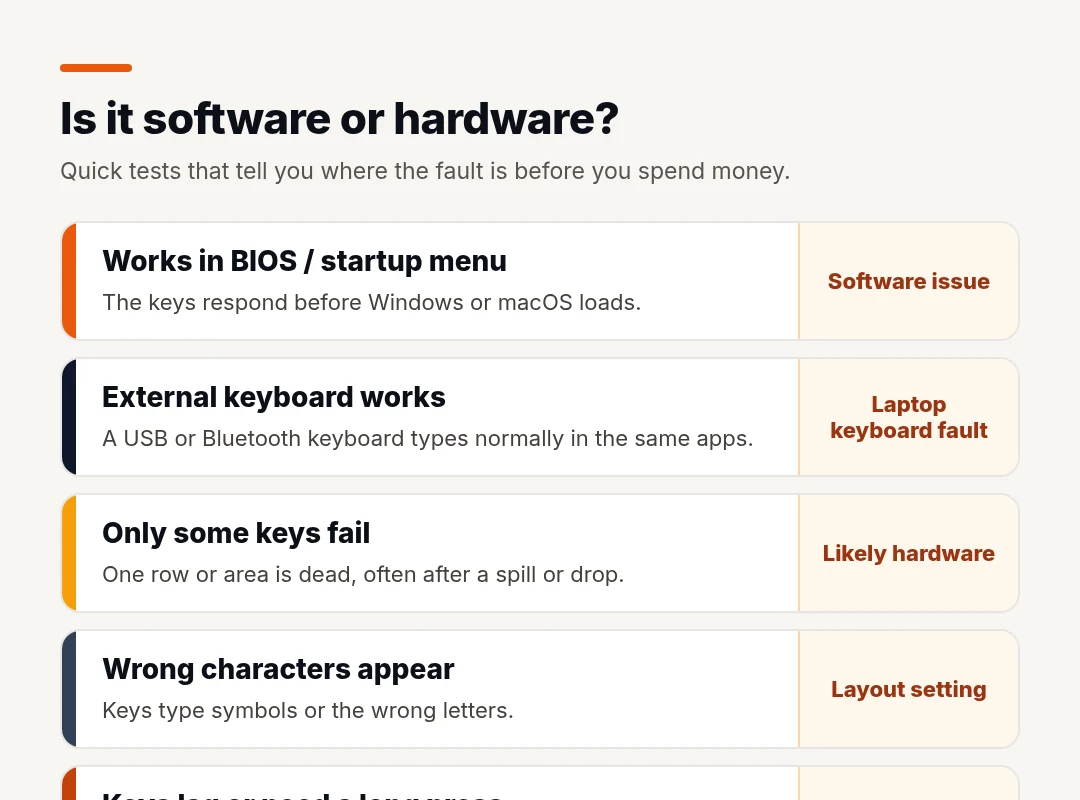
If the keys work in the BIOS or startup screen but not in Windows, it is a software problem you can fix. If they don’t respond even there, or only one area of keys is dead after a spill or drop, the keyboard probably needs repair or replacement.
A laptop keyboard that suddenly stops working is stressful, because you can’t just swap it out like a desktop keyboard. The good news is that most cases are caused by settings, drivers or a stuck system state, and you can fix them yourself in a few minutes.
Work through the fixes below in order. They go from the quickest and most common causes to the ones that need more effort. Most steps are written for Windows 10 and 11, with Mac equivalents where they differ.
Before you start: two quick tests
Do these two things first, because they tell you which fixes are worth your time.
- Plug in an external keyboard. Any USB keyboard will do (or a Bluetooth one). If the external keyboard works and the laptop keyboard doesn’t, the problem is specific to the built-in keyboard or its driver. If neither works, the problem is in the operating system.
- Try the keyboard before the operating system loads. Restart and press the key that opens the BIOS or UEFI setup (often F2, F10, F12, Del or Esc, depending on the maker). If you can move around the BIOS menus with the arrow keys, the keyboard hardware works and the fault is software.
1. Restart the laptop properly
It sounds obvious, but a full restart clears a frozen input service or a driver that has stopped responding. On Windows, use Restart, not Shut down: with Fast Startup turned on, Shut down saves part of the system state and can bring the same problem back. On a Mac, choose Apple menu > Restart.
2. Check for dirt, crumbs and stuck keys
If only some keys fail, or a key feels crunchy, debris may be blocking it. Turn the laptop off, tilt it at an angle and gently tap or brush between the keys. Short bursts of compressed air can help too. Our guide on how to clean a laptop keyboard explains how to do this safely without damaging the keys.
3. Turn off Filter Keys and Sticky Keys
Windows accessibility settings are one of the most common causes of a keyboard that “half works”. Filter Keys ignores brief or repeated keystrokes, so keys seem dead unless you hold them down. It can be switched on by holding the right Shift key for eight seconds, which happens by accident more than you might think.
- Windows 11: Settings > Accessibility > Keyboard, then turn off Sticky keys, Filter keys and Toggle keys.
- Windows 10: Settings > Ease of Access > Keyboard.
- Mac: System Settings > Accessibility > Keyboard, and turn off Slow Keys and Sticky Keys.
4. Check the keyboard layout and Num Lock
If the keyboard types, but the wrong characters come out, the layout is probably wrong. For example, @ and ” swap places between US and UK layouts, and AZERTY swaps A and Q. On Windows, press Windows + Space to cycle through installed layouts, or remove the ones you don’t need in Settings > Time & language > Language & region. Our guide to a keyboard typing wrong characters goes into detail.
On smaller laptops without a number pad, Num Lock can turn part of the letter keys (such as U, I, O, J, K, L) into a hidden number pad. Press Num Lock, or Fn plus the key with the Num Lock label, to turn it off.
5. Check the Fn key and any keyboard lock
Some laptops have a key combination that disables the keyboard or the touchpad, and many have an Fn Lock that changes what the top row does. Look for a lock icon on the function keys and check your laptop’s manual. On some business laptops, the keyboard backlight and keyboard lock share a shortcut, so check our guide on how to turn on the keyboard light if the keys work but you can’t see them.
6. Reinstall the keyboard driver
A corrupted or wrong driver is a classic cause after a Windows update.
- Right-click the Start button and choose Device Manager.
- Expand Keyboards. Your laptop keyboard is usually listed as “Standard PS/2 Keyboard” or “HID Keyboard Device”.
- Right-click it and choose Uninstall device. Don’t tick any option to delete driver software.
- Restart the laptop. Windows reinstalls the driver automatically.
If you see a yellow warning icon next to the keyboard, that confirms a driver problem. You can also choose Update driver first.
7. Install updates from your laptop maker
Laptop keyboards often depend on chipset, Intel serial IO or “HID event filter” drivers from the laptop maker, not just Windows. Run your maker’s update tool (for example Dell SupportAssist, HP Support Assistant, Lenovo Vantage or MyASUS) or download the latest chipset drivers and BIOS from the support page for your model. On a Mac, install the latest macOS update in System Settings > General > Software Update.
8. Roll back a recent update
If the keyboard stopped working right after an update, roll it back. In Device Manager, open the keyboard’s Properties > Driver tab and choose Roll Back Driver if it is available. For a Windows update, go to Settings > Windows Update > Update history > Uninstall updates. You can also use System Restore to go back to a restore point from before the problem started.
9. Check for a software conflict
Keyboard remapping tools, macro software, gaming overlays and some remote-access apps can capture keystrokes. Restart in a clean state to check:
- Windows: use Safe Mode, or a clean boot (msconfig > Services > Hide all Microsoft services > Disable all).
- Mac: start up in Safe Mode.
If the keyboard works there, one of your startup apps is the cause. Turn them back on one at a time to find it.
10. Test the battery and power settings
A swollen battery can press up against the keyboard from below and make keys stick or stop working, especially in the middle of the keyboard. If the keyboard or touchpad looks raised, the case doesn’t sit flat, or the keys feel stiff, stop using the laptop and get the battery checked. Don’t press on it or try to puncture it.
Separately, aggressive power saving can cut power to USB and internal devices. In Device Manager, open the keyboard’s properties, and if there is a Power Management tab, turn off “Allow the computer to turn off this device to save power”.
11. If you spilled something on it
Turn the laptop off straight away, unplug the charger and, if you can, remove the battery. Turn it upside down in a tent shape so liquid runs out of the keyboard, and let it dry for at least 24 to 48 hours. Don’t use a hair dryer. Sticky drinks like soda or coffee often leave residue that keeps keys from working even after drying. Our guide to whether keyboards are waterproof explains why spills do so much damage.
Do not turn a wet laptop back on to “test” it. Power running through liquid can short the motherboard, which costs far more to fix than the keyboard.
12. Repair or replace the keyboard
If the keyboard doesn’t work in the BIOS, an external keyboard works fine, and you have tried the fixes above, the keyboard or its ribbon cable has probably failed. Your options:
- Warranty or AppleCare: check your coverage first, because a keyboard replacement is often covered.
- Professional repair: on many laptops the keyboard is part of the top case, so the repair can be expensive. Get a quote.
- DIY replacement: on some models the keyboard is held in with screws and clips, and replacement keyboards are cheap. Find a guide for your exact model before you open it.
- Use an external keyboard: a compact wireless keyboard is a simple long-term fix if the laptop is otherwise fine. See our best wireless keyboards under $50 for affordable options.
| Symptom | Most likely cause | Fix to try first |
|---|---|---|
| Nothing works at all | Frozen system or driver | Restart, then reinstall driver (fix 6) |
| Keys only work when held down | Filter Keys | Turn off Filter Keys (fix 3) |
| Wrong characters | Layout or Num Lock | Check layout and Num Lock (fix 4) |
| One row or area is dead | Spill, damage or ribbon cable | Clean, dry, then repair (fixes 2, 11, 12) |
| Stopped after an update | Driver or update | Roll back (fix 8) |
| Keys feel raised or stiff | Swollen battery | Stop using it and get it checked (fix 10) |
FAQ
Why did my laptop keyboard suddenly stop working?
The most common causes are a stuck driver after an update, accessibility settings like Filter Keys turned on by accident, the wrong keyboard layout, dirt under the keys, or a spill. Restarting and testing in the BIOS quickly tells you whether it is software or hardware.
How do I unlock my laptop keyboard?
Check for an Fn shortcut that locks the keyboard (shown with a lock or keyboard icon on a function key), turn off Filter Keys in accessibility settings, and make sure Num Lock isn’t on. Some laptops also lock the keyboard when they are folded into tablet mode.
Can I use my laptop if the keyboard is broken?
Yes. Plug in a USB keyboard or pair a Bluetooth one. In Windows you can also use the on-screen keyboard (Settings > Accessibility > Keyboard > On-screen keyboard) to sign in and get to the settings.
How much does it cost to replace a laptop keyboard?
It varies a lot. On models where the keyboard is a separate part, a replacement can be inexpensive. On laptops where the keyboard is built into the top case, including many MacBooks, the repair costs much more. Check your warranty first.
Why do only some keys on my laptop keyboard work?
Usually dirt or liquid under those keys, a damaged key mechanism, or a fault in the keyboard’s ribbon cable. If the same keys fail in the BIOS, it is hardware.
Related guide: How to Turn Off Sticky Keys on Windows, Mac and Chromebook (For Good)
Related guide: Scissor Switch Keyboards Explained: vs Membrane and Mechanical
Related guide: One Key Not Working on Your Keyboard? 10 Fixes That Work
Related guide: How to Disable a Laptop Keyboard on Windows, Mac and Linux
Sources
- Microsoft Support: Use the On-Screen Keyboard (OSK) to type
- Apple Support: Change Keyboard settings for accessibility on Mac

Experience is what matters at the end!!
Hi! This is Jacob Jay – founder of Keyboardgear.com! From childhood to adulthood, I’ve always remained passionate about IT, and the revolution in this industry, especially gaming on the PC can’t go out of my way. Since I’m an enthusiastic gamer, and I love to experience various gaming accessories, particularly mechanical keyboards, that really boost my gaming adventure manifolds. So, my nerve cells hit me to transfer my experiences into word form and share with others to identify the ideal keyboards perfectly fit for their gaming modes.
I know very well how hard it is to find the high-quality items available on the internet that ought to be exactly the same as seen as on the screen. But the counterfeiters have ruined the user’s trust. As I have passed all such situations, I’m obliged to deliver the genuinity and express the same as what I am saying.
So, now, I’m working on the mission to provide very helpful and frankly but trustworthy reviews and guides about various mechanical keyboards, mouses, and other gaming accessories as per my personal experiences and sound knowledge.