
You press @ and get a quotation mark. You type an apostrophe and nothing appears until the next letter, which then comes out with an accent. Half your keyboard suddenly types numbers, or every letter turns into a symbol from another alphabet. When your keyboard is typing wrong characters, it feels like the keyboard is broken, but most of the time it is not.
A keyboard does not send letters; it sends a code for each physical key, and your operating system’s keyboard layout decides which character that key produces. Change the layout, switch on a lock key or trigger an accessibility feature, and the same keys start typing different characters. Here is how to find the cause and fix it on Windows and Mac.
Quick diagnosis: match the symptom to the cause
Type in a blank document (not a password field) and note exactly what goes wrong.
| What you see | Most likely cause | Quick fix |
|---|---|---|
| Shift + 2 types ” instead of @, and Shift + 3 types £ instead of # | UK layout active on a US keyboard | Switch to the US layout |
| ‘ and ” do not appear until you press another key, or letters get accents (é, ü) | United States-International layout (dead keys) | Switch to the plain US layout, or press Space after the quote |
| Letters come out in another alphabet, such as Cyrillic or Greek | A different input language is active | Press Windows + Space (Windows) or Control + Space (Mac) |
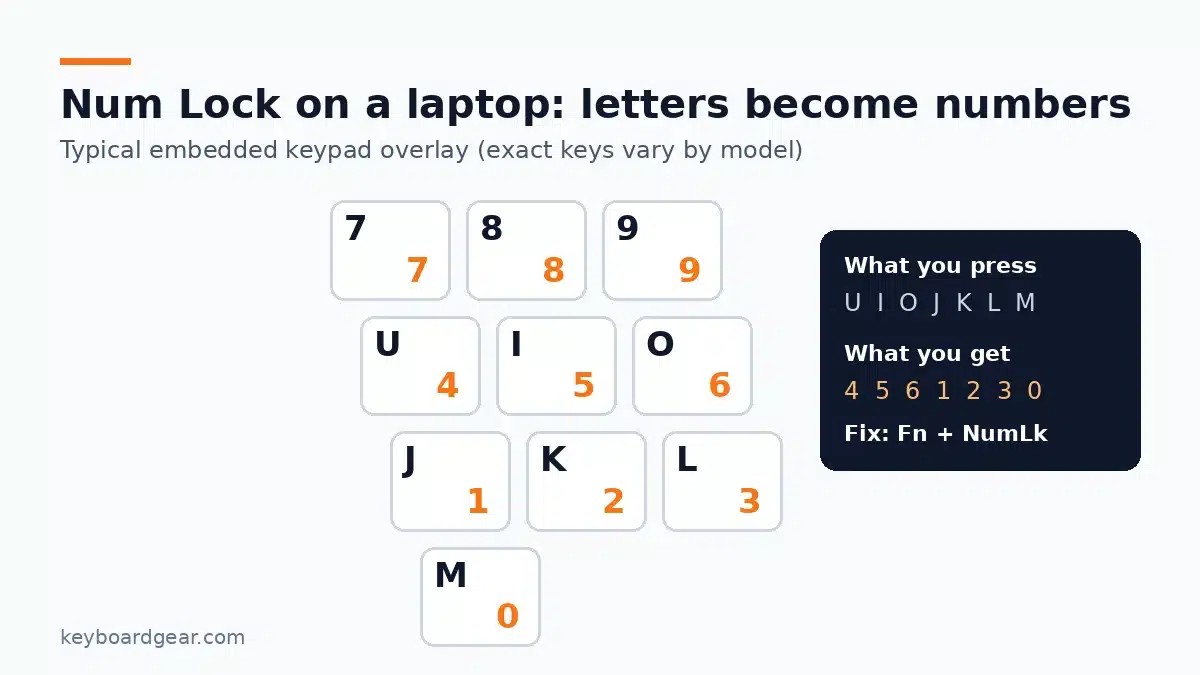
| U, I, O, J, K, L and M type numbers on a laptop | Num Lock overlay is on | Press Fn + NumLk (key varies by model) |
| Letters type in capitals and symbols in place of numbers | Caps Lock, or a stuck or sticky Shift key | Check Caps Lock, press both Shift keys, check Sticky Keys |
| Keys open shortcuts or apps instead of typing | A stuck Ctrl, Alt, Windows or Fn key | Press each modifier a few times, clean the stuck key |
| Keys swapped or doing odd things only on one keyboard | Remapping or macro software, or keyboard firmware | Reset the profile in the keyboard’s software |
| Random or multiple wrong characters that change from key to key | Liquid damage, debris or a failing keyboard | Test with another keyboard and the on-screen keyboard |
If you are not sure which key is which on your layout, our guide to keyboard key names explains every key on Windows and Mac keyboards.
Why a keyboard types the wrong characters
1. The wrong keyboard layout is selected
This is by far the most common cause. Windows and macOS can have several layouts installed at once, and it is easy to switch between them by accident. Windows uses Windows + Space to cycle through input languages and layouts, and depending on your settings Left Alt + Shift and Ctrl + Shift can also switch them. These are easy to press by accident.
The classic example is UK versus US English. The letters sit in the same places, so only symbols go wrong. On a Windows UK layout, Shift + 2 types a double quote (“), the @ sign moves to Shift + the apostrophe key, Shift + 3 types £ instead of #, and the # moves to a separate key beside Enter.
The same thing happens with other regional layouts. A French AZERTY layout swaps A with Q and Z with W, and German QWERTZ swaps Y and Z, so typing on the wrong one scrambles even plain words. Dvorak (see QWERTY vs Dvorak) moves almost every letter.
2. US-International dead keys
If quotes and apostrophes seem to vanish, you are probably using the United States-International layout. It keeps the normal US letter positions, but the apostrophe (‘), quotation mark (“), grave accent (`), tilde (~) and caret (^) become dead keys. When you press one, nothing appears until you press the next key. If that key is a letter that can take an accent, you get the accented letter, so ‘ then e gives é. If it is a character that cannot take an accent, both characters appear. Pressing Space types the symbol on its own.
This is the layout working as designed, not a fault, but it is confusing if you did not choose it.
3. Another input language is active
If a second language such as Russian, Greek, Arabic or Urdu is installed, switching to it by accident makes every key type that alphabet. Keyboards sold for these languages often print two legends on each key, such as Latin and Cyrillic, but the operating system decides which one you actually get.
4. Num Lock on a laptop without a number pad
Many laptops without a separate number pad hide a numeric keypad inside the letter keys. When Num Lock is on, keys such as U, I, O, J, K, L and M type 4, 5, 6, 1, 2, 3 and 0 instead of letters.
5. Caps Lock, a stuck Shift key or Sticky Keys
If letters come out in capitals and the number row types symbols, a Shift key may be stuck, or Caps Lock is on. Windows also has Sticky Keys, an accessibility feature that keeps Shift, Ctrl, Alt or the Windows key active after you release it, so you can press shortcuts one key at a time. Pressing Shift five times turns it on. Filter Keys, which can be toggled by holding the right Shift key for eight seconds, changes how quickly keystrokes are accepted and can make the keyboard seem to ignore or delay presses.
6. A stuck modifier key
A Ctrl, Alt, Windows or Fn key that is physically stuck turns normal typing into keyboard shortcuts. Crumbs and sticky spills under a keycap are the usual cause.
7. Keyboard software, remapping and firmware
Keyboard software can remap keys, record macros and switch profiles, so a wrong profile or accidental key swap can make one keyboard type the wrong thing. Programmable keyboards can store remaps in the keyboard’s own firmware, so the problem follows the keyboard to another computer. If your board runs QMK or VIA, our guide to QMK vs VIA explains how those remaps work.
8. Hardware damage
If none of the above fits, look at the hardware. Liquid spills, debris and worn connections can make a key register as a different key, or make one press produce several characters. A key that repeats a character it should only type once is a different fault called chatter; see keyboard chatter for that problem. Keys that drop out when several are pressed together are covered in our guide to keyboard ghosting and NKRO.
How to fix a keyboard typing wrong characters on Windows
Step 1: Check and switch the active layout
Look at the language indicator in the system tray at the bottom right of the taskbar, such as ENG US or ENG UK. Hold the Windows key and tap Space to cycle through installed layouts until the right one is selected. If Windows + Space does nothing, only one layout is installed.
Step 2: Remove the layouts you do not use
- Open Settings > Time & language > Language & region.
- Select the three dots next to your language and choose Language options.
- Under Keyboards, add the layout that matches your keyboard (for example US) if it is missing.
- Remove the layouts you do not use, such as United States-International or United Kingdom, so they cannot be switched on by accident.
Add the correct layout and test it before removing the old one. You do not need to change the Windows display language to change where @ or # appears.
Step 3: Change or turn off the switching shortcuts
If the layout keeps changing on its own, the cause is usually an accidental Alt + Shift or Ctrl + Shift. Go to Settings > Time & language > Typing > Advanced keyboard settings > Input language hotkeys. Select Between input languages, choose Change Key Sequence, and set the shortcuts you do not want to Not Assigned. Windows + Space still works for switching when you need it.
Step 4: Turn off Num Lock
On a laptop that types numbers instead of letters, press Num Lock, or hold Fn and press the key labelled NumLk. On many laptops it shares a key with F11, Insert, F8 or F7, so check the legends or your laptop’s manual. If there is no Num Lock key at all, press Windows + Ctrl + O to open the On-Screen Keyboard, select Options, tick Turn on numeric key pad, then click the on-screen NumLock key to turn it off.
Step 5: Turn off Sticky Keys and Filter Keys
Open Settings > Accessibility > Keyboard and turn off Sticky keys and Filter keys if you do not use them. You can also turn off the keyboard shortcuts that switch them on, so pressing Shift five times or holding it down in a game does not enable them again.
Step 6: Free stuck keys
Press each Shift, Ctrl, Alt, Windows and Fn key several times to release anything that is stuck. If a key feels sticky or does not spring back, clean around it. Our guides on how to clean your keyboard and cleaning a laptop keyboard cover safe methods, and removing keys explains how to lift a keycap on a desktop keyboard.
Step 7: Reset keyboard software and drivers
In your keyboard’s software, switch to the default profile, check for remaps and macros, and update the app and firmware. If you do not use vendor software, open Device Manager, expand Keyboards, uninstall the keyboard device and restart, so Windows reinstalls the standard driver. For wireless boards, also check the batteries and connection; our guide to fixing wireless keyboard problems covers those issues.
How to fix a keyboard typing wrong characters on Mac
Step 1: Check the input source
Click the Input menu in the menu bar (it shows a flag or letters) and select the input source that matches your physical keyboard. If you do not see the Input menu, go to System Settings > Keyboard > Text Input > Edit and turn on Show Input menu in menu bar.
Apple’s shortcuts for switching are Control + Space to go back to the last input source and Control + Option + Space to select the next one. If Press Globe key to (or Press fn key to) is set to Change Input Source in Keyboard settings, tapping the Globe or Fn key also switches sources, which is a common accidental trigger. Set it to another option if you do not need it.
Step 2: Use Keyboard Viewer to see what each key types
Choose Show Keyboard Viewer from the Input menu. It shows the layout of the current input source, which is useful when the input source does not match your keyboard: the keys you press may differ from the characters that appear.
Step 3: Check accessibility and text replacements
In System Settings > Accessibility > Keyboard, check that Sticky Keys and Slow Keys are off unless you use them. Finally, remove any input sources you do not need in Keyboard > Text Input > Edit, so accidental switching cannot happen.
How to tell if the keyboard itself is faulty
If settings are not the cause, these tests show whether the keyboard or the computer is at fault.
| Test | If it types correctly | If it still types wrong |
|---|---|---|
| On-screen keyboard (Windows + Ctrl + O, or Keyboard Viewer on Mac) | The software side is fine; suspect the physical keyboard | A layout, language or software setting is the cause |
| Another keyboard on the same computer | The original keyboard is faulty or misconfigured | The computer’s settings are the cause |
| The same keyboard on another computer | The original computer’s settings are the cause | The keyboard (or its stored firmware remap) is the cause |
If the keyboard fails on every computer, check for spills and debris first. If wrong characters continue after cleaning, check the warranty. On a laptop with a faulty built-in keyboard, an external keyboard is an easy workaround while you arrange a repair; if you are choosing one, our mechanical vs membrane keyboard guide explains the main differences.
FAQ
Why is my keyboard typing the wrong symbols?
Usually because the wrong keyboard layout is active. If Shift + 2 types ” instead of @, or Shift + 3 types £ instead of #, Windows is set to the UK layout. Switch to the layout that matches your keyboard with Windows + Space.
Why is my laptop typing numbers instead of letters?
Num Lock is on and your laptop has a number pad overlay on keys such as U, I, O, J, K, L and M. Turn it off with Fn + NumLk, or with the On-Screen Keyboard if your laptop has no Num Lock key.
Why does my apostrophe not appear until I type another letter?
You are using the United States-International layout, where the apostrophe and quotation mark are dead keys that add accents to the next letter. Press Space after the quote, or switch to the plain US layout.
What shortcut changes the keyboard layout?
On Windows, Windows + Space cycles through layouts, and Left Alt + Shift or Ctrl + Shift may also switch them. On a Mac, Control + Space selects the previous input source, and the Globe or Fn key can be set to change input source.
Final thoughts
A keyboard typing wrong characters is rarely a dead keyboard. Start with the symptom: swapped symbols point to a UK or US layout mix-up, missing quotes point to US-International, numbers on a laptop point to Num Lock, and a foreign alphabet points to another input language. Fix the layout, remove the layouts you do not use and turn off switching shortcuts you never press on purpose. If the problem follows the keyboard to another computer, then it is time to clean it, check the warranty or replace it.
