

Quick answer
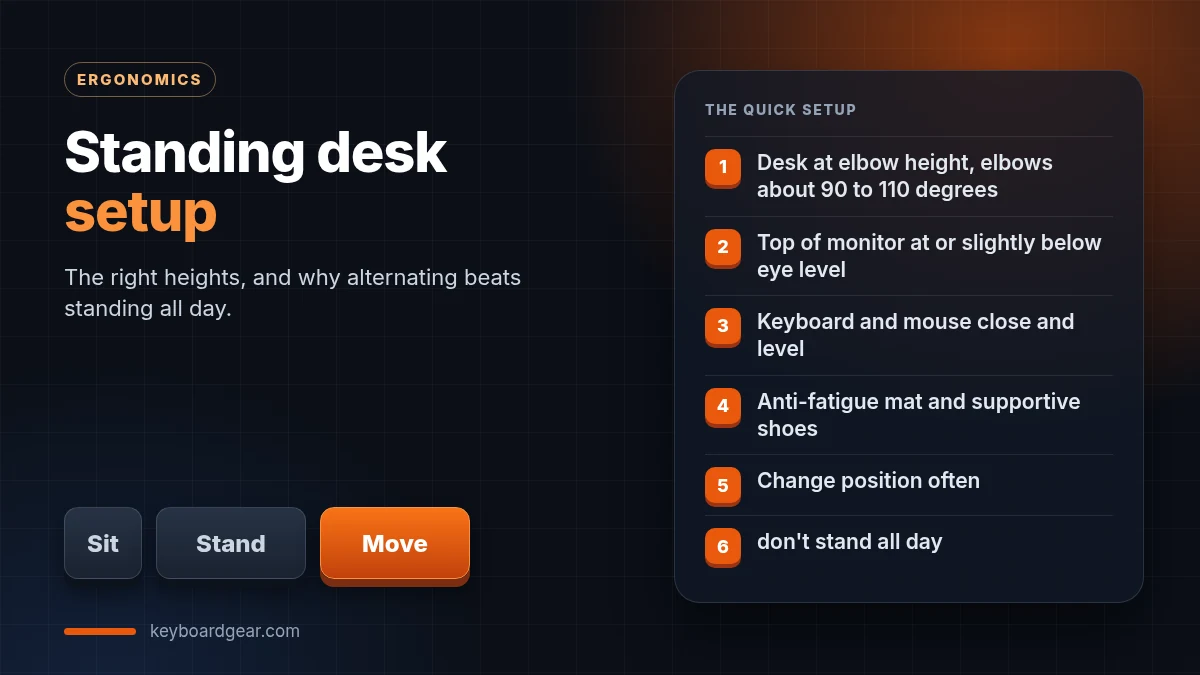
Set your standing desk so the keyboard is at or just below elbow height with your elbows at about 90 to 110 degrees and wrists straight. Raise the monitor so the top is at or slightly below eye level, about an arm’s length away. Stand on an anti-fatigue mat in supportive shoes.
Most importantly, don’t stand all day: alternate between sitting, standing and moving. Occupational health guidance warns that prolonged standing causes its own problems, so frequent changes of position are the goal.
Standing desks and desk converters promise a healthier workday, but just raising the desk isn’t enough. Set up badly, a standing desk swaps the aches of sitting for sore feet, tired legs and a stiff neck. Set up well and used for part of the day, it gives you the freedom to change position, which is the real benefit.
This guide covers the right heights, accessories and routine, based on guidance from the Canadian Centre for Occupational Health and Safety (CCOHS).
Why alternating matters
CCOHS notes that standing is a natural posture but working in a standing position regularly can cause sore feet, swelling of the legs, varicose veins, general muscle fatigue, low back pain and stiffness in the neck and shoulders. Keeping upright takes considerable muscular effort, and standing for long periods without walking lets blood pool in the legs.
Its recommendation is a workplace where you can choose from a variety of positions and change between them frequently, with adjustable work heights. That’s what a sit-stand desk offers: the benefit comes from moving between positions, not from standing itself.
Step 1: Set the desk height
- Stand up straight in the shoes you’ll wear, on your mat if you use one.
- Relax your shoulders and let your upper arms hang by your sides.
- Bend your elbows so your forearms are roughly level with the floor.
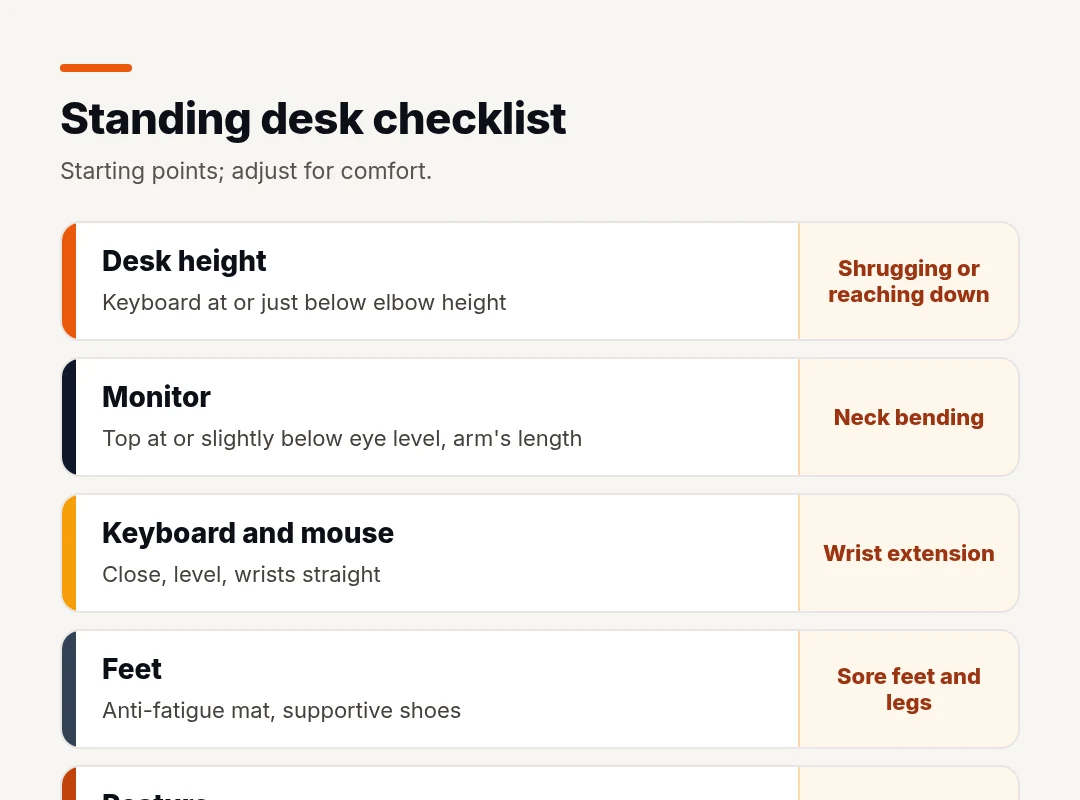
- Raise or lower the desk until the keyboard’s home row is at or just below elbow height.
CCOHS’s keyboard guidance recommends elbows at about 90 to 110 degrees with forearms horizontal and wrists straight. Our guide to proper keyboard height explains this in more detail. Save the sitting and standing heights as presets if your desk has them.
Step 2: Set the monitor height
At the right typing height, the monitor is usually too low. Raise it so the top of the screen is at or slightly below eye level and the screen is about an arm’s length away. Our guide to proper monitor height covers the details. A monitor arm makes it easy to adjust when you switch between sitting and standing, because your eye height changes far more than your elbow height.
With a laptop, raise the screen on a stand and use a separate keyboard and mouse; see our best laptop stands.
Step 3: Position the keyboard and mouse
- Keyboard directly in front of you, close enough that your elbows stay near your sides.
- Mouse right next to it at the same height.
- Wrists straight, floating while you type rather than resting on the desk edge.
A keyboard tilt that’s flat or slightly negative usually helps keep wrists straight when standing.
Step 4: Look after your feet and legs
CCOHS identifies footwear and flooring as major factors in standing comfort. Wear supportive, comfortable shoes rather than standing in socks or thin slippers on a hard floor, and consider an anti-fatigue mat. A footrest or rail lets you shift your weight from one leg to the other, which CCOHS recommends for standing work.
Step 5: Build a routine
- Change position often. CCOHS’s job design advice is to change working positions frequently so that any one position lasts a reasonably short time.
- Start gradually. If you’re new to standing, begin with short standing periods and build up over a few weeks.
- Move. Walk during calls, stretch, and take short breaks.
- Listen to your body. If your feet, legs or back ache, sit down. Discomfort is a signal to switch.
- Use reminders. A timer or your desk’s reminder feature helps you remember to switch.
Common standing desk mistakes
- Standing all day. It shifts the problem rather than solving it.
- Leaving the monitor at sitting height, which makes you look down.
- Desk too high, causing shrugged shoulders and bent wrists.
- Locking your knees or leaning on one hip for long periods.
- Hard floor and poor shoes, leading to sore feet.
- Reaching for the mouse because it’s too far to the side.
Standing desk vs desk converter
| Option | Pros | Cons |
|---|---|---|
| Full standing desk | Whole surface moves; stable; wide height range | Costs more; replaces your desk |
| Desk converter | Sits on your existing desk; cheaper; no new furniture | Raises the surface less evenly; can wobble; takes desk depth |
Whichever you choose, check the height range fits you both sitting and standing, the surface is deep enough for a keyboard and mouse, and it’s stable when you type. Our desk setup guide covers the rest of the workspace.
Standing desk or desk converter?
::table|Full standing desk|Desk converter
How it works|The whole desktop moves up and down|A platform sits on your existing desk and lifts
Desk space|Keeps the full surface usable|Takes up part of your desk
Keyboard height|Usually easy to set correctly|Check for a separate, lower keyboard deck
Stability|Generally steadier when raised|Can wobble at full height
Cost and setup|More expensive, needs assembly|Cheaper, often little or no assembly
Best for|A permanent home office|Renters, shared desks or testing the idea
::
Whichever you choose, the same rule applies: your keyboard should still end up near elbow height when you stand. If a converter puts the keyboard too high, it will cause the same shoulder and wrist strain as a desk that’s too tall.
Easing into standing
If you’ve been sitting most of the day, don’t switch to standing for hours at once. A gradual approach is easier on your feet, legs and back:
- Start with short standing periods spread through the day.
- Change position whenever you notice stiffness or discomfort, rather than waiting for a timer.
- Build up over a couple of weeks as it feels comfortable.
- Keep alternating. The goal is regular movement between postures, not standing all day.
Feet, shoes and mats
What’s under your feet matters more than most people expect. Supportive, comfortable shoes help, and many people find an anti-fatigue mat makes standing on a hard floor more comfortable. Shifting your weight, moving your feet and using a small footrest to prop one foot at a time can also reduce strain during longer standing periods.
Common standing desk mistakes
- Raising the desk to the screen, not to your elbows. Set the desk for your keyboard, then adjust the monitor separately.
- Locking your knees. Keep a slight bend and move around.
- Leaning on the desk. If you find yourself propping on your forearms, the desk is probably too low, or you need a break.
- Forgetting the monitor. It needs to rise with you; a monitor arm makes this easier.
- Standing too long too soon. Alternate, and build up gradually.
Quick standing desk checklist
- Elbows at about 90 degrees, shoulders relaxed.
- Keyboard and mouse at the same height, close to your body.
- Wrists straight, not bent up or down.
- Top of the screen at or slightly below eye level, about an arm’s length away.
- Comfortable shoes or a mat, and a plan to switch between sitting and standing.
FAQ
How high should a standing desk be?
High enough that your keyboard is at or just below elbow height, with your elbows at about 90 to 110 degrees and your shoulders relaxed.
How long should I stand at a standing desk?
There’s no single number. The key is to alternate between sitting, standing and moving frequently, and build up standing time gradually.
Is standing all day better than sitting all day?
No. Prolonged standing can cause sore feet, leg swelling, varicose veins and back pain, according to CCOHS. Changing positions is better than either.
Do I need an anti-fatigue mat?
It helps many people, especially on hard floors, along with supportive shoes.
Should my monitor move when I stand?
Your eye height changes, so re-check the monitor. A monitor arm or a desk that raises both together makes this easier.
Bottom line
Set the desk so your keyboard is at elbow height, raise the monitor to eye level, keep the keyboard and mouse close, and stand on a mat in supportive shoes. Then use the desk the way it’s meant to be used: as a way to change position often, not as a reason to stand all day.
Related guide: 3 Best Under-Desk Keyboard Trays for a Lower, Healthier Typing Height
Sources
- CCOHS: Working in a standing position, basic information
- CCOHS: Office ergonomics, keyboard selection and use
- CCOHS: Office ergonomics, positioning the monitor

Experience is what matters at the end!!
Hi! This is Jacob Jay – founder of Keyboardgear.com! From childhood to adulthood, I’ve always remained passionate about IT, and the revolution in this industry, especially gaming on the PC can’t go out of my way. Since I’m an enthusiastic gamer, and I love to experience various gaming accessories, particularly mechanical keyboards, that really boost my gaming adventure manifolds. So, my nerve cells hit me to transfer my experiences into word form and share with others to identify the ideal keyboards perfectly fit for their gaming modes.
I know very well how hard it is to find the high-quality items available on the internet that ought to be exactly the same as seen as on the screen. But the counterfeiters have ruined the user’s trust. As I have passed all such situations, I’m obliged to deliver the genuinity and express the same as what I am saying.
So, now, I’m working on the mission to provide very helpful and frankly but trustworthy reviews and guides about various mechanical keyboards, mouses, and other gaming accessories as per my personal experiences and sound knowledge.