

Quick answer
A mouse scroll wheel usually jumps because of dust or wear in the wheel’s encoder, the small sensor that counts each notch. Start by blowing compressed air around the wheel while you turn it, then check your scroll settings, try another USB port and app, update the mouse firmware, and charge or replace the battery on a wireless mouse.
If the wheel still jumps backwards after cleaning, the encoder is probably worn. Use the warranty if you can; otherwise the encoder can be cleaned or replaced, or it is time for a new mouse.

A scroll wheel that jumps is one of the most annoying mouse faults. You scroll down a page and it flicks back up a line, a long document skips around, or in a game your weapon switches the wrong way. It often starts small, a missed notch now and then, and gets worse over weeks.
The good news is that the cause is usually simple: dust, a setting, or a wireless issue. Even when the part is worn, you often have options before you need a new mouse. Work through these fixes in order; each one rules out a cause.
Why scroll wheels jump
To understand the fixes, it helps to know how a scroll wheel works. The wheel sits on an axle, and one end of the axle goes into a rotary encoder. As you turn the wheel, the encoder sends a pattern of pulses, and the direction is worked out from the order of those pulses.
There are two main kinds of encoder:
- Mechanical encoders use small metal contacts that rub against a pattern inside the encoder. They are cheap and common, but the contacts wear, collect fine dust and can get contaminated with lubricant. When the signal gets noisy, the mouse can misread a notch and report it in the wrong direction. This is the classic “scroll down, it jumps up” fault.
- Optical encoders use an infrared light shining through a slotted disc. There is no rubbing contact, so they wear less, but dust in the slots can still cause skipped or wrong readings.
Other causes sit outside the wheel: scroll settings in your operating system or mouse software, browser smooth scrolling, a weak wireless signal or low battery, and occasionally a bad driver or firmware.
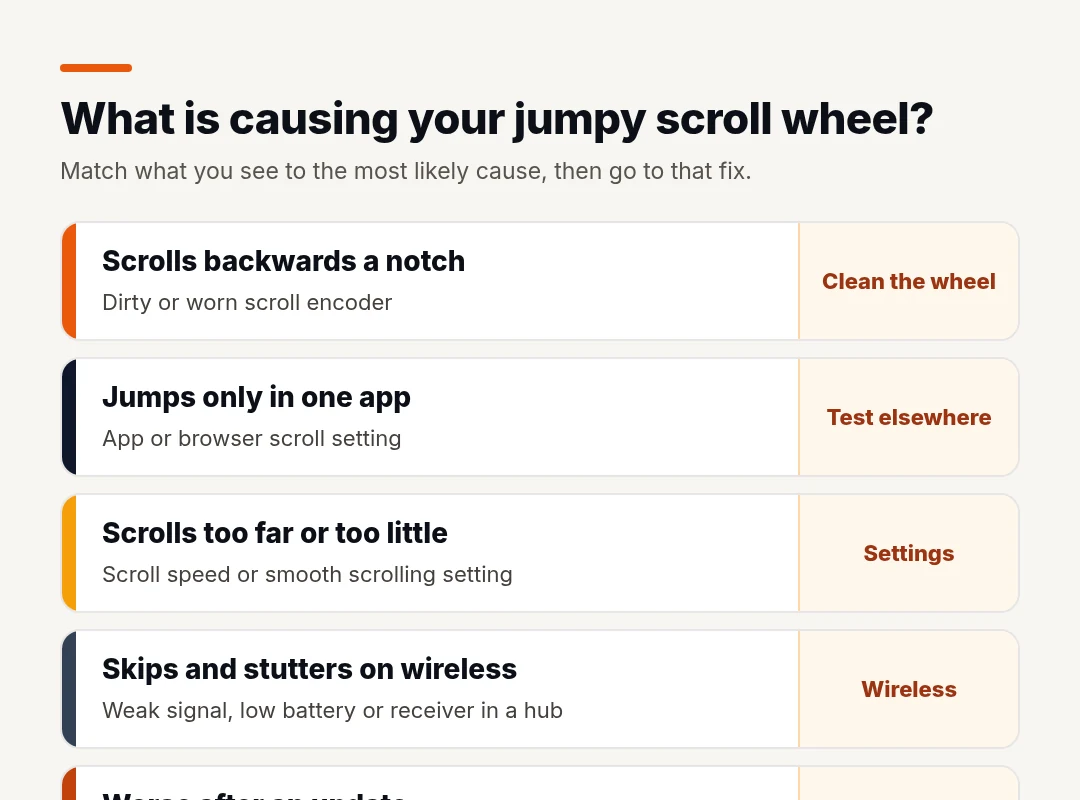
Fix 1: Clean around the wheel
Dust, hair and skin debris build up around the wheel and work their way into the encoder. Cleaning is the first fix because it solves a large share of jumpy wheels and costs nothing.
- Unplug the mouse, or switch a wireless mouse off.
- Hold a can of compressed air upright and blow short bursts into the gaps on both sides of the wheel.
- Keep turning the wheel slowly in both directions while you blow, so every part of the encoder gets air.
- Use a soft brush or a dry toothbrush around the wheel edges to loosen grime.
- Wipe the wheel itself with a cloth or swab lightly dampened with isopropyl alcohol, and let it dry completely.
Logitech’s own erratic-scrolling advice starts with exactly this step: clean around the wheel with a soft brush or compressed air.
::warn
Don’t spray liquid cleaner or WD-40 into the mouse. Liquid can carry dirt deeper into the encoder or damage the electronics. If you want to clean the encoder internally, see Fix 10.
::
Fix 2: Test in another app, port and computer
Before changing settings, find out where the problem lives:
- Scroll in a different program, such as a text editor and a browser. If it only jumps in one app, the problem is that app’s scroll setting, not the mouse.
- Plug the mouse or its USB receiver into a different USB port, directly on the computer rather than through a hub or monitor.
- If you can, try the mouse on another computer. If it jumps there too, it is the mouse; if not, it is the first computer’s settings or drivers.
Fix 3: Check your scroll settings
Windows 11: open Settings > Bluetooth & devices > Mouse. Check Mouse wheel scrolls (multiple lines or one screen at a time) and Lines to scroll at a time. A very high number makes the page leap with each notch, which can look like jumping. Also check Scroll inactive windows when hovering over them, which can make the wrong window scroll.
Mac: open System Settings > Mouse and adjust Scrolling speed. Check Natural scrolling too, since it reverses the direction and can feel like the wheel is going the wrong way after a change.
Browsers: most browsers use smooth scrolling, which animates each scroll. If scrolling feels laggy or uneven, try turning smooth scrolling off in the browser’s settings to see if it helps.
Fix 4: Check the mouse software
If your mouse uses Logi Options+, G HUB, Razer Synapse, Corsair iCUE or similar software, open it and check:
- Scroll speed and direction settings.
- Smooth scrolling options.
- Wheel modes. On some Logitech mice, SmartShift switches between ratchet and free-spin automatically. If its sensitivity is set very low, the wheel can switch into free-spin when you don’t expect it.
- Per-app profiles that might change scrolling in one program only.
If you are unsure, reset the mouse’s settings to default. Logitech’s guidance also recommends resetting settings in Options+ or G HUB when scrolling is erratic. If you don’t use the software, uninstalling it can also rule it out.
Fix 5: Update firmware and drivers
Mouse makers sometimes release firmware updates that improve how the wheel signal is read. In Logi Options+ or G HUB, select your mouse, open its settings and check for a firmware update. Razer, Corsair and others also update through their software.
In Windows, open Device Manager, expand Mice and other pointing devices, right-click your mouse and choose Update driver, or uninstall it and restart so Windows reinstalls it.
Fix 6: Check the battery and wireless signal
On a wireless mouse, a weak signal or low battery can cause stuttering and skipped scroll steps that look like a wheel fault.
- Charge the mouse or put in fresh batteries.
- Move the USB receiver closer, ideally using an extension cable or adapter so it sits on the desk near the mouse.
- Plug the receiver directly into the computer, not into a hub, and avoid USB 3.0 ports right next to it if you can, since they can cause interference with 2.4 GHz receivers.
- On Bluetooth, remove the mouse from your device list and pair it again.
Our full wireless mouse lag guide covers interference, power saving and receiver placement in more detail.
Fix 7: Use a proper surface
This sounds unrelated, but Logitech suggests it for erratic scrolling too: use the mouse on a flat, matte surface or a mouse pad, not glass or a reflective desk. A sensor struggling to track can make movement and scrolling feel jumpy together. If you need a pad, our guide to cloth vs hard mouse pads explains which surface suits you. Keep it clean as well; our mouse pad cleaning guide shows how.
Fix 8: Turn off power saving for USB
Windows can suspend USB devices to save power, which occasionally causes stutters. In Device Manager, open Universal Serial Bus controllers, then for each USB Root Hub open Properties > Power Management and untick Allow the computer to turn off this device to save power. On a laptop, also try plugging in the charger to see if the problem changes.
Fix 9: Use the warranty
If cleaning and settings don’t help and the mouse is still under warranty, contact the manufacturer. Worn scroll encoders are a known issue on some popular mice, and manufacturers commonly replace a mouse confirmed as faulty. Check the warranty length on the maker’s website before opening the mouse, because opening it can void the warranty.
Fix 10: Clean or replace the encoder (advanced)
If the warranty has run out and you are comfortable with small screws and, optionally, a soldering iron, you can fix the encoder itself.
- Remove the mouse feet or stickers to find the screws, and open the shell.
- Lift out the scroll wheel to expose the encoder.
- For a quick fix, blow out the encoder and work a little isopropyl alcohol or electronics contact cleaner into it while turning the shaft back and forth, then let it dry fully.
- For a lasting fix, desolder the encoder and fit a replacement of the same height and pin layout. Encoders are labelled by height, so measure the old one first.
iFixit has repair guides for this on several mice, and many owners report that a new encoder makes the wheel work like new. If repair isn’t for you, it is usually more sensible to replace the mouse.
| Fix | Difficulty | Fixes |
|---|---|---|
| Clean with compressed air | Easy | Dust in the encoder or wheel |
| Check scroll settings | Easy | Jumping too far, wrong direction |
| Reset or update mouse software | Easy | App-specific or software jumps |
| Battery and receiver checks | Easy | Stutters on wireless mice |
| Update firmware and drivers | Easy | Bugs in how the wheel is read |
| Warranty claim | Easy | Worn encoder on a newer mouse |
| Clean the encoder internally | Medium | Dirty contacts |
| Replace the encoder | Hard | Worn encoder |
When to replace the mouse
Replace the mouse if the wheel still jumps after cleaning and settings checks, the mouse is out of warranty, and you don’t want to repair it. If buttons are also misbehaving, such as one click registering as two, the switches are wearing too; see our guide to mouse double clicking. For a replacement, our picks for the best wireless mouse and best gaming mouse cover reliable options.
FAQ
Why does my scroll wheel scroll up when I scroll down?
This is almost always the scroll encoder. When its contacts get dirty or worn, the mouse misreads the order of the pulses and reports a notch in the wrong direction. Cleaning often helps; if not, the encoder needs replacing.
Can compressed air fix a jumpy scroll wheel?
Often, yes, if dust is the cause. Blow air into both sides of the wheel while turning it slowly, so air reaches the encoder.
Is a jumping scroll wheel a software problem?
Sometimes. If it only happens in one app or after a software update, check scroll settings, smooth scrolling and your mouse software. If it happens everywhere and on other computers, it is the mouse.
Why does my wireless mouse scroll skip?
Low battery, interference or a receiver far from the mouse can cause skipped scroll steps. Charge the mouse and move the receiver closer.
Will a firmware update fix scrolling?
It can help if the maker has improved how the wheel signal is processed, and it is worth trying before opening the mouse, but it can’t fix a badly worn encoder.
Bottom line
Most jumpy scroll wheels are fixed by a good clean with compressed air while turning the wheel, plus a quick check of scroll settings, mouse software and the wireless connection. If the wheel still scrolls backwards after that, the encoder is worn: use the warranty, repair it if you are handy, or replace the mouse.
Related guide: How to Clean a Mouse Safely: Shell, Sensor, Scroll Wheel and Feet
Sources
- Logitech Support: How to fix erratic scrolling
- iFixit: Logitech mouse scroll not working
- iFixit: Replacing a scroll wheel encoder

Experience is what matters at the end!!
Hi! This is Jacob Jay – founder of Keyboardgear.com! From childhood to adulthood, I’ve always remained passionate about IT, and the revolution in this industry, especially gaming on the PC can’t go out of my way. Since I’m an enthusiastic gamer, and I love to experience various gaming accessories, particularly mechanical keyboards, that really boost my gaming adventure manifolds. So, my nerve cells hit me to transfer my experiences into word form and share with others to identify the ideal keyboards perfectly fit for their gaming modes.
I know very well how hard it is to find the high-quality items available on the internet that ought to be exactly the same as seen as on the screen. But the counterfeiters have ruined the user’s trust. As I have passed all such situations, I’m obliged to deliver the genuinity and express the same as what I am saying.
So, now, I’m working on the mission to provide very helpful and frankly but trustworthy reviews and guides about various mechanical keyboards, mouses, and other gaming accessories as per my personal experiences and sound knowledge.