

Keyboard Gear earns from qualifying purchases through Amazon links.
The Dell Pro Dock WD25 is the best universal pick for Windows and ChromeOS laptops, with up to 100W charging and support for multiple displays. Mac users who need two monitors should get the Plugable Dual 4K dock, Thunderbolt 4 Windows laptops get the most from the Dell WD22TB4, and the UGREEN Revodok hub is the budget choice for one extra screen.
A dock lets you plug in one cable and get your monitors, keyboard, mouse, wired internet and charging all at once. The catch is that how many monitors you can run depends on your laptop as much as the dock, so we’ve noted the limits for each pick. For arranging the screens once they’re connected, see our dual monitor setup guide.
We chose five docks and hubs sold on Amazon US and checked each listing’s ports, charging, display support, seller and price on November 29, 2026.
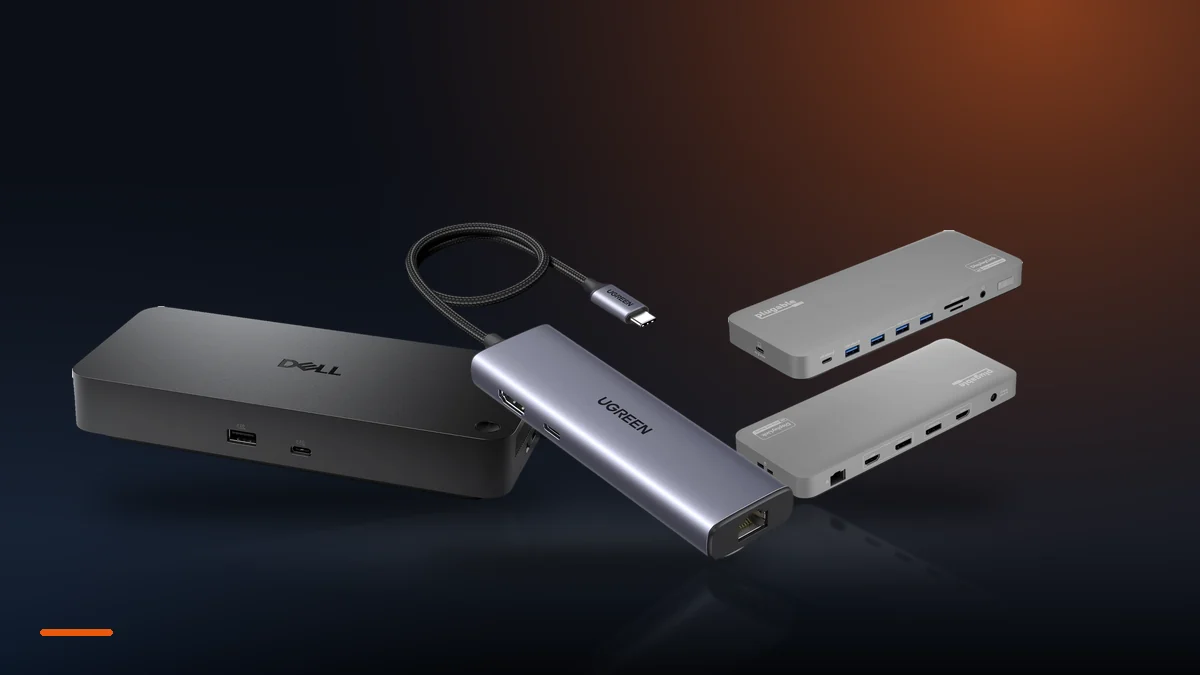
Best USB-C docking stations at a glance
| Product | Best for | Key specs | Price |
|---|---|---|---|
1 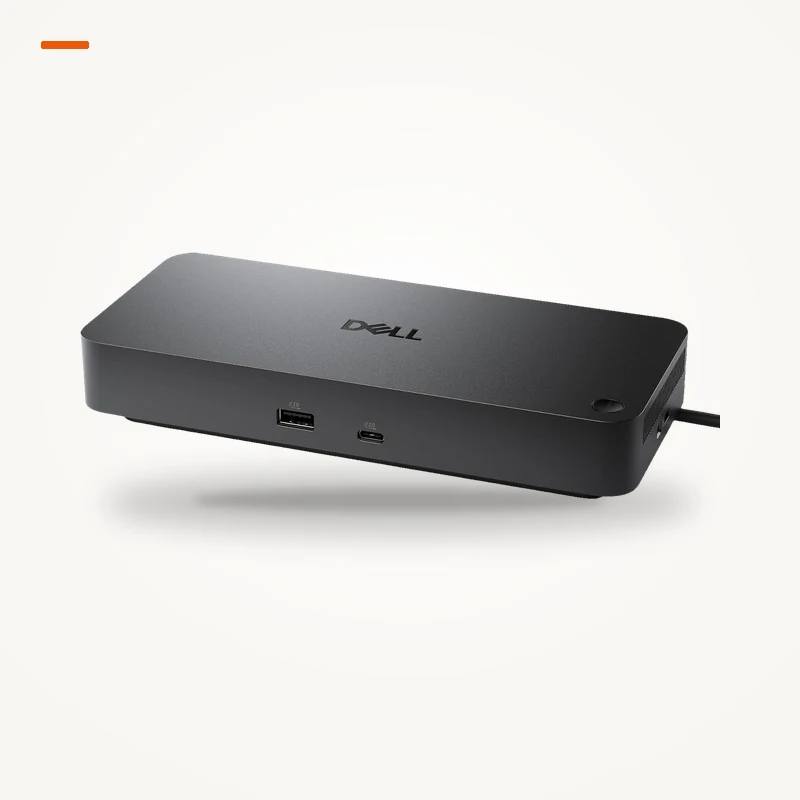 Dell Pro Dock WD25 |
Best universal USB-C dock |
|
Check Price |
2 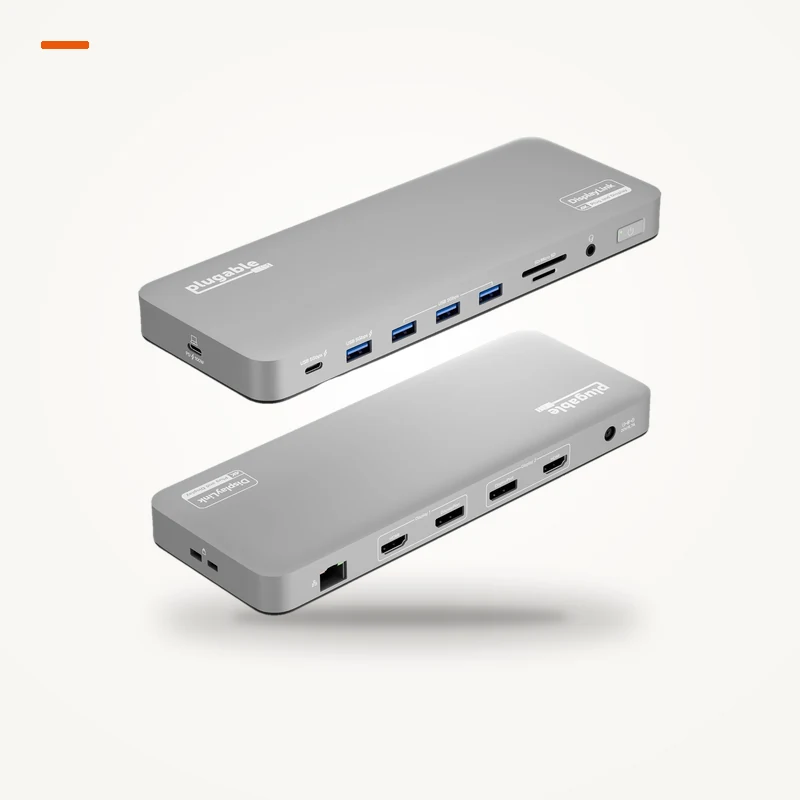 Plugable 14-in-1 Dual 4K USB-C Dock |
Best for two monitors on a Mac |
|
Check Price |
3 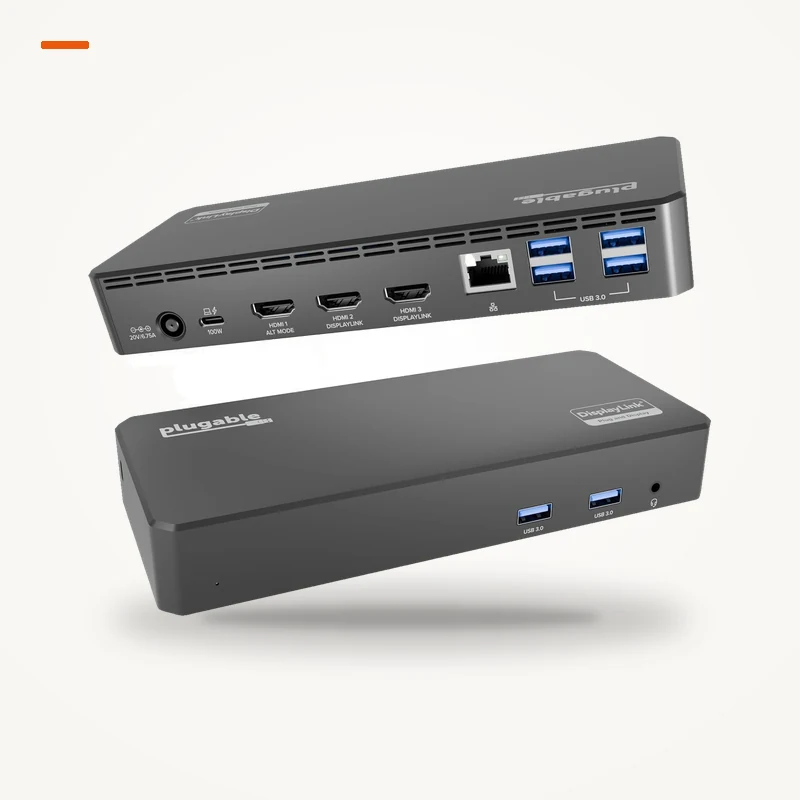 Plugable USB-C Triple Display Dock |
Best for three screens on a budget |
|
Check Price |
4 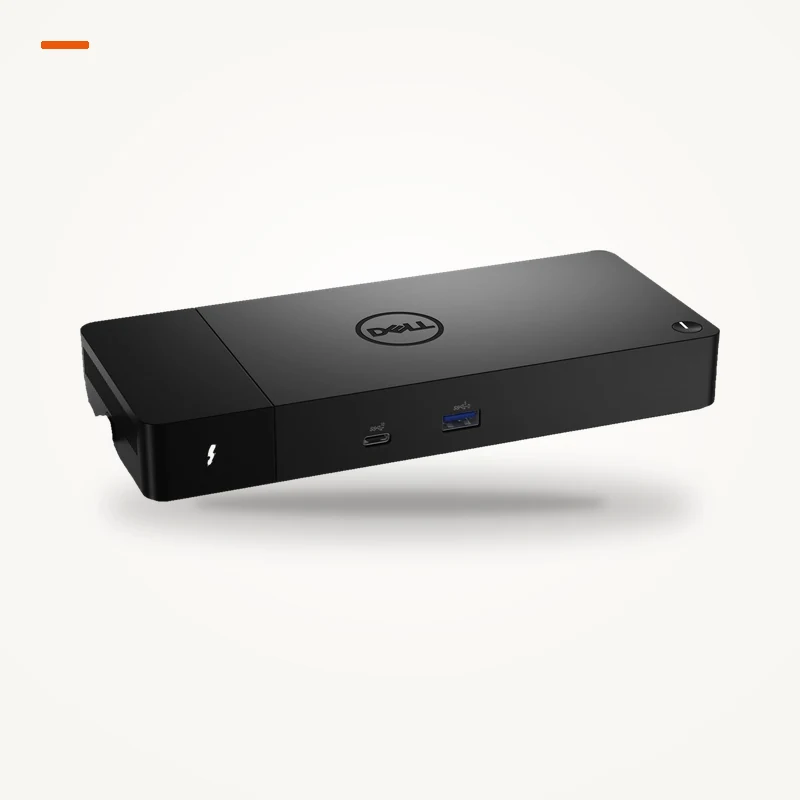 Dell Thunderbolt 4 Dock WD22TB4 |
Best Thunderbolt 4 dock |
|
Check Price |
5 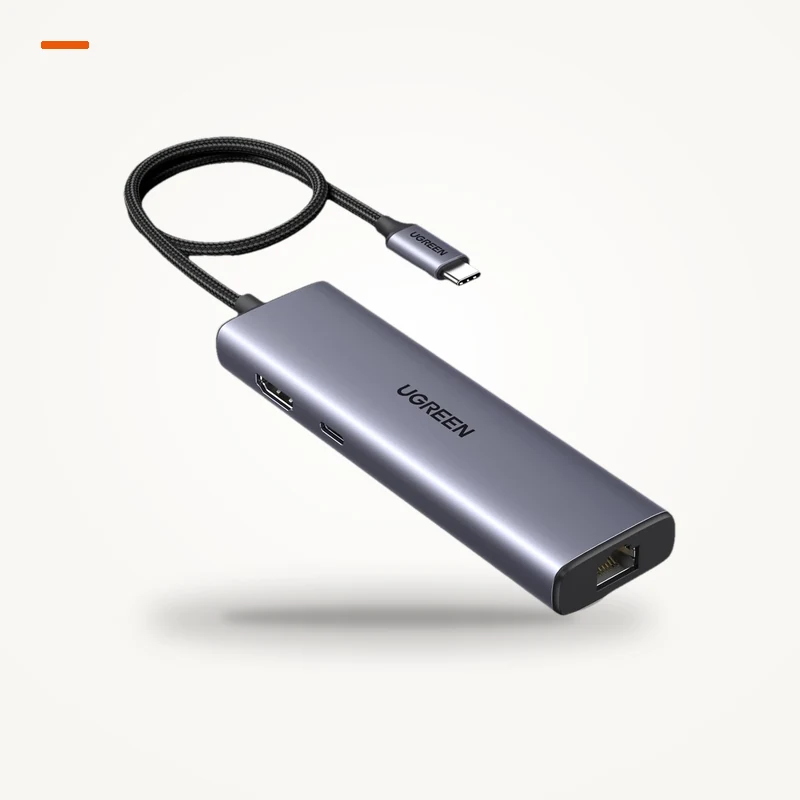 UGREEN Revodok 6-in-1 USB-C Hub |
Best budget hub |
|
Check Price |
The best USB-C docks and hubs
1. Dell Pro Dock WD25 — one cable, up to 100W and multiple displays
Who it’s for: Windows and ChromeOS laptop users who want a sturdy, business-grade single-cable dock.
Dell’s Pro Dock WD25 is a universal USB-C dock that the listing says delivers up to 100W to Dell and non-Dell laptops and natively supports up to four high-resolution displays. It has DisplayPort and HDMI outputs, Ethernet, and a mix of USB-A and USB-C ports (six USB ports in total), and its USB-C cable can be routed out of the left or right side.
How many screens you actually get depends on your laptop’s USB-C video support. The listing names Windows 10 and 11, Ubuntu, Red Hat Enterprise Linux and ChromeOS, but not macOS, so Mac users should look at the Plugable picks. It was listed at $154.00, sold by Electronics Club, on November 29, 2026.
Key specs: Universal USB-C dock; up to 100W laptop charging; up to four displays depending on laptop; DisplayPort, HDMI, Ethernet, 6 USB ports; Windows, Linux, ChromeOS listed; sold by Electronics Club.
- Up to 100W charging
- Business-grade build
- Left or right cable routing
- macOS not listed
- Third-party seller
2. Plugable 14-in-1 Dual 4K USB-C Dock — dual 4K 60Hz via DisplayLink
Who it’s for: MacBook owners whose Mac supports only one external display natively.
Plugable’s dual 4K dock uses DisplayLink to drive two 4K 60Hz monitors over HDMI, DisplayPort or both, which the listing says works even on Macs that natively support only one external display. It adds 100W charging, front USB-C and USB ports, three more USB 3.0 ports, SD and microSD readers, Ethernet and a headset jack.
DisplayLink needs a driver installed, and the listing notes HDCP isn’t supported, so some protected streaming video may not play on the extra screens. It was listed at $159.99, sold by Plugable Technologies, on November 29, 2026.
Key specs: DisplayLink dock; two 4K 60Hz displays via HDMI or DisplayPort; 100W charging; SD/microSD, Ethernet, audio; macOS 11+, Windows 10+, ChromeOS 100+; driver required; no HDCP; sold by Plugable Technologies.
- Two 4K displays on base Macs
- Lots of ports
- 100W charging
- Driver required
- No HDCP for protected video
3. Plugable USB-C Triple Display Dock — three HDMI outputs, 100W charging
Who it’s for: Office and hot-desk setups that need three screens, where 1080p side monitors are fine.
Plugable’s triple display dock has three HDMI ports: one 4K 30Hz output using your laptop’s own USB-C video (Alt Mode) and two 1080p 60Hz outputs through DisplayLink. It adds Gigabit Ethernet, six USB-A ports, audio and 100W laptop charging through one cable.
The 4K port runs at 30Hz, which is fine for documents but less smooth for fast motion, and the DisplayLink screens need a driver. It was listed at $135.96, sold by Plugable Technologies, on November 29, 2026.
Key specs: Triple HDMI dock; 1x 4K 30Hz (Alt Mode) + 2x 1080p 60Hz (DisplayLink); Gigabit Ethernet; 6 USB-A; 100W charging; Windows, macOS 11+ with DisplayLink software, ChromeOS 100+; sold by Plugable Technologies.
- Three displays
- Six USB-A ports
- Good value for screens
- 4K at 30Hz only
- Driver required
4. Dell Thunderbolt 4 Dock WD22TB4 — Thunderbolt 4 with four video outputs
Who it’s for: Windows laptops with Thunderbolt 4 that need several monitors and fast Thunderbolt accessories.
Dell’s WD22TB4 is a modular Thunderbolt 4 dock with two Thunderbolt 4 ports, a USB-C 3.2 Gen 2 port, three USB-A ports (one with PowerShare), two DisplayPort 1.4 outputs, an HDMI 2.0 output, a multifunction USB-C DisplayPort and Gigabit Ethernet, powered by a 180W adapter. The modular design lets the dock’s module be swapped for future upgrades.
The listing names Windows 10 and 11 only, so Mac users should look elsewhere, and how much it charges your laptop depends on your laptop model. It was listed at $148.08, sold by third-party seller Quiet Day Shopping, on November 29, 2026.
Key specs: Thunderbolt 4 dock; 2x Thunderbolt 4, 1x USB-C 3.2 Gen 2, 3x USB-A; 2x DisplayPort 1.4, HDMI 2.0, USB-C DisplayPort; Gigabit Ethernet; 180W adapter; Windows 10 and 11 listed; sold by Quiet Day Shopping.
- Many video outputs
- Thunderbolt 4 speeds
- Modular design
- Windows only (listed)
- Third-party seller
5. UGREEN Revodok 6-in-1 USB-C Hub — HDMI, Ethernet and 3 USB-A for under $20
Who it’s for: Laptop users who need one extra screen, wired internet and a few USB ports on a budget, at home or on the road.
UGREEN’s Revodok 6-in-1 is a small hub rather than a full dock: it adds one 4K 30Hz HDMI port, Gigabit Ethernet and three 5Gbps USB-A ports, plus a USB-C power input that passes up to 85W to your laptop (UGREEN reserves 15W for the hub).
The USB-C port is for charging only, not data or video, and HDMI tops out at 4K 30Hz. It was listed at $17.99 as a Prime member price, sold by UGREEN GROUP LIMITED and shipped by Amazon, on November 29, 2026.
Key specs: USB-C hub; 1x HDMI 4K 30Hz; Gigabit Ethernet; 3x USB-A 5Gbps; up to 85W pass-through charging (charge-only USB-C); Prime member price; sold by UGREEN GROUP LIMITED.
- Very affordable
- Small enough to travel
- Gigabit Ethernet
- Single 4K 30Hz display
- Prime member price
Docks compared
| Dock | Displays (listed) | Laptop charging | Price (November 29) |
|---|---|---|---|
| Dell Pro Dock WD25 | Up to 4, laptop-dependent | Up to 100W | $154.00 |
| Plugable Dual 4K | 2x 4K 60Hz (DisplayLink) | 100W | $159.99 |
| Plugable Triple Display | 1x 4K 30Hz + 2x 1080p | 100W | $135.96 |
| Dell WD22TB4 | 4 video outputs | 180W adapter, laptop-dependent | $148.08 |
| UGREEN Revodok 6-in-1 | 1x 4K 30Hz | Up to 85W pass-through | $17.99 (Prime member) |
Prices are what each listing showed on November 29, 2026 and can change at any time. A Prime member price is only available to Amazon Prime members.
How to choose a USB-C dock
- Check your laptop’s port. Thunderbolt 3, Thunderbolt 4 and USB4 ports can do more than a basic USB-C port. Your laptop’s specs say which you have.
- Count your monitors. Many laptops, including base M1 and M2 MacBooks, natively support only one external display. DisplayLink docks get around this with a driver.
- Check charging wattage. The dock should supply at least what your laptop’s own charger does.
- List the ports you need. Ethernet, SD cards, USB-A for older accessories, and a headset jack are the common extras.
| Type | Best for | Watch for |
|---|---|---|
| USB-C hub | One extra screen, travel | Lower display limits |
| USB-C dock | One-cable desk setups | Laptop-dependent display support |
| DisplayLink dock | Extra monitors on base Macs | Driver needed, no HDCP on some |
| Thunderbolt 4 dock | Fast storage and dual displays | Price, Thunderbolt laptop needed |
If two computers share one desk, a dock pairs well with a KVM switch; our guide to using one keyboard and mouse for two computers explains the options.
- Mount it out of sight. Many docks can sit under the desk with the power strip; see how to hide a power strip for safe placement, and plug the dock into a surge protector.
- Raise your screens. A monitor arm frees desk space for the dock and keyboard.
- Traveling? A small hub like the UGREEN fits a portable desk setup.
For the rest of the workspace, see our desk setup guide.
FAQ
What is the difference between a USB-C hub and a dock?
A hub is small and adds a few ports. A dock usually has its own power supply, more ports, better display support and higher charging power.
Why does my MacBook only show one external monitor?
Base M1 and M2 MacBooks natively support one external display. A DisplayLink dock like the Plugable Dual 4K adds more with a driver.
Do I need Thunderbolt for a docking station?
No. USB-C docks work with most USB-C laptops, but Thunderbolt docks offer faster ports and better display support on Thunderbolt laptops.
How much charging power does my dock need?
At least as much as your laptop’s own charger, often 65W to 100W.
Can a dock run monitors at 4K 60Hz?
Many can, but it depends on the dock and your laptop. Check both before buying.
Final thoughts
Choose the Dell Pro Dock WD25 for a universal single-cable Windows setup, the Plugable Dual 4K for two monitors on a base Mac, the Plugable Triple Display for three screens on a budget, the Dell WD22TB4 for Thunderbolt 4 Windows laptops, and the UGREEN Revodok for a simple, cheap hub.

Experience is what matters at the end!!
Hi! This is Jacob Jay – founder of Keyboardgear.com! From childhood to adulthood, I’ve always remained passionate about IT, and the revolution in this industry, especially gaming on the PC can’t go out of my way. Since I’m an enthusiastic gamer, and I love to experience various gaming accessories, particularly mechanical keyboards, that really boost my gaming adventure manifolds. So, my nerve cells hit me to transfer my experiences into word form and share with others to identify the ideal keyboards perfectly fit for their gaming modes.
I know very well how hard it is to find the high-quality items available on the internet that ought to be exactly the same as seen as on the screen. But the counterfeiters have ruined the user’s trust. As I have passed all such situations, I’m obliged to deliver the genuinity and express the same as what I am saying.
So, now, I’m working on the mission to provide very helpful and frankly but trustworthy reviews and guides about various mechanical keyboards, mouses, and other gaming accessories as per my personal experiences and sound knowledge.