

Quick answer
To set up per-app mouse profiles, open your mouse’s software, turn on app-specific (or application) settings, add the program, then assign button actions for that program. The software detects which app is active and switches buttons automatically, falling back to your default profile everywhere else. The software must keep running in the background for switching to work.
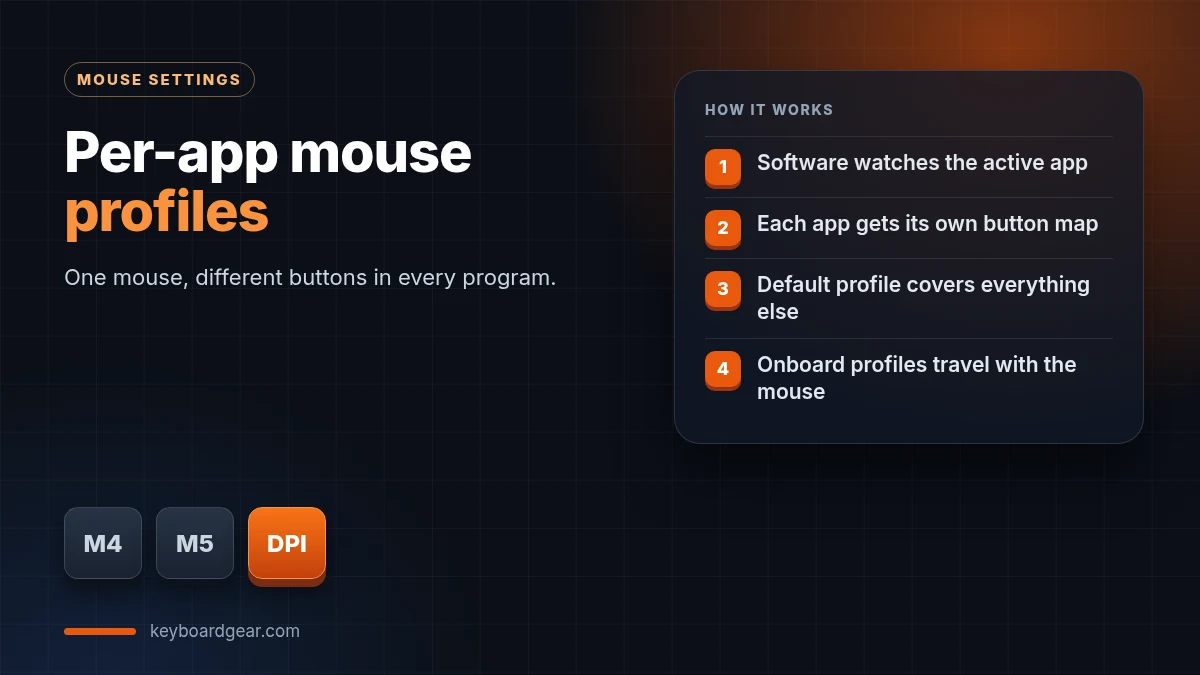
A mouse button that pastes in a spreadsheet can be useless in a photo editor, where undo is more valuable. App-specific profiles solve that. Most modern mouse software has them, though names vary: “app-specific settings,” “application profiles,” or “linked games.”
How app-specific profiles work
Your mouse sends the same button signal whatever program is open. The mouse software, running on your computer, watches which window is in front and translates that button into whatever you’ve chosen for that app. When you switch windows, the mapping changes instantly.
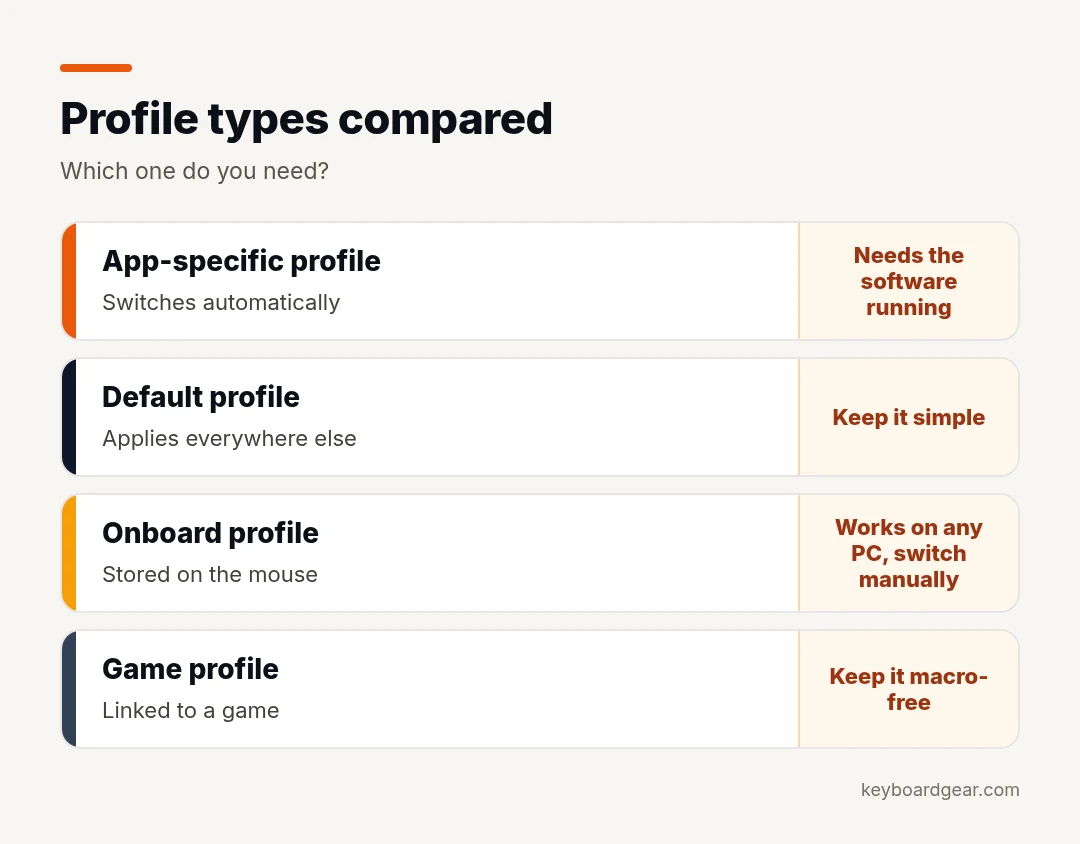
That’s why profiles stop working if the software is closed, and why they don’t follow the mouse to another computer unless you use onboard profiles.
Steps that work in most mouse software
The labels differ between brands, but the steps are similar:
- Install and open your mouse maker’s app and select your mouse.
- Set up the default profile first. This is what buttons do in any app you haven’t customised. Keep it simple, like back and forward.
- Turn on app-specific settings if there’s a switch for it.
- Add an application. Pick it from the list of installed or running programs. If it’s missing, browse to its program file.
- Assign buttons for that application, such as copy and paste in a spreadsheet.
- Repeat for each app, then test by switching between windows.
Microsoft’s Mouse and Keyboard Center, for example, uses App-specific settings > Add New, then lets you pick a program and reassign each button for it. Logitech, Razer and Corsair software offer similar features under their own names.
Good profiles to start with
| App | Thumb buttons | Extra button |
|---|---|---|
| Default (all apps) | Back, forward | None |
| Spreadsheet | Copy, paste | Enter |
| Photo or video editor | Undo, redo | Zoom |
| Browser | Back, forward | Close tab |
| Video call app | Mute toggle | Camera toggle |
| Games | Game binds only | DPI switch |
For keyboard-side automation, see keyboard macros or a dedicated macro pad.
Onboard profiles: when you use more than one computer
Many gaming mice can save a few profiles to the mouse’s own memory. They work on any computer without the software installed, but they don’t switch automatically by app; you usually cycle them with a button. Use onboard profiles for a work laptop and a home PC, and app-specific profiles at your main desk.
Keep your game profile free of macros and turbo settings. Many online games ban automated input, and movement features have their own rules; see is Snap Tap allowed.
If profiles don’t switch
- Is the software running? Check the system tray or menu bar. Close it, and switching stops.
- Did you pick the right program file? Some apps run through a launcher; add the actual program, not the launcher.
- Is the app running as administrator? Microsoft notes that if you open a program with Run as administrator, its Mouse and Keyboard Center uses the global button assignments instead of app-specific ones. Open the program normally, or sign in to Windows as an administrator. Other brands’ software can behave similarly.
- Fullscreen games: some only register after you alt-tab once.
- Two mouse apps installed? Remove the one you don’t use; they can conflict.
If the mouse itself misbehaves, see mouse not working.
No software for your mouse?
If your mouse has no customisation software, Windows users can remap some buttons with Microsoft PowerToys, and keyboard tools can handle the rest. Our how to remap keys guide covers Windows and Mac options. For more built-in buttons, see our best wireless mouse and best gaming mouse picks.
FAQ
Can mouse buttons do different things in different apps?
Yes. Most mouse software supports app-specific profiles that switch automatically with the active window.
Why aren’t my app profiles switching?
The software may be closed, the wrong program file may be selected, or the app may be running as administrator.
Do app profiles work on another computer?
Only if the software and profiles are installed there. Onboard profiles stored on the mouse work anywhere but don’t switch by app.
Do I need a gaming mouse for app profiles?
No. Many office mice from Logitech, Microsoft and others support them.
How many profiles should I make?
Start with a default and one or two for your most-used apps.
Sources
- Microsoft Support: Configure application-specific settings for a Microsoft accessory
- Microsoft Support: How do I reassign buttons on my Microsoft mouse?
- Microsoft Learn: PowerToys Keyboard Manager
Related guide: Programmable Mouse Uses Beyond Gaming: Excel, Editing and Browsing
Final thoughts
Set a simple default profile, then add app-specific profiles only for the two or three programs where extra buttons save real time. Keep games on a clean, macro-free profile, and use onboard profiles when you move between computers.

Experience is what matters at the end!!
Hi! This is Jacob Jay – founder of Keyboardgear.com! From childhood to adulthood, I’ve always remained passionate about IT, and the revolution in this industry, especially gaming on the PC can’t go out of my way. Since I’m an enthusiastic gamer, and I love to experience various gaming accessories, particularly mechanical keyboards, that really boost my gaming adventure manifolds. So, my nerve cells hit me to transfer my experiences into word form and share with others to identify the ideal keyboards perfectly fit for their gaming modes.
I know very well how hard it is to find the high-quality items available on the internet that ought to be exactly the same as seen as on the screen. But the counterfeiters have ruined the user’s trust. As I have passed all such situations, I’m obliged to deliver the genuinity and express the same as what I am saying.
So, now, I’m working on the mission to provide very helpful and frankly but trustworthy reviews and guides about various mechanical keyboards, mouses, and other gaming accessories as per my personal experiences and sound knowledge.