

Quick answer
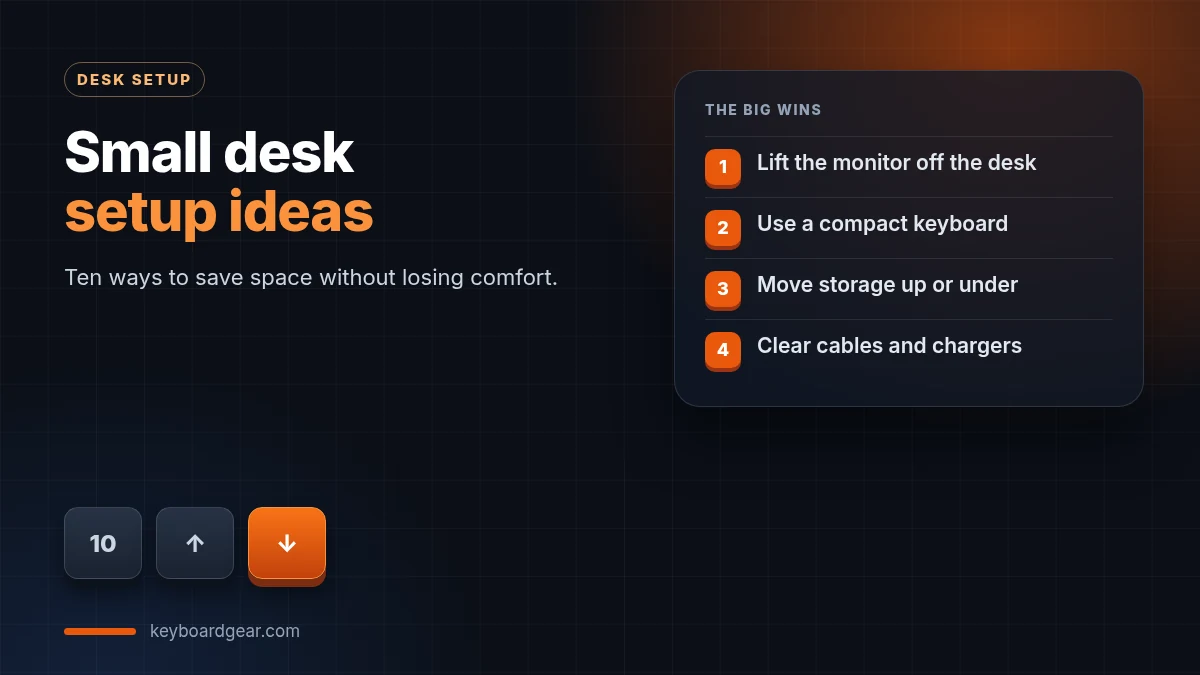
To make a small desk setup work, free the surface first: put the monitor on an arm or wall mount, switch to a compact keyboard so the mouse sits closer, move storage up onto shelves or under the desk, and hide the power strip and cables in a tray. Keep the screen straight ahead at a comfortable distance; saving space shouldn’t mean hunching over a cramped desk.
Small desks are common in apartments, shared rooms and corners of a living room. The trick is to protect the space you actually work in, the area in front of you for keyboard, mouse and a notebook, and move everything else.
1. Get the monitor off the desk
A monitor’s stand base takes up a lot of space at the back. A clamp-on monitor arm lifts the screen and frees the whole area beneath it. Check your desk edge first; our guide to clamp vs grommet mounts explains what to measure.
2. Use a laptop stand and an external keyboard
If you work on a laptop, raise it on a stand to bring the screen closer to eye level, then use a separate keyboard and mouse. The stand’s footprint is small, and the space under some stands can hold a notebook or hub.
3. Choose a compact keyboard
A full-size keyboard with a number pad pushes the mouse far to the right. A tenkeyless or 75 percent board saves several inches and lets you keep the mouse closer to your body. See our keyboard sizes guide for layouts.
4. Consider a keyboard tray
If the desk is shallow or a little high, a keyboard tray moves the keyboard and mouse below the desktop, freeing surface space and often improving keyboard height.
5. Go up with storage
Use wall shelves, a pegboard or a monitor riser with a shelf for things you need but don’t touch all day. Keep the desktop for daily items only.
6. Go under with power and cables
Mount the power strip and adapters in a cable tray under the back edge. One cable to the wall, nothing on the surface. Our guide to hiding a power strip covers safe ways to do it.
7. Go wireless where it helps
Wireless keyboards, mice and headphones remove cables from the desk. Keep a single charging spot so you’re not swapping cables around.
8. Use a desk mat as a boundary
A desk mat marks your work zone and keeps keyboard and mouse in one place. Choose one that fits your desk depth rather than the biggest available.
9. Keep one clear writing space
Leave a spot where you can put a notebook or a plate without moving your keyboard. A keyboard you can slide back, or a tray, helps.
10. Don’t sacrifice posture
Compact doesn’t mean cramped. The screen should still be straight ahead and at a comfortable distance, and your elbows should rest near your sides. Our how to sit at a desk checklist works on any desk size.
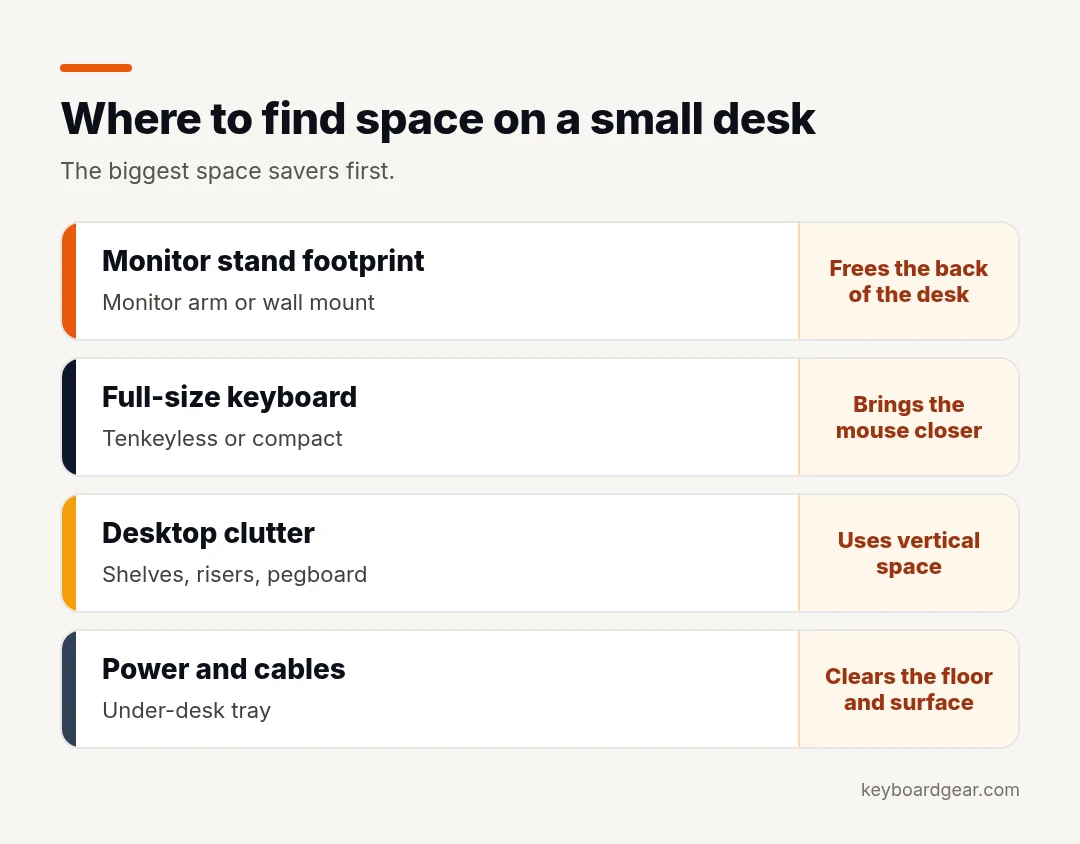
| Common problem | Space-saving fix |
|---|---|
| Monitor stand eats the desk | Monitor arm or wall mount |
| Mouse is too far right | Tenkeyless or compact keyboard |
| Desk too shallow | Keyboard tray or monitor arm |
| Clutter on the surface | Shelves, riser, pegboard |
| Cables everywhere | Under-desk tray and wireless devices |
Measure your desk before buying anything. Write down the width, depth and edge thickness, and check every product’s footprint against those numbers.
For more ideas for any space, see our desk setup guide.
FAQ
What is the minimum desk depth for a monitor?
It depends on the screen and your eyesight. OSHA suggests a viewing distance of about 20 to 40 inches; a monitor arm helps on shallow desks.
Is a monitor arm worth it on a small desk?
Usually, yes. It frees the space the stand used and lets you push the screen back.
What keyboard is best for a small desk?
A tenkeyless or compact layout saves width and keeps the mouse closer.
How do I add storage to a small desk?
Go up with shelves or a riser, and under with a tray or drawer unit.
Can I use two monitors on a small desk?
Yes, with a dual arm or stacking, as long as both stay at a comfortable height and distance.
Sources
Final thoughts
Lift the screen, shrink the keyboard, move storage up and power under, and keep one clear work zone. A small desk set up this way can feel more organized than a big one covered in clutter.

Experience is what matters at the end!!
Hi! This is Jacob Jay – founder of Keyboardgear.com! From childhood to adulthood, I’ve always remained passionate about IT, and the revolution in this industry, especially gaming on the PC can’t go out of my way. Since I’m an enthusiastic gamer, and I love to experience various gaming accessories, particularly mechanical keyboards, that really boost my gaming adventure manifolds. So, my nerve cells hit me to transfer my experiences into word form and share with others to identify the ideal keyboards perfectly fit for their gaming modes.
I know very well how hard it is to find the high-quality items available on the internet that ought to be exactly the same as seen as on the screen. But the counterfeiters have ruined the user’s trust. As I have passed all such situations, I’m obliged to deliver the genuinity and express the same as what I am saying.
So, now, I’m working on the mission to provide very helpful and frankly but trustworthy reviews and guides about various mechanical keyboards, mouses, and other gaming accessories as per my personal experiences and sound knowledge.