

Quick answer
Fn Lock decides what the top row of keys does by default: either the standard F1 to F12 functions, or the media and hardware controls printed on them, like volume, brightness and mute. Turning Fn Lock on or off swaps which one you get without holding Fn.
On most laptops, press Fn + Esc to toggle it. On many HP laptops, change Action Keys Mode in the BIOS (some business models use Fn + left Shift). On a Mac, turn on Use F1, F2, etc. keys as standard function keys in System Settings > Keyboard.
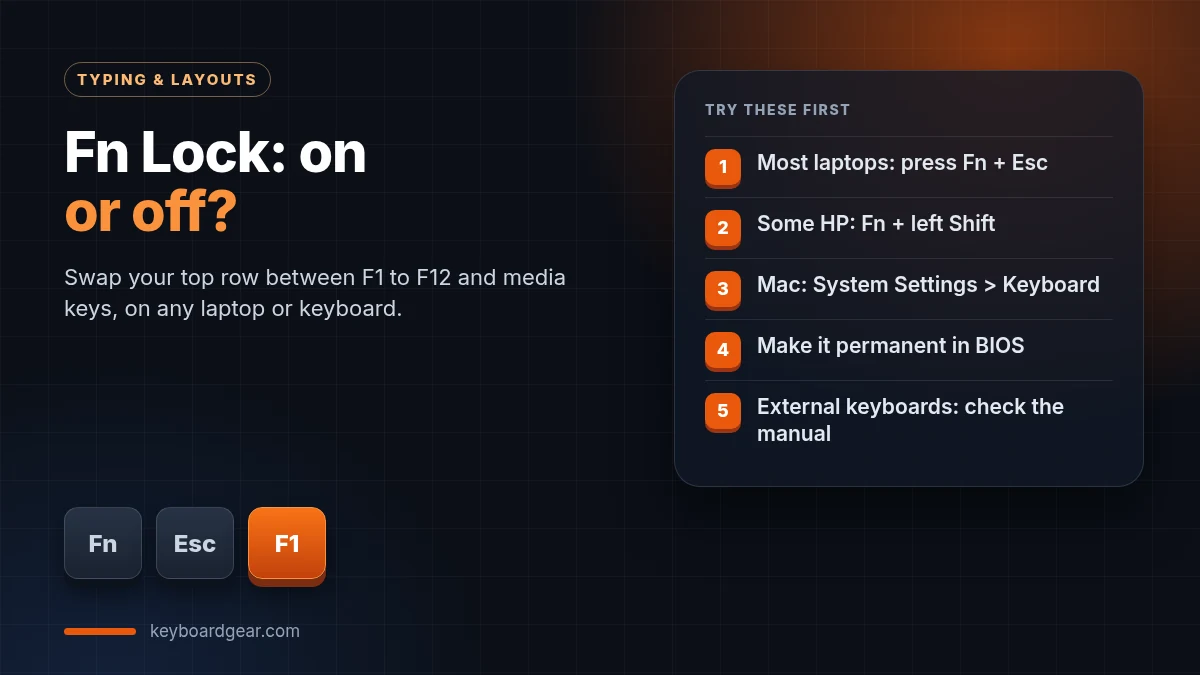
The top row of a laptop keyboard does two jobs. Each key is a function key (F1, F2 and so on), used for things like help, renaming files, refreshing a page or developer shortcuts. Each key also has a small icon for a second job, such as volume, screen brightness, mute or airplane mode. The Fn key switches between the two, and Fn Lock decides which job is the default.
If pressing F5 suddenly turns down your brightness instead of refreshing your browser, or the volume keys stopped working until you hold Fn, Fn Lock has probably been switched. This guide explains how it works and how to set it the way you want on every common brand.
How Fn Lock works
There are two modes:
- Media keys first (often called hotkey mode or action keys mode): pressing a top-row key does the printed action, like volume up. To get F1 to F12, hold Fn and press the key.
- Function keys first: pressing a top-row key sends F1 to F12. To get volume, brightness and so on, hold Fn and press the key.
Fn Lock toggles between these modes. Different makers describe “on” differently, so the easiest way to think about it is: if the keys do what you don’t want, toggle it once and test.
| You press | Media keys first (hotkey mode) | Function keys first (Fn Lock on, on many laptops) |
|---|---|---|
| F5 alone | Media action (e.g. brightness) | F5 (refresh) |
| Fn + F5 | F5 (refresh) | Media action |
On many laptops, a small light on the Esc or Fn key shows when Fn Lock is active.
Toggle Fn Lock with a key shortcut
Try these, one at a time, and test a key like F5 in a browser after each:
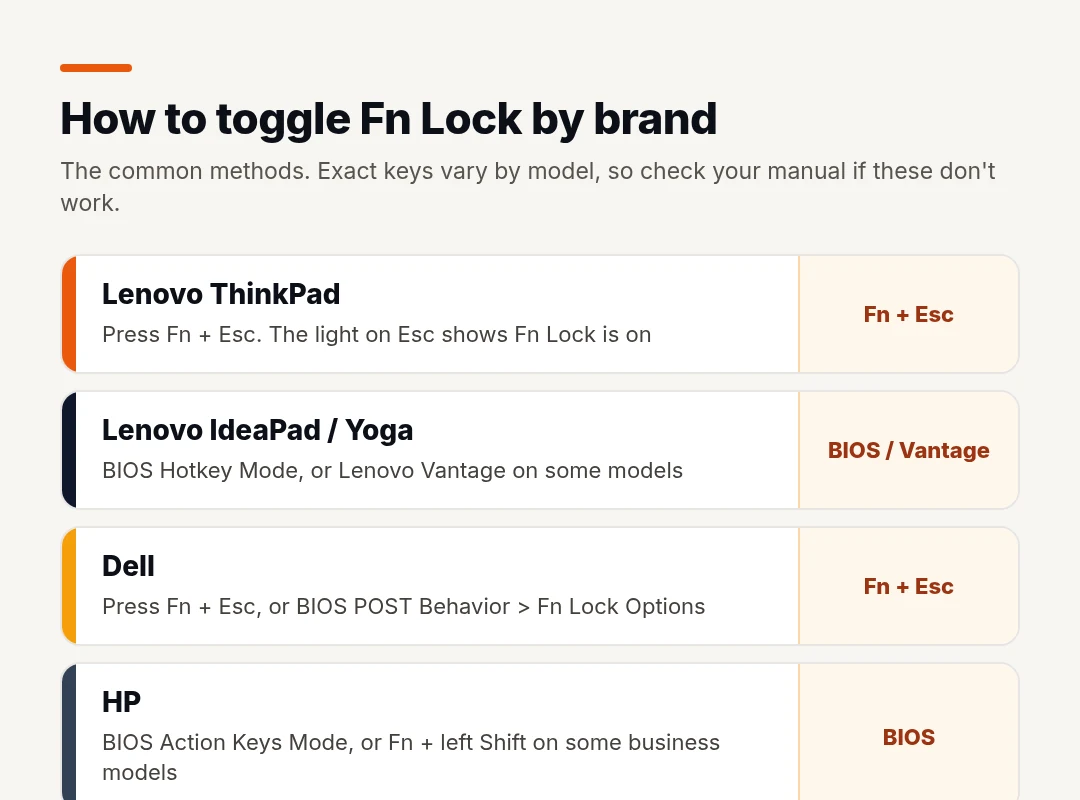
- Fn + Esc. The most common shortcut. Lenovo ThinkPads and many Dell laptops use it, and Dell’s manuals describe Fn + Esc as toggling the primary behavior of F1 to F12. Many external keyboards, including several Logitech models, use it too.
- Fn + left Shift. Some HP business laptops (for example, some ProBook and EliteBook G5 models) use this, according to HP.
- A dedicated Fn Lock key. Some keyboards have a key with a padlock and “Fn” icon, often shared with Esc.
- Tap Fn on its own. On some keyboards, such as many Microsoft Surface keyboards, pressing Fn by itself toggles a light on the Fn key that locks function keys.
Lenovo
On ThinkPad laptops, press Fn + Esc to turn Fn Lock on or off; the light on the Esc key shows when it is on. On many IdeaPad and other Lenovo-branded laptops, Lenovo says to change it in the BIOS instead:
- Restart and enter the BIOS (often F2 or Fn + F2 during startup, or the Novo button on some IdeaPads).
- Open the Configuration tab.
- Set Hotkey Mode to Disabled if you want F1 to F12 without pressing Fn, or Enabled if you want media keys first.
- Press F10 and confirm to save and exit.
On some models, including certain Yoga laptops, Lenovo has moved this setting into the Lenovo Vantage app under device and input settings.
Dell
On most recent Dell laptops, press Fn + Esc to toggle Fn Lock. To set the default permanently:
- Restart and press F2 to enter the BIOS setup.
- Go to POST Behavior > Fn Lock Options (the exact location varies by model).
- Choose Lock Mode Disable/Standard for F1 to F12 first, or Lock Mode Enable/Secondary for media keys first.
- Apply and exit.
Dell notes that on some Latitude models the default changed so that brightness works without Fn, which is why keys may behave differently from an older Dell.
HP
On most HP laptops, the setting is called Action Keys Mode in the BIOS:
- Turn the laptop off, turn it on and immediately press F10 repeatedly to open the BIOS Setup Utility.
- Open System Configuration and select Action Keys Mode.
- Choose Enabled to use the printed actions without Fn, or Disabled to use F1 to F12 without Fn.
- Press F10 to save and restart.
Some HP business laptops call it Launch Hotkeys without Fn Keypress under Advanced > System Options, and some ProBook and EliteBook models toggle it with Fn + left Shift.
Mac
Mac keyboards default to media keys. To make the top row act as F1 to F12:
- Open Apple menu > System Settings > Keyboard.
- Select Keyboard Shortcuts, then Function Keys.
- Turn on Use F1, F2, etc. keys as standard function keys.
On older versions of macOS, this checkbox is directly in System Preferences > Keyboard. With it on, hold Fn (or the Globe key) to use brightness, volume and media controls. If you use a Windows keyboard on a Mac, our guide to which keyboards work with a Mac explains which keys map where.
External keyboards
Desktop keyboards vary widely:
- Logitech keyboards often use Fn + Esc to swap, and Logi Options+ lets you choose the default on supported models.
- Gaming keyboards may set it in their software (Razer Synapse, Corsair iCUE, SteelSeries GG and others), or have no Fn Lock at all.
- Compact mechanical keyboards (60% and 65%) often put F1 to F12 on the number row behind Fn, and some let you remap this in software or through VIA.
If you can’t find it, the keyboard’s manual or support page will list the Fn shortcuts.
Fn Lock won’t stay on, or doesn’t work
- It resets after a restart. Lenovo notes that if Fn + Esc works but doesn’t stay after restarting, you should update the BIOS or hotkey software. Changing the BIOS setting is usually more permanent than the shortcut.
- Fn + Esc does nothing. Your laptop may not support it, or it may use a BIOS setting or app instead. Check the brand sections above.
- Media keys don’t work at all. Install the maker’s hotkey or keyboard driver (for example, Lenovo Vantage, HP’s system software or Dell’s drivers), and check Windows Update.
- The wrong characters appear. That is usually a layout or Num Lock problem rather than Fn Lock; see our guide to a keyboard typing wrong characters.
- Keys don’t respond at all. Work through our laptop keyboard not working checklist.
::tip
If you use F1 to F12 constantly, for example for coding, spreadsheets or games, set function keys first in the BIOS, and get used to Fn for volume and brightness. If you mostly use media keys, leave hotkey mode on and use Fn for the occasional F5.
::
Useful function keys to know
With Fn Lock set to function keys, these are worth knowing in Windows: F2 renames a file, F5 refreshes a page, F11 makes a browser full screen, F12 opens developer tools in browsers, and Alt + F4 closes the current window. Our Windows keyboard shortcuts cheat sheet lists many more. Many laptops also put the keyboard backlight on a top-row key; see how to turn on your keyboard light.
FAQ
What does Fn Lock do?
It sets whether the top row of keys sends F1 to F12 or the media and hardware actions printed on them by default, so you don’t have to hold Fn.
How do I turn off Fn Lock?
Press the same shortcut again, usually Fn + Esc, or change the setting back in the BIOS or system settings.
Why do my F keys change volume and brightness?
Your laptop is in hotkey or action keys mode. Hold Fn to use F1 to F12, or toggle Fn Lock to make function keys the default.
Where is the Fn Lock key?
On many laptops it is shared with Esc and shows a padlock with “Fn”. Some keyboards don’t have one and use a BIOS or software setting instead.
Does Fn Lock affect the number pad?
No. That is Num Lock, which switches the number pad between numbers and navigation keys.
Bottom line
Fn Lock simply chooses which job your top-row keys do by default. Press Fn + Esc first; if that doesn’t work, look for Action Keys Mode or Hotkey Mode in your BIOS, or the Function Keys setting on a Mac. If a shortcut won’t stick after restarts, make the change in the BIOS.
Sources
- Lenovo Support: Use the function keys without pressing Fn
- Dell Support: Fn Lock options on Latitude laptops

Experience is what matters at the end!!
Hi! This is Jacob Jay – founder of Keyboardgear.com! From childhood to adulthood, I’ve always remained passionate about IT, and the revolution in this industry, especially gaming on the PC can’t go out of my way. Since I’m an enthusiastic gamer, and I love to experience various gaming accessories, particularly mechanical keyboards, that really boost my gaming adventure manifolds. So, my nerve cells hit me to transfer my experiences into word form and share with others to identify the ideal keyboards perfectly fit for their gaming modes.
I know very well how hard it is to find the high-quality items available on the internet that ought to be exactly the same as seen as on the screen. But the counterfeiters have ruined the user’s trust. As I have passed all such situations, I’m obliged to deliver the genuinity and express the same as what I am saying.
So, now, I’m working on the mission to provide very helpful and frankly but trustworthy reviews and guides about various mechanical keyboards, mouses, and other gaming accessories as per my personal experiences and sound knowledge.