

Quick answer
On Windows 11, open Settings > Accessibility > Keyboard and switch Sticky keys off. Then click the Sticky keys entry itself and turn off Keyboard shortcut for Sticky keys, so pressing Shift five times can’t turn it back on. On Windows 10 the same switches are in Settings > Ease of Access > Keyboard.
On a Mac, go to System Settings > Accessibility > Keyboard and turn off Sticky Keys. On a Chromebook, go to Settings > Accessibility > Keyboard and text input and turn off Sticky keys.
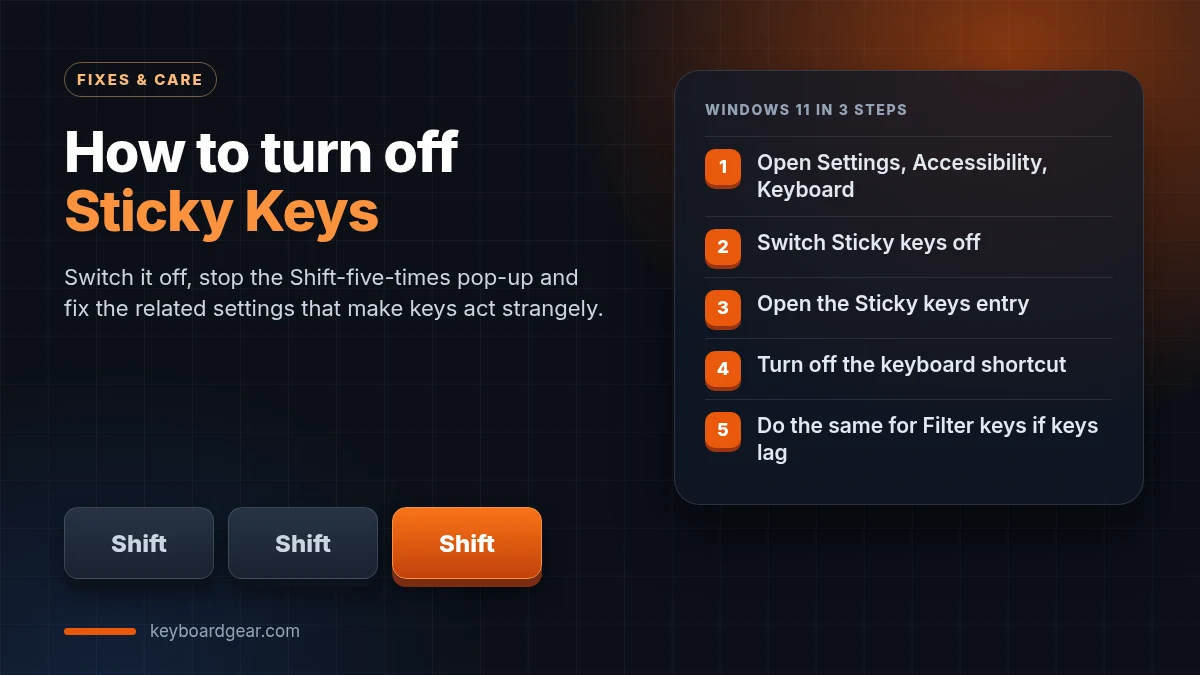
Sticky Keys is an accessibility feature that lets you type keyboard shortcuts one key at a time. Instead of holding Ctrl and pressing C, you can press Ctrl, let go, and then press C. For people who find it hard to hold several keys at once, it is genuinely useful.
For everyone else it is usually a surprise. Press Shift five times in a row, which is easy to do in a game or while selecting text, and Windows asks whether you want to turn on Sticky Keys. Say yes by accident, or let it switch on, and your keyboard suddenly behaves strangely: Shift or Ctrl seems stuck, shortcuts fire when you don’t expect them, and you may hear beeps.
This guide shows how to turn Sticky Keys off on every common system, how to stop the pop-up for good, and how to fix the related features, Filter Keys and Toggle Keys, that cause similar problems.
How to tell if Sticky Keys is on
- You hear a beep or click when you press Shift, Ctrl, Alt or the Windows key.
- Shift or Ctrl seems to stay pressed after you let go, so the next letter comes out capitalised or a shortcut fires.
- On Windows, a small Sticky Keys icon may appear in the system tray or notification area.
- A box appeared asking “Do you want to turn on Sticky Keys?” after you tapped Shift several times.
If keys are slow to respond or seem to ignore quick taps instead, Filter Keys is the more likely cause; see the section on it below.
Turn off Sticky Keys in Windows 11
- Press Windows + I to open Settings, or select Start > Settings.
- Select Accessibility in the left-hand list, then scroll down to Interaction and select Keyboard.
- Under Sticky, Filter, and Toggle keys, switch Sticky keys to Off.
- To stop it coming back, click the Sticky keys entry itself (the words or the arrow, not the switch) and turn off Keyboard shortcut for Sticky keys.
With the shortcut off, pressing Shift five times does nothing and the pop-up won’t appear. You can open the same Accessibility page quickly with Windows + U, which is one of the Windows keyboard shortcuts worth knowing.
::tip
On the same Sticky keys page you will see options such as Lock shortcut keys when pressed twice in a row and Turn off Sticky keys when two keys are pressed at the same time. These only matter while Sticky Keys is on, but they explain why Shift sometimes seemed to lock down.
::
Turn off Sticky Keys in Windows 10
- Select Start > Settings, or press Windows + I.
- Select Ease of Access, then Keyboard.
- Under Use Sticky Keys, turn the switch Off.
- Untick Allow the shortcut key to start Sticky Keys so Shift five times no longer turns it on.
Turn it off with Control Panel (Windows 10 and 11)
If Settings won’t open, or you prefer the older controls, Control Panel still has the same options.
- Press Windows + R, type control access.cpl and press Enter to open the Ease of Access Center.
- Select Make the keyboard easier to use.
- Clear Turn on Sticky Keys.
- Select Set up Sticky Keys and clear Turn on Sticky Keys when SHIFT is pressed five times.
- Select Apply, then OK.
The quickest way when it has just turned on
If Sticky Keys has just switched on and you want it off right now, press Shift five times again. The prompt appears and you can turn it off. If the setting Turn off Sticky keys when two keys are pressed at the same time is enabled, pressing two keys together, such as Ctrl and Shift, also switches it off. When the pop-up appears, choose No, and use its link to the keyboard settings to turn off the shortcut so it doesn’t happen again.
Turn off Sticky Keys on a Mac
- Open the Apple menu > System Settings (System Preferences on older macOS versions).
- Select Accessibility, then Keyboard.
- Turn off Sticky Keys.
The Sticky Keys options on the same page include whether pressing Shift five times turns it on or off; turn that option off if you keep triggering it by accident. On older versions of macOS, the setting is in System Preferences > Accessibility > Keyboard (or Universal Access on very old versions). If you are using a Windows keyboard on a Mac and modifier keys behave oddly, our guide to changing your keyboard layout also covers modifier key settings.
Turn off sticky keys on a Chromebook
- Select the time at the bottom right, then select Settings. You can also press Alt + Shift + S.
- Select Accessibility.
- Under Keyboard and text input, turn off Sticky keys.
On ChromeOS, sticky keys works slightly differently: pressing a modifier once holds it for the next key, pressing it twice locks it, and pressing it a third time releases it.
Filter Keys: when keys seem slow or ignore taps
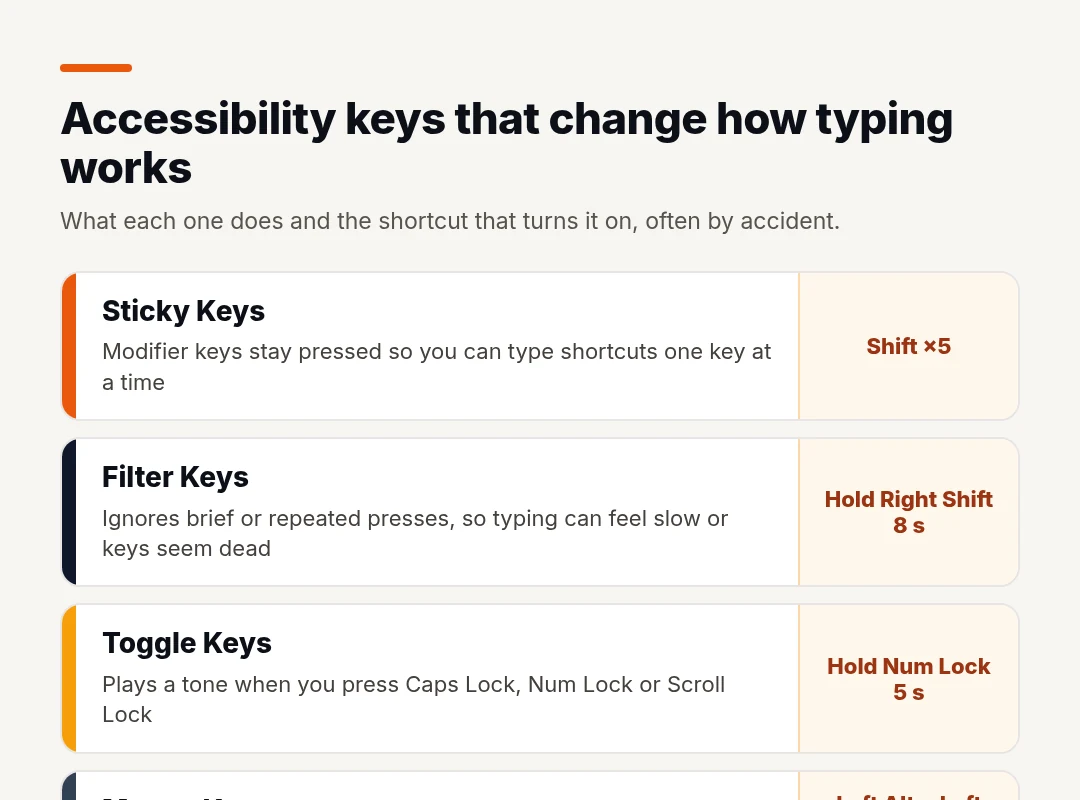
Filter Keys is a different accessibility feature that tells Windows to ignore brief or repeated keystrokes. It helps people with hand tremors, but if it switches on by accident your keyboard can feel broken: letters don’t appear unless you hold the key, typing lags, or repeated letters are dropped.
The shortcut that turns it on is holding the right Shift key for eight seconds, which is easy to do in games. To turn it off:
- Go to Settings > Accessibility > Keyboard (Windows 11) or Settings > Ease of Access > Keyboard (Windows 10).
- Switch Filter keys off.
- Open the Filter keys entry and turn off its keyboard shortcut.
If your keyboard still misses keys after that, the cause is probably hardware or a driver. Work through our laptop keyboard not working checklist, which covers drivers, battery saving and stuck keys.
Toggle Keys and Mouse Keys
Toggle Keys plays a sound whenever you press Caps Lock, Num Lock or Scroll Lock. It is turned on by holding Num Lock for five seconds. It is harmless but can be confusing; switch it off on the same Keyboard page.
Mouse Keys lets you move the pointer with the number pad. It turns on with Left Alt + Left Shift + Num Lock, and when it is on your number pad stops typing numbers. Turn it off in Settings > Accessibility > Mouse in Windows 11.
| Feature | What it does | Shortcut that turns it on | Where to turn it off (Windows 11) |
|---|---|---|---|
| Sticky Keys | Holds modifier keys after you release them | Press Shift five times | Accessibility > Keyboard |
| Filter Keys | Ignores brief or repeated keystrokes | Hold right Shift for 8 seconds | Accessibility > Keyboard |
| Toggle Keys | Beeps on Caps, Num and Scroll Lock | Hold Num Lock for 5 seconds | Accessibility > Keyboard |
| Mouse Keys | Number pad moves the mouse pointer | Left Alt + Left Shift + Num Lock | Accessibility > Mouse |
Stop Sticky Keys interrupting games
The Shift-five-times prompt is a classic problem in games where Shift is used to sprint or crouch, because it can pull you out of a full-screen game to the desktop. Turning off Keyboard shortcut for Sticky keys, as described above, stops it completely. Do the same for Filter keys if you hold Shift for long periods.
Many gaming keyboards also have a game mode that disables the Windows key, and some let you disable other keys too, which prevents accidental desktop pop-ups. Check your keyboard’s software or the key legends for a game mode toggle.
If your keys are physically sticky
Sometimes “sticky keys” means something else: keys that feel tacky, stick down or are slow to spring back after a spill or months of crumbs. That isn’t a setting. Unplug the keyboard, or shut down the laptop, and clean around and under the affected keys. Our keyboard cleaning guide shows how to do it safely, including what to do after a sugary drink spill.
::warn
Don’t pour cleaning liquid into a keyboard or soak a laptop keyboard. Use a barely damp cloth or isopropyl alcohol on a swab, and let everything dry fully before you power it on.
::
Should you leave Sticky Keys on?
If you find it hard to press two or three keys at once, because of an injury, arthritis or one-handed typing, Sticky Keys is worth keeping, and you can set it up so it doesn’t beep or lock keys unexpectedly. People with low vision may also find our guide to the best large-print keyboards useful alongside Windows and Mac accessibility settings.
FAQ
Why does Sticky Keys keep turning on?
Because the keyboard shortcut for it is still enabled, so pressing Shift five times turns it on. Turn off Keyboard shortcut for Sticky keys in Settings > Accessibility > Keyboard > Sticky keys.
Does turning off Sticky Keys affect anything else?
No. It only stops modifier keys from staying pressed. Normal shortcuts like Ctrl + C keep working.
Is Sticky Keys a virus or a problem with my keyboard?
No. It is a built-in accessibility feature in Windows, macOS and ChromeOS. The pop-up appears because the Shift key was pressed several times in a row.
My keyboard types slowly or ignores some presses. Is that Sticky Keys?
More likely Filter Keys, which ignores short or repeated presses. Turn it off on the same Keyboard settings page and turn off its shortcut.
How do I turn Sticky Keys back on?
Use the same switch in Settings, or press Shift five times if the shortcut is still enabled.
Bottom line
Turning Sticky Keys off takes a few seconds, but the step that matters most is turning off its keyboard shortcut, so pressing Shift five times can’t bring it back. While you are on that settings page, check Filter Keys and Toggle Keys too, since they cause similar confusion.
Related guide: Keyboard Repeat Rate and Delay: How to Change Them on Windows and Mac
Sources
- Microsoft Support: Make your mouse, keyboard and other input devices easier to use
- Microsoft Support: Windows keyboard shortcuts for accessibility
- Google: Chromebook accessibility features

Experience is what matters at the end!!
Hi! This is Jacob Jay – founder of Keyboardgear.com! From childhood to adulthood, I’ve always remained passionate about IT, and the revolution in this industry, especially gaming on the PC can’t go out of my way. Since I’m an enthusiastic gamer, and I love to experience various gaming accessories, particularly mechanical keyboards, that really boost my gaming adventure manifolds. So, my nerve cells hit me to transfer my experiences into word form and share with others to identify the ideal keyboards perfectly fit for their gaming modes.
I know very well how hard it is to find the high-quality items available on the internet that ought to be exactly the same as seen as on the screen. But the counterfeiters have ruined the user’s trust. As I have passed all such situations, I’m obliged to deliver the genuinity and express the same as what I am saying.
So, now, I’m working on the mission to provide very helpful and frankly but trustworthy reviews and guides about various mechanical keyboards, mouses, and other gaming accessories as per my personal experiences and sound knowledge.