

Quick answer
The Windows shortcuts worth learning first are Ctrl + C / X / V (copy, cut, paste), Ctrl + Z (undo), Alt + Tab (switch apps), Win + V (clipboard history), Win + Shift + S (screenshot), Win + Left/Right arrow (snap a window), Win + D (show desktop), Win + E (File Explorer), Win + L (lock) and Ctrl + Shift + Esc (Task Manager).
The tables below list more than 70 shortcuts for Windows 11 and 10, grouped by task.
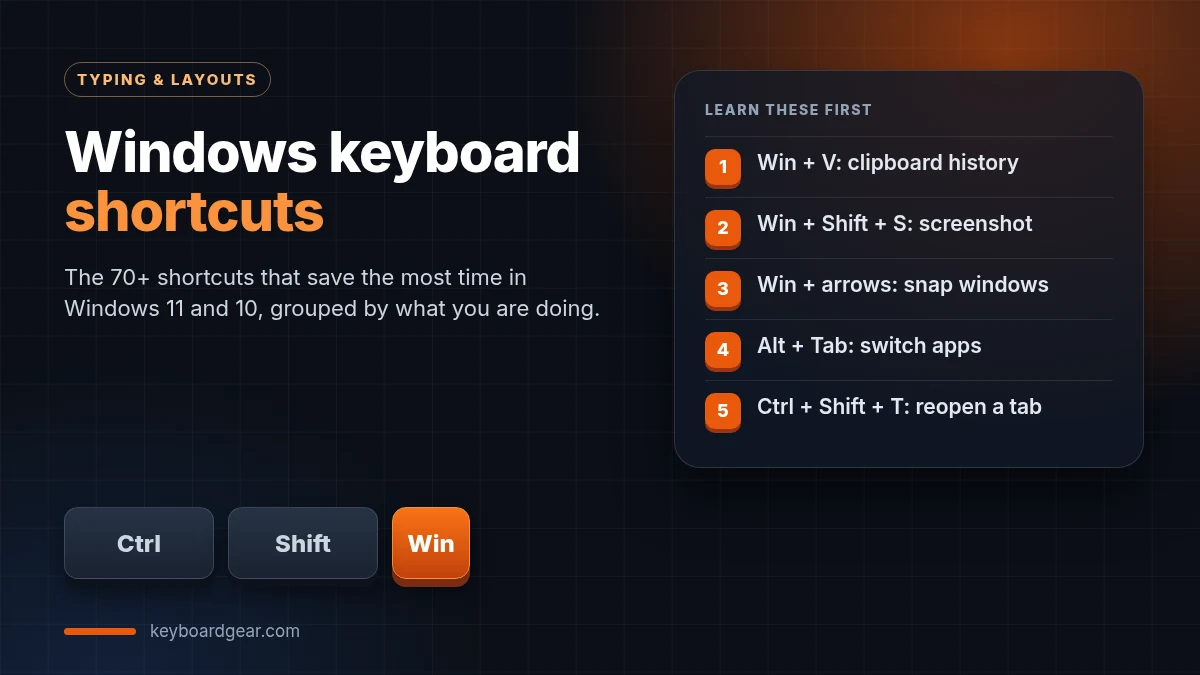
Keyboard shortcuts are the cheapest productivity upgrade there is. Each one only saves a second or two, but you use them hundreds of times a day, and they keep your hands on the keyboard instead of reaching for the mouse. This cheat sheet focuses on shortcuts that work in Windows 11 and, unless noted, Windows 10.
On laptops, some keys such as Print Screen, Home and End may need the Fn key. If you are not sure what a key is called, see our guide to keyboard key names.
The essentials (work almost everywhere)
| Shortcut | What it does |
|---|---|
| Ctrl + C | Copy |
| Ctrl + X | Cut |
| Ctrl + V | Paste |
| Ctrl + Shift + V | Paste as plain text (in many apps) |
| Ctrl + Z | Undo |
| Ctrl + Y | Redo |
| Ctrl + A | Select all |
| Ctrl + S | Save |
| Ctrl + P | |
| Ctrl + F | Find |
| Ctrl + N | New window or document |
| Ctrl + W | Close the current tab or document |
| Alt + F4 | Close the current app (on the desktop: shut down menu) |
| F2 | Rename the selected file |
| Delete | Delete (send to Recycle Bin) |
| Shift + Delete | Delete permanently, without the Recycle Bin |
For more on pasting, including keyboards without a Ctrl key, see how to paste with the keyboard.
Windows key shortcuts
The Windows key is the most underused key on most keyboards.
| Shortcut | What it does |
|---|---|
| Win | Open or close Start |
| Win + E | Open File Explorer |
| Win + I | Open Settings |
| Win + V | Clipboard history (turn it on the first time) |
| Win + . (period) | Emoji, GIF and symbol panel |
| Win + Shift + S | Snipping Tool: screenshot an area |
| Win + R | Run dialog |
| Win + X | Quick Link menu (Device Manager, Terminal and more) |
| Win + L | Lock the PC |
| Win + D | Show or hide the desktop |
| Win + M | Minimise all windows |
| Win + A | Quick Settings (Windows 11) / Action Center (Windows 10) |
| Win + N | Notifications and calendar (Windows 11) |
| Win + H | Voice typing |
| Win + K | Cast to a wireless display |
| Win + P | Choose a display mode (duplicate, extend, second screen only) |
| Win + Space | Switch keyboard layout or input language |
| Win + number (1–9) | Open the app pinned in that position on the taskbar |
If Win + Space changes your keyboard layout by accident, our guide on how to change keyboard layout explains how to remove extra layouts.
Window management and virtual desktops
| Shortcut | What it does |
|---|---|
| Alt + Tab | Switch between open apps |
| Win + Tab | Task View (all windows and desktops) |
| Win + Left / Right arrow | Snap the window to the left or right half |
| Win + Up arrow | Maximise the window |
| Win + Down arrow | Restore or minimise the window |
| Win + Z | Snap layouts menu (Windows 11) |
| Win + Shift + Left / Right | Move the window to the other monitor |
| Win + Home | Minimise all but the active window |
| Win + Ctrl + D | Create a new virtual desktop |
| Win + Ctrl + Left / Right | Switch between virtual desktops |
| Win + Ctrl + F4 | Close the current virtual desktop |
Screenshots and screen recording
| Shortcut | What it does |
|---|---|
| Win + Shift + S | Snip a rectangle, window, freeform area or full screen to the clipboard |
| Print Screen | Copy the full screen (in recent Windows 11 builds it opens the Snipping Tool by default) |
| Win + Print Screen | Save a full-screen screenshot to Pictures > Screenshots |
| Alt + Print Screen | Copy just the active window |
| Win + Alt + R | Start or stop recording a game or app (Xbox Game Bar) |
| Win + G | Open Xbox Game Bar |
File Explorer
| Shortcut | What it does |
|---|---|
| Win + E | Open File Explorer |
| Ctrl + T | New tab (Windows 11) |
| Ctrl + Shift + N | New folder |
| Alt + Up arrow | Go up one folder |
| Alt + Left / Right | Back / forward |
| Alt + Enter | Properties of the selected item |
| Ctrl + mouse wheel | Change icon size |
| F5 | Refresh |
Text editing (Word, browsers, most apps)
| Shortcut | What it does |
|---|---|
| Ctrl + Left / Right arrow | Move the cursor one word at a time |
| Ctrl + Backspace | Delete the previous word |
| Ctrl + Delete | Delete the next word |
| Shift + arrow keys | Select text character by character |
| Ctrl + Shift + Left / Right | Select word by word |
| Home / End | Go to the start or end of the line |
| Ctrl + Home / End | Go to the start or end of the document |
| Ctrl + B / I / U | Bold, italic, underline |
These are the shortcuts that make the biggest difference to typing speed, more than raw words per minute. See our guide on how to type faster for more.
Web browser (Chrome, Edge, Firefox)
| Shortcut | What it does |
|---|---|
| Ctrl + T | New tab |
| Ctrl + Shift + T | Reopen the last closed tab |
| Ctrl + Tab / Ctrl + Shift + Tab | Next / previous tab |
| Ctrl + 1–8 | Go to tab 1 to 8; Ctrl + 9 goes to the last tab |
| Ctrl + L | Select the address bar |
| Ctrl + D | Bookmark the page |
| Ctrl + + / − / 0 | Zoom in, zoom out, reset zoom |
| Ctrl + Shift + Delete | Clear browsing data |
| F5 / Ctrl + F5 | Reload / hard reload |
System and troubleshooting
| Shortcut | What it does |
|---|---|
| Ctrl + Shift + Esc | Open Task Manager |
| Ctrl + Alt + Delete | Security screen (lock, switch user, sign out, Task Manager) |
| Win + Ctrl + Shift + B | Restart the graphics driver (fixes a black or frozen screen) |
| Win + Pause | System information (Windows 10) / About page |
Accessibility shortcuts
| Shortcut | What it does |
|---|---|
| Win + + / − | Turn on Magnifier and zoom in or out |
| Win + Esc | Turn off Magnifier |
| Win + Ctrl + Enter | Narrator on or off |
| Win + Ctrl + O | On-screen keyboard |
| Shift five times | Sticky Keys prompt |
| Hold right Shift for 8 seconds | Filter Keys prompt |
| Left Alt + left Shift + Print Screen | High contrast on or off |
Keys acting strangely? Pressing Shift five times or holding right Shift for eight seconds can turn on Sticky Keys or Filter Keys by accident. If your keys suddenly only work when held down, see our laptop keyboard not working guide.
How to actually remember shortcuts
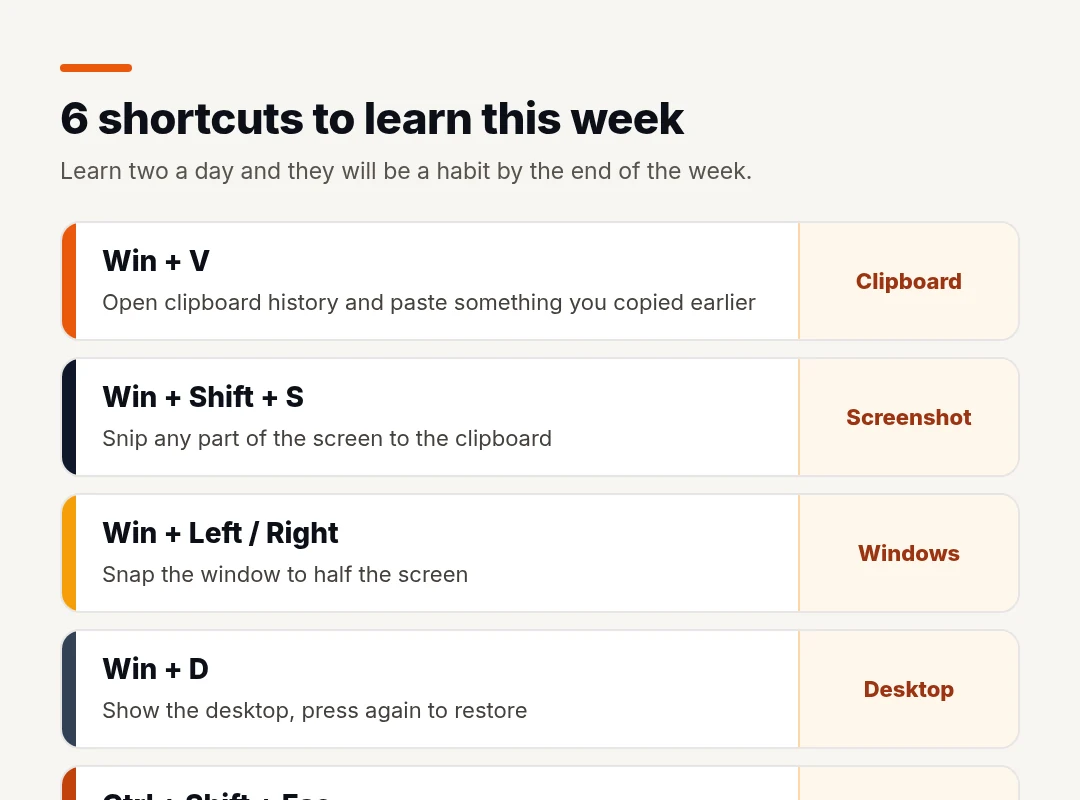
- Learn two at a time. Pick two from the “learn this week” chart, use them all day, then add two more.
- Hover over buttons. Many apps show the shortcut in the tooltip or next to the menu item.
- Remap what you need. Microsoft PowerToys includes Keyboard Manager, which can remap keys and create your own shortcuts.
- Use a keyboard with macro keys or a programmable layer if you rely on long shortcuts; our keyboards for programming guide includes several.
FAQ
What is the most useful Windows shortcut?
For most people, Win + V (clipboard history) and Win + Shift + S (screenshot) save the most time after the basics like copy and paste. Alt + Tab and the Win + arrow snapping shortcuts are close behind.
How do I turn on clipboard history in Windows?
Press Win + V. The first time, Windows asks you to turn it on. You can also turn it on in Settings > System > Clipboard.
Do these shortcuts work in Windows 10?
Most do. A few are Windows 11 only, such as Win + Z for snap layouts, Win + N for notifications and Ctrl + T for tabs in File Explorer.
How do I see all keyboard shortcuts in an app?
Check the app’s menus, where shortcuts are often shown next to each command, or its Help section. Many apps, including Microsoft Office, also list shortcuts in tooltips when you hover over a button.
Can I create my own keyboard shortcuts in Windows?
Yes. Microsoft PowerToys Keyboard Manager lets you remap keys and shortcuts. You can also right-click a desktop shortcut, open Properties and set a Shortcut key to open that app.
Related guide: What Is Fn Lock? How to Turn It On or Off on Any Keyboard
Related guide: Mac Keyboard Shortcuts: The Essential List (and Windows Keyboard Tips)
Sources

Experience is what matters at the end!!
Hi! This is Jacob Jay – founder of Keyboardgear.com! From childhood to adulthood, I’ve always remained passionate about IT, and the revolution in this industry, especially gaming on the PC can’t go out of my way. Since I’m an enthusiastic gamer, and I love to experience various gaming accessories, particularly mechanical keyboards, that really boost my gaming adventure manifolds. So, my nerve cells hit me to transfer my experiences into word form and share with others to identify the ideal keyboards perfectly fit for their gaming modes.
I know very well how hard it is to find the high-quality items available on the internet that ought to be exactly the same as seen as on the screen. But the counterfeiters have ruined the user’s trust. As I have passed all such situations, I’m obliged to deliver the genuinity and express the same as what I am saying.
So, now, I’m working on the mission to provide very helpful and frankly but trustworthy reviews and guides about various mechanical keyboards, mouses, and other gaming accessories as per my personal experiences and sound knowledge.