
If you have shopped for a gaming keyboard or mouse recently, you have seen the numbers: 1,000Hz, 4,000Hz, even 8,000Hz. That figure is the polling rate, and it is one of the most marketed—and most misunderstood—specs in PC peripherals. This guide explains what keyboard polling rate actually measures, how much input lag it really saves, what it costs in battery life and CPU load, and which setting makes sense for typing, everyday gaming, and competitive play.
Short version: 1,000Hz is the sensible default for almost everyone. Higher rates are real, but the time they save is a fraction of a millisecond, and only matters if the rest of your setup is just as fast.
What is polling rate?
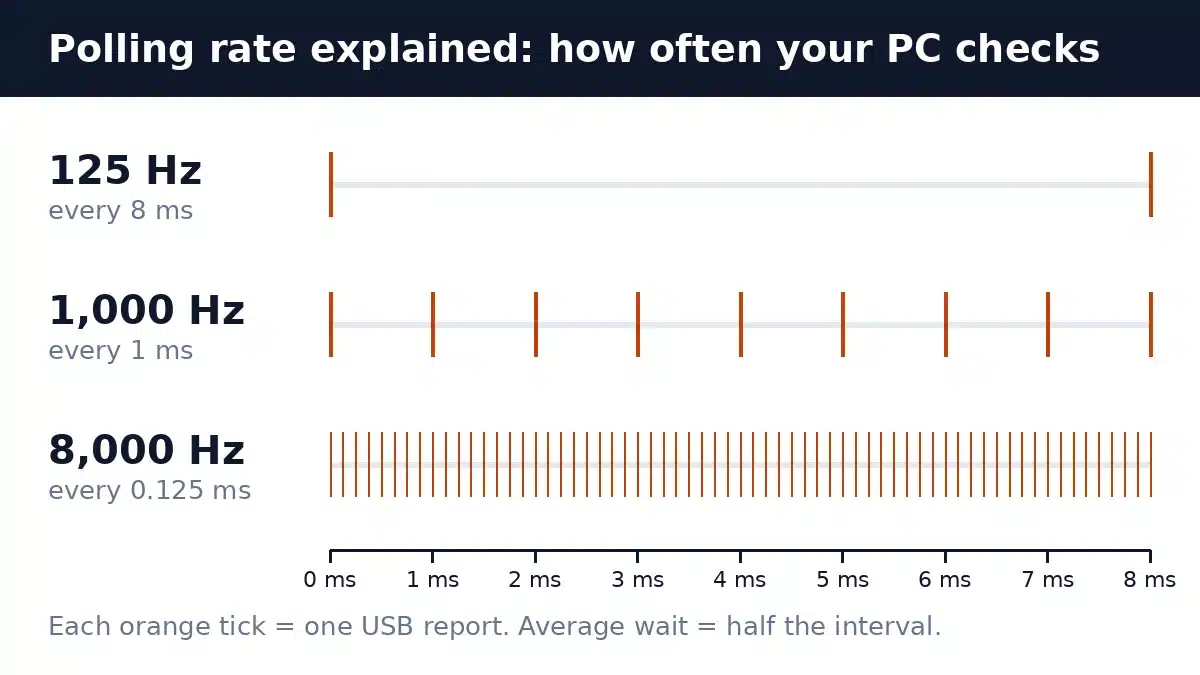
Polling rate is how many times per second your computer checks a USB keyboard (or mouse) for new input. It is measured in hertz (Hz). A keyboard set to 1,000Hz is asked for a report 1,000 times every second—once every millisecond. At 8,000Hz the check happens every 0.125 ms.
This matters because USB input is not instant. When you press a key, the keyboard cannot push that keypress to the PC the moment it happens; it has to wait until the computer’s next poll. The interval between polls is simply 1 ÷ polling rate:
- 125Hz = one report every 8 ms
- 500Hz = every 2 ms
- 1,000Hz = every 1 ms
- 4,000Hz = every 0.25 ms
- 8,000Hz = every 0.125 ms
Polling rate is a separate thing from your monitor’s refresh rate, your mouse’s DPI, or a switch’s actuation point. It only describes the reporting link between the device and the PC.
How much input lag does polling rate add?
Because a keypress can land at any moment between two polls, the extra wait varies from almost zero up to one full interval. On average it works out to half the interval. That gives a simple way to compare settings:
| Polling rate | Report interval | Average added delay | Worst-case added delay | Typical use |
|---|---|---|---|---|
| 125Hz | 8 ms | 4 ms | 8 ms | Basic USB office keyboards, many Bluetooth devices |
| 500Hz | 2 ms | 1 ms | 2 ms | Older gaming gear, some wireless modes |
| 1,000Hz | 1 ms | 0.5 ms | 1 ms | Standard for gaming keyboards and mice |
| 4,000Hz | 0.25 ms | 0.125 ms | 0.25 ms | High-end gaming mice and keyboards (2K–4K modes) |
| 8,000Hz | 0.125 ms | ~0.06 ms | 0.125 ms | Flagship esports keyboards and mice |
The jump that actually matters is from 125Hz to 1,000Hz: it trims about 3.5 ms off the average wait. Going from 1,000Hz to 8,000Hz is eight times more reports, but it only saves about 0.44 ms on average. That is a real number, just a very small one.
For context, programmer Dan Luu’s well-known keyboard latency measurements found differences of as much as 45 ms between keyboards from key movement to USB output—far larger than anything polling rate can change. Key travel alone can easily add 10 ms or more.
Polling rate vs scan rate: the spec most brands don’t show
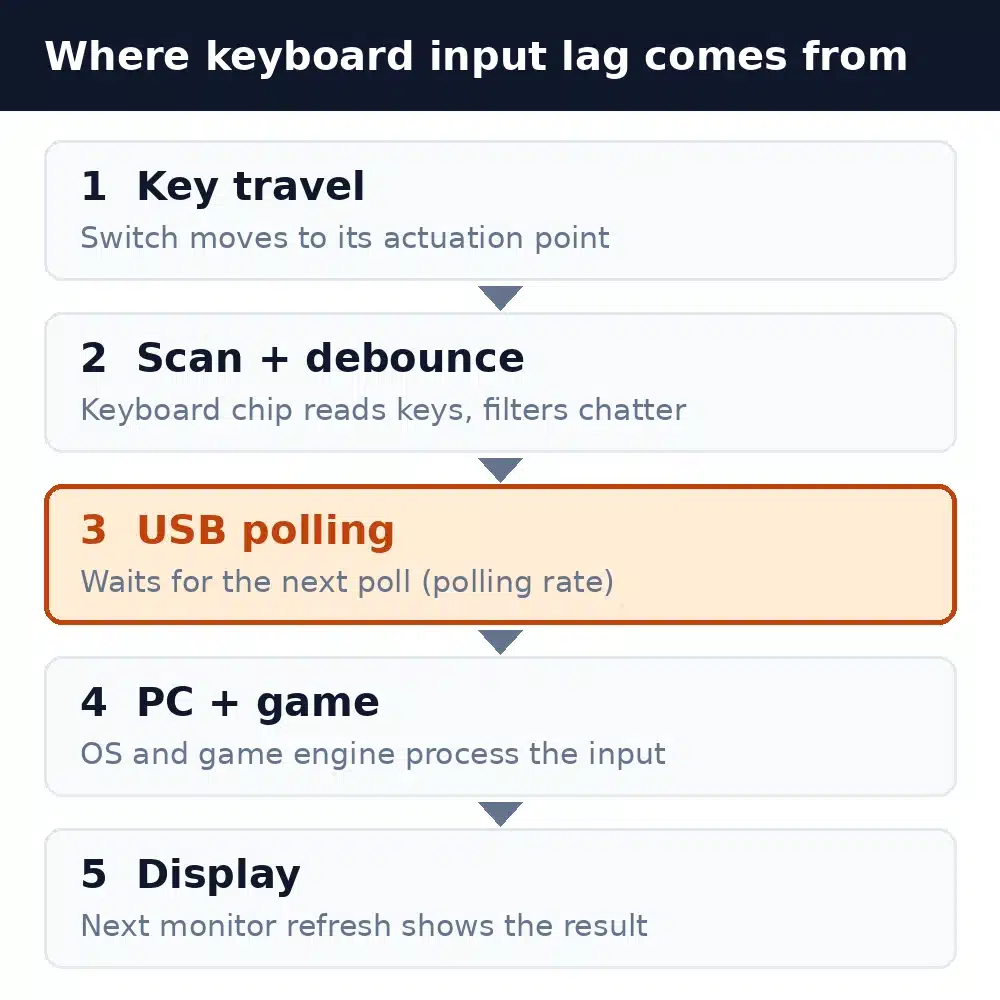
Polling rate is only the last hop between keyboard and PC. Inside the keyboard, a microcontroller has to scan every key to notice that one was pressed, then debounce it (filter the tiny electrical chatter a mechanical contact produces as it closes). If you are new to how switches and the key matrix work, our guide on how mechanical keyboards work covers the basics.
The scan rate and debounce time are rarely published, and they can quietly cancel out a big polling number. A keyboard can be polled 8,000 times per second and still only have fresh data ready a few thousand times per second. Corsair, for example, listed its K70 RGB Pro with 8,000Hz polling alongside a 4,000Hz key-scanning rate. Wooting draws the same distinction: it markets the 80HE as “true 8kHz” because its controller scans every key at the same 0.125 ms cadence as the USB polling, so a new report is ready on every poll.
The practical takeaway: treat polling rate as a ceiling, not a guarantee. Independent end-to-end latency tests (such as RTINGS’ keyboard latency measurements) tell you far more about real responsiveness than the polling number on the box.
Does a higher polling rate matter more for mice or keyboards?
Mice benefit more. A keyboard sends discrete events—key down, key up—so a higher rate only shortens the wait for each individual press. A mouse streams continuous movement, so more reports per second also means smoother cursor and camera motion, particularly on high-refresh monitors. Razer, for instance, pitches its 8,000Hz HyperPolling mainly as smoother visuals and lower latency when paired with a high-refresh display.
If you are deciding where to spend money for competitive gaming, a good sensor and a high-refresh monitor usually matter more than an 8K keyboard. Our guide to choosing a gaming mouse covers what to look for on the mouse side.
Wired, 2.4GHz wireless and Bluetooth polling rates
The connection type often caps the polling rate, which is why the same keyboard can behave differently in each mode:
- Wired USB: Full-speed USB devices top out at 1,000Hz. Rates above that (2,000–8,000Hz) require a high-speed USB connection, which is how 8K keyboards and mice reach 0.125 ms intervals.
- 2.4GHz dongle: A dedicated gaming receiver commonly supports up to 1,000Hz, and some newer dongles go far beyond. Razer’s HyperPolling dongle advertises up to 8,000Hz wireless.
- Bluetooth: Standard Bluetooth Low Energy keyboards and mice can’t exchange data more often than every 7.5 ms, which works out to roughly 133Hz at best. SteelSeries, for example, lists 125Hz as the Bluetooth default on its wireless gear. The Bluetooth Core 6.2 “Shorter Connection Intervals” feature cuts the minimum to 375 µs, but only devices and hosts that both support it benefit.
This is one reason gamers keep using a dongle or cable even when a keyboard supports Bluetooth. For a deeper look at the trade-offs, see wired vs wireless keyboards and are wireless keyboards good for gaming.
The downsides of very high polling rates
Battery life on wireless devices
More reports means the radio works harder. Razer’s own specifications for the Viper V3 Pro mouse show the cost clearly: up to 95 hours at 1,000Hz, 62 hours at 2,000Hz, 40 hours at 4,000Hz, and just 17 hours at 8,000Hz. Wireless keyboards follow the same principle, even if exact numbers vary by model.
CPU load and game compatibility
At 8,000Hz the PC has to process eight times as many input reports as at 1,000Hz. On a busy or older CPU that can cause stutter. Razer’s own troubleshooting advice for HyperPolling devices is to close background apps, avoid overlays, and drop to 4,000Hz or 2,000Hz if a game stutters, noting that some game engines—especially older titles—were never designed for high-polling devices. Razer also notes that the Windows 11 Moment 3 update (KB5027303) added optimizations for high report rate devices.
USB ports and hubs
For the highest rates, plug the device straight into a USB port on the PC rather than a hub, monitor port or front-panel extension. Razer recommends keeping its HyperPolling dongle within about 30 cm and in line of sight of the device, and away from active USB 3 hubs that can add 2.4GHz interference.
Which polling rate should you use?
- Typing, office work and coding: Whatever the keyboard defaults to is fine. Even 125Hz is unnoticeable for writing. If it is wireless, a lower rate can mean longer battery life.
- Everyday gaming: 1,000Hz. It removes almost all the polling delay that is worth removing and is supported everywhere.
- Competitive FPS on a high-refresh monitor: Try 2,000–8,000Hz if your keyboard or mouse supports it, then watch for stutter. If frame times get worse, step back down—the input gain you lose is well under a millisecond.
- Wireless on battery: 1,000Hz is the best balance. Save 4K/8K for wired play or tournament sessions.
If you are still choosing hardware, polling rate should be a tie-breaker, not the headline. Switch feel, layout, and build matter more day to day; our breakdown of whether mechanical keyboards are better for gaming and our best wireless gaming keyboards guide are good next stops.
How to check and change your polling rate
Most gaming keyboards and mice set polling rate in the manufacturer’s software or with a key combination:
- Razer: open Razer Synapse, select the device, go to the Performance tab, and choose the polling rate.
- Other brands: look for “polling rate” or “report rate” in the companion app (Logitech G HUB, Corsair iCUE, SteelSeries GG, Wooting’s web app, and so on). Some keyboards also use an Fn shortcut—check the manual.
- Basic office keyboards: usually have no setting at all; they run at a fixed rate chosen by the manufacturer.
Be careful with browser-based “keyboard polling rate tests”. Your typing rhythm varies by tens of milliseconds and browsers add their own timing noise, so a web page cannot reliably measure a 1 ms or 0.125 ms interval. Trust the setting in the vendor software and independent lab measurements instead.
FAQ
Is 1,000Hz polling rate good for a keyboard?
Yes. 1,000Hz (1 ms) is the long-standing standard for gaming keyboards and is more than enough for typing and most gaming. Its average polling delay is about 0.5 ms.
Can you feel the difference between 1,000Hz and 8,000Hz?
Very few people can. The average saving is about 0.44 ms per keypress, which is small next to key travel, debounce, game engine and display delays. The difference is easier to notice on a mouse, as smoother motion on a high-refresh monitor, than on a keyboard.
Does polling rate affect typing speed?
No. Words per minute depends on your fingers, layout and switch feel. Polling rate only changes how long the PC waits to hear about each keypress, by fractions of a millisecond at gaming rates.
Is a higher polling rate bad for my PC?
It will not damage anything, but it does increase CPU work. On slower systems or older games, 4,000–8,000Hz can cause stutter. If that happens, lower it to 1,000Hz or 2,000Hz.
Why does my wireless keyboard have a lower polling rate on Bluetooth?
Standard Bluetooth Low Energy can only exchange data every 7.5 ms at the fastest, which is roughly 133Hz. Use the 2.4GHz dongle or a cable for gaming-level polling.
Is polling rate the same as response time?
No. Polling rate is how often the PC asks for data. Total response time (input lag) also includes key travel, the keyboard’s scan and debounce, PC processing and your monitor. A “0.125 ms response” claim on an 8K keyboard describes the polling interval, not the whole chain.
The bottom line
Polling rate is how often your PC checks your keyboard for new input. Moving from a basic 125Hz board to 1,000Hz is a meaningful upgrade for gaming; moving from 1,000Hz to 8,000Hz is a sub-millisecond refinement that only pays off when the keyboard’s internal scanning, your PC, your game and your monitor are all equally fast. Set 1,000Hz, forget about it, and spend your attention on the switch, layout and build you will feel every day. For more on what makes a board feel fast, see our mechanical vs membrane keyboard comparison.
