

Quick answer
If you’ve lost your mouse’s USB receiver, first check whether the mouse supports Bluetooth; if it does, pair it directly in your computer’s Bluetooth settings. If it uses a replaceable receiver, such as Logitech’s Logi Bolt or Unifying, buy a matching replacement and pair it with the maker’s software. Many basic mice use a receiver paired at the factory, so a generic replacement won’t work. Contact the maker, and if they can’t help, you’ll need a new mouse.
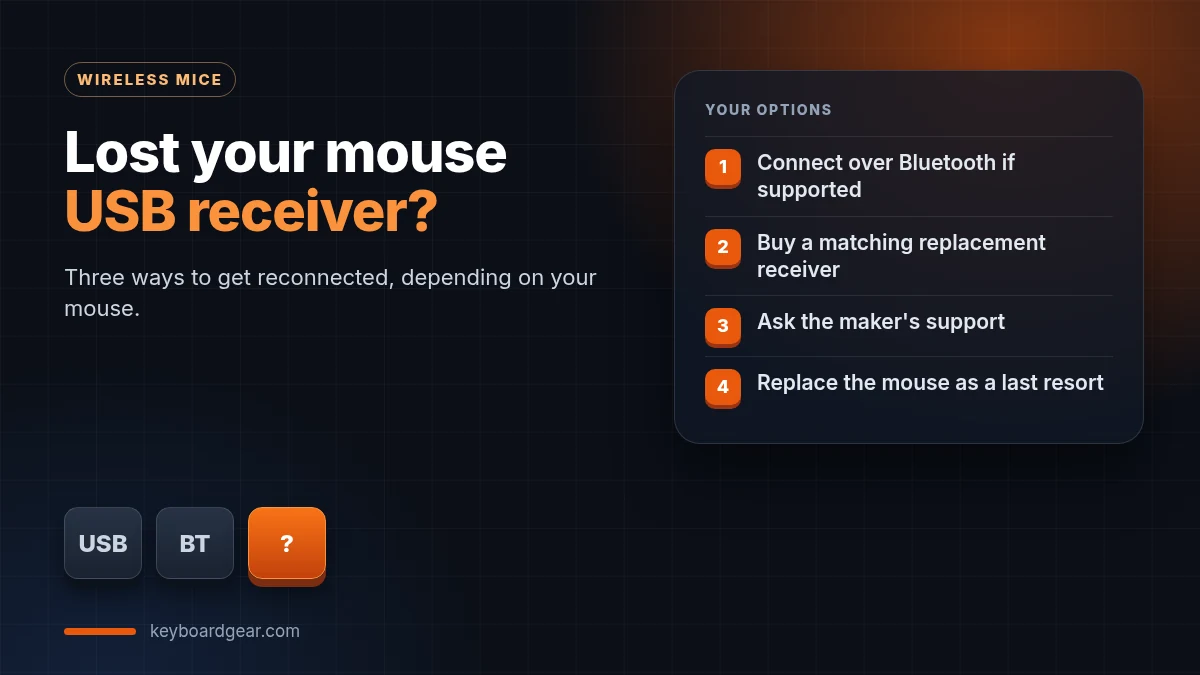
The tiny receiver is the easiest part of a wireless mouse to lose. Before buying a new mouse, check what your model supports.
Step 1: Find your mouse’s model and logos
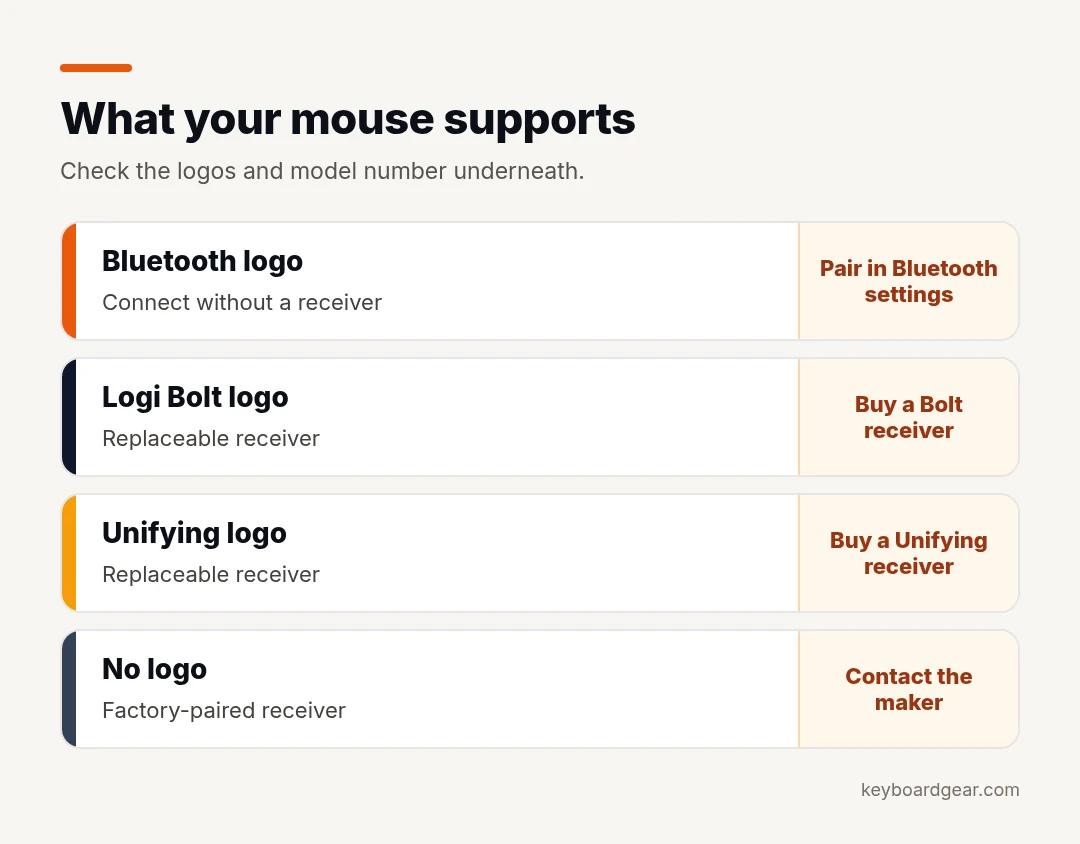
Turn the mouse over. Look for:
- The model number (for example, on a label or printed in the plastic).
- A Bluetooth logo.
- A Logi Bolt or Unifying logo on Logitech mice.
Search the model number on the maker’s site to check how it connects.
Option 1: Connect over Bluetooth
Many mice support both a USB receiver and Bluetooth. If yours does:
- Put the mouse in pairing mode, usually by holding a connect or channel button until a light flashes.
- Windows: Settings > Bluetooth & devices > Add device > Bluetooth.
- Mac: System Settings > Bluetooth, then connect the mouse.
- Chromebook: Quick Settings > Bluetooth.
Our Bluetooth keyboard connection guide uses the same steps for mice.
Multi-device mice often have numbered channels. The receiver may have used channel 1; switch to channel 2 or 3 to pair over Bluetooth without disturbing anything else.
Option 2: Buy a replacement receiver
Some receivers can be paired to new devices. Logitech sells replacement Unifying and Logi Bolt receivers, but they only work with devices carrying the matching logo, and the two types aren’t interchangeable. See Logitech Bolt vs Unifying for the difference. Pair the new receiver using Logitech’s software; our Logitech connection guide walks through it.
Logitech notes that receivers other than Bolt or Unifying should be handled through its customer support.
Option 3: Ask the maker
Most basic wireless mice, from many brands, use a receiver that’s paired with the mouse at the factory. A generic receiver from another listing usually won’t pair. Contact the maker’s support with your model number; some sell matched replacements or offer help under warranty.
Be wary of “universal” receivers that claim to work with any mouse. Unless the listing names your exact model and receiver type, it’s unlikely to work.
Option 4: Replace the mouse
If your mouse has no Bluetooth and the maker can’t supply a receiver, a new mouse is often the cheapest fix. This time, consider a model with both Bluetooth and a receiver, so losing one isn’t a problem. Our best wireless mice all support at least one easy reconnection method.
How to avoid losing it again
- Leave a nano receiver plugged into your laptop if it doesn’t stick out much.
- Use the receiver storage slot many mice have under the battery cover when traveling.
- Choose a Bluetooth mouse for travel; see wireless mouse lag if Bluetooth feels less responsive.
Check these places first
Before you buy anything, check the obvious: the mouse’s battery compartment (some mice store a small receiver inside), the side of the laptop bag, the USB port you last used and anything plugged in nearby. Receivers are tiny and often fall out when a laptop is moved.
Does your mouse also have Bluetooth?
Many wireless mice offer both a receiver and Bluetooth. Look for a small switch or button on the underside that selects the connection type. If yours has Bluetooth, you may not need a receiver at all. It’s usually worth connecting that way while you decide what to do.
After you get a replacement
- Plug the receiver in directly rather than through a hub.
- Turn the mouse off and on.
- Follow the maker’s pairing steps if it doesn’t connect automatically.
If the mouse still doesn’t respond, work through mouse not working and check the battery.
Is it time for a new mouse?
If you can’t find a compatible receiver, a new mouse may be the simpler route. See our best wireless mouse picks. If you want to understand receiver types better, Logitech Bolt vs Unifying explains how they differ, and wireless mouse lag helps if the new connection feels slow.
FAQ
Can I use a wireless mouse without the USB receiver?
Only if it supports Bluetooth. Otherwise it needs a matching receiver.
Will any USB receiver work with my mouse?
Usually not. Most receivers are paired to their mouse at the factory. Logitech’s Bolt and Unifying receivers are exceptions for matching devices.
Can I buy a replacement Logitech receiver?
Yes, for devices with the Bolt or Unifying logo. Buy the type that matches your mouse.
How do I pair a replacement Unifying receiver?
Use Logitech’s pairing software, which detects the receiver and walks you through adding your mouse.
Can I pair my mouse to my keyboard’s receiver?
Only if both use the same Logitech Bolt or Unifying system.
Sources
- Logitech Support: Purchasing a replacement USB receiver
- Logitech Support: Bolt and Unifying compatibility
Final thoughts
Check for Bluetooth first, then for a replaceable Bolt or Unifying receiver. If your mouse uses a factory-paired receiver, ask the maker before buying a new mouse, and choose a Bluetooth-capable model next time.

Experience is what matters at the end!!
Hi! This is Jacob Jay – founder of Keyboardgear.com! From childhood to adulthood, I’ve always remained passionate about IT, and the revolution in this industry, especially gaming on the PC can’t go out of my way. Since I’m an enthusiastic gamer, and I love to experience various gaming accessories, particularly mechanical keyboards, that really boost my gaming adventure manifolds. So, my nerve cells hit me to transfer my experiences into word form and share with others to identify the ideal keyboards perfectly fit for their gaming modes.
I know very well how hard it is to find the high-quality items available on the internet that ought to be exactly the same as seen as on the screen. But the counterfeiters have ruined the user’s trust. As I have passed all such situations, I’m obliged to deliver the genuinity and express the same as what I am saying.
So, now, I’m working on the mission to provide very helpful and frankly but trustworthy reviews and guides about various mechanical keyboards, mouses, and other gaming accessories as per my personal experiences and sound knowledge.