

Quick answer
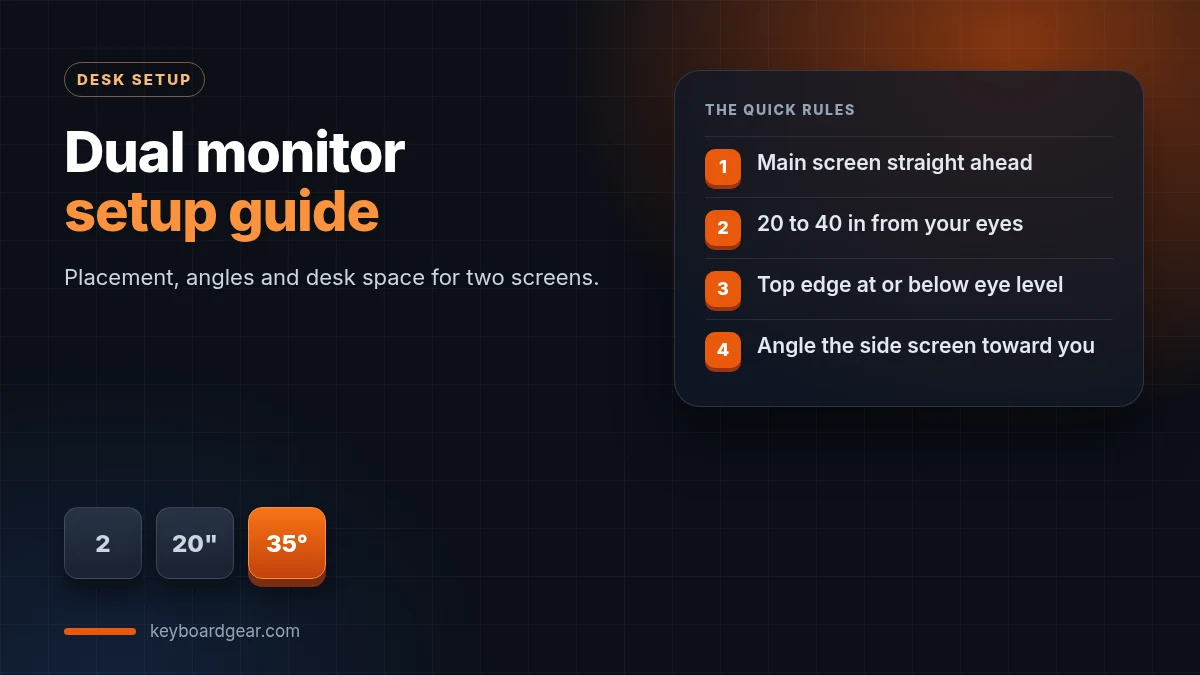
For a comfortable dual monitor setup, put the screen you use most directly in front of you, about 20 to 40 inches from your eyes, with the top edge at or slightly below eye level. If you use both screens equally, center the point where they meet on your nose and angle both inward. Keep both screens at the same height and set the arrangement in Windows or macOS so the cursor moves naturally between them.
A second monitor gives you room for a reference document beside your work, a chat window beside a spreadsheet, or a timeline beside a preview. Placed badly, it also means hours with your head turned to one side. Start with how you’ll use the screens, then place them.
Step 1: Decide which screen is your main one
Be honest about your split. Most people look at one screen far more than the other.
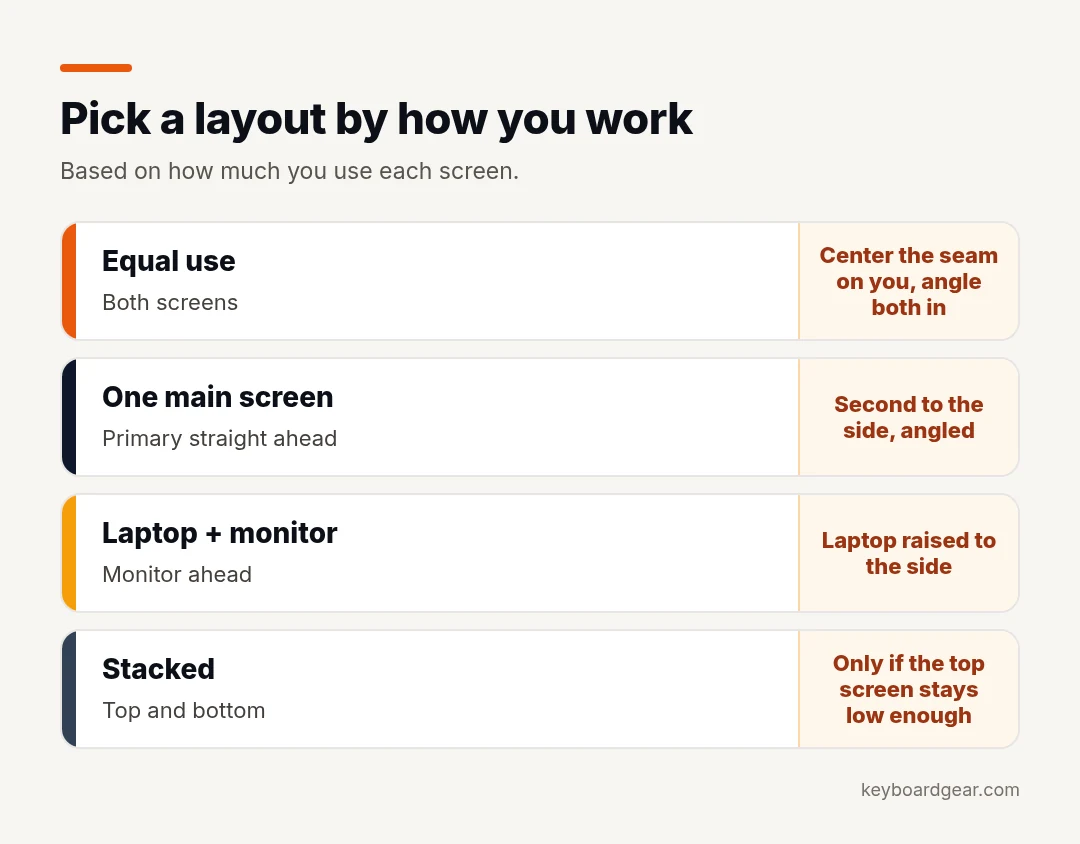
- One main screen (most people): put it directly in front of you, centered on your keyboard. Put the second screen to the side.
- Equal use: center the seam between the two screens on your body, so you turn slightly left or right but never far.
- Mostly one, occasionally the other: treat it as a main screen setup and place the second where you can glance at it.
OSHA’s workstation guidance says monitors should not be more than 35 degrees to your left or right, and that working with your head turned for long periods loads the neck unevenly.
Step 2: Set the distance
OSHA suggests a viewing distance of roughly 20 to 40 inches (50 to 100 cm) from your eyes to the screen: far enough that you can read everything with your head upright and your back against the chair. With two screens, the side screen is often a little farther from your eyes than the main one, so increase its text scaling if you find yourself leaning toward it.
If your desk is shallow, our desk setup guide and a monitor arm can free up depth by pulling the screens off the desktop.
Step 3: Match the height
Set the top edge of each screen at or slightly below eye level, and keep both screens at the same height so your eyes don’t jump up and down as you switch. Our monitor height guide explains the details, including what to do if you wear bifocals.
Two different monitors rarely sit at the same height on their stock stands. Fixes include a dual arm, a riser under the shorter one, or VESA mounts; see what a VESA mount is before buying an arm.
Step 4: Angle the screens
- Main and side: keep the main screen square to you and turn the side screen inward so it faces your eyes rather than the wall.
- Equal use: angle both screens inward slightly, forming a shallow V around you.
- Tilt: tilt each screen so it’s roughly perpendicular to your line of sight. Tilting back too far can pick up glare from ceiling lights.
Sit in your normal position and look at each screen in turn. If you have to turn your shoulders, not just your head and eyes, the screen is too far to the side.
Step 5: Arrange the displays in your operating system
Your computer doesn’t know which screen is on the left until you tell it.
| System | Where to find it | What to set |
|---|---|---|
| Windows 11 | Settings > System > Display | Drag the screens to match your desk, choose Extend these displays, set your main display |
| macOS | System Settings > Displays > Arrange | Drag the display icons to match your desk; drag the menu bar to the main display |
On Windows, Windows logo key + P switches quickly between extend, duplicate and single-screen modes.
Laptop plus one monitor
A laptop and one external monitor is the most common “dual” setup. Put the external monitor straight ahead as your main screen, raise the laptop to the side on a stand so its screen is closer to the same height, and use an external keyboard and mouse. If you share one desk between two computers, see one keyboard and mouse for two computers.
Don’t forget your chair and keyboard
Two well-placed screens won’t help if the rest of the setup is off. Run through our how to sit at a desk checklist so your keyboard and chair height support the screen placement.
FAQ
Should dual monitors be angled?
Yes. Angle a side screen inward so it faces you. If you use both equally, angle both slightly into a shallow V.
Where should the main monitor go in a dual setup?
Directly in front of you, centered on your keyboard.
How far should two monitors be from my eyes?
OSHA suggests about 20 to 40 inches; increase text size on the screen that ends up farther away.
Should both monitors be the same height?
Yes. Matching heights stops your eyes and neck from moving up and down when you switch screens.
Are stacked monitors a good idea?
Only if the top screen stays low enough that you don’t tilt your head back to read it.
Sources
- OSHA: Computer Workstations eTool, Monitors
- Microsoft: How to use multiple monitors in Windows
- Apple: Extend or mirror your Mac desktop across multiple displays
Related guide: Best USB-C Docking Stations and Hubs for a Laptop Desk Setup
Final thoughts
Put the screen you use most straight ahead, keep both at the same height and a comfortable distance, angle the second screen toward you, and tell your operating system how they’re arranged. That’s most of what makes two screens feel like one workspace.

Experience is what matters at the end!!
Hi! This is Jacob Jay – founder of Keyboardgear.com! From childhood to adulthood, I’ve always remained passionate about IT, and the revolution in this industry, especially gaming on the PC can’t go out of my way. Since I’m an enthusiastic gamer, and I love to experience various gaming accessories, particularly mechanical keyboards, that really boost my gaming adventure manifolds. So, my nerve cells hit me to transfer my experiences into word form and share with others to identify the ideal keyboards perfectly fit for their gaming modes.
I know very well how hard it is to find the high-quality items available on the internet that ought to be exactly the same as seen as on the screen. But the counterfeiters have ruined the user’s trust. As I have passed all such situations, I’m obliged to deliver the genuinity and express the same as what I am saying.
So, now, I’m working on the mission to provide very helpful and frankly but trustworthy reviews and guides about various mechanical keyboards, mouses, and other gaming accessories as per my personal experiences and sound knowledge.