

Quick answer
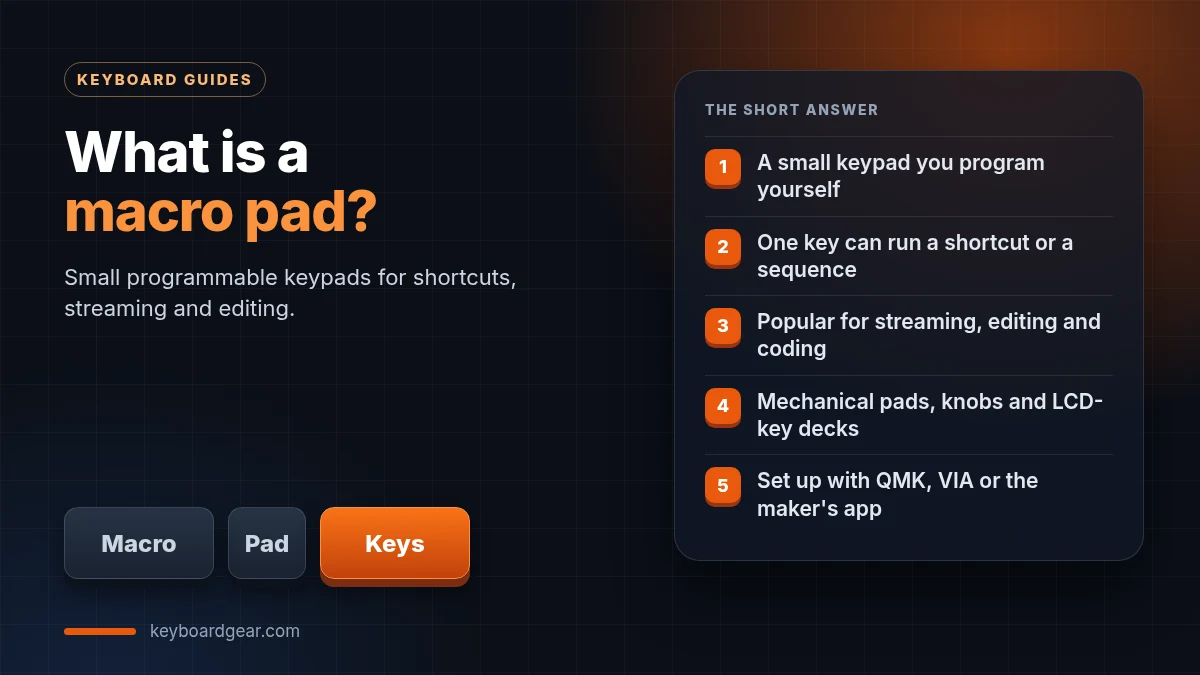
A macro pad is a small, separate keypad whose keys you program yourself. Instead of typing letters, each key can send a keyboard shortcut, launch an app, type a saved phrase or run a sequence of actions (a macro). People use them to speed up repetitive work in video editing, design, coding, streaming and gaming.
Most macro pads plug in over USB and appear to your computer as a keyboard. You set them up with firmware tools such as QMK or VIA, or with the maker’s own app.
If you find yourself pressing the same three-key shortcut hundreds of times a day, or digging through menus for the same commands, a macro pad is designed for you. It sits next to your keyboard and turns those actions into single key presses.
This guide explains what a macro pad is, the main types, what people use them for, and how to set one up.
How a macro pad works
At its simplest, a macro pad is a tiny keyboard with somewhere between a handful and a couple of dozen keys. The difference is that you decide what each key does.
In computing, a macro is a saved sequence of inputs that runs from a single trigger. On a macro pad, one key press might:
- Send a shortcut, such as Ctrl + Shift + S.
- Type a text snippet, like your email signature.
- Run a sequence, such as copy, switch window, paste and press Enter.
- Launch an app or website, or control media and volume.
Many pads also support layers, so a key does one thing normally and something else while you hold a layer key, multiplying the number of actions you can reach.
Types of macro pads
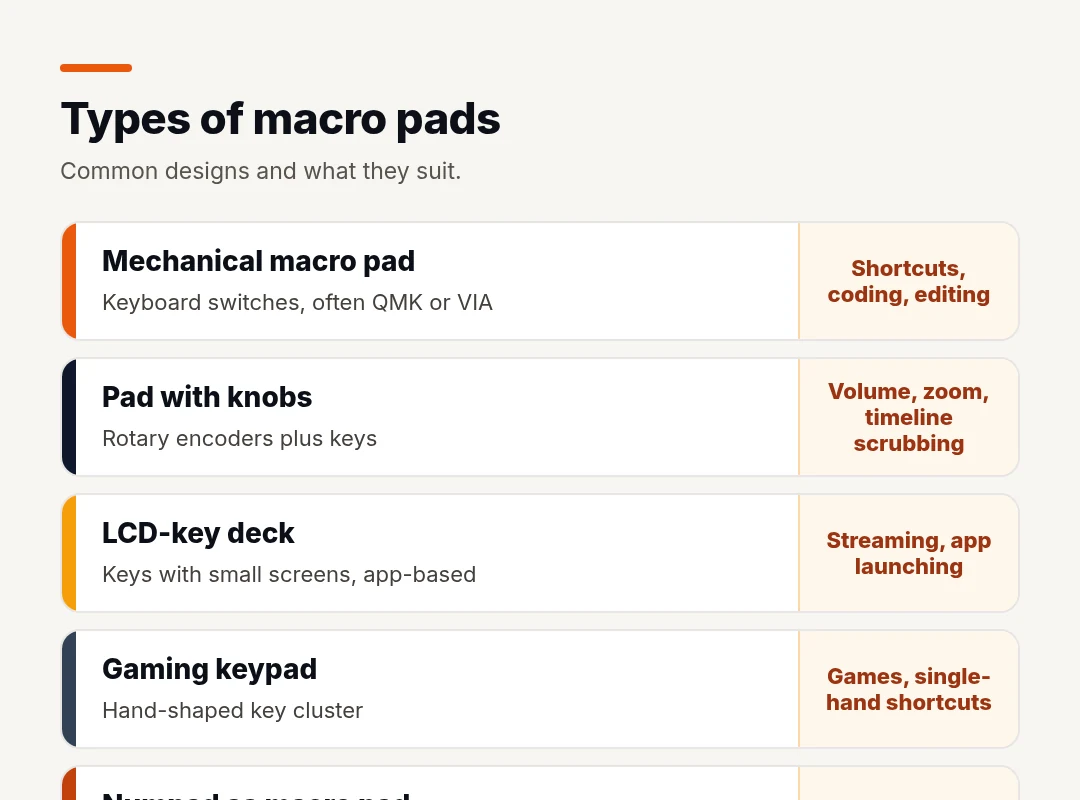
Mechanical macro pads
These use the same switches and keycaps as a mechanical keyboard, in grids such as 3 × 3 or 4 × 4. Many run QMK firmware, so the key assignments are stored on the pad itself and work on any computer without extra software. Enthusiast pads are often hot-swappable and come as kits.
Pads with knobs
Some pads add rotary encoders, knobs you can turn and often press. They’re great for volume, zooming, brush size or scrubbing through a video timeline.
LCD-key decks
Devices like Elgato’s Stream Deck have keys with small screens that show an icon for each action. Elgato lists the Stream Deck MK.2 with 15 customisable LCD keys. These rely on the maker’s app, which handles actions, plugins and multiple pages of keys. They’re especially popular with streamers; see our best keyboards for streaming for related gear.
Gaming keypads
Gaming keypads are hand-shaped clusters of keys for one-handed play, and they double as macro pads for creative apps. We cover them in our guide to one-handed gaming keyboards.
A spare numpad
A separate number pad can work as a basic macro pad if you remap its keys with software. It’s a cheap way to try the idea; our 10-key typing guide covers numpads themselves.
What people use macro pads for
| Use | Example keys |
|---|---|
| Video editing | Cut, ripple delete, add marker, next edit; a knob for scrubbing |
| Photo and design work | Brush size, undo, zoom, switch tools, export |
| Coding | Build, run tests, comment line, switch branches, code snippets |
| Streaming | Switch scenes, mute mic, start recording, play sound effects |
| Office work | Join or mute a call, paste a signature, lock screen, launch apps |
| Gaming | Ability keys, push-to-talk, game-specific macros |
| Accessibility | Complex shortcuts on one key for people who find key chords difficult |
Macro pad vs keyboard shortcuts
Everything a macro pad does can usually be done from your main keyboard with shortcuts and remapping software. The advantage of a pad is convenience: you get dedicated, labelled keys that don’t steal from your typing keys, and you don’t need to remember finger-twisting combinations. If you only use a few shortcuts, learning them may be enough; our Windows keyboard shortcuts list is a good start.
How to set up a macro pad
QMK and VIA
If your pad runs QMK, you can build a custom keymap and flash it, which gives the most control, including layers, tap-hold keys and macros. If it also supports VIA, you can change keys in a graphical app without flashing new firmware. Our guide to QMK vs VIA explains the difference.
Manufacturer software
Branded pads and LCD-key decks usually use the maker’s app. These are the easiest to set up and often include app-specific profiles, but the app may need to be running for everything to work.
Remapping software
For a simple numpad or a pad without custom firmware, desktop remapping tools can assign actions to keys. Our guide on how to remap keys covers the options for Windows and Mac.
Setup tips
- Start with five or six actions you use most, not twenty.
- Group related actions together on the pad.
- Label keys, with relegendable keycaps or an LCD deck, until you’ve memorised them.
- Use layers or profiles per app once the basics stick.
- Back up your configuration.
Do you need a macro pad?
A macro pad is worth it if you spend hours in the same app doing the same actions, or if you stream and need to switch things quickly without looking away. It’s less useful if your work is mostly typing prose, or if you already use your keyboard’s layers and shortcuts well. A compact keyboard with programmable layers can do much of the same job; our keyboard sizes guide explains the trade-offs.
Example macro pad layouts
If you’re not sure where to start, these starter layouts show how people typically assign a 3 × 3 pad. Swap in the shortcuts your own apps use.
| Key | Video editor | Coder | Remote worker |
|---|---|---|---|
| 1 | Play / pause | Run | Mute microphone |
| 2 | Cut at playhead | Debug | Camera on / off |
| 3 | Ripple delete | Run tests | Raise hand or react |
| 4 | Add marker | Comment line | Share screen |
| 5 | Next edit | Format document | Paste email signature |
| 6 | Previous edit | Go to file | Open calendar |
| 7 | Undo | Toggle terminal | Lock screen |
| 8 | Export | Commit (custom macro) | Screenshot to clipboard |
| 9 | Layer switch | Layer switch | Layer switch |
Keeping one key as a layer switch lets nine physical keys do eighteen or more jobs. Put the layer key in the same spot on every profile so your hand always knows where it is.
Wired or wireless?
Most mechanical macro pads are wired over USB-C, which means no batteries and no pairing. Wireless pads are tidier and easy to move between computers, but you’ll need to charge them, and some only support their full feature set when wired. LCD-key decks are usually wired because the screens draw power.
How big a macro pad do you need?
- 3 to 6 keys: a handful of high-value shortcuts, such as mute, push-to-talk and screenshot.
- 9 to 12 keys: the sweet spot for most editing and coding workflows, especially with layers.
- 15 or more keys, or LCD keys: streaming, where you switch scenes, sounds and overlays, or anyone who wants a separate page of keys per app.
- Knobs: add one if you adjust volume, zoom or timelines often. A knob replaces several key presses with one smooth turn.
Common mistakes
- Mapping too much at once. You’ll forget what most keys do and go back to the keyboard. Start small.
- Copying someone else’s layout. Shortcuts are personal; map what you repeat.
- Forgetting app focus. Many shortcuts only work when the right window is active. Profiles that switch automatically per app avoid this.
- Relying on software that isn’t running. If your pad uses a companion app, make sure it starts with your computer. Firmware-based pads like QMK boards don’t have this problem.
- Breaking game rules. Check whether macros are allowed before using them in online games.
FAQ
What is the difference between a macro pad and a Stream Deck?
A Stream Deck is a type of macro pad with small screens on each key and app-based setup. Mechanical macro pads use regular switches and often store their settings in firmware.
Do macro pads work on Mac?
Most do, because they appear as a standard keyboard. Check that the setup software supports macOS if the pad needs it.
Can I make my own macro pad?
Yes. Macro pad kits are a popular first build, and QMK-compatible boards can be programmed for free.
Are macro pads allowed in games?
It depends on the game. Some competitive games prohibit macros that automate multiple actions from one press. Check the game’s rules before using them.
Can a numpad be used as a macro pad?
Yes, with remapping software. It’s an inexpensive way to try the idea before buying a dedicated pad.
Bottom line
A macro pad is a small programmable keypad that turns shortcuts and repetitive sequences into single key presses. Mechanical pads with QMK or VIA suit coders and editors, LCD-key decks suit streamers, and a spare numpad is a cheap way to try it. Start with a few actions you use constantly and build from there.
Sources

Experience is what matters at the end!!
Hi! This is Jacob Jay – founder of Keyboardgear.com! From childhood to adulthood, I’ve always remained passionate about IT, and the revolution in this industry, especially gaming on the PC can’t go out of my way. Since I’m an enthusiastic gamer, and I love to experience various gaming accessories, particularly mechanical keyboards, that really boost my gaming adventure manifolds. So, my nerve cells hit me to transfer my experiences into word form and share with others to identify the ideal keyboards perfectly fit for their gaming modes.
I know very well how hard it is to find the high-quality items available on the internet that ought to be exactly the same as seen as on the screen. But the counterfeiters have ruined the user’s trust. As I have passed all such situations, I’m obliged to deliver the genuinity and express the same as what I am saying.
So, now, I’m working on the mission to provide very helpful and frankly but trustworthy reviews and guides about various mechanical keyboards, mouses, and other gaming accessories as per my personal experiences and sound knowledge.