

Quick answer
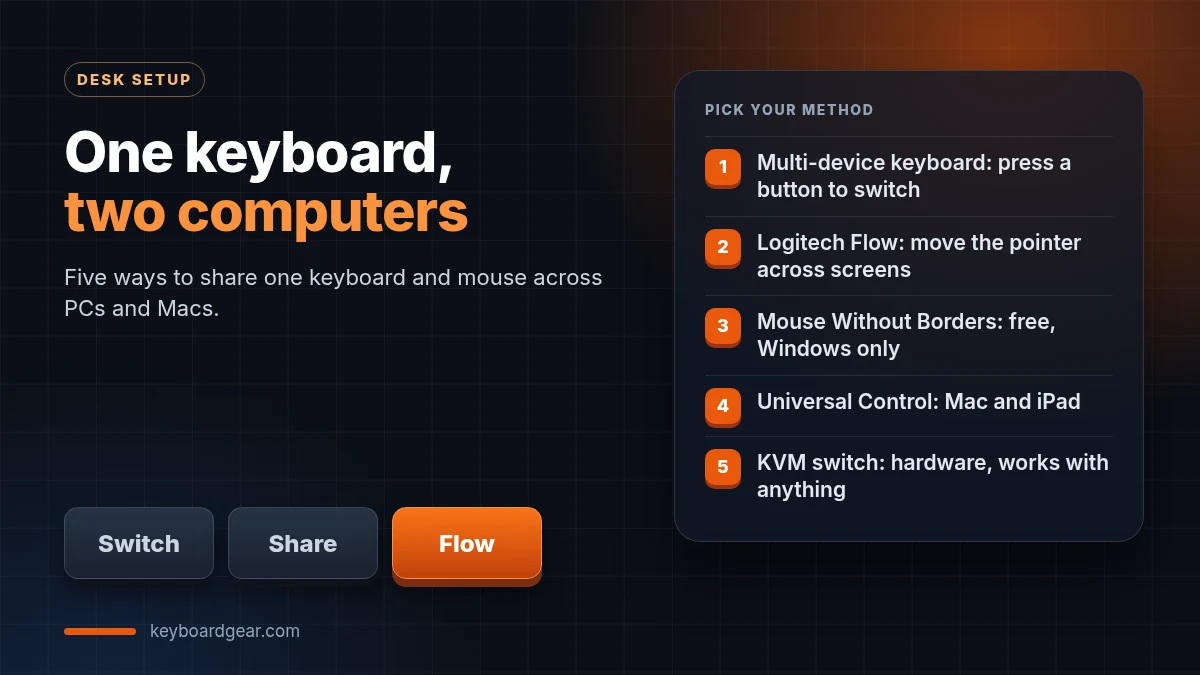
To use one keyboard and mouse for two computers, choose one of these:
1. A multi-device keyboard and mouse that pairs with two or three computers and switches with a button.
2. Logitech Flow, which moves a supported Logitech mouse (and paired keyboard) between Windows and Mac computers on the same network.
3. Microsoft Mouse Without Borders in PowerToys, free for up to four Windows PCs.
4. Apple Universal Control, built in for one Mac plus up to two Macs or iPads.
5. A KVM switch, a hardware box that switches your keyboard, mouse and often monitor between computers with no software.
Plenty of people work with two computers on one desk: a work laptop and a personal PC, a Mac and a Windows machine, or a desktop and a gaming rig. Two keyboards and two mice take up space and get confusing. The good news is that sharing one set is easy, and you can choose between hardware and software depending on your computers and how much you want to spend.
This guide covers five methods, how to set each one up and which suits which setup.
Method 1: A multi-device keyboard and mouse
The simplest method needs no extra software. Many wireless keyboards and mice can pair with two or three devices and switch between them with a button. Logitech calls it Easy-Switch; other brands use numbered Bluetooth channel keys.
How to set it up:
- Put the keyboard in pairing mode on channel 1 and pair it with the first computer.
- Switch to channel 2, enter pairing mode again and pair with the second computer.
- Repeat for the mouse.
- Press the channel buttons to switch between computers.
You can mix connections: for example, use the included USB receiver on a desktop and Bluetooth on a laptop. Our guide on how to connect a Bluetooth keyboard walks through pairing on Windows, Mac, iPad and Android.
Best for: anyone who switches occasionally and wants something that works on any computer, including locked-down work laptops. The downside is pressing two buttons, one on the keyboard and one on the mouse, each time you switch. If you need new devices, our best wireless keyboard and mouse combo guide includes multi-device sets.
Method 2: Logitech Flow
Logitech Flow, part of the Logi Options+ app, lets a supported Logitech mouse move between computers just by pushing the pointer off the edge of one screen and onto the next. A compatible Logitech keyboard follows the mouse, and you can copy and paste text, images and files between computers. It works across Windows and macOS.
How to set it up, per Logitech:
- Install the latest Logi Options+ on both computers.
- Pair your mouse to each computer using a different channel.
- Connect both computers to the same Wi-Fi or Ethernet network.
- Enable Flow in Logi Options+ and arrange the computers to match their physical position.
Best for: owners of Flow-compatible Logitech mice such as the MX Master range who use a Windows PC and a Mac side by side. Both computers need the app and network access, which some company IT policies block.
Method 3: Mouse Without Borders (Windows)
Microsoft’s Mouse Without Borders is a free tool in PowerToys. According to Microsoft, it lets you control up to four computers from the same machine, share the clipboard and transfer files between them. Move the pointer to a screen edge to jump to the next PC, or use a Ctrl + Alt + number shortcut.
How to set it up:
- Install Microsoft PowerToys on every Windows PC.
- Open Mouse Without Borders on the first PC and generate a security key.
- On the other PCs, enter that key and the first PC’s name to connect.
- Arrange the machines in the layout grid to match your desk.
It needs all computers on the same network and may need a firewall rule, which PowerToys can add. Best for: households and offices with two to four Windows PCs.
Method 4: Universal Control (Mac and iPad)
Apple’s Universal Control lets the keyboard, mouse or trackpad of one Mac control up to two other nearby Macs or iPads. Each device keeps its own screen and apps, and you can drag and copy content between them.
Requirements, per Apple: macOS Monterey 12.4 or later on Mac and iPadOS 15.4 or later on iPad; every device signed in with the same Apple Account using two-factor authentication; within 10 metres (30 feet) of each other with Bluetooth, Wi-Fi and Handoff turned on.
How to set it up: on the Mac, open System Settings > Displays, click Advanced (macOS Ventura and later) and turn on the option to let your pointer and keyboard move between nearby Macs or iPads. Then push the pointer past the edge of the screen toward the other device.
Best for: Apple-only setups. It doesn’t work with Windows PCs.
Method 5: A KVM switch
A KVM (keyboard, video, mouse) switch is a small box that connects one keyboard, mouse and usually one or two monitors to two or more computers. Press a button or a hotkey and everything switches over to the other computer. No software or network is involved.
How to set it up:
- Connect your keyboard, mouse and monitor to the KVM.
- Connect each computer to the KVM with the supplied video (HDMI or DisplayPort) and USB cables.
- Press the switch button to change computers.
When choosing a KVM, match the video ports and resolution and refresh rate of your monitor, check how many monitors it supports and whether you need USB 3.0 ports for webcams or drives. Some models add USB-C for laptops with a single cable.
Best for: people who want to share a monitor as well, use different operating systems, or have work computers where installing software isn’t allowed. Cable management matters with KVMs; our desk cable management guide helps.
Other software options: Input Leap and Synergy
Input Leap is a free, open-source app that shares one keyboard and mouse across Windows, macOS and Linux over your network, continuing the older Barrier project. Synergy is a commercial app that does the same with official support. Both work like Mouse Without Borders: move the pointer to the screen edge to switch. They are useful for mixed Windows, Mac and Linux setups.
How to choose
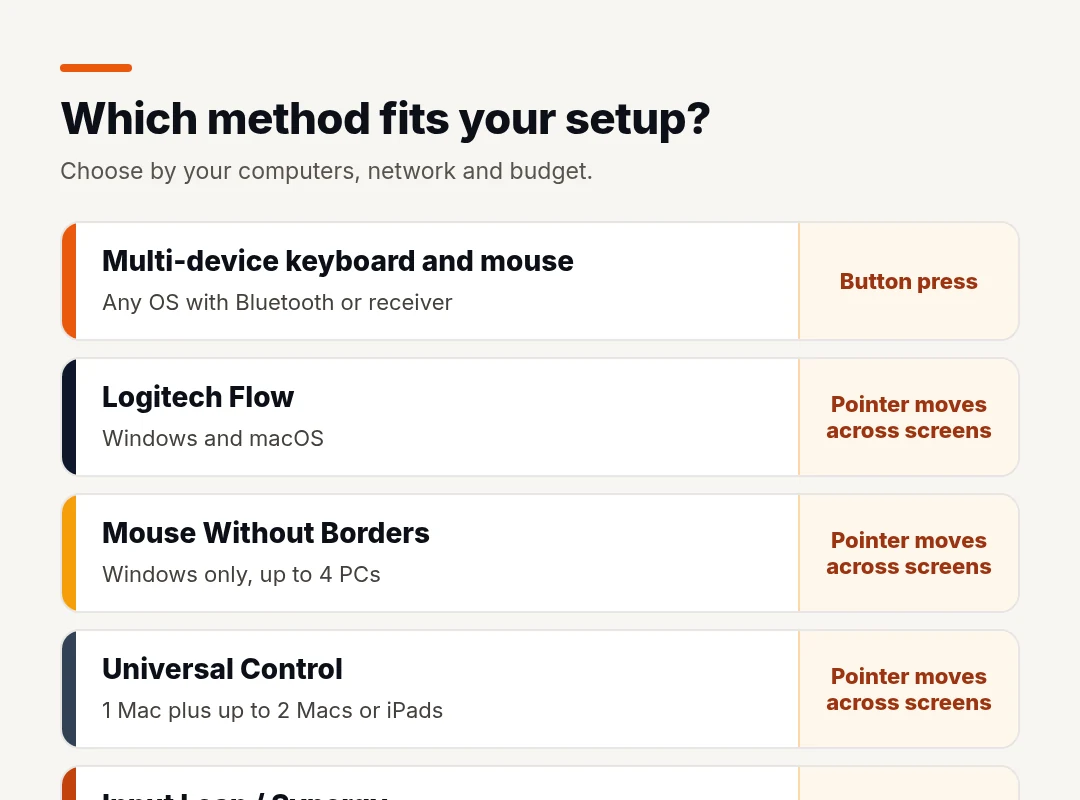
| If you… | Use |
|---|---|
| Switch occasionally, any computers | A multi-device keyboard and mouse |
| Have a Windows PC and a Mac and a Logitech MX mouse | Logitech Flow |
| Have two to four Windows PCs on one network | Mouse Without Borders |
| Use a Mac with another Mac or iPad | Universal Control |
| Mix Windows, Mac and Linux | Input Leap or Synergy |
| Want to share a monitor too, or can’t install software | A KVM switch |
Troubleshooting
- Pointer won’t cross to the other computer: check both are on the same network, the app is running on both, and the screen layout matches their position. Firewalls and VPNs often block software sharing.
- Keyboard lags after switching: Bluetooth devices can take a second or two to reconnect. A USB receiver is usually faster; our wireless mouse lag guide has more fixes.
- Shortcuts behave differently: Windows and Mac use different modifier keys. Many multi-device keyboards have Windows and Mac layout modes; our guide to keyboard typing wrong characters can help if keys are mismatched.
- KVM shows no picture: check the video cables and that the KVM supports your monitor’s resolution and refresh rate. Some need EDID emulation to stop windows rearranging.
FAQ
Can I use one keyboard and mouse for two computers without a KVM?
Yes. Use a multi-device keyboard and mouse, or software such as Logitech Flow, Mouse Without Borders, Universal Control, Input Leap or Synergy.
Is Mouse Without Borders free?
Yes. It is part of Microsoft PowerToys and works with up to four Windows PCs.
Can I share a keyboard between a Mac and a PC?
Yes, with a multi-device keyboard, Logitech Flow, Input Leap, Synergy or a KVM switch. Universal Control works only between Apple devices.
Do software methods work on work laptops?
Often not, because they need software installs and network access that IT policies may block. A multi-device keyboard or KVM switch avoids that.
Do I need a KVM if I have two monitors?
Not necessarily. If each computer has its own monitor, software sharing or a multi-device keyboard is enough. A KVM is most useful when computers share monitors.
Bottom line
For most people, a multi-device keyboard and mouse is the easiest way to control two computers. If you want the pointer to glide between screens, use Logitech Flow, Mouse Without Borders, Universal Control or Input Leap depending on your computers. Choose a KVM switch if you also want to share a monitor or can’t install software. Whichever you pick, a tidy desk setup makes a two-computer workspace much easier to live with.
Sources
- Microsoft Learn: Mouse Without Borders (PowerToys)
- Apple Support: Universal Control
- Logitech: Flow cross-computer control
- Input Leap on GitHub

Experience is what matters at the end!!
Hi! This is Jacob Jay – founder of Keyboardgear.com! From childhood to adulthood, I’ve always remained passionate about IT, and the revolution in this industry, especially gaming on the PC can’t go out of my way. Since I’m an enthusiastic gamer, and I love to experience various gaming accessories, particularly mechanical keyboards, that really boost my gaming adventure manifolds. So, my nerve cells hit me to transfer my experiences into word form and share with others to identify the ideal keyboards perfectly fit for their gaming modes.
I know very well how hard it is to find the high-quality items available on the internet that ought to be exactly the same as seen as on the screen. But the counterfeiters have ruined the user’s trust. As I have passed all such situations, I’m obliged to deliver the genuinity and express the same as what I am saying.
So, now, I’m working on the mission to provide very helpful and frankly but trustworthy reviews and guides about various mechanical keyboards, mouses, and other gaming accessories as per my personal experiences and sound knowledge.