

Most keyboards ship with two little flip-out feet at the back, and most people flip them out without a second thought. It feels natural: the keys tilt toward you and the legends are easier to see. But ergonomists have been measuring what that tilt does to your wrists since the 1990s, and the answer is not what the factory design suggests.
This guide explains what keyboard tilt is, what the research and workplace guidance actually say, and how to decide whether your keyboard feet should be up or down, with a two-minute test you can do at your desk.
Quick answer
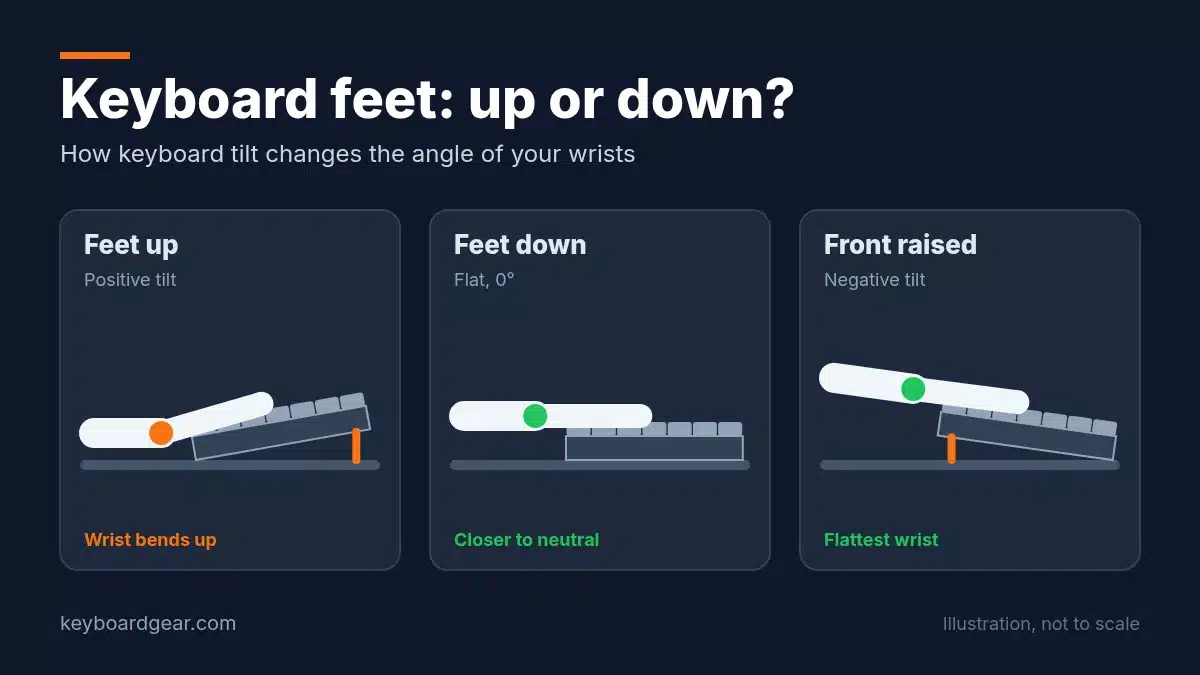
For most people, keep the keyboard feet down. Raising the back of the keyboard (positive tilt) usually bends your wrists further upward. A flat keyboard is better, and a slight negative tilt (front edge higher than the back) keeps the wrist flattest when the keyboard sits at or a little below elbow height.
The exception: if you sit low relative to your keyboard, a small rise at the back can help. The rule that beats every other rule is simple: use whatever angle keeps your wrist straight in line with your forearm.
What is keyboard tilt?
Keyboard tilt (also called keyboard slope) is the front-to-back angle of the keys relative to the desk. Ergonomic standards describe it with a simple sign convention:
| Tilt | What it looks like | Effect on the wrist |
|---|---|---|
| Positive tilt | Back edge higher than the front. This is what flip-out feet do, and many keyboards also have some built-in slope. | Fingers reach up and back to the keys, so the wrist tends to bend upward (extension). |
| Zero tilt (flat) | Keys roughly parallel with the desk. | Neutral if the keyboard is at the right height; less extension than positive tilt. |
| Negative tilt | Front edge higher than the back, so the keys slope away from you. Done with a keyboard tray, front-edge feet or a front riser. | Lets the hand follow the forearm when the keyboard sits a little below the elbows, which flattens the wrist. |
Wrist extension means bending the back of the hand up toward the forearm. A little is normal; holding it for hours while making thousands of keystrokes is what ergonomists try to avoid. OSHA notes that a proficient typist can easily make more than 18,000 keystrokes per hour, so even a small, constant bend adds up.
Why do keyboards have feet at all?
Mostly convention. The human factors standard for computer workstations, ANSI/HFES 100, says a conventional keyboard should have a slope between 0° and 15° in its unadjusted position and at least one positive slope setting in that range. Flip-out feet are the cheapest way for manufacturers to provide that adjustment. The same standard allows contemporary or alternative designs to go beyond that range, including negative slopes, if they help keep the wrist neutral, and it cites the negative-tilt research covered below.
In other words, feet exist so you can change the angle, not because a steeper keyboard is better for you. OSHA’s keyboard guidance says it plainly: keyboard tilt caused by extending the legs at the back, or by a steep design angle, “may cause the wrist to bend upward,” and you should not use keyboard feet if they increase bending of the wrist (OSHA Computer Workstations eTool: Keyboards).
What the research says about keyboard tilt
The best-known studies all point the same way: tilting the keyboard away from you reduces wrist extension.
| Study | What they tested | Key result |
|---|---|---|
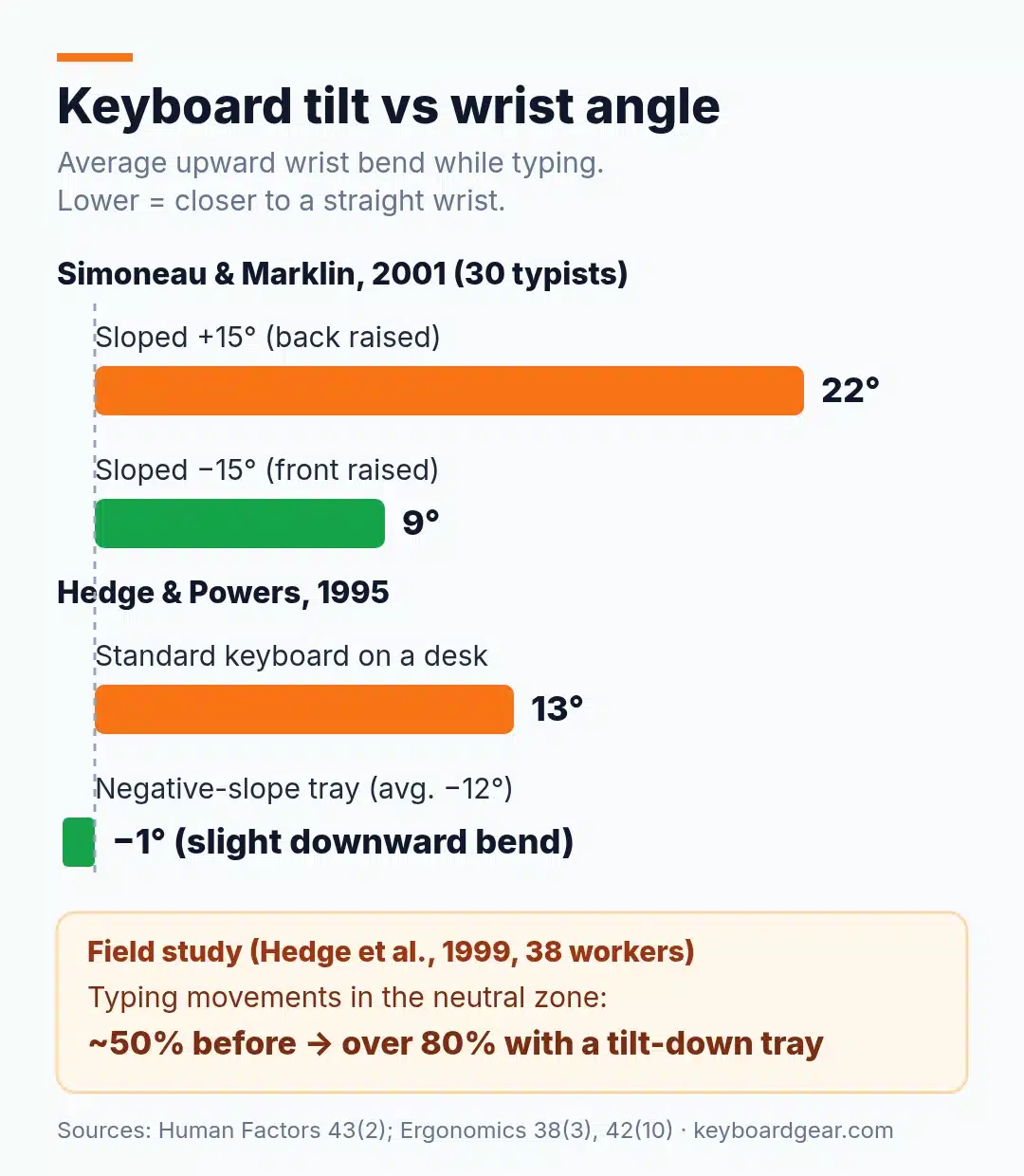
| Simoneau & Marklin, Human Factors (2001) | 30 typists on a keyboard set to +15°, +7.5°, 0°, −7.5° and −15°, at three heights relative to the elbow | Mean wrist extension fell from about 22° at +15° to about 9° at −15°. Height mattered just as much: 21.8° with the keyboard below elbow height vs 7.3° above it. Abstract |
| Hedge & Powers, Ergonomics (1995) | Typing at a 68 cm desk with no arm support, with forearm supports, and with an adjustable negative-slope keyboard tray | Users chose an average tray angle of 12° below horizontal. Wrist extension dropped from 13° to about −1°; forearm supports made no significant difference. Abstract |
| Hedge, Morimoto & McCrobie, Ergonomics (1999) | Field study: 38 office workers; 23 moved their own keyboard onto a downward-tilting tray for three weeks | With the tilt-down tray, over 80% of typing wrist movements were in the neutral zone, vs about 50% before. The test group also reported less upper-body discomfort. Abstract |
A later review by the same Marquette researchers (Marklin & Simoneau, JOSPT 2004) adds two useful details. When the wrist rest followed the slope of the keyboard, a −7.5° slope gave a near-neutral wrist (about 2° of extension), and participants rated it as comfortable as a conventional keyboard. Steeper negative slopes pushed the wrist into flexion instead, and slightly increased sideways (ulnar) bending. So more negative tilt is not automatically better; a modest angle is the sweet spot.
One caveat the researchers also make: raising the keyboard above elbow height reduces wrist extension too, but several studies link typing with the keyboard above the elbows to neck, shoulder and arm discomfort. Do not fix your wrists by hunching your shoulders.
Keyboard feet up or down? Decide by your setup
Tilt and height work together, so the right answer depends on where the keyboard sits relative to your elbows. OSHA’s guidance covers both directions: if you sit lower relative to the keyboard, slightly raising the back may help, and if the keyboard is in a lower position (such as on a tray), raising the front may help.
| Your situation | Feet | Why |
|---|---|---|
| Keyboard on a desk, elbows level with or just above the keys (the usual setup) | Down | Feet up would add upward wrist bend; flat keeps you closer to neutral. |
| Keyboard on a tray or desk set a little below elbow height | Down, or add negative tilt | Forearms angle slightly down, so a front-raised keyboard lets the hand follow the forearm. |
| Standing desk at elbow height | Down (negative tilt if available) | Forearms are close to level, so any back rise shows up directly as wrist extension. |
| Desk too high and the chair cannot go higher; you sit low relative to the keyboard | Maybe up, slightly | This is the case OSHA describes for a small rise at the back. Better long-term fix: lower the keyboard or raise the chair and add a footrest. |
| Tall mechanical keyboard and you rest your palms on the desk | Down, plus a wrist rest | The tall front edge already forces extension; a rest at the height of the front edge flattens the hand. |
| Laptop on a table | Not adjustable | Laptops are a compromise. For long sessions use an external keyboard so the screen and keys can each go to the right height. |
If you want the broader picture of chair, desk and monitor heights first, our step-by-step desk setup guide walks through the whole workstation in order. Tilt is the fine-tuning after that.
The two-minute keyboard tilt test
You do not need a protractor. You need your phone’s camera and a couple of minutes.
- Set your height first. Sit back in the chair with your feet on the floor or a footrest, shoulders relaxed and elbows close to your sides. The keyboard should be at about elbow height with your forearms roughly parallel to the floor.
- Put the keyboard directly in front of you, centred on the letter keys (roughly the B key) rather than on the whole board, so you are not twisting toward the number pad.
- Film or photograph your hand from the side while you type a few lines normally. Prop the phone on a book at desk level.
- Look at the line from forearm to knuckles. If the back of your hand bends up from the forearm, you have wrist extension. If the line is close to straight, you are near neutral.
- Flip the feet and repeat. Compare the two photos. Keep the setting where the line is straighter, and where your hands feel relaxed rather than reaching.
- Check after a full working day. Comfort over hours matters more than how it feels in the first minute.
If your wrists still bend upward with the feet down, the fix is usually height (keyboard too low, or a tall keyboard on a low desk) or a lack of support in front of the keys, which we cover next.
How to get negative tilt (and what to avoid)
1. A negative-tilt keyboard tray
This is the setup the research tested and the one Cornell’s ergonomics guidance recommends: a height-adjustable keyboard tray that lets you tilt the keyboard down and away from you slightly, with the mouse on a platform close by. Cornell’s design guide adds that a good tray should only allow downward slopes, be stable (no bounce) and leave enough leg clearance (Cornell University Ergonomics Web).
2. A keyboard with front feet
A few ergonomic keyboards have feet at the front instead of the back. The Logitech ERGO K860, for example, has palm-lift legs with 0°, −4° and −7° settings, and its curved wrist rest rises with them. Our best ergonomic keyboards list notes which models offer negative tilt, and our guide to types of ergonomic keyboards explains how tilt fits alongside split and tented designs.
3. A front riser on a regular keyboard
You can approximate negative tilt by lifting the front edge of a standard keyboard with a firm, non-slip riser. Keep it modest, make sure the keyboard cannot rock or slide, and remember that the wrist rest needs to rise too, or your palms will drop off the front edge and bend upward again.
What to avoid
- Very steep negative tilt. Past a modest angle the wrist simply bends the other way (flexion), which is not the goal.
- Raising the keyboard high to flatten the wrist. It works for the wrist but moves strain to the shoulders and neck.
- A keyboard tray that only tilts up. Cornell’s guide warns that upward-inclined trays can increase wrist extension.
- Resting the wrist on a hard desk edge. CCOHS advises against resting your wrists on the desk surface because the pressure may contribute to contact stress.
Mechanical keyboards: height matters as much as tilt
Mechanical keyboards raise a related problem. Standards prefer a keyboard height (measured from the desk to the middle of the home row) of 30 mm or less, and no more than 35 mm. Many mechanical keyboards are taller than that once you add the case, switches and tall keycaps, which means your hands start higher than your wrists even with the feet folded in.
Three ways to manage it:
- Keep the feet down. A tall board with the feet up compounds the problem.
- Add a wrist or palm rest at the height of the front edge. It brings the heel of your hand up to meet the keys. Our best keyboard wrist rests guide covers which heights suit which boards; use the rest for your palms during pauses rather than pinning your wrists while you type.
- Choose a lower board or lower keycaps. Low-profile mechanical keyboards sit much closer to the desk, and sculpted or low keycap profiles change how far each row sits above the plate.
Common keyboard tilt mistakes
- Flipping the feet out by habit. Test both positions instead of assuming the factory default is right for you.
- Fixing tilt before height. Height has as big an effect on wrist angle as slope. Set the chair and keyboard height first.
- Typing with the keyboard pushed far away. Reaching forward straightens the elbow and tends to lift the wrists. Keep it close, with elbows by your sides.
- Looking down at the keys. If you need the feet up to see the legends, that is a sign to practise touch typing or improve your lighting, not a reason to bend your wrists.
- Ignoring the mouse. A mouse far to the side undoes a good keyboard position. A compact keyboard or a vertical mouse can help.
This guide covers comfort and workstation setup. It is not medical advice. If you have ongoing wrist pain, numbness or tingling, see a doctor or physiotherapist.
FAQ
Should keyboard feet be up or down?
For most people, down. Raising the back of the keyboard usually increases upward wrist bend. OSHA’s guidance is to use the feet only if they help keep your wrist straight, which mainly applies if you sit low relative to the keyboard.
Is negative keyboard tilt better?
For many typists, yes, in moderation. Lab studies found that sloping the keyboard away from you reduced wrist extension, and a field study found more wrist movements in the neutral zone with a tilt-down keyboard tray. A modest angle works best; very steep negative tilt bends the wrist downward instead.
What is the best keyboard angle for typing?
There is no single number, because tilt depends on your keyboard height. The target is a straight wrist in line with the forearm. In one study, a −7.5° slope with a wrist rest that followed the keyboard gave a near-neutral wrist, and users found it as comfortable as a conventional keyboard.
Why do keyboards have legs on the back?
The ANSI/HFES workstation standard says conventional keyboards should offer at least one positive slope setting between 0° and 15°, and flip-out feet are the simplest way to provide it. The feet also tilt the legends toward you, which helps if you look at the keys.
Do keyboard feet cause carpal tunnel syndrome?
There is no evidence that feet alone cause it. What ergonomists warn about is sustained wrist bending during repetitive typing, which OSHA links to irritation of the tendons that pass through the wrist. Keeping the wrist neutral reduces that strain, but if you have symptoms, see a medical professional.
Should a mechanical keyboard be tilted?
Usually not upward. Mechanical keyboards tend to be taller than standard ones, so the hand already starts higher than the wrist. Keep the feet down and use a palm rest at the height of the front edge, or pick a low-profile board.
Does keyboard tilt matter for gaming?
The same wrist mechanics apply, so a flat or slightly negative angle is generally easier on the wrist during long sessions. Gamers often rest one hand on a few keys for hours, so a palm rest and a keyboard close enough to keep the elbow at your side are just as important.
The bottom line
Keyboard feet are an adjustment, not a recommendation. For most desks, folding them in keeps your wrists closer to neutral, and a slight negative tilt does even better when the keyboard sits at or just below elbow height. Set your chair and keyboard height first, run the side-photo test, and keep whichever angle gives you a straight line from forearm to knuckles. If you are shopping, look for front-edge tilt legs, a matching palm rest or a low-profile design, and see whether an ergonomic keyboard is worth it for you.
Sources: OSHA Computer Workstations eTool: Keyboards; Cornell University Ergonomics Web: workstation guidelines; CCOHS: Keyboard Selection and Use; HFES 100 workstation standard (public review draft); Simoneau & Marklin (2001), Human Factors 43(2): 287–298; Hedge & Powers (1995), Ergonomics 38(3): 508–517; Hedge, Morimoto & McCrobie (1999), Ergonomics 42(10): 1333–1349; Marklin & Simoneau (2004), JOSPT 34(10).

Experience is what matters at the end!!
Hi! This is Jacob Jay – founder of Keyboardgear.com! From childhood to adulthood, I’ve always remained passionate about IT, and the revolution in this industry, especially gaming on the PC can’t go out of my way. Since I’m an enthusiastic gamer, and I love to experience various gaming accessories, particularly mechanical keyboards, that really boost my gaming adventure manifolds. So, my nerve cells hit me to transfer my experiences into word form and share with others to identify the ideal keyboards perfectly fit for their gaming modes.
I know very well how hard it is to find the high-quality items available on the internet that ought to be exactly the same as seen as on the screen. But the counterfeiters have ruined the user’s trust. As I have passed all such situations, I’m obliged to deliver the genuinity and express the same as what I am saying.
So, now, I’m working on the mission to provide very helpful and frankly but trustworthy reviews and guides about various mechanical keyboards, mouses, and other gaming accessories as per my personal experiences and sound knowledge.