

Quick answer
If your mouse isn’t working, first check the basics: make sure it’s switched on and charged, plug it or its USB receiver into a different port, and restart the computer. For Bluetooth mice, remove and re-pair the mouse. If it still fails, test it on another computer. If it works there, the problem is your computer’s settings or drivers; if not, the mouse is likely faulty.
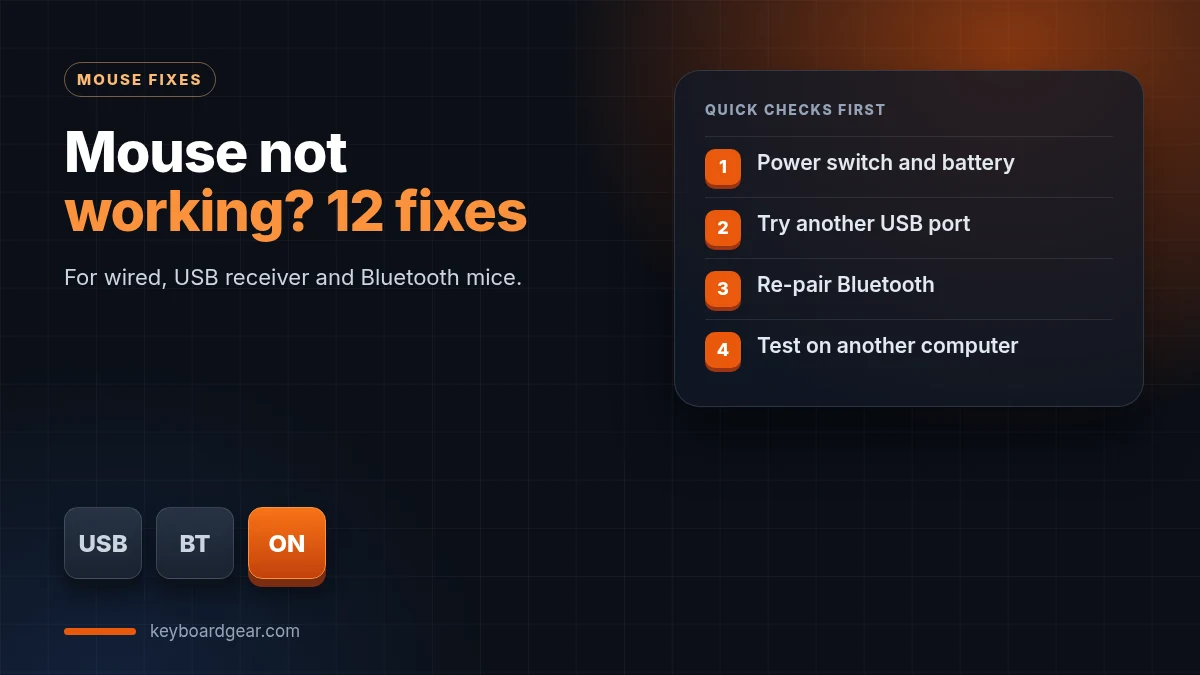
A dead mouse is frustrating, especially when you need the mouse to fix it. Use the keyboard to get around: Tab, the arrow keys and Enter move through Windows settings, and on a Mac you can turn on Mouse Keys in Accessibility settings. Then work through these fixes in order.
Fixes for every mouse
1. Check power and the switch
Wireless mice have an on/off switch underneath, and many have a light that flashes when they’re on. Charge the mouse or fit fresh batteries, and check the battery orientation.
2. Restart the computer
A restart clears stuck USB and Bluetooth states and is worth doing before anything else.
3. Try a different port
Plug the mouse or its receiver into another USB port, ideally directly into the computer rather than a hub or monitor. Front-panel and hub ports sometimes don’t supply enough power.
4. Clean the sensor and check the surface
If the light is on but the cursor won’t move, check the sensor for hair or dust, and try a plain mouse pad. Glass and glossy desks stop many mice tracking. See how to clean a mouse.
Fixes for wireless mice
5. Re-pair the USB receiver
Some receivers need re-pairing after a battery change. Logitech mice use Logi Options+ or the Logi Bolt app depending on the receiver; our Logitech connection guide walks through it.
6. Re-pair Bluetooth
Remove the mouse from your Bluetooth list, put it in pairing mode (usually by holding a button until a light flashes), and add it again.
- Windows: Settings > Bluetooth & devices > Add device.
- Mac: System Settings > Bluetooth.
7. Move the receiver closer
Interference from Wi-Fi, USB 3.0 devices or a metal PC case can cut the connection. Try a front port or a USB extension cable. If the mouse works but lags, see wireless mouse lag.
Multi-device mice can be switched to the wrong channel. Press the channel or Easy-Switch button to make sure the mouse is talking to this computer.
Software fixes
8. Check mouse settings
On Windows, open Settings > Bluetooth & devices > Mouse and check the primary button and pointer speed. If a left click acts like a right click, the buttons may have been swapped.
9. Update or reinstall the driver
On Windows, open Device Manager, expand Mice and other pointing devices, right-click the mouse, and choose Update driver or Uninstall device, then restart. Windows reinstalls the standard driver automatically.
10. Remove conflicting software
Mouse utilities, game overlays and remote-control apps can capture mouse input. Close or uninstall them to test.
11. Install updates
Install pending operating system updates, and update the firmware through the mouse maker’s app if one is available.
Is the mouse broken?
12. Test on another computer
This is the most useful test of all:
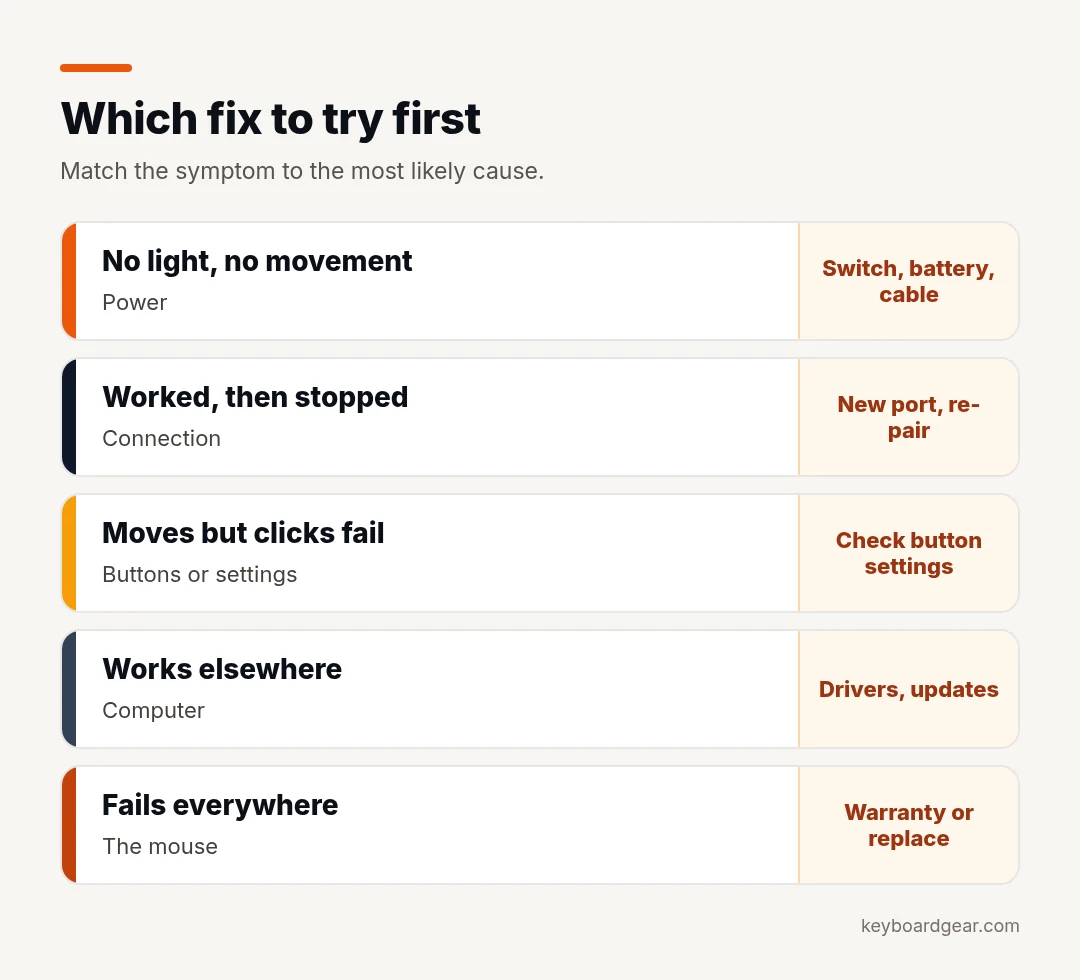
| Result | What it means | Next step |
|---|---|---|
| Works on another computer | Your computer is the problem | Settings, drivers, ports |
| Fails on every computer | The mouse is the problem | Warranty, repair or replace |
| Clicks fail but cursor moves | Worn switch or settings | See double-click fixes |
If a button registers twice or not at all, the switch may be wearing out; see mouse double clicking. For a jumpy pointer rather than a dead one, see mouse cursor jumping.
FAQ
Why did my mouse suddenly stop working?
The most common causes are a flat battery, a lost wireless connection, a loose USB port or a stuck system state that a restart fixes.
How do I use my computer without a mouse?
Use Tab, the arrow keys and Enter to move around. Windows and macOS both let you control the pointer with the keyboard through Mouse Keys.
Why is my mouse light on but not moving?
Usually a dirty sensor, an unsuitable surface or a wireless connection problem.
Why does my wireless mouse keep disconnecting?
Low battery, interference or the receiver being too far away. Move it closer and replace the battery.
How do I know if my mouse is dead?
If it doesn’t work on a second computer with a fresh battery or a different cable port, it’s likely faulty.
Sources
- Microsoft Support: Change mouse settings
- Microsoft Support: Troubleshoot problems with your Surface mouse or keyboard
Related guide: Trackpad Not Working? Fixes for Windows and Mac
Related guide: Mouse Problems and Fixes: Find Your Symptom
Final thoughts
Most mouse failures come down to power, the connection or a stuck setting. Work through the quick checks first, test the mouse on another computer, and you’ll know within minutes whether to fix your PC or replace the mouse.

Experience is what matters at the end!!
Hi! This is Jacob Jay – founder of Keyboardgear.com! From childhood to adulthood, I’ve always remained passionate about IT, and the revolution in this industry, especially gaming on the PC can’t go out of my way. Since I’m an enthusiastic gamer, and I love to experience various gaming accessories, particularly mechanical keyboards, that really boost my gaming adventure manifolds. So, my nerve cells hit me to transfer my experiences into word form and share with others to identify the ideal keyboards perfectly fit for their gaming modes.
I know very well how hard it is to find the high-quality items available on the internet that ought to be exactly the same as seen as on the screen. But the counterfeiters have ruined the user’s trust. As I have passed all such situations, I’m obliged to deliver the genuinity and express the same as what I am saying.
So, now, I’m working on the mission to provide very helpful and frankly but trustworthy reviews and guides about various mechanical keyboards, mouses, and other gaming accessories as per my personal experiences and sound knowledge.