

Quick answer
Most wireless mouse lag is caused by a weak or noisy 2.4 GHz signal. Move the USB receiver as close to the mouse as possible, ideally with a short USB extension cable on your desk, and keep it away from USB 3.0 ports, hubs, external drives and your Wi-Fi router. Then charge or replace the batteries, and turn off USB power saving in Windows.
If the mouse is connected by Bluetooth, switch to its USB receiver if it has one. Bluetooth is fine for office work but usually has more latency and is more sensitive to interference.

A wireless mouse that stutters, jumps or freezes for half a second is maddening, whether you are editing a spreadsheet or lining up a shot. The good news is that wireless mice are rarely “broken”. Modern 2.4 GHz mice like those in our best wireless mouse guide are fast enough for competitive gaming, so lag almost always points to something around the mouse rather than the mouse itself.
Work through these fixes in order. The first four solve the large majority of cases.
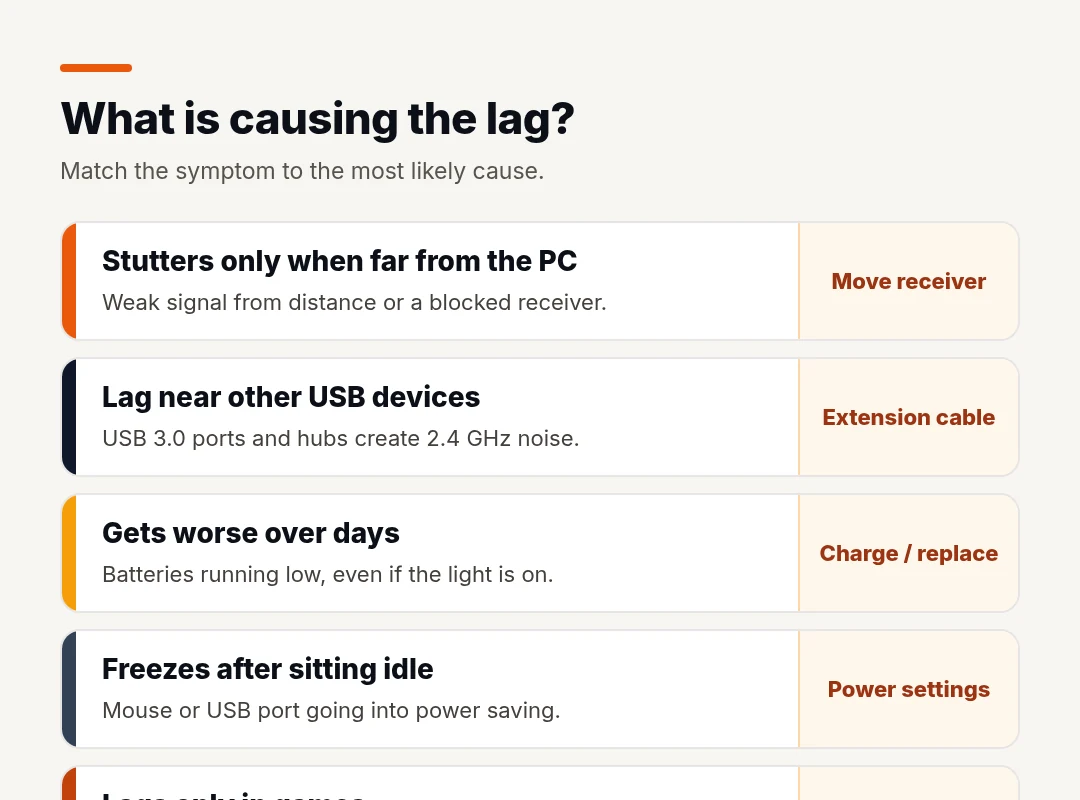
1. Move the receiver closer
The USB receiver works best with a short, clear line to the mouse. If it is plugged into the back of a desktop PC under the desk, the metal case and the desk itself block much of the signal.
- Plug the receiver into a front USB port, or better, use a short USB extension cable or the dongle extender that many gaming mice include, and put the receiver on the desk a few inches from the mouse.
- On a laptop, use the port on the same side as your mouse hand.
- Don’t put the receiver behind a monitor, under a metal desk frame or inside a drawer.
This one change fixes more wireless lag than everything else combined.
2. Keep it away from USB 3.0 ports and hubs
USB 3.0 ports, cables and devices (usually the blue or “SS” ports) can create radio noise in the 2.4 GHz band that wireless mice use. Intel published a well-known white paper on this effect. External hard drives, SSDs, docking stations and USB hubs are common culprits.
- Plug the receiver into a USB 2.0 port if you have one, or at least a port that isn’t right next to a busy USB 3.0 device.
- Move external drives and hubs away from the receiver.
- If you use a laptop dock, try the receiver directly in the laptop instead.
3. Reduce Wi-Fi and other 2.4 GHz interference
Your mouse shares the 2.4 GHz band with Wi-Fi, Bluetooth, wireless headsets, some game controllers and even microwaves. A Wi-Fi router sitting next to your desk can cause stutter.
- Move the router away from your desk if you can, or put the receiver between the mouse and the router rather than behind the router.
- If your router supports it, connect your PC and phone to the 5 GHz or 6 GHz Wi-Fi band, which frees up 2.4 GHz.
- Turn off wireless devices you aren’t using.
4. Charge or replace the batteries
Low batteries often cause lag and skipping before the mouse stops working, and a battery light may not warn you in time. Put in fresh batteries, or charge a rechargeable mouse fully. Use the batteries your maker recommends; some mice work poorly with low-voltage rechargeable AA batteries. Check battery level in the mouse’s software if it has one.
5. Clean the sensor and check the surface
Lag and jumping can also be tracking problems rather than wireless ones. Turn the mouse over and gently clear dust or hair from the sensor window with a dry cotton swab or a puff of air. Then try a mouse pad: glossy, glass or very reflective surfaces can confuse optical sensors. Our guide to optical vs laser mice explains which surfaces each sensor handles.
6. Turn off USB power saving
Windows can turn off USB ports to save power, which makes a mouse freeze for a moment when you start moving it again.
- Open Device Manager.
- Expand Universal Serial Bus controllers, right-click each USB Root Hub and choose Properties.
- On the Power Management tab, untick Allow the computer to turn off this device to save power.
- Repeat for your mouse under Mice and other pointing devices and for the receiver under Human Interface Devices, if they have the tab.
Also check USB selective suspend in Control Panel > Power Options > Change plan settings > Change advanced power settings > USB settings, and set it to Disabled. On a laptop, switching to the Balanced or Best performance power mode helps too.
7. Use the receiver instead of Bluetooth
Many mice support both a USB receiver and Bluetooth. Bluetooth is convenient, but it typically has more latency and is more affected by interference and power saving, so cursor movement can feel less smooth. For gaming or precise work, use the receiver. If you must use Bluetooth, keep the computer’s Bluetooth drivers up to date and avoid connecting lots of Bluetooth devices at once.
8. Check the polling rate and software
Gaming mice let you set the polling rate, how often the mouse reports its position. A higher rate like 4,000 or 8,000 Hz can feel smoother but needs more CPU time, and on a busy or older PC it can cause stutter instead. Try 1,000 Hz first, which is plenty for most people. Our guide to keyboard polling rate explains the same trade-off for keyboards.
Also update or reinstall your mouse software (Logitech G HUB or Options+, Razer Synapse, SteelSeries GG and so on), and update the mouse’s firmware if the software offers it. Turn off pointer trails and check that “Enhance pointer precision” is set the way you want; see mouse acceleration for what it does.
9. Re-pair the receiver
Receivers can lose their pairing, especially after a firmware update or if you use one receiver for several devices. Use your maker’s software to unpair and re-pair the mouse with its receiver. For Logitech mice, that is Logitech Options+ or the Logi Bolt / Unifying software.
10. Update drivers and Windows
Update your chipset and USB drivers from your PC or motherboard maker, and install pending Windows updates. If the lag started right after an update, roll back the mouse or USB driver in Device Manager (Properties > Driver > Roll Back Driver).
11. Test the mouse on another computer
If none of the fixes work, try the mouse and receiver on a different computer. If it lags there too, the mouse, receiver or battery contacts may be faulty, and it is time to use the warranty. If it works perfectly, the problem is your original PC: USB ports, drivers or background load.
If you also see double clicks or random clicks, see our separate guide to a mouse double-clicking, which is usually a switch problem rather than lag.
| Fix | Time needed | How often it helps |
|---|---|---|
| Move receiver closer / use extension | 1 minute | Very often |
| Avoid USB 3.0 ports and drives | 2 minutes | Often |
| Fresh batteries or full charge | 2 minutes | Often |
| Clean sensor, use a mouse pad | 2 minutes | Sometimes |
| Turn off USB power saving | 5 minutes | Sometimes, especially laptops |
| Switch from Bluetooth to receiver | 1 minute | Often for gaming |
| Lower polling rate to 1,000 Hz | 1 minute | Sometimes on busy PCs |
FAQ
Why is my wireless mouse lagging all of a sudden?
The most common causes of sudden lag are low batteries, a new source of interference such as an external drive or USB hub plugged in near the receiver, a moved router, or a Windows update that changed USB power settings.
Do USB 3.0 ports interfere with wireless mice?
They can. USB 3.0 devices and cables can create radio noise in the 2.4 GHz band, which affects wireless mice and keyboards. Using a USB 2.0 port or an extension cable to move the receiver away usually fixes it.
Is Bluetooth or a USB receiver better for a wireless mouse?
A USB receiver is usually better for low latency and a stable connection, which is why gaming mice use one. Bluetooth is convenient for laptops and tablets and is fine for everyday office use.
Can a wireless mouse be as fast as a wired one?
Yes. Modern 2.4 GHz gaming mice are designed to match wired performance. Lag you notice is almost always interference, distance, batteries or settings rather than the wireless technology itself.
Why does my wireless mouse freeze for a second after I stop using it?
It is usually power saving: the mouse goes to sleep to save battery, or Windows suspends the USB port. Turning off USB selective suspend helps with the second; the first is normal for many office mice.
Related guide: Mouse Scroll Wheel Jumping? How to Fix Erratic Scrolling
Related guide: Wired vs Wireless Mouse: Latency, Battery, Gaming and Which to Buy
Sources

Experience is what matters at the end!!
Hi! This is Jacob Jay – founder of Keyboardgear.com! From childhood to adulthood, I’ve always remained passionate about IT, and the revolution in this industry, especially gaming on the PC can’t go out of my way. Since I’m an enthusiastic gamer, and I love to experience various gaming accessories, particularly mechanical keyboards, that really boost my gaming adventure manifolds. So, my nerve cells hit me to transfer my experiences into word form and share with others to identify the ideal keyboards perfectly fit for their gaming modes.
I know very well how hard it is to find the high-quality items available on the internet that ought to be exactly the same as seen as on the screen. But the counterfeiters have ruined the user’s trust. As I have passed all such situations, I’m obliged to deliver the genuinity and express the same as what I am saying.
So, now, I’m working on the mission to provide very helpful and frankly but trustworthy reviews and guides about various mechanical keyboards, mouses, and other gaming accessories as per my personal experiences and sound knowledge.